Configure the IIS App Pool Check
Step-by-step guide to configuring the IIS App Pool check in octoja.
Written By Erdinc Akay
Last updated 26 days ago
Configure the IIS App Pool Check
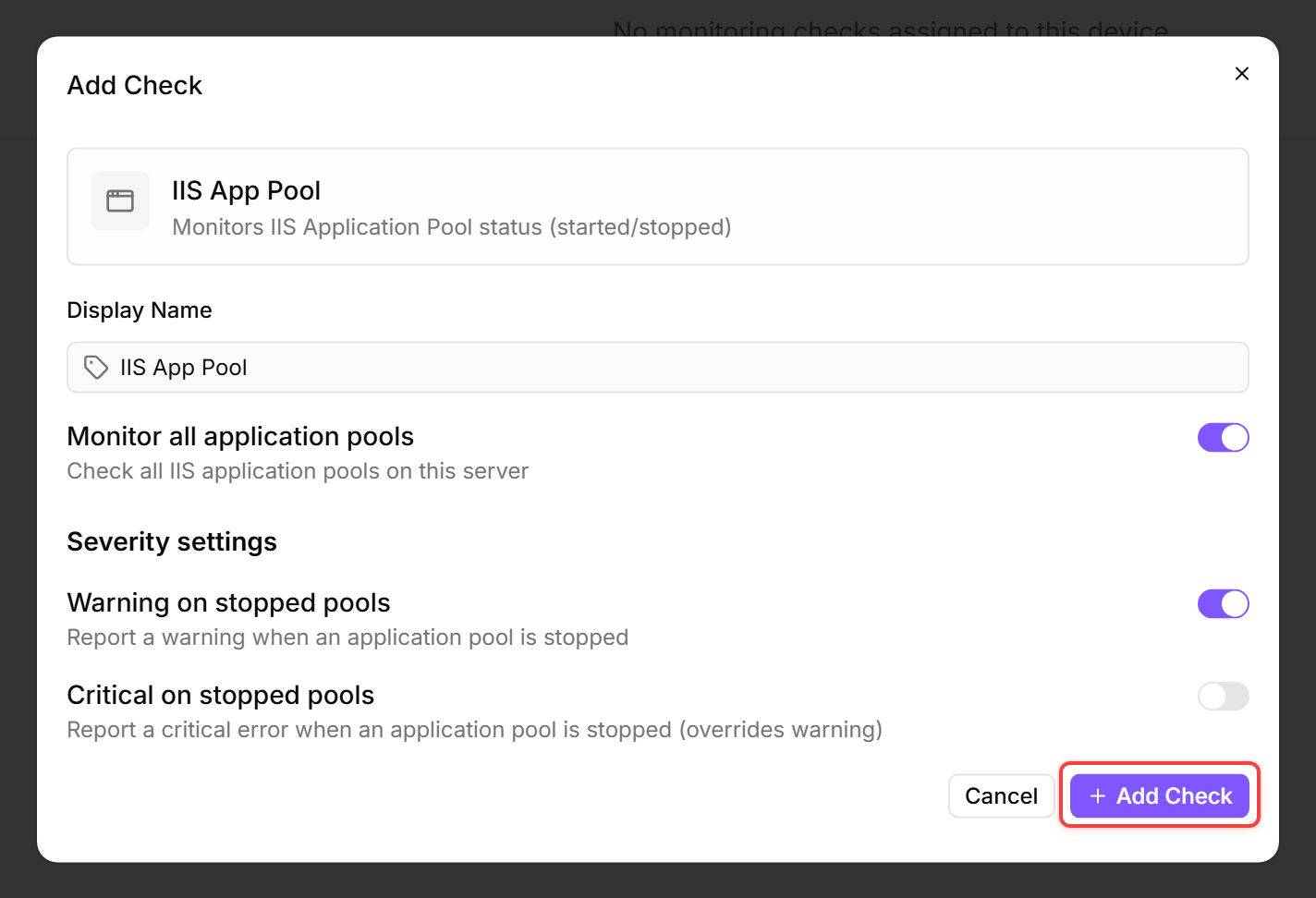
The IIS App Pool check monitors the status of application pools on a Windows Server running Internet Information Services (IIS). A stopped application pool means the hosted web application is unreachable.
Prerequisites
- You need the Monitoring Check Management permission.
- The target device must be a Windows Server with IIS installed and a connected agent.
Steps
- Go to Devices and open the device.
- Click the Checks tab → Add Check → IIS App Pool.
- By default, the check monitors all application pools. You can select specific pool names to monitor.
- Configure the alert behaviour:
- Click Add Check.
Tips
- Set Critical on stopped pools to
Yesfor application pools hosting production websites. This overrides the warning, so the check reports a critical error instead of a warning when a pool is stopped. - IIS may recycle application pools on a schedule — brief restarts are normal. The check evaluates the status at the time of execution, so a pool that was recycled and is running again will show as OK.
- If you have application pools that are intentionally stopped (staging, decommissioned sites), monitor specific pools by name instead of all pools.
After the first check interval, the result appears in the device's Checks tab.
See also: IIS App Pool Reference