Configure a Network Interface Check
Monitor network interface health, errors, and link status
Written By Erdinc Akay
Last updated 26 days ago
Configure a Network Interface Check
A Network Interface Check monitors the health of network adapters — link status, speed, packet errors, and losses. It detects hardware issues such as a faulty NIC or cable problem before they cause connectivity loss.
Prerequisites
- You need the Monitoring Check Management permission.
- The target device must have a connected agent.
Steps
- Go to Devices and open the device.
- Click the Checks tab → Add Check → Network Interface.
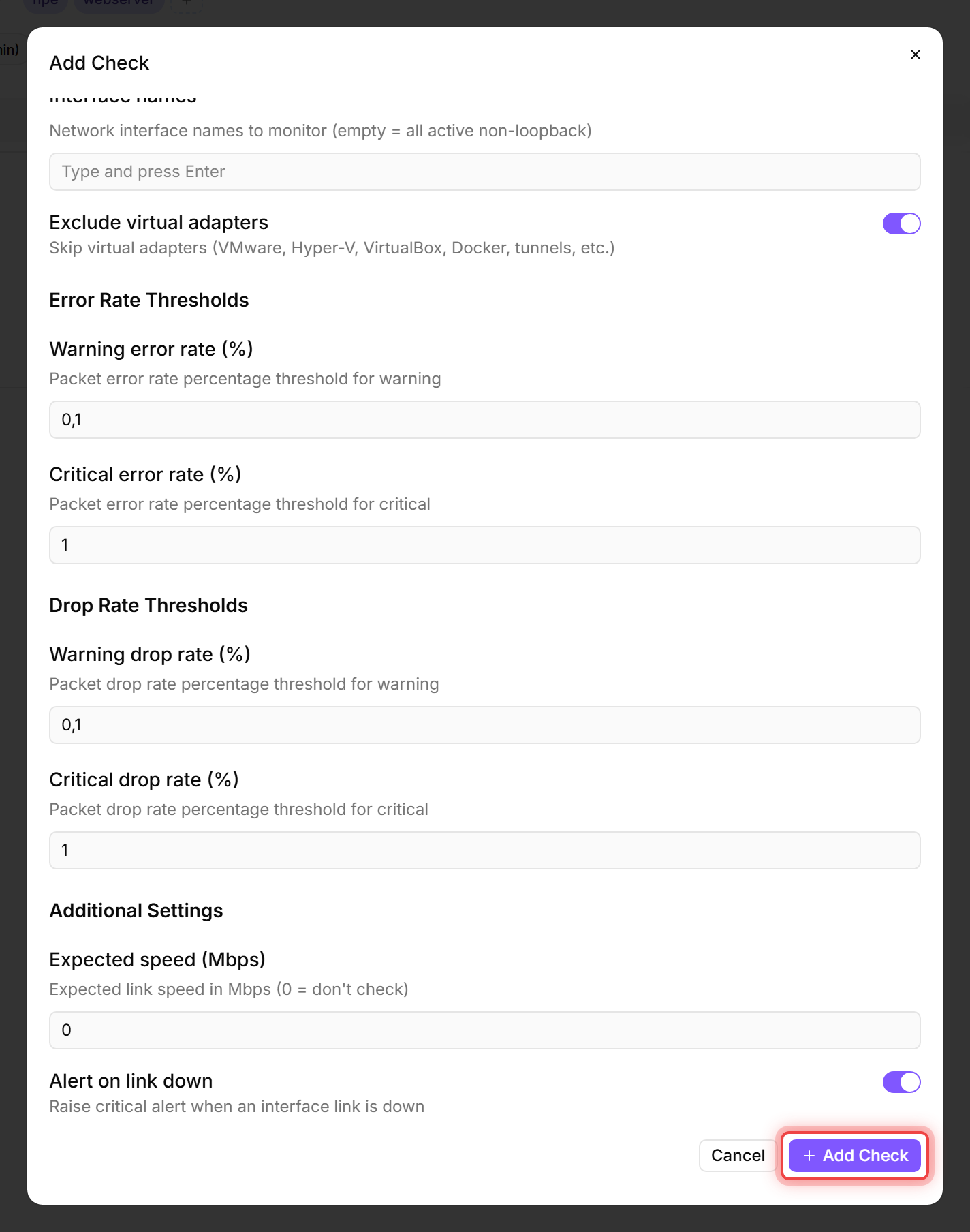
- By default, the check monitors all non-loopback interfaces — down interfaces are included so the link-down alert can fire; if you turn Alert on link down off, only active interfaces are monitored. Virtual adapters (VMware, Hyper-V, VirtualBox, Docker, tunnels) are skipped. You can list specific adapters under Interface names if needed.
- Configure the thresholds:
- Click Add Check.
Tips
- Packet errors on a wired interface usually indicate a faulty cable, a defective NIC, or a switch port issue. Investigate immediately.
- Set Expected speed for critical interfaces to detect speed negotiation problems (e.g. a 1 Gbps NIC falling back to 100 Mbps).
- Virtual adapters (VPN clients, Docker bridges, Hyper-V switches) are excluded by default. If you need to monitor one, turn off Exclude virtual adapters and list it explicitly in Interface names.
- On a Hyper-V guest, Exclude virtual adapters keeps the machine's real network adapter. A guest's primary NIC reports as "Microsoft Hyper-V Network Adapter" and is monitored, while the host-side virtual switch (a "Hyper-V Virtual Ethernet Adapter" named "vEthernet (...)") is still filtered out as genuinely virtual.
After the first check interval, the result appears in the device's Checks tab.
See also: Network Interface Check Reference