Configure a Windows Backup Check
Get alerted when Windows Server Backup has not run recently
Written By Erdinc Akay
Last updated 26 days ago
Configure a Windows Backup Check
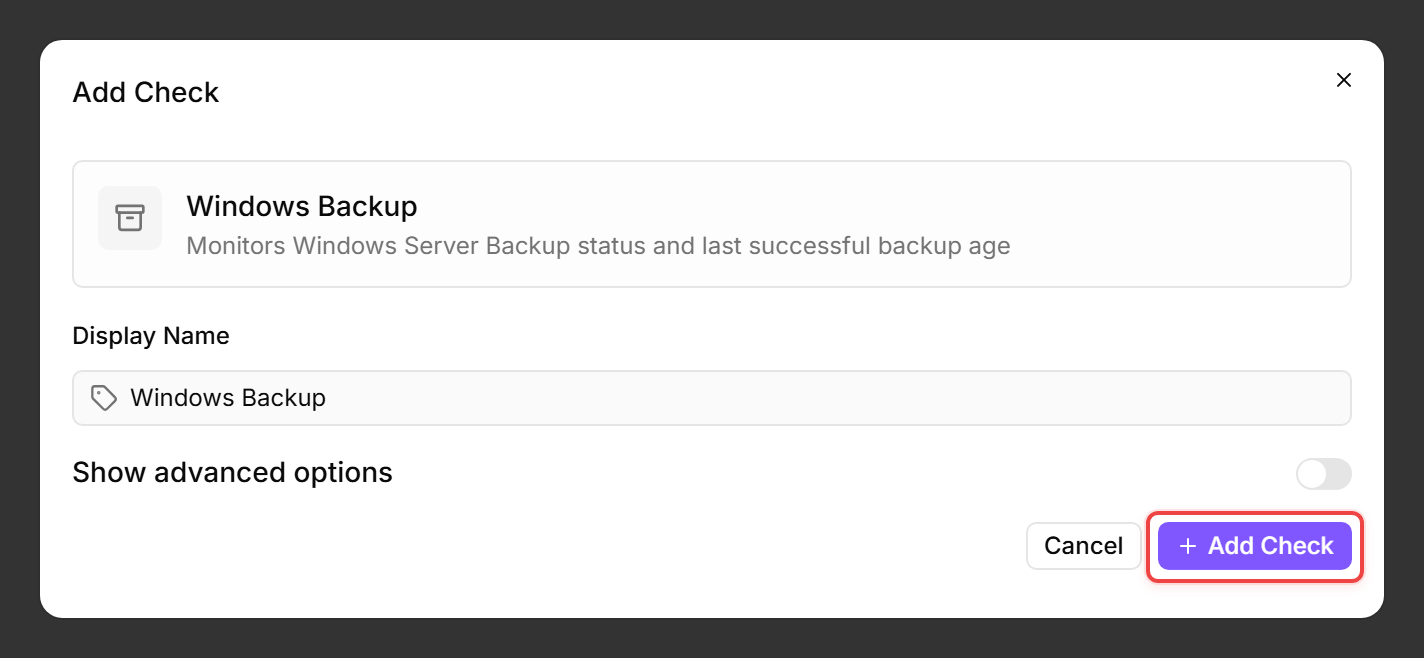
A Windows Backup Check monitors how long ago the last successful Windows Server Backup ran and alerts when backups become overdue. This catches backup failures before they become a disaster recovery problem.
Prerequisites
- You need the Monitoring Check Management permission. Your administrator assigns permissions under Administration → Groups.
- The target device must be a Windows Server with the Windows Server Backup feature installed and a connected agent.
- The check uses the
wbadminutility to query status. It does not work with third-party backup solutions — for Veeam, use the Veeam check instead.
Steps
- Go to Devices and open the device.
- Click the Checks tab → Add Check → Windows Backup.
- Expand Show advanced options to reveal the threshold fields.
- Configure the thresholds:
- Click Add Check.
What the check reports
The check result includes the timestamp of the last successful backup, its age in hours, the backup location, and whether the backup is recoverable. The check status (OK, Warning, or Critical) is derived from the age of the last successful backup against your thresholds — a failed nightly backup shows up when the age crosses the warning threshold.
Tips
- Set the warning threshold to match the backup schedule. For daily backups, 24 hours is a good value — the warning fires immediately when a nightly backup fails.
- This check monitors Windows Server Backup only. For third-party backup solutions, use the corresponding integration check (e.g. Veeam).
- The check requires the Windows Server Backup feature to be installed. If it is not installed, the check reports a warning.
After the first check interval, the result appears in the device's Checks tab.
See also: Windows Backup Check Reference