Configure an Event Log Check
Get notified when Windows Event Log errors exceed a threshold
Written By Erdinc Akay
Last updated 26 days ago
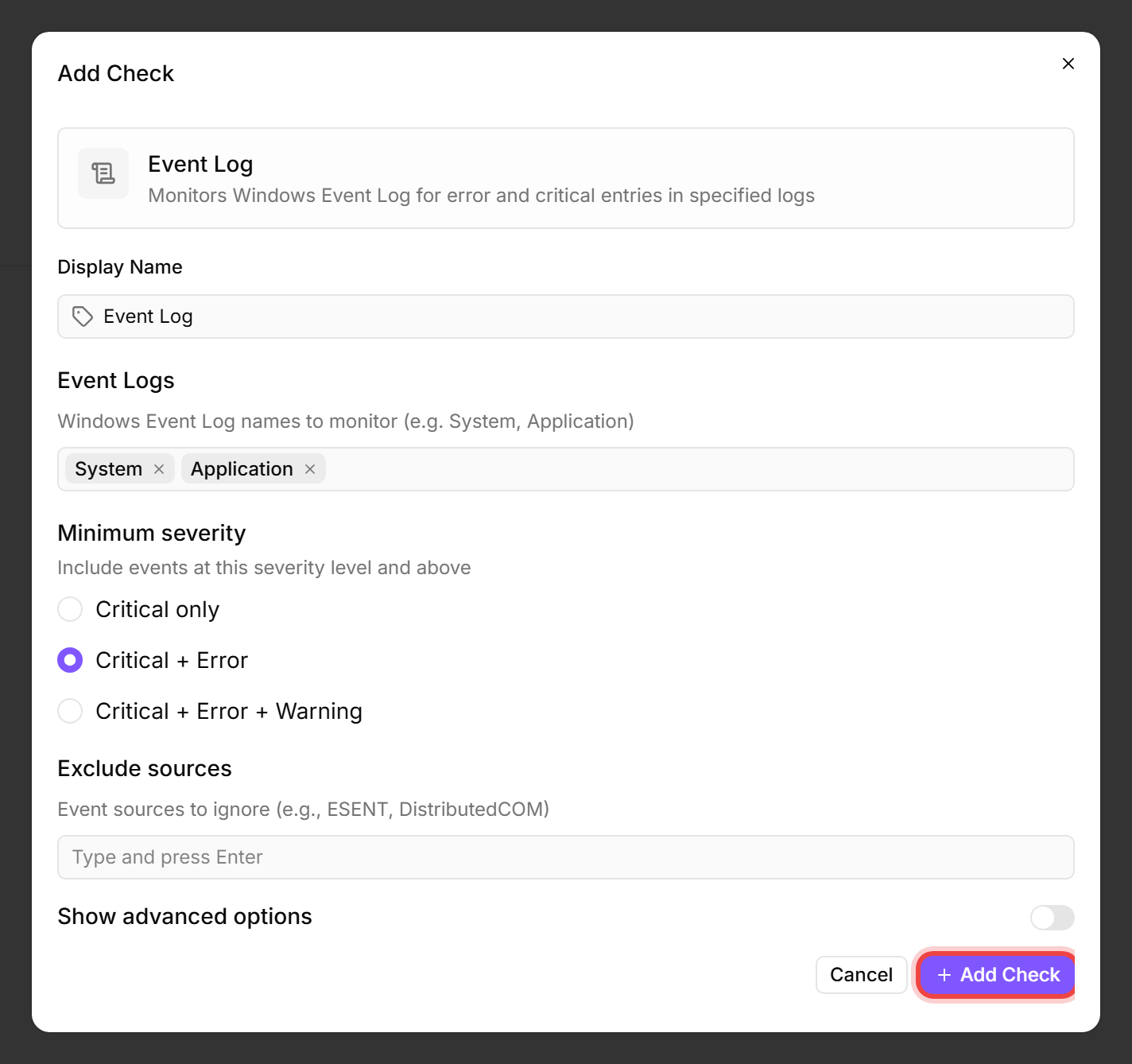
An Event Log Check searches the Windows Event Log for error and critical entries. Instead of manually checking the event logs on each device, you set a threshold and octoja notifies you when something needs attention.
Prerequisites
- You need the Monitoring Check Management permission.
- The target device must be running Windows with a connected agent.
Steps
- Go to Devices and open the device.
- Click the Checks tab → Add Check → Event Log.
- Configure the check. Lookback period, Max events per log, and the two threshold counts live behind Show advanced options — toggle it open to see them:
- Optionally, use Exclude sources to filter out known noisy event sources that produce harmless errors.
- Click Add Check.
What the check reports
The check result includes the total count of matching events, the most recent entries (up to Max events per log from each log, default 50), each labelled with its event source, event ID, log name, and timestamp. This helps you spot patterns — for example, a single source flooding the log with repeated errors.
Tips
- Start with the System and Application logs. These cover the most common issues (service failures, driver errors, application crashes). Add specialized logs like Security only when needed.
- The lookback period should match or exceed the check interval. If the check runs every 60 minutes with a 60-minute lookback, no events are missed between runs.
- Use Exclude sources for event sources that produce frequent, harmless errors. Common examples:
ESENTandDistributedCOM. - This check is Windows-only. For Linux and macOS, use the System Log Check instead, which monitors syslog/journald.
After the first check interval, the result appears in the device's Checks tab.
See also: Event Log Check Reference