Configure a Folder Size Check
Monitor directory size and detect unexpected growth
Written By Erdinc Akay
Last updated 26 days ago
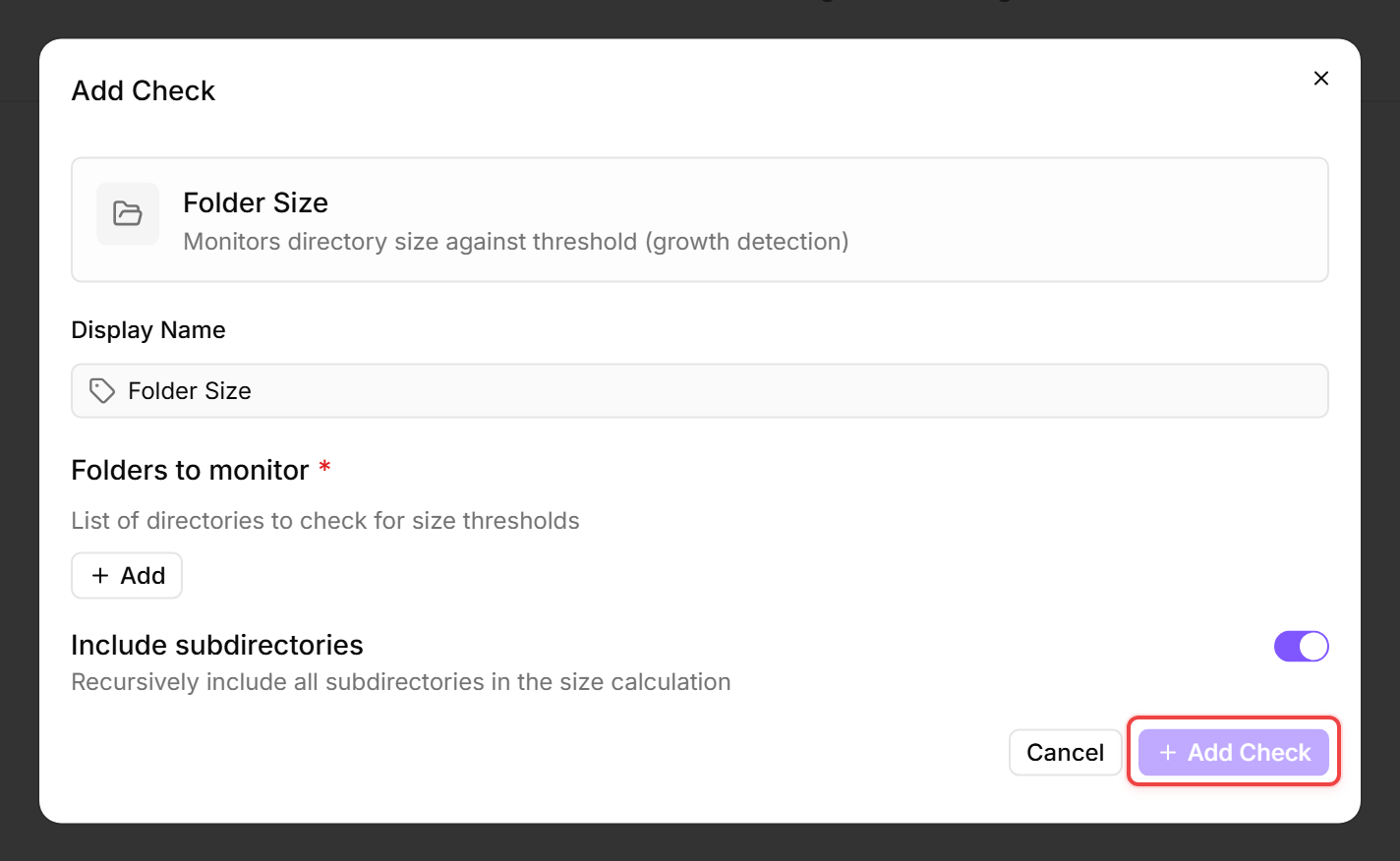
A Folder Size Check monitors the total size of a directory and warns when a threshold is exceeded. This helps you detect runaway log files, cache growth, or uncontrolled data accumulation before the disk fills up.
Prerequisites
- You need the Monitoring Check Management permission.
- The target device must have a connected agent.
Steps
- Go to Devices and open the device.
- Click the Checks tab → Add Check → Folder Size.
- Add one or more directories to monitor:
- Each folder you add has its own thresholds. The Include subdirectories toggle is global and applies to every folder in the check. It is enabled by default — disable it if you only want to measure top-level directories.
- Click Add Check.
Tips
- Commonly monitored directories: application log folders, temp directories, user profile directories, and database data paths.
- The check calculates the directory size by summing all file sizes. It runs once every 60 minutes by default, so even for very large directories (millions of files) a single folder walk normally finishes well within the interval — expect the result to update less frequently than with faster checks.
- Combine this check with a disk space check for complete storage monitoring. The disk space check tells you when the drive is filling up; the folder size check tells you what is filling it.
After the first check interval, the result appears in the device's Checks tab.
See also: Folder Size Check Reference