Create a Group
Group users or devices together for easier management
Written By Erdinc Akay
Last updated 17 days ago
Groups in octoja control what users can do. A group grants a set of permissions and scopes which customers and devices its members can reach. When you add a user to a group, they inherit everything that group grants, and a user's access is the combination of all their groups.
Before you start
You need the Group Management permission (groups.manage, granted via groups under Administration → Groups).
Steps
- Go to Administration → Groups in the left sidebar.
- Click the Add Group button.
- Enter a name for the group — for example, "Technicians" or "Help Desk" — and click Add. You land on the new group's edit page.
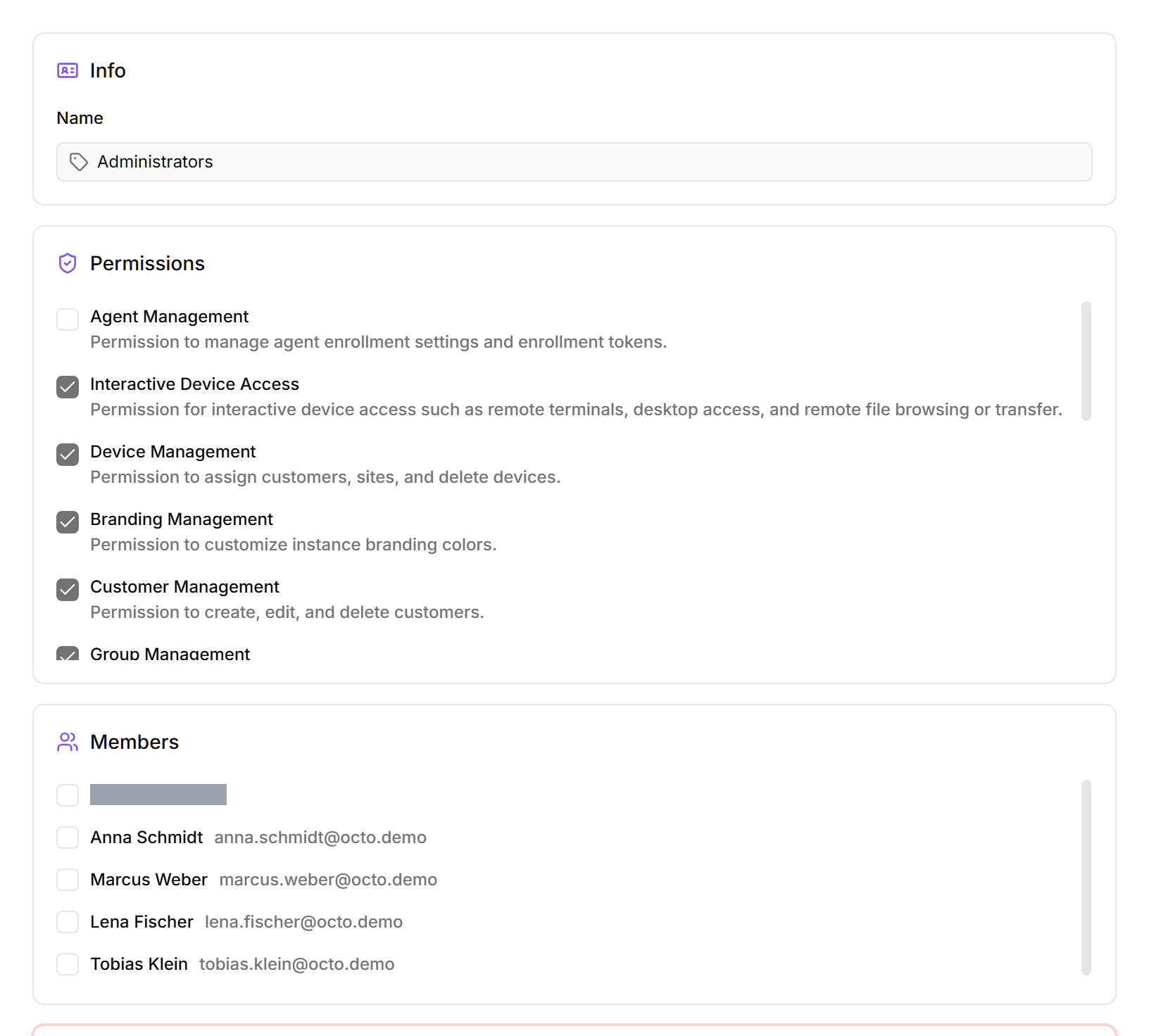
- On the edit page, select the permissions this group should grant:
The screenshot below shows the existing Administrators group's edit page as an example — a freshly created group has the same layout, but with no permissions selected and an empty Members panel until you choose permissions and add users.
Scope customer and device access
On the same group page, set how far the group reaches. Both default to everything, so narrow them when a group should only touch part of your fleet.
- Customer Access — choose Access all customers, a list of Specific customers, or Customer tag rules that match customers by tag (you can combine a list with tag rules).
- Device Access — choose Reach all devices or limit reach with device rules, then tick the Allowed actions members may perform (Remote Desktop, Terminal, Software Management, and so on). Leave the actions empty for read-only device access.
Device access always stays within customer access — a group that reaches no customers reaches no devices. This is how you give, say, a help-desk team read-only access to one customer's workstations without touching anyone else.
Common group setups
How permissions work
- octoja uses fully custom groups — you define each group with exactly the permissions plus the customer and device access it needs.
- Users inherit permissions from all groups they belong to. If a user is in both "Help Desk" and "Technicians", they get the combined permissions.
- A user with no group membership has no permissions and can only view their own profile.
The group appears in the group list.
Next steps
- Add users to this group — see Create a User
- Review all permissions — see Assign Permissions