Configure a Service Check
Monitor a system service and get alerted if it stops
Written By Erdinc Akay
Last updated 26 days ago
Configure a Service Check
A service check monitors whether a specific system service (like a web server, database, or backup agent) is running. If the service stops, you get an alert immediately.
What is a system service?
A service (also called a daemon on Linux) is a program that runs in the background without a visible window. Services start automatically when the computer boots and keep running to perform important tasks — for example, a web server serving your website or a database engine storing your data. If a critical service stops unexpectedly, the application it supports will stop working too.
Steps
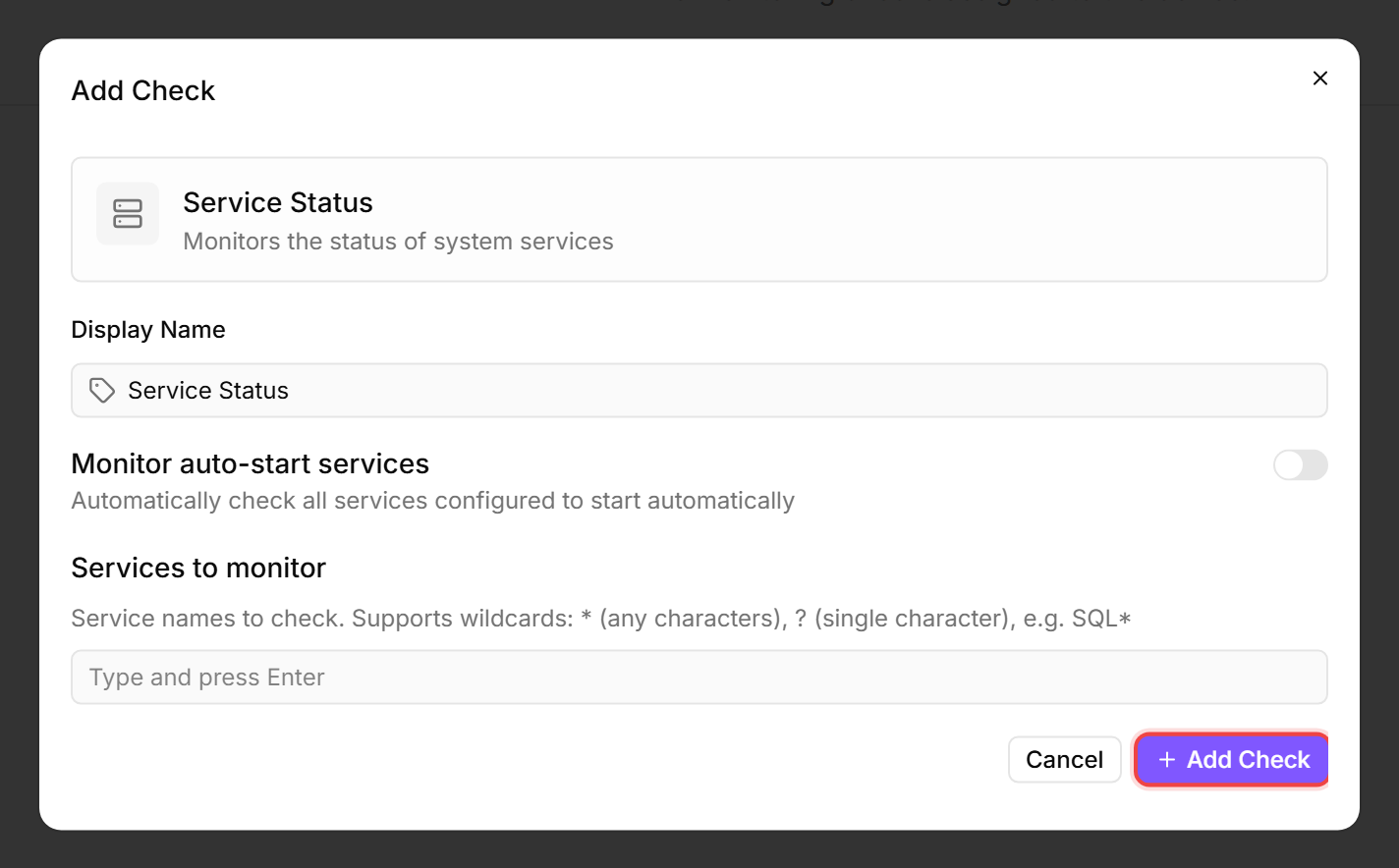
The Service Status editor lets you choose either auto-detected services or specific service names to watch.
- Go to Devices and open the device.
- Click the Checks tab → Add Check → Service Status.
- Either enable Monitor auto-start services (octoja watches every service set to auto-start) or list specific service names under Services to monitor. When the device has reported its services, the dropdown shows each service's friendly display name with the underlying service name in parentheses — for example,
Windows Update (wuauserv)— so you can recognise a service by either name. The chip added to the field always shows the exact underlying service name, so the stored value stays unambiguous. You can also type a name directly, and wildcards are supported:*matches any characters and?matches a single character — for example,SQL*matches anything starting with SQL. - When Monitor auto-start services is enabled, an Excluded services field appears. Add any auto-start service names you want octoja to ignore (wildcards work here too).
- Click Add Check.
Common services to monitor
After the first check interval, the result appears in the device's Checks tab.
See also: Service Check Reference