Configure a Disk I/O Check
Monitor disk utilization and detect I/O bottlenecks
Written By Erdinc Akay
Last updated 26 days ago
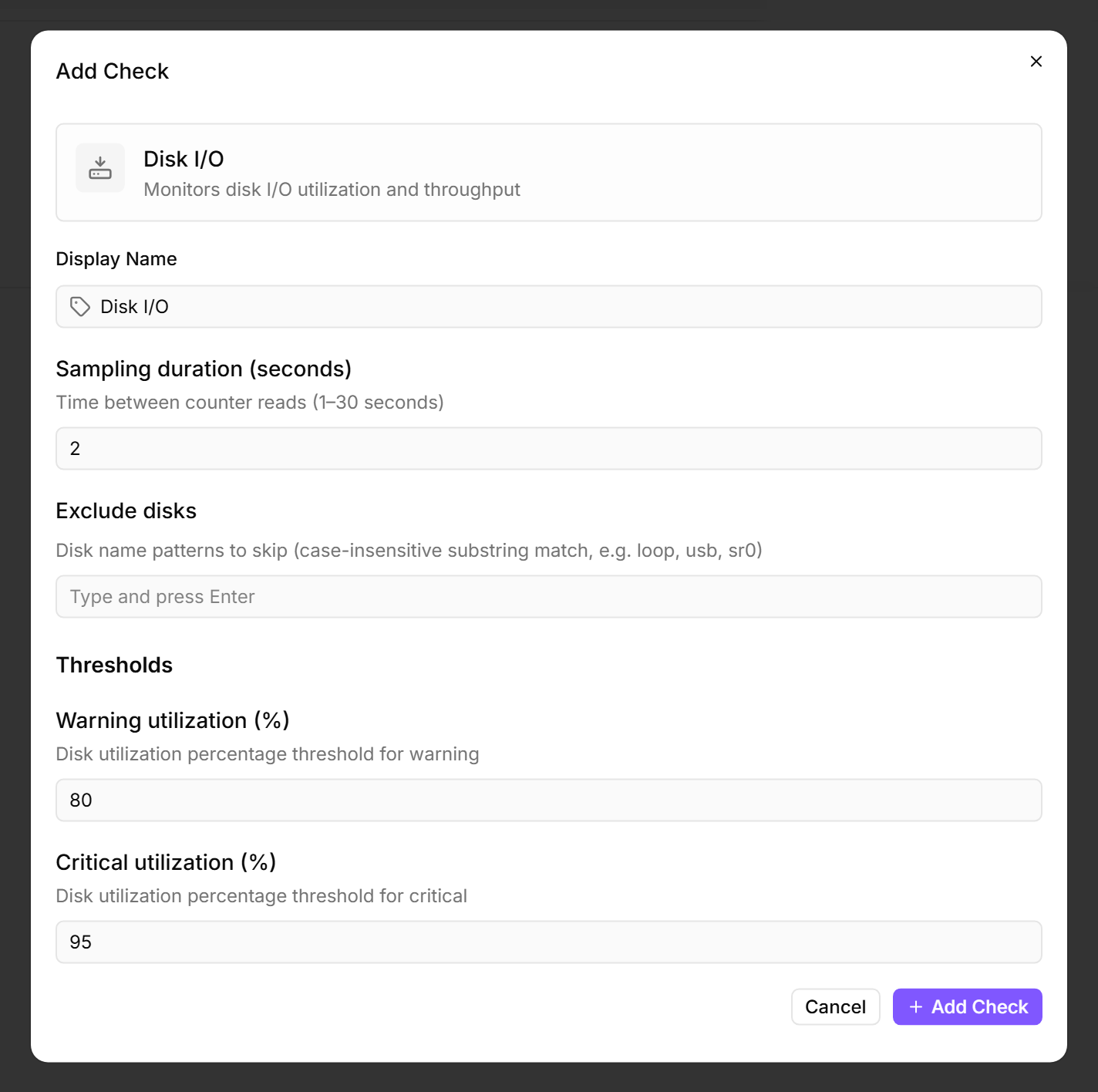
A Disk I/O Check measures how heavily your storage devices are utilized. High disk I/O utilization causes slow application response times and can indicate that a device needs faster storage or a workload redistribution.
Prerequisites
- You need the Monitoring Check Management permission.
- The target device must have a connected agent.
Steps
- Go to Devices and open the device.
- Click the Checks tab → Add Check → Disk I/O.
- Configure the thresholds:
- Optional: Exclude specific disks that are expected to have high I/O load (e.g. dedicated database volumes).
- Click Add Check.
What the check reports
The check captures disk activity over a short interval (default: 2 seconds) and reports I/O utilization as a percentage and throughput for each monitored disk.
Tips
- High I/O utilization on an SSD is less concerning than on a traditional hard drive — SSDs handle parallel I/O operations significantly better. Adjust thresholds accordingly.
- Exclude backup volumes that are regularly saturated during backup windows to avoid false positives.
After the first check interval, the result appears in the device's Checks tab.
See also: Disk I/O Check Reference