Configure a Synology Check
Step-by-step guide to configuring a Synology NAS monitoring check in octoja.
Written By Erdinc Akay
Last updated About 1 month ago
A Synology Check monitors Synology NAS devices via SNMP — disk health, RAID status, volume usage, temperature, and I/O load. It gives you an early warning about storage and hardware problems.
Prerequisites
- You need the Monitoring Check Management permission. Your administrator assigns permissions under Administration → Groups.
- The target device must have a connected agent with network access to the NAS.
- The Synology NAS must have SNMP enabled in DSM — see Synology's SNMP documentation.
Steps
- Go to Devices and open the device that has network access to the Synology NAS.
- Click the Checks tab → Add Check → Synology NAS.
- Enter the NAS hostname or IP address in the Host field (required). Leave SNMP version at the default
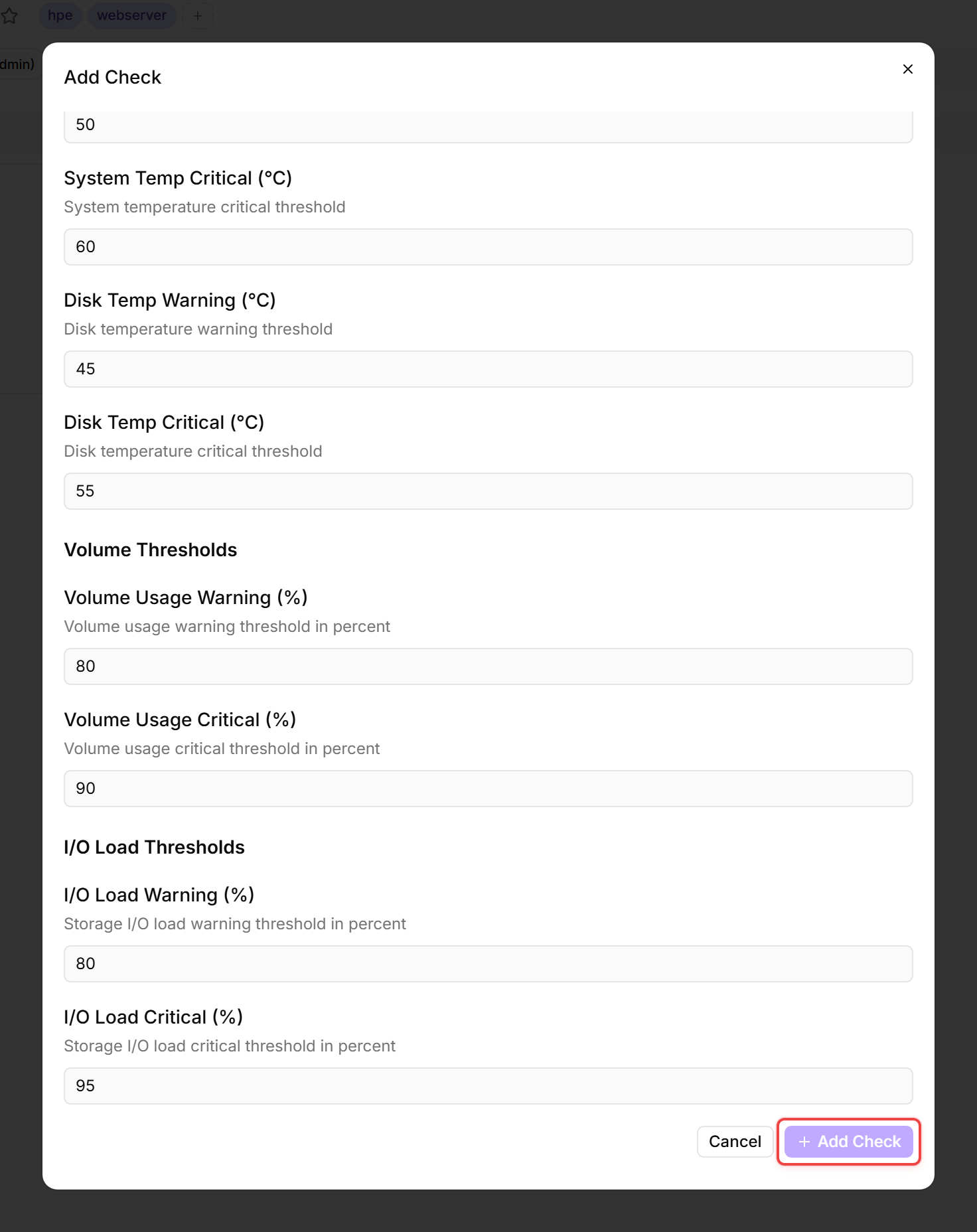
v2cunless your NAS only allows SNMPv3 — in that case switch it tov3and fill in the credential fields (see the Synology Check Reference for details). Withv2c, the SNMP Community field is optional and pre-filled withpublic— change it only if your NAS uses a different community. - Configure the thresholds:
- Click Add Check.
Tips
- Enable SNMP on the NAS in DSM following Synology's SNMP documentation — turn on SNMPv2c and set a community string (octoja expects
publicby default), or turn on SNMPv3 if your security policy requires authenticated access. - The check monitors RAID status automatically — a degraded RAID array triggers a critical alert.
- System and CPU fan status are also monitored on models that expose the standard Synology SNMP MIB — a failed fan triggers an alert.
After the first check interval, the result appears in the device's Checks tab.
See also: Synology Check Reference