Configure the Disk Space Check
Step-by-step guide to creating and configuring the Disk Space check in octoja.
Written By Erdinc Akay
Last updated 25 days ago
Configure the Disk Space Check
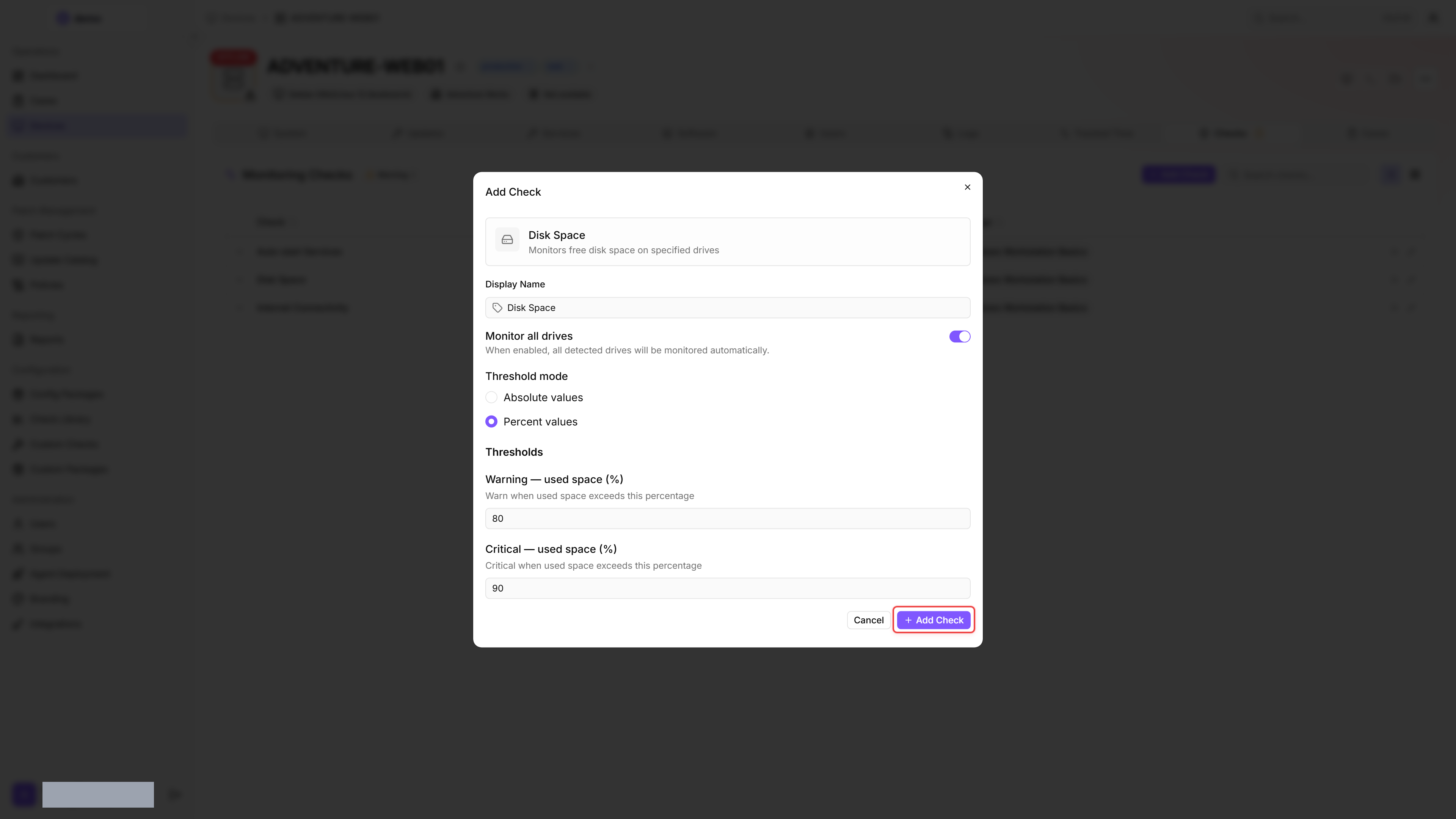
The Disk Space check monitors how full a drive is. Running out of disk space can crash services and cause data loss.
Steps
- Go to Devices and open the device.
- Click the Checks tab → Add Check → Disk Space.
- By default, the check monitors all drives on the device. To monitor only specific drives, turn off the Monitor all drives toggle — the Drives to monitor selection then appears and lets you pick one or more detected drives (e.g. C: on Windows or / on Linux).
- Under Threshold mode, select Percent values, then configure:
- Warning — used space (%): e.g. 80
- Critical — used space (%): e.g. 90
- Click Add Check.
The check runs every 60 minutes — this interval is fixed and not configurable from the editor.
Recommended thresholds
By default, a single Disk Space check monitors all drives on the device simultaneously. If a specific drive crosses the threshold, the check reports which drive triggered the alert. You only need multiple checks if you want different thresholds per drive.
After the first check interval, the result appears in the device's Checks tab.
See also: Disk Space Reference