Configure a Process Check
Step-by-step guide to configuring a process monitoring check in octoja.
Written By Erdinc Akay
Last updated 25 days ago
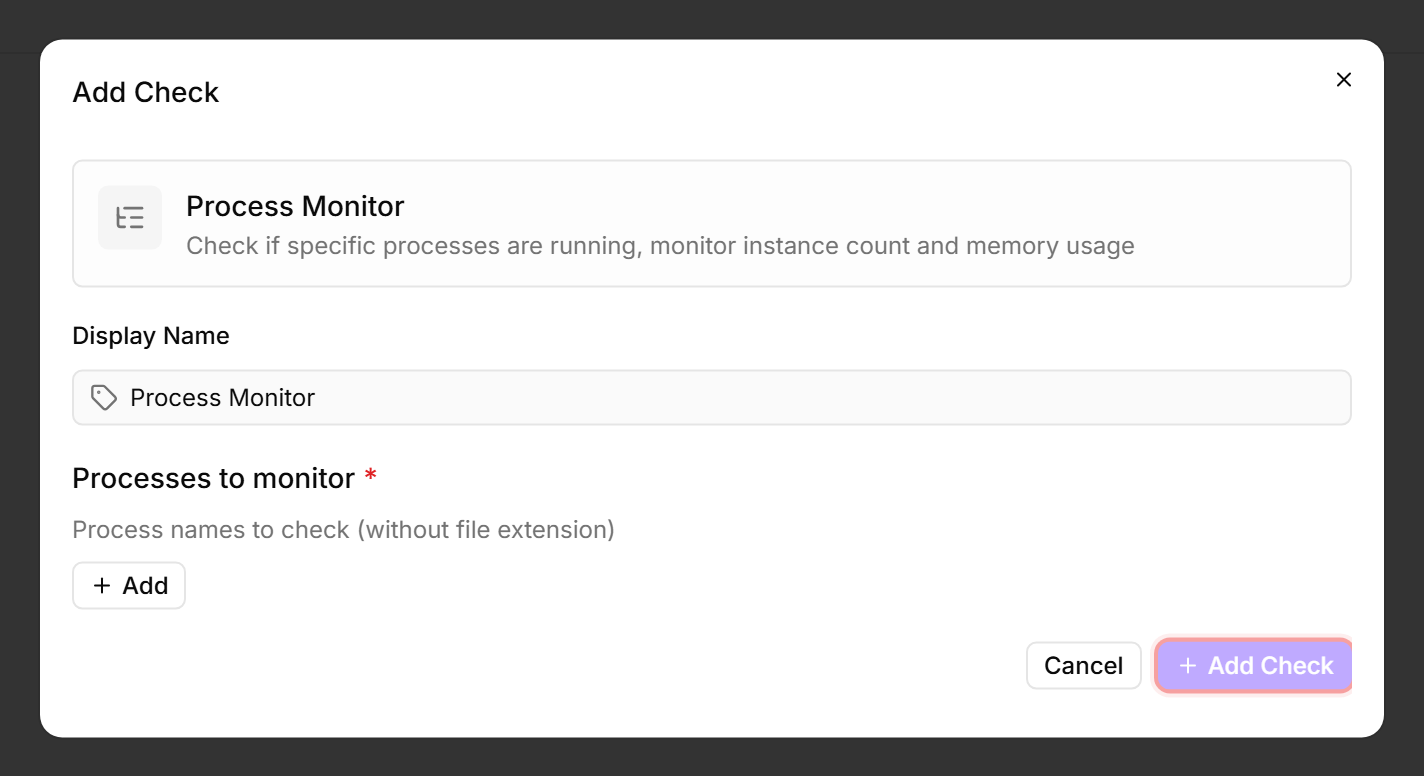
A Process Check verifies whether specific processes are running on a device. It alerts when a required process stops — catching application crashes, failed services, and terminated background tasks.
Prerequisites
- You need the Monitoring Check Management permission.
- The target device must have a connected agent.
Steps
- Go to Devices and open the device.
- Click the Checks tab → Add Check → Process Monitor.
- Add one or more processes to monitor:
- Click Add Check to save the configuration.
Tips
- Use the process name as it appears in Task Manager or
psoutput, without the file extension. For example,sqlservr, notsqlservr.exe. - Set the severity to Critical for essential processes (database engines, web servers). Use Warning for nice-to-have processes.
- The Max memory threshold detects memory leaks. Set it to 2–3 times the process's normal working memory.
After the first check interval, the result appears in the device's Checks tab.
See also: Process Check Reference