Configure a Password Policy Check
Verify local password policies against security standards
Written By Erdinc Akay
Last updated 25 days ago
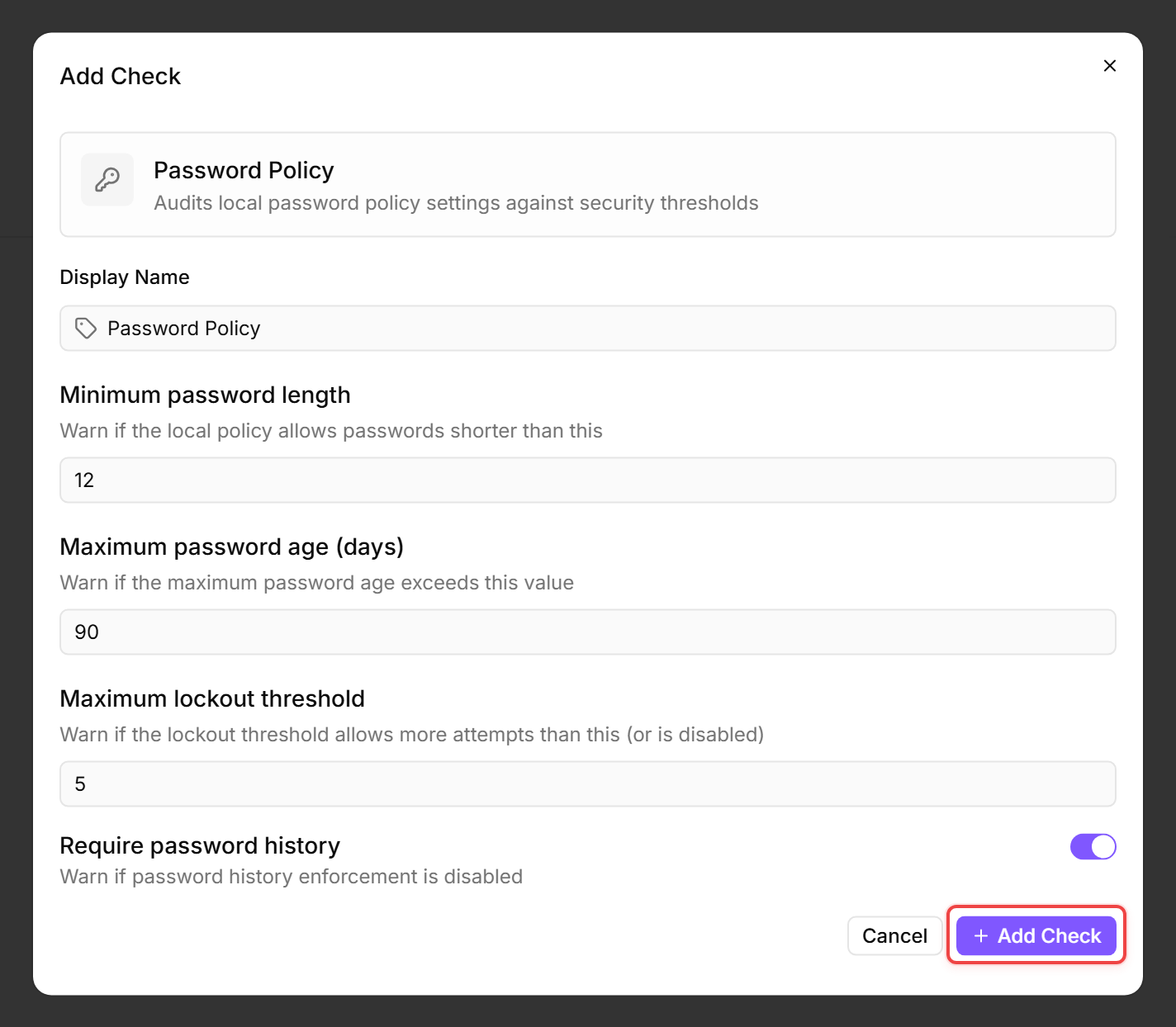
A Password Policy Check inspects the local password policy on a Windows device and warns if settings fall below your security requirements. This helps you identify machines with weak password policies — especially servers set up without Group Policy.
Prerequisites
- You need the Monitoring Check Management permission.
- The target device must be running Windows with a connected agent.
Steps
- Go to Devices and open the device.
- Click the Checks tab → Add Check → Password Policy.
- Configure the security requirements:
- Click Add Check.
Tips
- This check inspects the policy settings, not individual passwords. It tells you whether the policy is correctly configured, not whether users have strong passwords.
- On domain-joined machines, the effective policy comes from Group Policy. Standalone machines use the local security policy.
- Adjust the thresholds to match your organization's security standards or compliance requirements.
By default, this check runs once every 24 hours (1440 minutes) and uses the Windows secedit tool to read the local security policy. After the first run, the result appears in the device's Checks tab.
See also: Password Policy Check Reference