Configure the Veeam Backup Check
Set up the Veeam backup check to monitor backup jobs
Written By Erdinc Akay
Last updated 26 days ago
Configure a Veeam Backup Check
The Veeam Backup & Replication check monitors your Veeam Backup & Replication jobs directly from the octoja agent installed on the Veeam server. You can see at a glance whether backups ran successfully, when the last backup completed, and whether any jobs are overdue.
Requirements
- Veeam Backup & Replication installed and running on a Windows server
- The octoja agent installed on the same Veeam server
- Veeam PowerShell module available on the server (installed automatically with Veeam)
Not sure which server runs Veeam? Look for a Windows server with "Veeam Backup & Replication" in its Start menu or taskbar, or ask the person who set up your backup infrastructure.
Steps
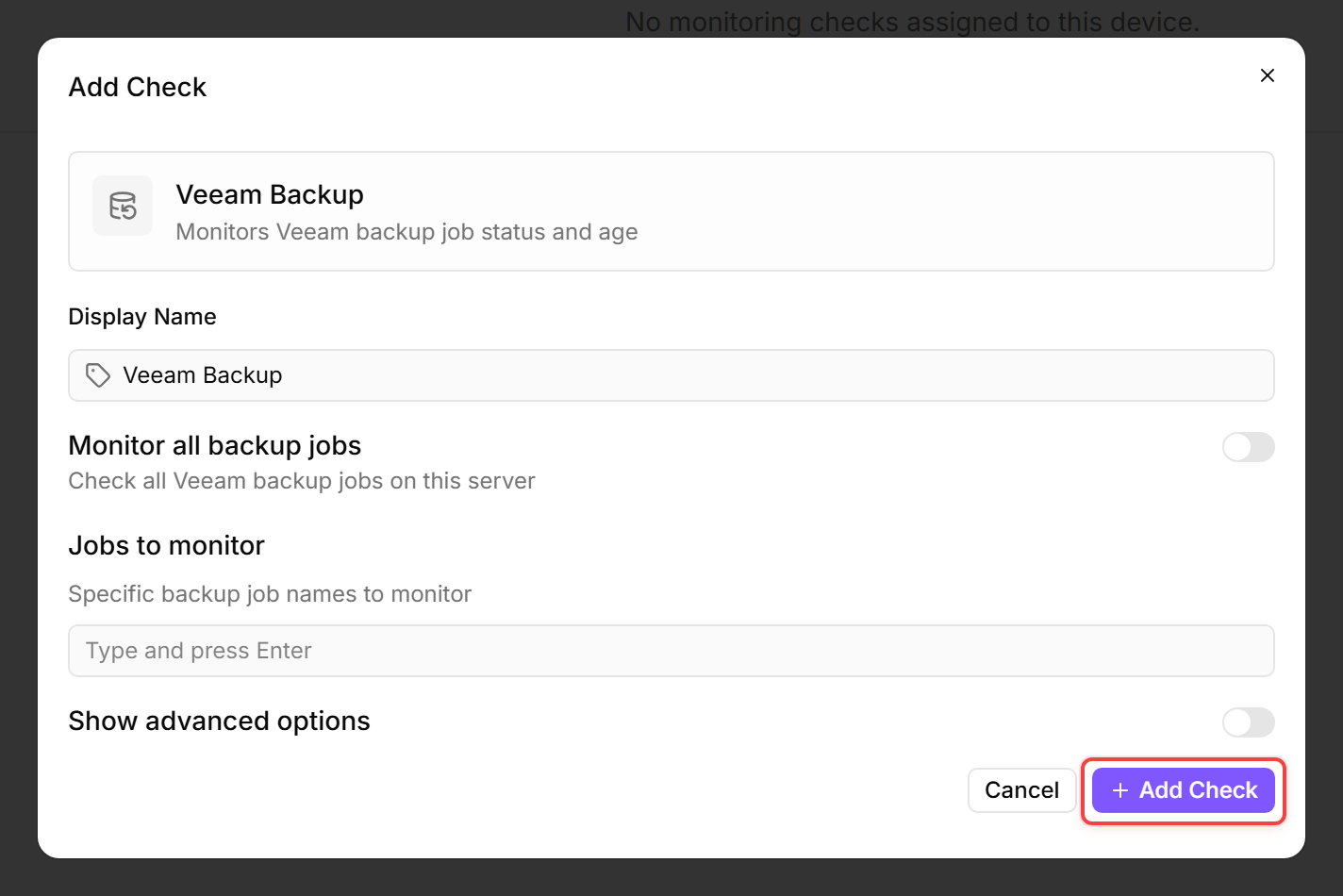
The Veeam Backup & Replication editor lets you watch every job type on the server or narrow monitoring to specific types and names.
- Make sure the octoja agent is installed on the Veeam server.
- Go to Devices and open the Veeam server.
- Click the Checks tab → Add Check → Veeam Backup & Replication.
- Leave Monitor all job types off to watch the default job types (Backup and BackupCopy) under Job types to monitor, or turn it on to watch every job type regardless of type.
- Decide which jobs count: Include agent jobs and Warn on jobs that never ran are on by default; optionally turn on Include tape jobs or Evaluate disabled jobs.
- (Optional) Enable Show advanced options. There you can narrow monitoring to named jobs under Limit to specific job names (optional), adjust the query timeout, and turn on age-based alerting with Flag successful jobs older than thresholds — off by default. When enabled, pick an Age threshold mode: Manual (fixed hours) exposes Warning after (hours) and Critical after (hours), while Cadence-aware (from job schedule) derives the limit from each job's own schedule and exposes a Grace period (hours) instead — better for jobs that do not run daily (for example weekly or monthly backup-copy jobs).
- Click Add Check.
What triggers an alert?
If the Veeam PowerShell module cannot be found, the check fails with the message "Veeam Backup & Replication PowerShell module not found on this device." — make sure the agent is installed on the Veeam server itself.
Tips
- A typical setup for daily backups: enable Flag successful jobs older than thresholds in Manual mode and keep the warning threshold at 50 hours and the critical threshold at 80 hours. This way you get a heads-up if a nightly backup misses one cycle, and a critical alert if it keeps slipping.
- For jobs that do not run daily (weekly or monthly backup-copy jobs), switch Age threshold mode to Cadence-aware (from job schedule) instead of turning age checks off. It derives the age limit from each job's own schedule, so a weekly job is only flagged after it actually misses its cadence.
- The check runs on the Veeam server itself, so it works even if the Veeam REST API is not enabled.
- If you have multiple Veeam servers, install the octoja agent on each one and configure a Veeam check on each device.
After the first check interval, the result appears in the device's Checks tab.
See also: Veeam Backup Check Reference