Navigate octoja Faster
Favorites, recent items, hover cards, view switching, and URL sharing — the most useful features for finding devices, cases, and customers faster.
Written By Erdinc Akay
Last updated 26 days ago
octoja productivity features
octoja includes several features that help you find devices, cases, and customers faster during day-to-day work. This article covers the most useful ones.
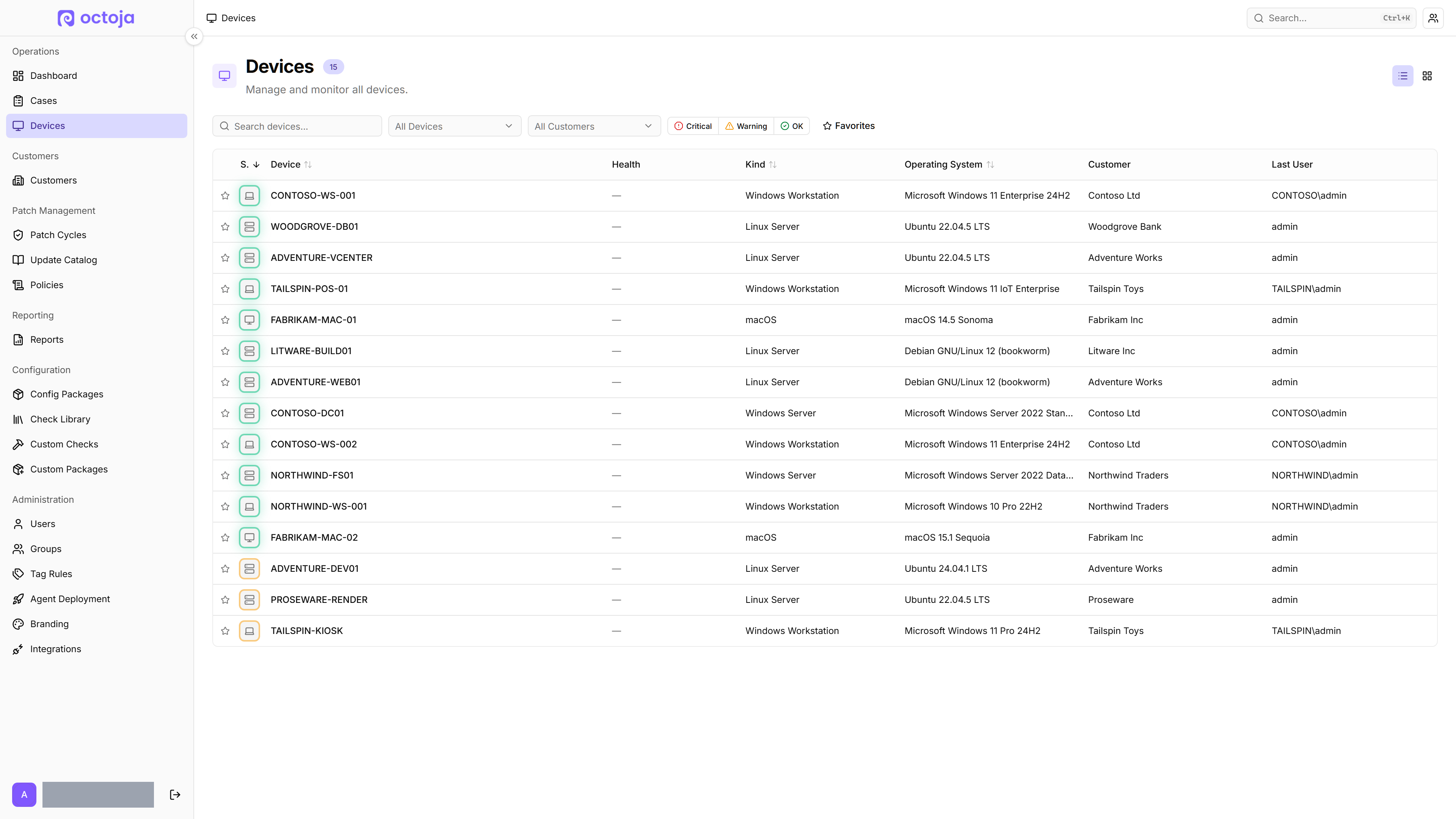
The screenshot below shows the favorite star and the view-mode toggle on the Devices page:
Mark devices as favorites
Click the star icon next to any device to mark it as a favorite. Favorites are highlighted with a star and sorted to the top of device search results in the command bar, and they can be filtered on the Devices page.
To show only your favorites, open the Devices page and toggle the Favorites filter.
Favorite status is saved to your account, so your selections persist across browsers and sessions.
Use recent items
octoja automatically tracks the last 10 items you visited — devices, cases, customers, users, and groups. To access them:
- Press Ctrl+K to open the command bar.
- With the search field empty, look under the Recent heading.
- Select any item to jump straight to it.
Recent items are stored locally in your browser. They are not shared between different browsers or devices.
Preview items with hover cards
When you see a device, user, or group mentioned as a link, hover over it to see a quick preview card without navigating away from the current page.
- Device hover cards show the device name, online status, operating system, agent version, assigned customer, and when it was last seen.
- User hover cards show the user's name and details.
- Group hover cards show the group name and summary.
Switch between table and grid view
On the Devices page, use the view toggle in the top-right corner to switch between table view and grid (card) view.
- Table view shows devices as rows with sortable columns — best for scanning a long list.
- Grid view shows devices as cards with key details — best for a visual overview.
Your view preference is remembered across sessions.
Sort and filter lists
Most list pages in octoja support filters and sorting in the toolbar above the table.
Device filters
Case filters
Click any column header to sort the table. Click again to reverse the sort direction.
Share filtered views via URL
When you apply filters, change the sort order, or navigate to a specific page, octoja updates the browser URL automatically. Copy the URL from your address bar and send it to a colleague — they will see the same filtered view when they open it.
This works for search queries, filter selections, sort settings, and page numbers.
Collapse the sidebar
Press Ctrl+B (or ⌘B on Mac) to collapse the sidebar and give more space to the main content area. Press it again to expand the sidebar. This is especially useful on smaller screens or when working with wide tables.