Send Alerts to a Microsoft Teams Channel
Connect octoja to a Microsoft Teams channel and post alert cards via Power Automate.
Written By Stefan Steuer
Last updated 26 days ago
Send Alerts to a Microsoft Teams Channel
You can connect octoja to a Microsoft Teams channel so your monitoring alerts arrive in Teams. You create the channel, confirm the wiring with a synthetic test card from the Send test button, and switch it to active. Real check alerts then arrive whenever an alert rule on a check points at this channel.
Microsoft Teams accepts external messages through a Power Automate workflow. You create one workflow in Teams that points at the channel; octoja POSTs Adaptive Card payloads to the workflow's trigger URL.
Prerequisites
- You need the Integration Management permission in octoja. This permission lets you create, edit, and delete integration channels for the tenant. Permissions are assigned under Administration → Groups.
- You need permission to create a Power Automate workflow in the target Microsoft 365 tenant. Most Teams users can create workflows for channels they own; restrictive tenants may need a Teams or Power Platform admin to do this step.
Steps — Microsoft Teams side
- Open the Teams channel that should receive the alerts. Click the ••• menu next to the channel name → Workflows.
- Choose the template Post to a channel when a webhook request is received.
- Follow the wizard: name the workflow, confirm the Team and channel, and click Add workflow.
- When the wizard completes, Teams shows the workflow URL. Copy it — you will paste it into octoja in the next section. The URL must end with
.api.powerplatform.com.
For Microsoft's authoritative walkthrough of this step (including screenshots of their current UI), see Microsoft's "Post a workflow when a webhook request is received" article. Microsoft owns the Teams UI; this section is intentionally short so it does not drift when their wizard changes.
Steps — octoja side
- Go to Administration → Integrations and click Manage Teams channels on the Microsoft Teams card.
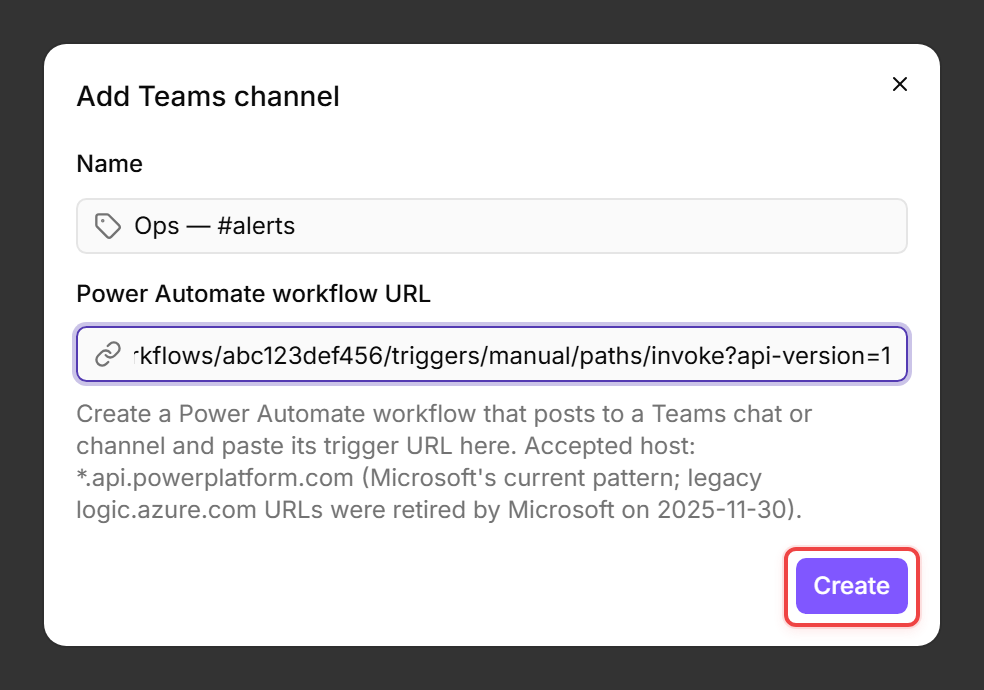
- Click Add Teams channel.
- Fill in the dialog:
- Click Create. The dialog closes and the new channel appears in the list with the confirmation "Teams channel created." New channels start Disabled, so nothing is delivered before you have tested the wiring.
- Click the new channel's row in the list to open its detail page.
- On the Configuration tab, set up the channel and click Save:
- Click Send test in the page header to deliver a synthetic test card to the Teams channel right now. Test deliveries bypass the channel's active/disabled state, so you can verify the wiring before enabling the channel.
- Once the test card shows up in Teams, flip the toggle above the tabs from Disabled to Active. The toggle commits immediately — it is not part of the Save form. Turn it off again during maintenance on the Teams channel.
Note: after creation, octoja never displays the workflow URL again — the detail page states "URL is treated as a secret and never returned by the API."
The walkthrough below shows the create-channel dialog (steps 2-4). Detail-page configuration (language, Send test) is described in the table above and the following sections:
Why the URL must end with .api.powerplatform.com
Microsoft migrated Teams workflow triggers off two earlier URL patterns:
*.logic.azure.com— retired by Microsoft on 2025-11-30; existing flows were force-migrated toenvironment.api.powerplatform.com.*.webhook.office.com— the deprecated O365 Connector channel; Microsoft retired the underlying connectors at the end of 2024.
If you carried a workflow URL from before either migration, octoja will reject it. Recreate the workflow inside Teams using the current template — you will get a new .api.powerplatform.com URL.
What octoja sends
The Send test button delivers a fixed two-line test card to verify the wiring: octoja POSTs an Adaptive Card to the workflow URL with the heading "🐙 Octo webhook test" and the body "If you can see this in Teams, your workflow URL is wired up correctly."
For real monitoring alerts, attach an alert rule to a check and point it at this Teams channel — see Set up alerts for a check. When the check trips, octoja posts an Adaptive Card here describing the check, the device, and the new status. Its Card language comes from this channel's configuration; the test card always uses the fixed two-line English layout.
Retry and auto-disable
If the workflow returns a non-2xx status or the request times out (15-second per-attempt timeout), octoja retries on the same schedule as standard webhooks — see Set up Webhooks § Retry and auto-disable for the exact retry intervals and the 20-consecutive-failure auto-disable threshold. After 20 consecutive delivery failures, the channel is automatically disabled; fix the workflow and re-enable from the detail page.
4xx responses are treated as permanent receiver errors and are not retried. 5xx responses, network errors, and timeouts trigger the retry schedule.
Replaying a missed delivery
The History tab on the detail page lists recent deliveries with their outcome, response code, and timing. Pick Replay on a delivery to re-send the original card with a fresh timestamp — useful when the Teams workflow was temporarily broken and you want to push missed cards through manually.
Tips
- Create one Teams channel record per Teams channel — do not multiplex events across channels by switching the URL.
- If your team uses quiet hours in Teams (mute notifications on channels overnight), schedule them in Teams itself. octoja delivers as soon as an event fires; the silencing happens on the Teams side.
- If a workflow returns 401 or 403, regenerate the URL inside Teams — Microsoft occasionally rotates workflow tokens.
- Troubleshooting: if cards never arrive, check Product Status & Known Limitations first; check on the Microsoft side (Teams → Workflows / Power Automate) that the workflow still exists and its trigger URL ends in
.api.powerplatform.com— octoja treats the URL as a secret and never displays it after creation; click Send test on the detail page to surface the exact response Teams returns.