Set up the Codemeta OS integration
Connect Codemeta OS to octoja to raise tickets from check alerts, sync devices, and import customers using a Codemeta OS API key and your Workspace ID.
Written By Stefan Steuer
Last updated 26 days ago
Set up the Codemeta OS integration
Codemeta OS is a service-desk and CRM platform. When you connect it to octoja, octoja can raise Codemeta OS tickets from check alerts, keep your device inventory in sync, and import customers from Codemeta OS so tickets land on the right customer. The connection is built in two halves: you create an API key and read your Workspace ID inside Codemeta OS, then enter both in octoja and configure the mapping.
Prerequisites
- The Integration Management permission in octoja. Administrators assign permissions to groups under Administration → Groups.
- A Codemeta OS account with administrator access — enough to create an API key in the API console and to read your Workspace ID.
- For a self-hosted Codemeta OS instance: the API base URL of that instance. The cloud service at
https://os.codemeta.de/api/v1is the default and needs no override.
Step 1 — Create an API key in Codemeta OS
- In Codemeta OS, open the API-Konsole and click Neuen Schlüssel erstellen.
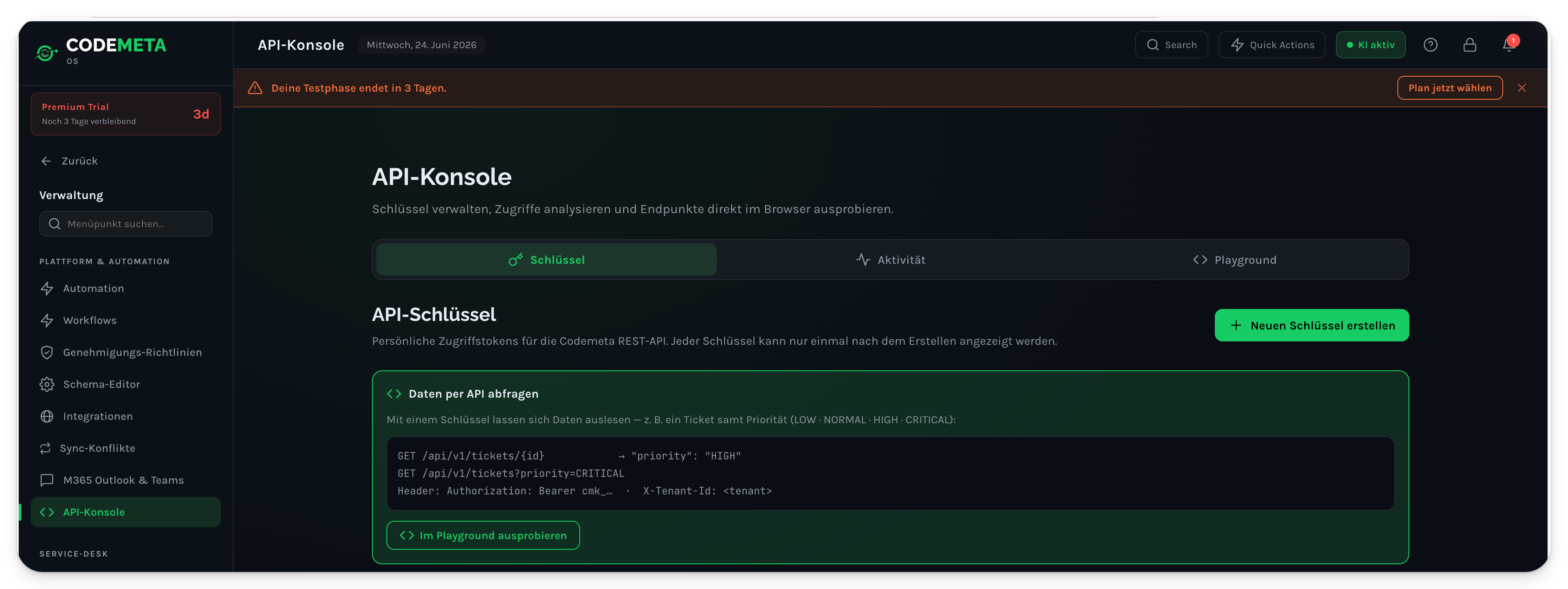
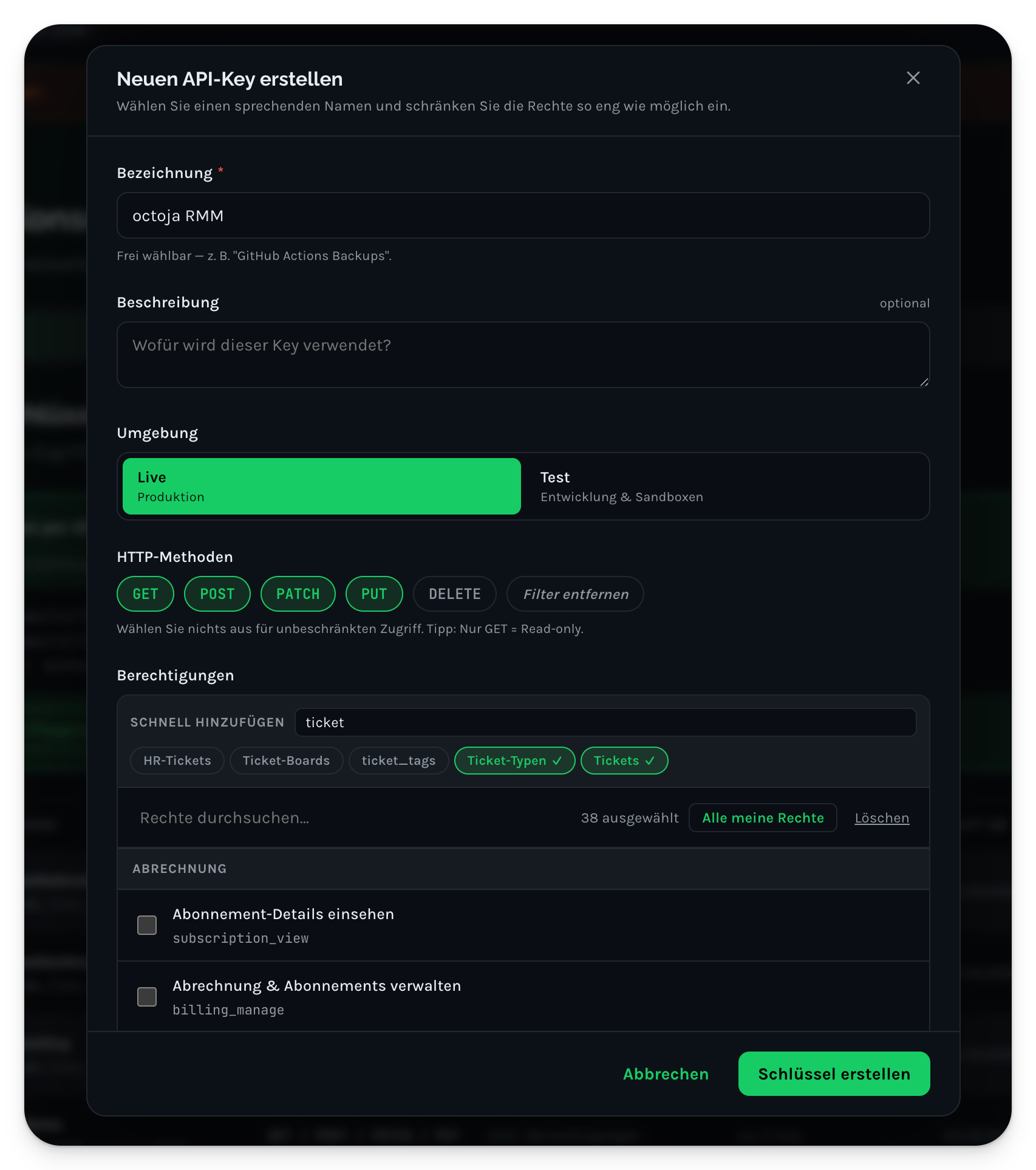
- Give the key a name (for example octoja RMM) so you can recognise it later.
- Choose the Live environment for production use.
- Enable the GET, POST, PATCH, and PUT HTTP methods. octoja reads and writes data, so read-only (GET) alone is not enough.
- Select the permissions the integration needs. The recommended scopes cover device templates, assets/CMDB, sites, messages, CRM/contacts, RMM devices, RMM device inventory, ticket types, and tickets — everything octoja touches when it syncs devices, imports customers, and raises tickets.
- Click Schlüssel erstellen.
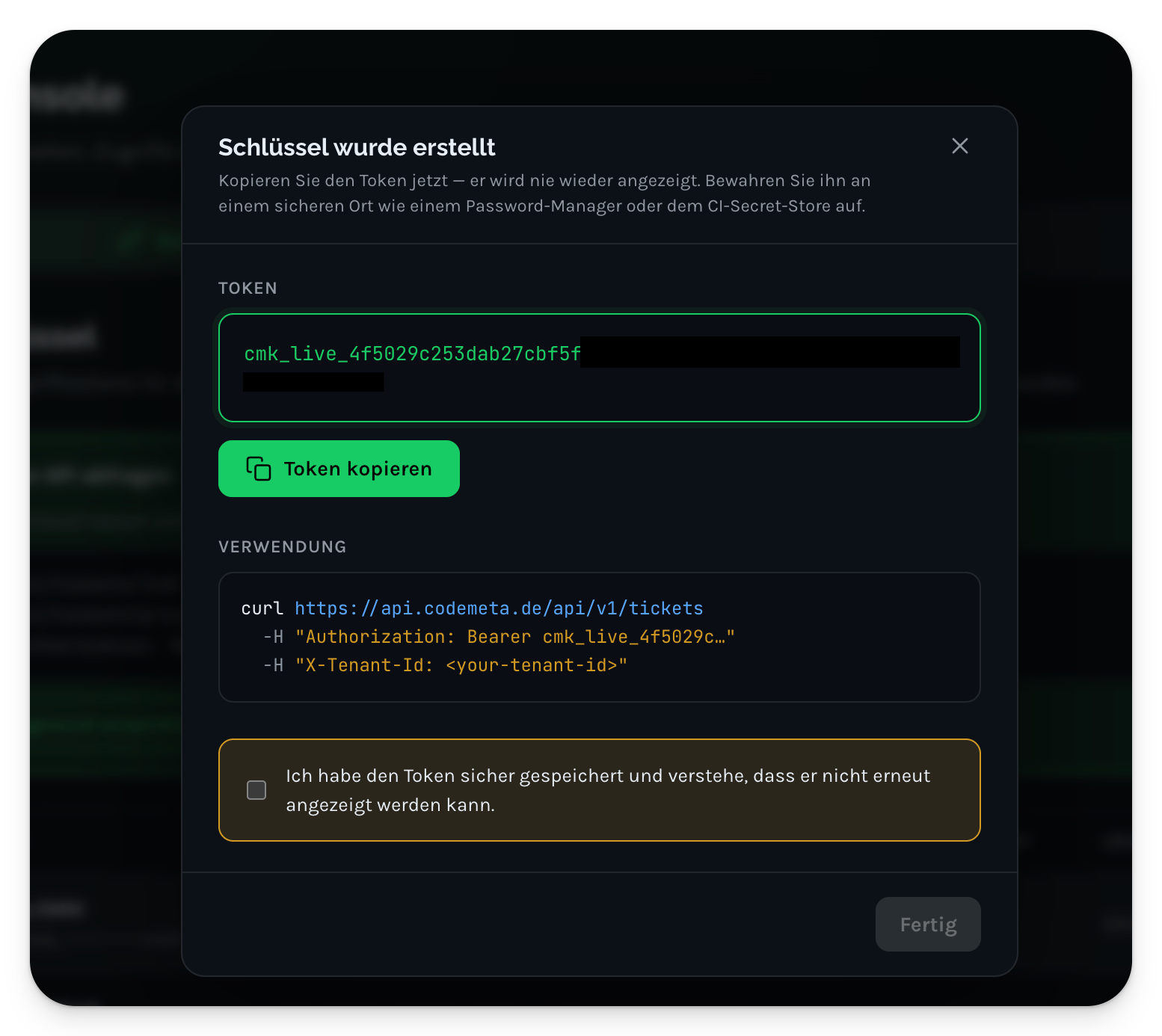
- Codemeta OS shows the token once. Click Token kopieren and paste it somewhere safe — a password manager or secret store. You will paste it into octoja in Step 3. If you lose it, you cannot view it again; create a new key instead.
Step 2 — Find your Tenant ID (Workspace ID)
octoja identifies your Codemeta OS tenant by its Workspace ID.
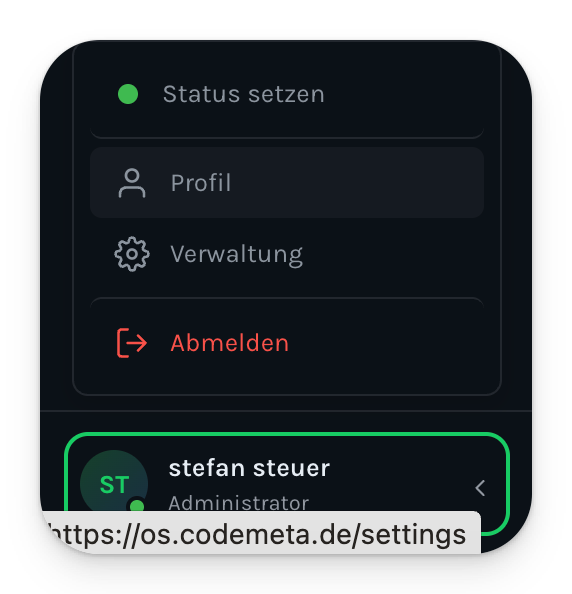
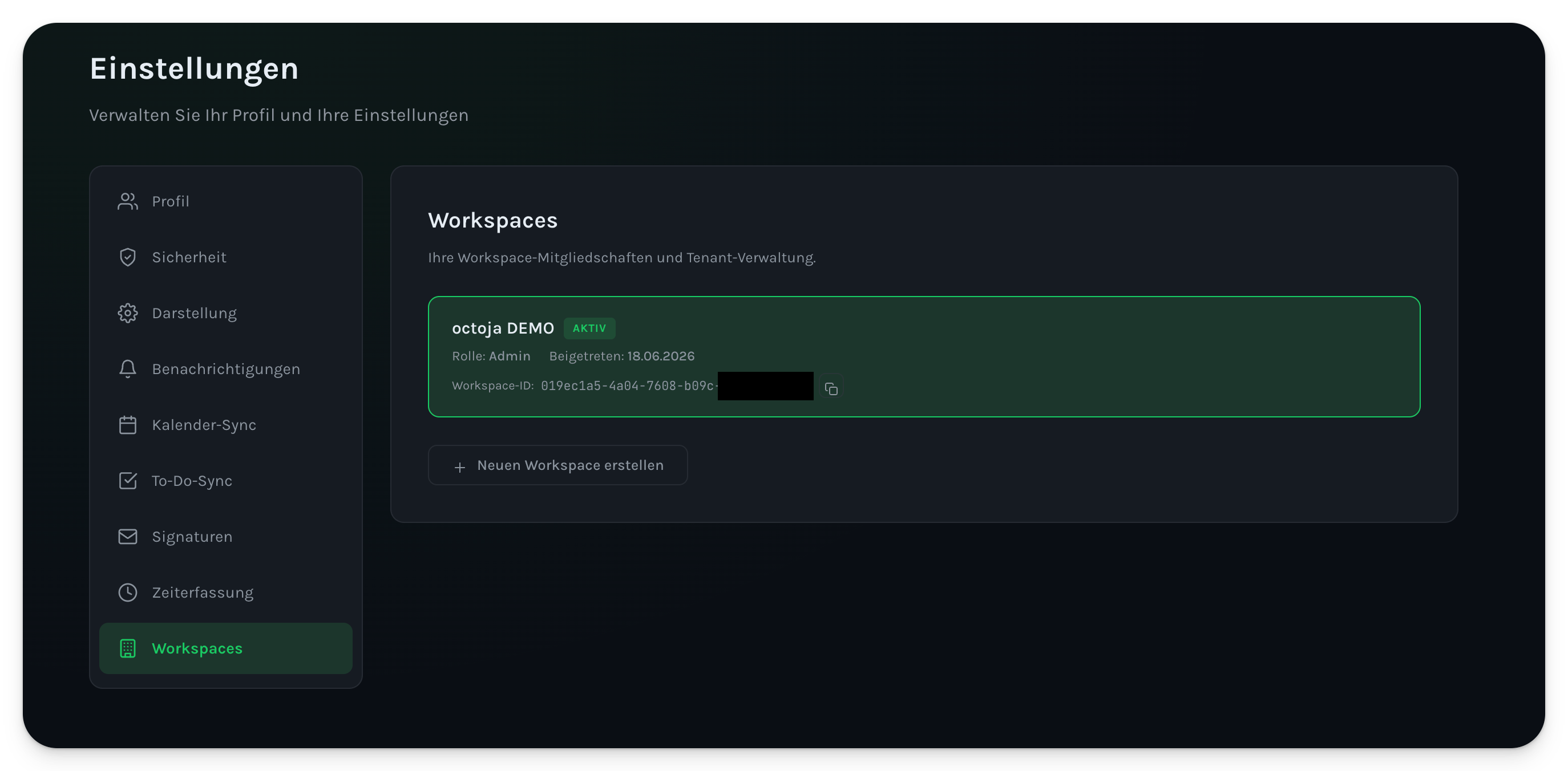
- Open the user menu in the bottom-left corner of Codemeta OS and click Profil.
- In Einstellungen, open the Workspaces tab. Each workspace card shows a Workspace-ID. Copy the ID of the active workspace — this is the Tenant ID you will enter in octoja.
Step 3 — Connect in octoja
- In octoja, go to Administration → Integrations and open Codemeta OS.
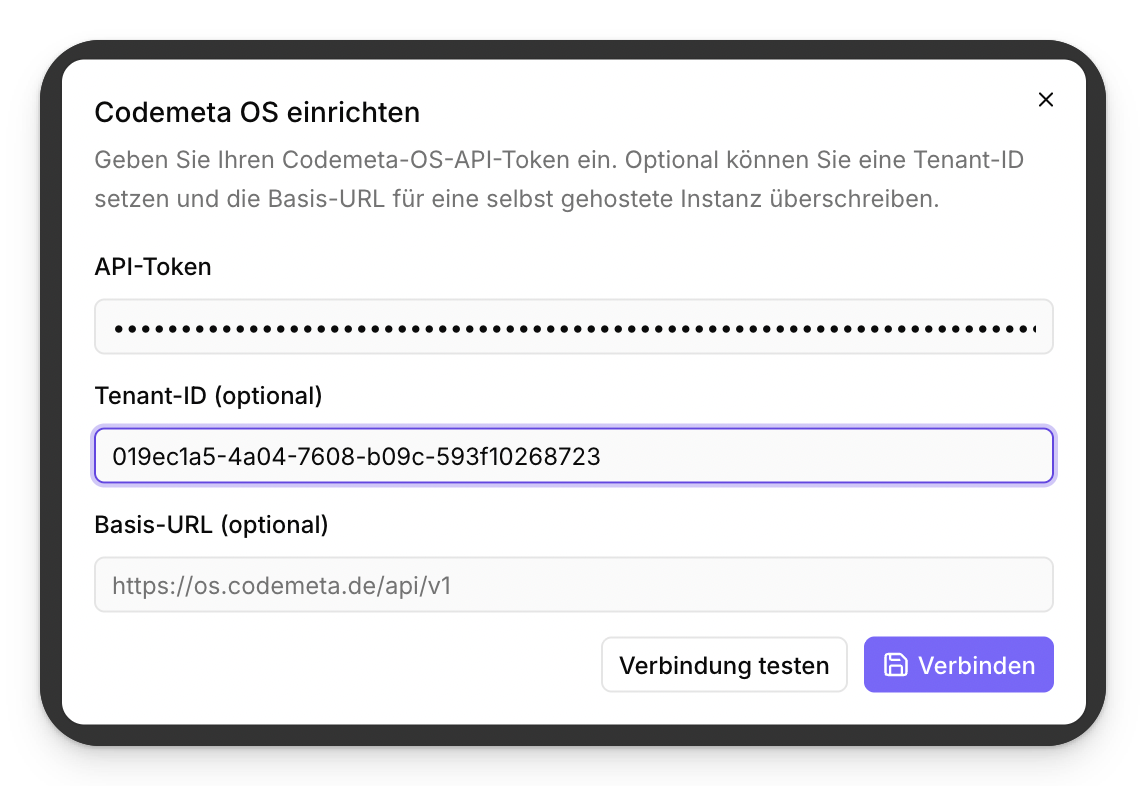
- In the Set up Codemeta OS dialog, fill in:
- Click Test connection to verify the credentials, then Connect to save the connection.
Step 4 — Configure the integration
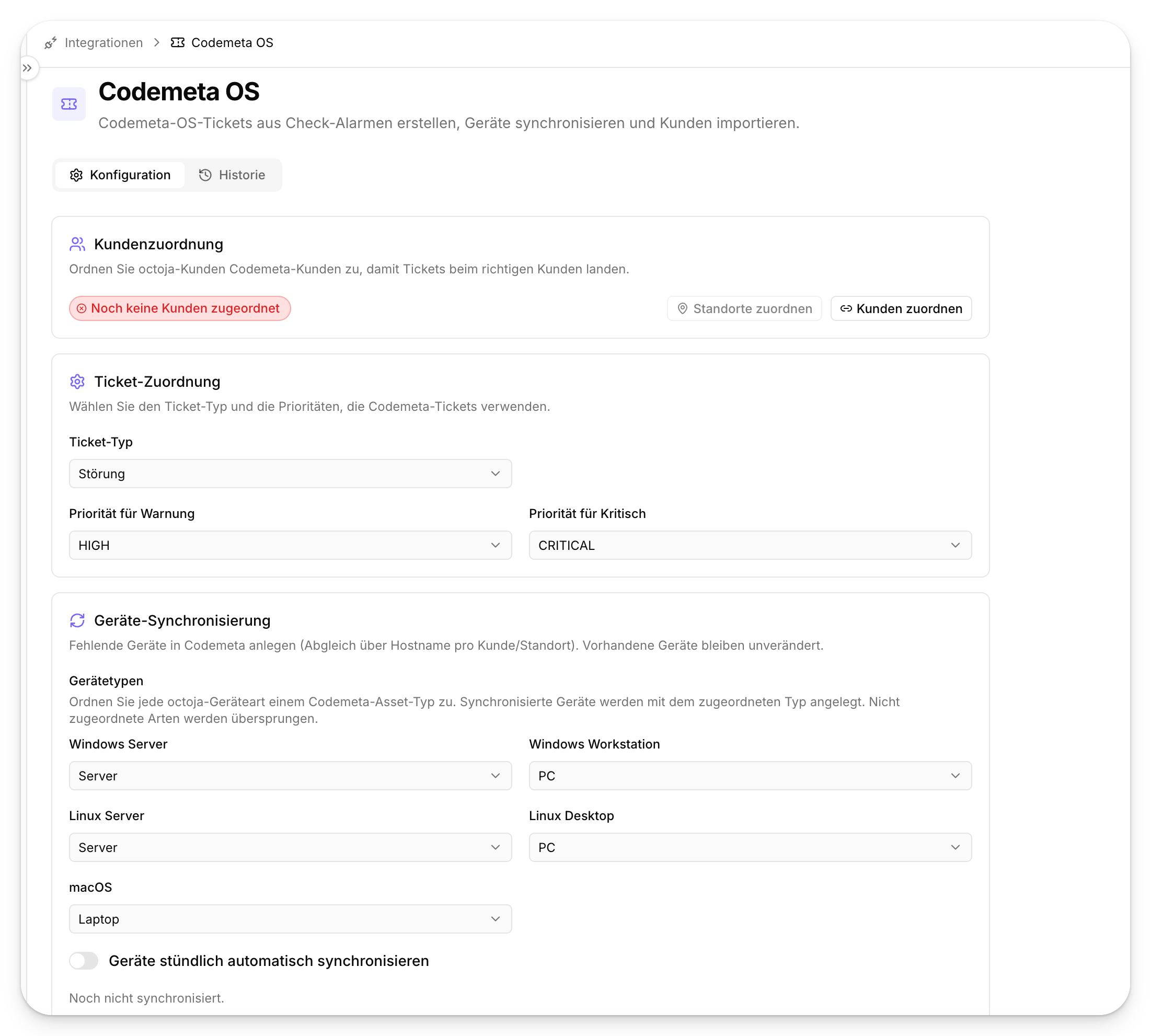
After connecting, the Configuration tab opens. Work through the three sections and then save.
- Customer mapping — map your octoja customers and sites to their Codemeta OS counterparts so tickets land on the right customer. Use Match customers and Match sites, or let octoja auto-match with the wand icon.
- Ticket mapping — pick the ticket type Codemeta OS tickets use, and the priorities octoja applies for Warning and Critical alerts.
- Device sync — map each octoja device type (Windows Server, Windows Workstation, Linux Server, Linux Desktop, macOS) to a Codemeta OS asset type. octoja matches devices by hostname per customer/location, creates the ones that are missing, and leaves existing devices untouched. Turn on Automatically sync devices hourly for an hourly sync.
Click Save settings to apply the configuration.
Track activity
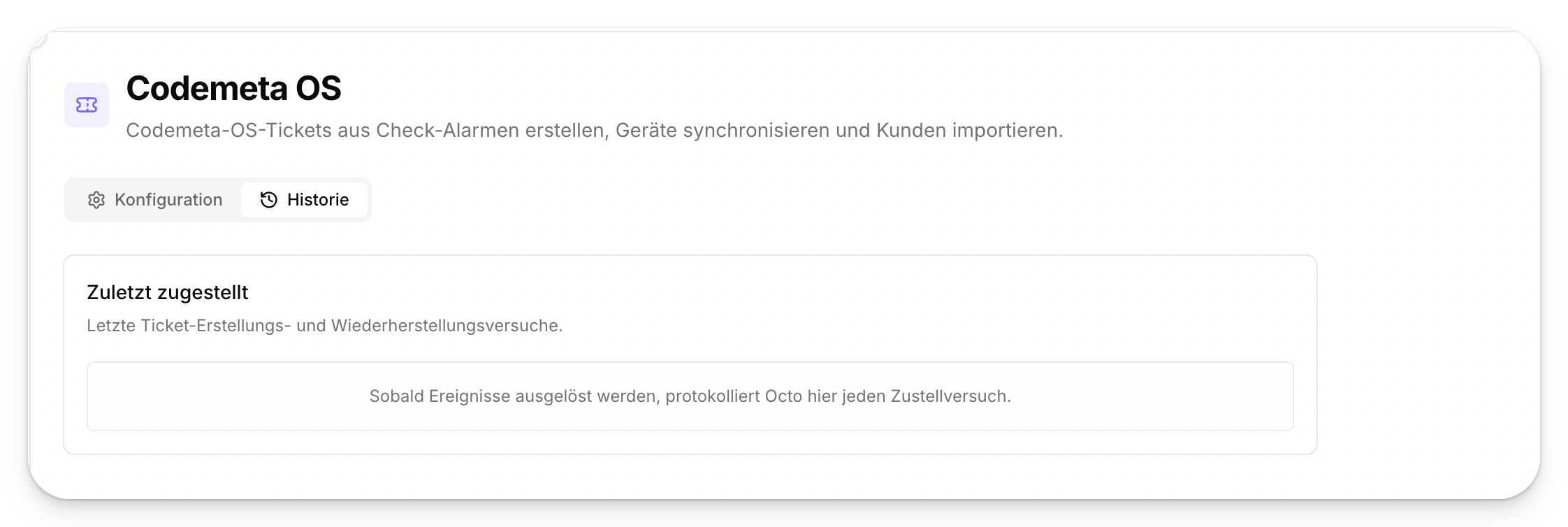
The History tab lists every ticket-creation and recovery attempt octoja sends to Codemeta OS under Recent deliveries, so you can confirm deliveries and troubleshoot failures.
What you can do now
- Import customers from Codemeta OS into octoja.
- Raise Codemeta OS tickets automatically from octoja check alerts.
- Log time from remote-control sessions or remote actions against a Codemeta OS ticket.
- Create devices in Codemeta OS from octoja.
Tips
- Restrict the API key to the permissions listed above — no more. You can rotate it anytime in the Codemeta OS API console and paste the new token into octoja.
- The device sync matches on hostname per customer/location. Make sure your customer mapping is correct first, or devices may be created under the wrong customer.
- Existing Codemeta OS devices are never overwritten — the sync only fills in the ones that are missing.