Configure a Patch Check
Monitor whether a device has pending operating system updates
Written By Erdinc Akay
Last updated 25 days ago
A patch check — listed as System Updates in the check picker — tells you whether a device has missing operating system updates.
Cross-platform: The patch check runs on Windows, Linux, and macOS. On Windows it uses the Windows Update API; on Linux it queries the native package manager (apt, dnf, yum, zypper, or pacman); on macOS it uses
softwareupdate.
Steps
- Go to Devices and open the device.
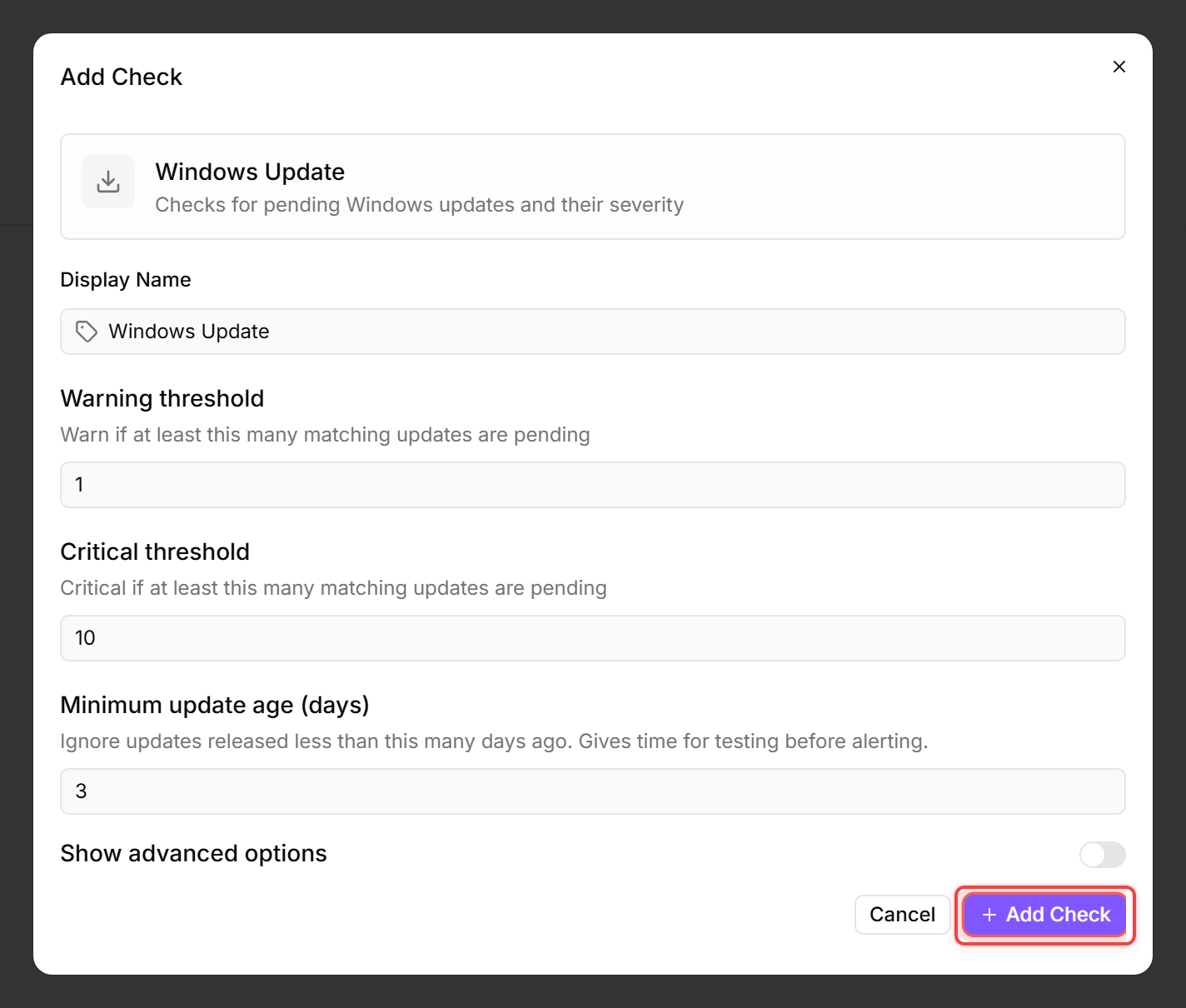
- Click the Checks tab → Add Check → System Updates.
- Configure:
- Warning threshold: number of pending updates before a warning is raised (default 1)
- Critical threshold: number of pending updates before a critical alert is raised (default 10)
- Count security updates only (Linux/macOS): on Linux and macOS, count only security-relevant updates (the security repository on Linux, recommended updates on macOS). No effect on Windows.
- Optional — click Show advanced options for the Windows-only settings:
- Minimum update age (days, Windows): ignore updates released less than this many days ago (default 3) — gives Microsoft time to pull a bad update before it counts against your thresholds. Linux/macOS updates carry no reliable release date, so this has no effect there.
- Severity filter (Windows): which MSRC severities count toward the thresholds. Default is Critical and Important; updates of other severities are ignored. Leave empty to count all. Ignored on Linux/macOS.
- Click Add Check.
What the patch check does
- Detects pending operating-system updates on the device.
- Reports counts and categories of missing patches.
- Raises warnings and critical alerts based on your thresholds.
Vet an update before you deploy it
Beyond counting pending updates, octoja gives you a fleet-wide view of every update in the Update Catalog. Open an update from the catalog to see whether it is safe to roll out.
Advisories on an update
The detail page for an update collects advisory signals so you can spot a problematic patch before it reaches your devices:
- Known issues — issues Microsoft has published for this update, each with a status such as Confirmed, Mitigated, or Resolved.
- Community reports — reports gathered from the wider community about problems with the update.
- Reported by other octoja users — a cross-tenant signal showing how many other octoja users have flagged or already blocked this update, so you benefit from the experience of the whole fleet.
Block a problematic update
If an update is causing trouble, you can stop octoja from installing it anywhere. Open the update from the Update Catalog and click Block update. You can add an optional reason. A blocked update shows a Blocked badge and is withheld from every device until you click Unblock update.
The block is tenant-global. It applies everywhere in your environment, not to a single patch policy. Once unblocked, the update becomes eligible for installation again according to your patch policies.
Withdrawn updates
When the vendor retracts an update, octoja marks it with a Withdrawn status so you know it is no longer being offered.
Tips
- Start with the defaults (warning at 1, critical at 10) and adjust based on your environment.
- Use a config package to assign the patch check to all devices at once, rather than configuring each device individually.
- Review the Updates tab on the device detail page to see which specific updates are pending.
- Before approving a widely affecting update, check the Update Catalog for known issues or a high Reported by other octoja users count.
See also: Patch Check Reference