Import monitoring checks with the Check Importer
Translate PowerShell monitoring scripts from another RMM into octoja Custom Checks — paste or upload them, translate, review each result, then import and test.
The Check Importer turns PowerShell monitoring scripts from another RMM into octoja Custom Checks, so you don't have to rebuild your monitoring from scratch after a migration. You add your scripts, octoja translates them, you review each result, and you import the ones you trust — then test every imported check on a test device before it reaches production. It pairs with the device migration — see Migrate from a connected source RMM to octoja.
If you prefer to adapt, live-test or design checks in conversation with your AI assistant, see Migrate or create checks with MCP. That workflow does not require access to the migration portal.
How the translation works
octoja translates your scripts with the Claude API from Anthropic. Scripts you submit through the API are not used to train AI models.
Important: AI-translated scripts can contain mistakes. Test every imported check on its own, on a test device, before you roll it out to production systems. The import happens at your own responsibility — octoja does not accept liability for damage caused by unchecked scripts.
Before you start
The Check Importer lives in octoja Migration, next to the device-migration pages. Two things have to be in place:
- Access to octoja Migration at migration.octoja.de — Migrate from a connected source RMM to octoja explains how to get an account.
- A linked octoja instance. Set it up under octoja connection first. Until you do, the page shows No octoja tenant linked and the import button stays inactive.
Step 1: Add your scripts
You can add scripts one at a time or in bulk. To bring in many at once, use the Bulk upload card.
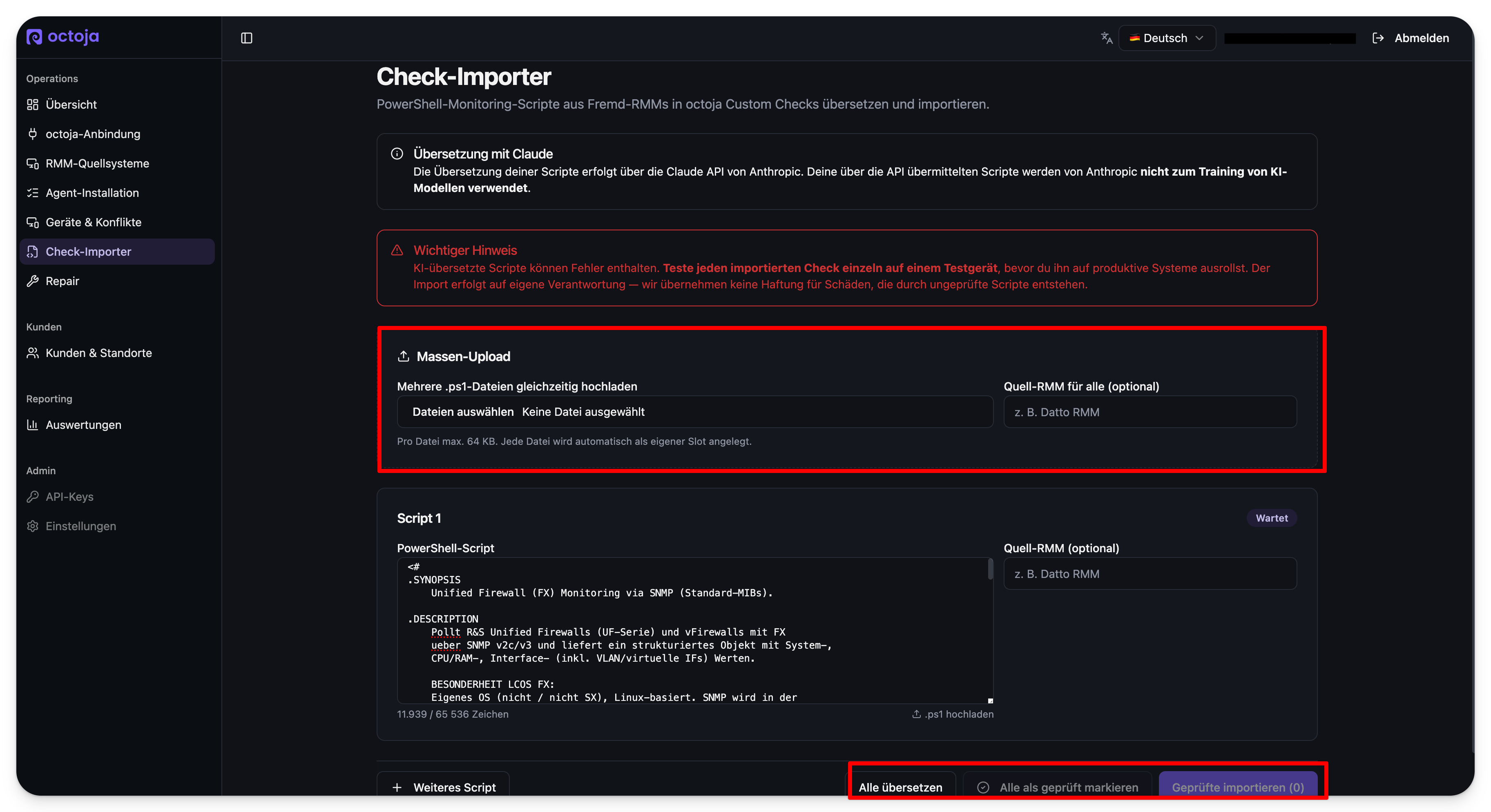
- Bulk upload — select several
.ps1files at once. Each file becomes its own script slot, up to 64 KB per file. Optionally set Source RMM for all (for exampleDatto RMM) to tag where the scripts came from. - One script at a time — each script sits in its own slot, headed Script 1, Script 2 and so on. Paste a script into the slot's PowerShell script box, or select Upload .ps1 underneath it to load a single file; a counter next to that link shows how much of the 65,536-character budget you have used. Tag the slot with Source RMM (optional), and select Another script at the bottom of the page to add an empty slot.
Each slot starts with the status Waiting until you translate it.
Step 2: Translate the scripts
Select Translate all to send every waiting script through the translation. Scripts are handled one after another, and each slot's status badge tracks where its script stands.
Selecting Translate all again re-runs every slot that is not already Ready for review or Imported, so a failed script gets another attempt without any extra step.
Step 3: Review each translation
Every slot that reached Ready for review opens a Translation review panel. This is the step that protects your production fleet from a translation that doesn't behave the way the original did, so read it before you go on.
- A Confidence badge — high, medium or low — says how sure the translation is of its own result. Low is a signal to read the script line by line.
- Original (read-only) and octoja script (editable) sit side by side. Correct the octoja script here; the original stays as it is, for comparison.
- Below them are the check's details: Check ID, Category (system, hardware, network, security, backup or application), Name (DE) and Name (EN), Description (DE) and Description (EN), Interval (minutes) — between 5 and 1440 — and Tags. Fixing a wrong name or interval here is quicker than fixing it after the import.
- Input parameters and Output fields list what the check accepts and what it reports back.
- Notes from the AI translation collects Warnings and Assumptions — the points where the translation had to make a judgement call.
When a translation looks right, tick I have reviewed the translation. at the bottom of its panel. Mark all as reviewed ticks every open slot at once without looking at any of them, so reach for it only when you have already read them all.
Step 4: Import the reviewed checks
Select Import reviewed to bring the translations you accepted into octoja as Custom Checks. The button counts the slots that are ready, for example Import reviewed (3), and imports only those.
- A Test before rollout! dialog opens. Tick the acknowledgement that every script is tested on its own before production use — Import now stays inactive until you do — then select Import now.
- Each slot moves to Importing… and then to Imported, naming the ID of the new check. A slot that could not be imported shows Import failed and the reason.
- Select Remove imported to clear the finished slots and keep working on the rest.
Your new checks are in octoja under Configuration → Check Library. Switch on Custom checks only to show just your own checks.
Step 5: Test every check on a test device
A translated check has not run anywhere yet. Open it under Configuration → Check Library and use the editor's Live test — pick a machine under Select device... and select Run. The test reports separately whether the script ran and what the check returned. The Custom Script guide explains the test steps and output format.
The live test stops script execution after 60 seconds. Scheduled check runs use the check's configured timeout; increasing that value does not extend the live test. This execution limit is separate from the Check Importer's translation limit.
Then assign the check to that one device on the device page, in the Checks tab and Monitoring Checks panel, using Add Check, let it run on its own interval, and compare the result against what the original script reported in your old RMM. Roll a check out more widely only once it has behaved there — see Assign checks with config packages.
Tips
- Take a handful of scripts through the whole path — translate, review, import, test — before you upload a large batch.
- Keep each
.ps1file at 64 KB or less. A single upload rejects a larger file with an error; bulk upload leaves it out and tells you how many files it skipped. - Tag the source RMM on each script so you can tell later where a check originally came from.
- A long script can run past the 120-second translation limit. If a slot comes back Failed with a timeout, translate it again or split the script into smaller checks.
- Your slots are saved as you work, so you can leave the page part-way through a review and pick it up later.
Was this helpful?
Still need help? Ask the team