Step 1 – Your First Login
Log into octoja for the first time and find your way around
Written By Erdinc Akay
Last updated 28 days ago
Welcome to octoja! This guide walks you through your first login and getting oriented in the interface.
Before you start
The octoja URL from your IT team
Your email address (this is also your username)
A password set for you by your administrator
Steps
Open your browser — for the best experience, we recommend Google Chrome. Other Chromium-based browsers such as Microsoft Edge are fully supported too. Browsers outside the Chromium family (for example Firefox or Safari) are not fully supported: the login page shows a blocking warning that you have to acknowledge before continuing, and some features may not work as expected. See Supported Browsers for details.
Navigate to the octoja URL provided by your IT team.
Enter your credentials — email address and password in the login form, then click the Sign in button (lavender on the stock octoja brand; your tenant may use a different brand colour).
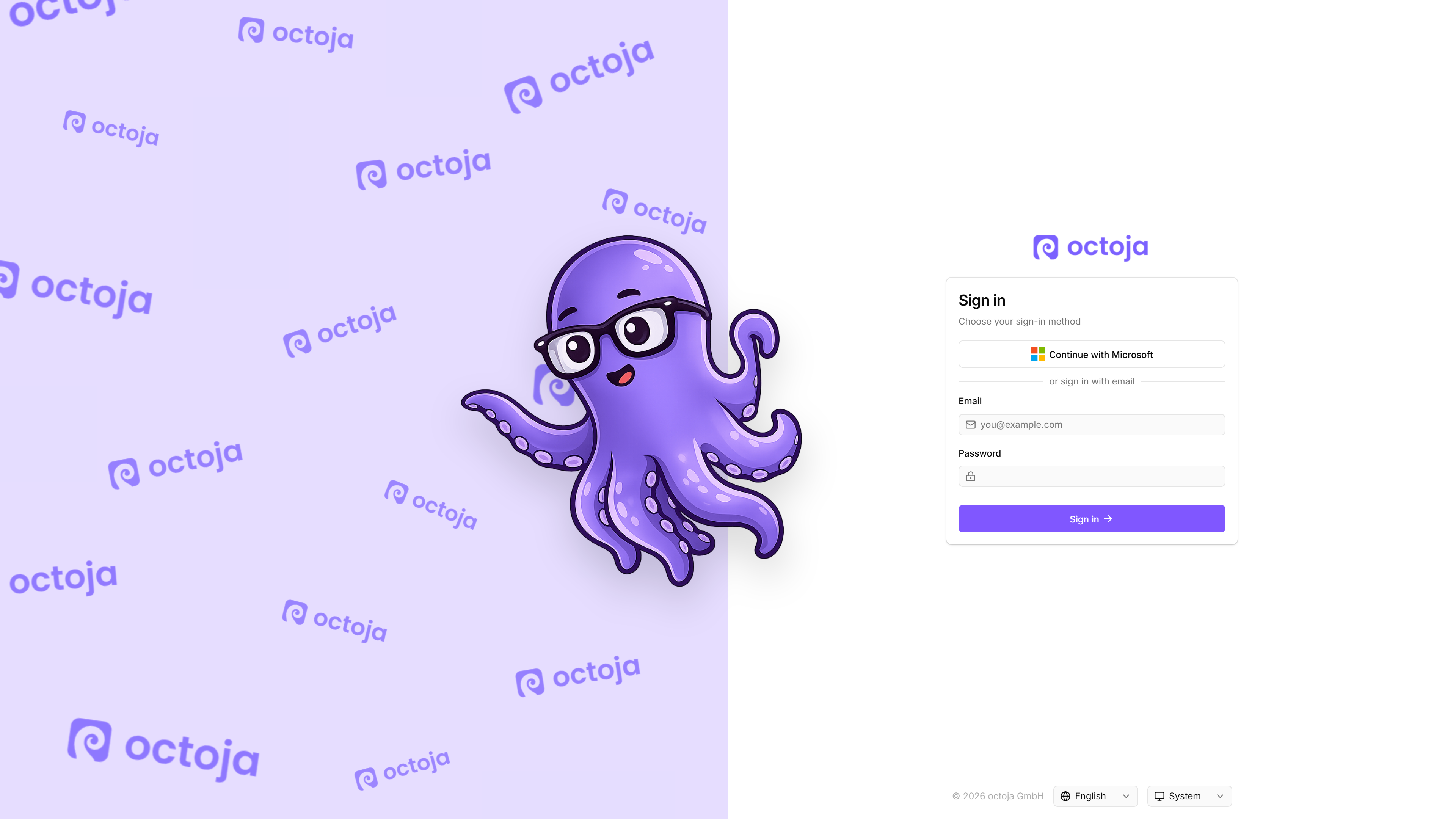
If your organisation has single sign-on configured, one or more Continue with {provider} buttons appear above the email field — for example Continue with Microsoft Entra. Click the button for your provider and follow its login steps instead of entering a password. The exact button label depends on what your administrator named the provider.
Change your password if you like — you can set a new password at any time in your profile (account row at the bottom left). Choose one that you do not use anywhere else.
Done! The default view is the Dashboard.
The first time you sign in, a one-time Welcome to octoja dialog greets you. It gives a short introduction and a preview of what is coming next. Click Let's go to close it — it will not appear again.
Interface overview
Tips
Bookmark the URL for quick access.
If you have forgotten your password, ask an administrator to reset it for you. See Reset Your Password for details.
octoja works on tablets too, but the best experience is on a desktop or laptop.
Next step
Continue with Step 2 – Create Your First Customer.