Connect Claude to octoja
Screenshot walkthrough: create the octoja connector, configure permissions in Claude and test the connection.
Connect Claude to your octoja user in three steps: create the connector, configure its permissions in Claude and test a monitoring query.
Prerequisites: You need an octoja user with the MCP Usage permission, plus a Claude account. Your octoja server must be reachable from Anthropic's cloud; access through a private VPN on your computer alone is not sufficient.
Each person authorizes their own octoja user. See Anthropic's custom-connector instructions for current availability and organization setup.
1. Create the octoja connector
- Open octoja in a separate tab, go to Settings → MCP clients → Add MCP client and copy the server address. It ends in
/mcp. - Open Claude and sign in. Click your profile at the bottom left, then Settings.
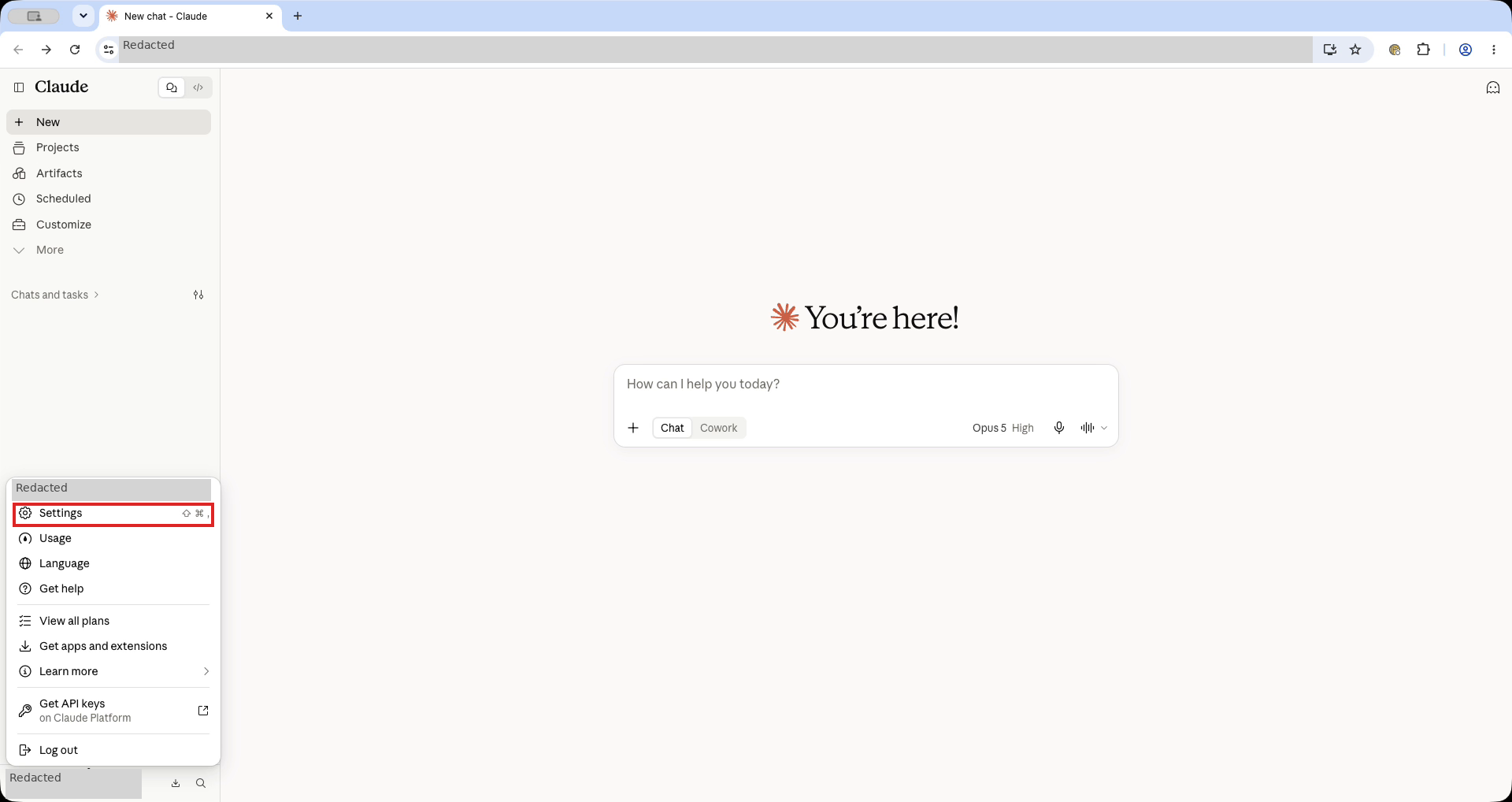
- In the settings sidebar, select Connectors under Customize.
- Click Add at the top right. The Add custom connector dialog opens. If octoja is already listed, open it and continue with Connect in step 8.
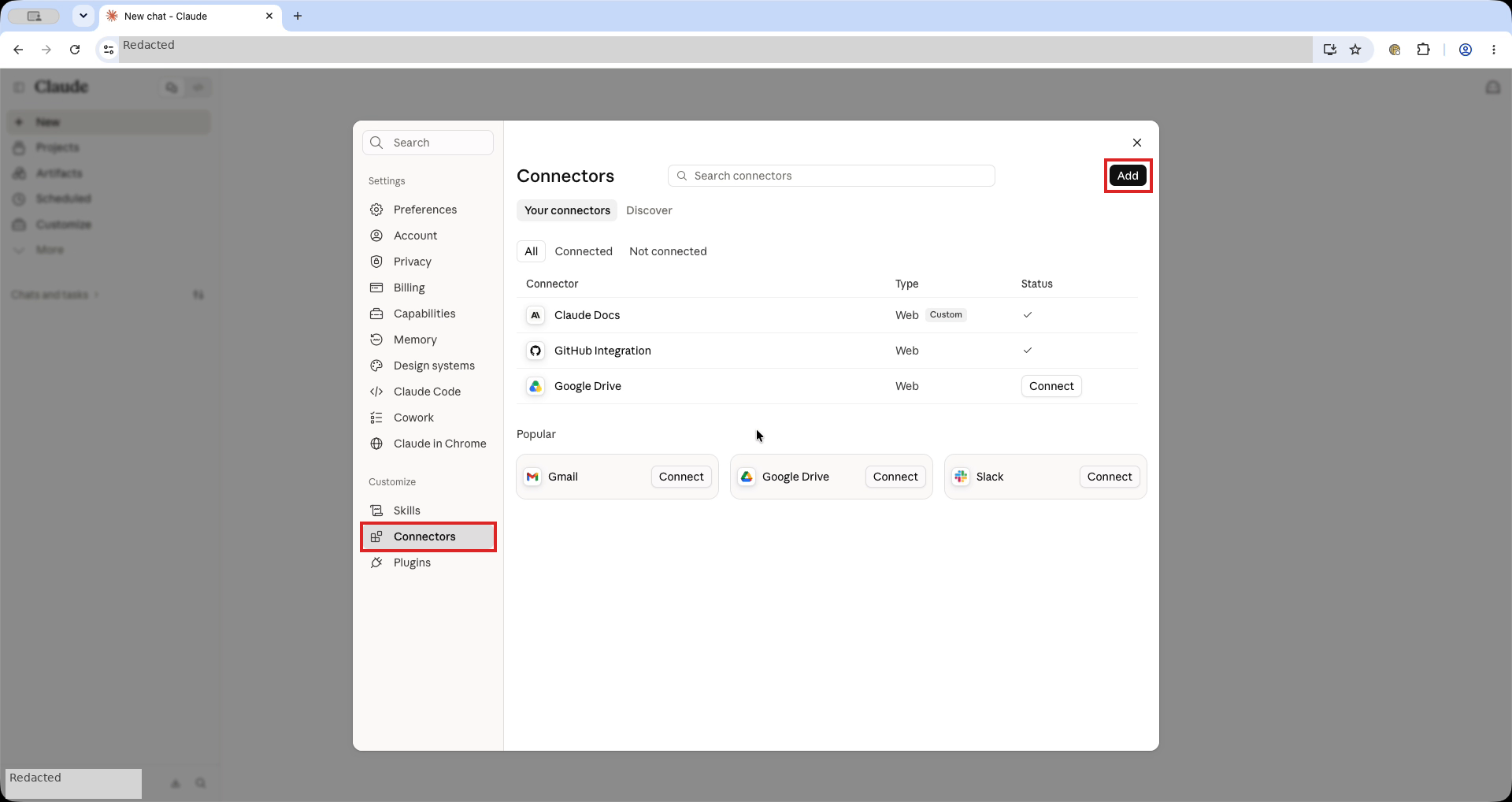
- Enter
octojaas the name and paste your octoja address into the server URL field. Include/mcp, for examplehttps://rmm.example.com/mcp. This example illustrates the format; use your own octoja address, not this example address. - Read the trust warning and click Continue. Wait for Claude to check the server and its sign-in settings.
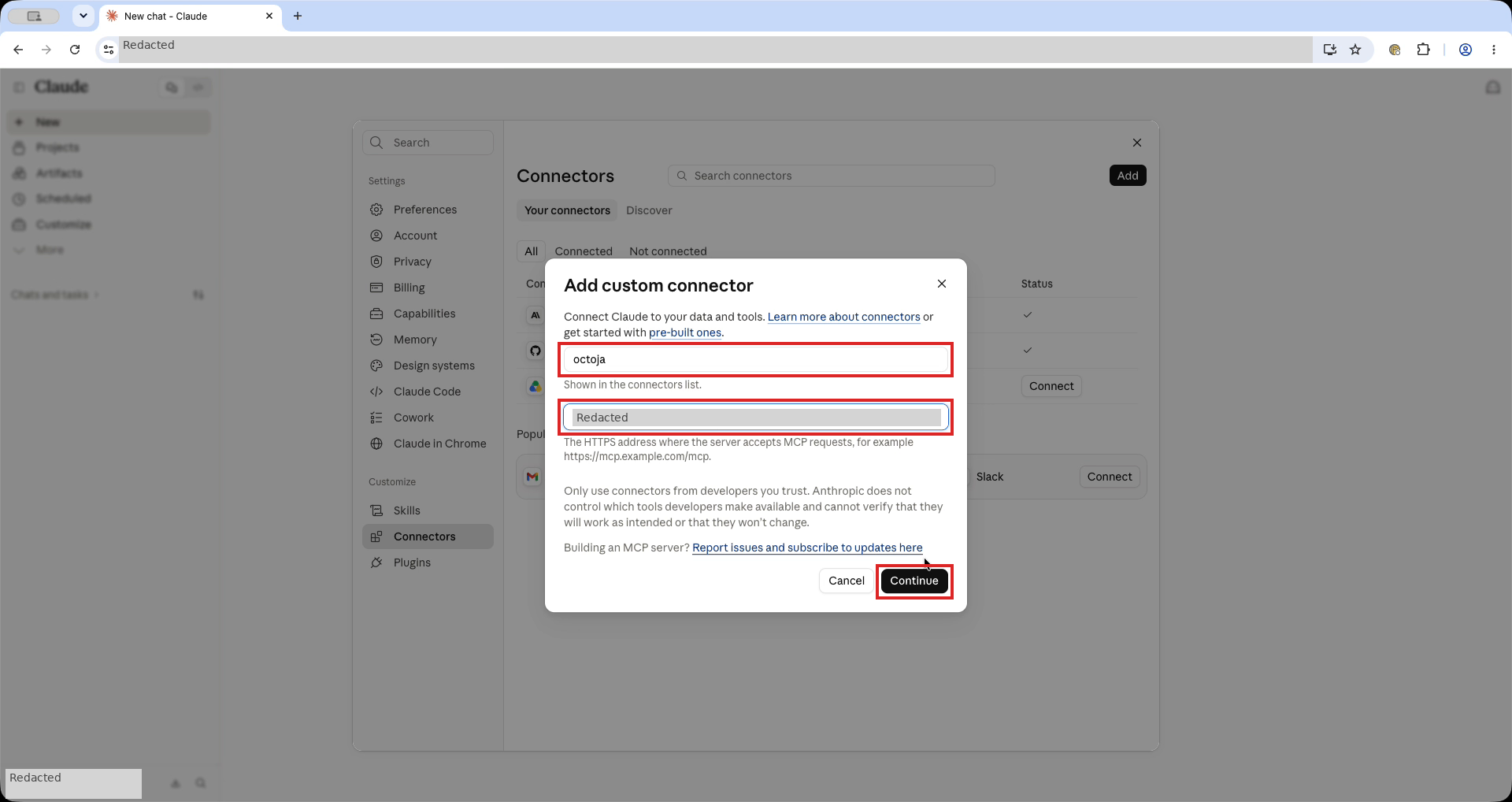
- Keep the detected authentication settings below, scroll down and click Add.
You do not need an API key or manually entered OAuth client credentials for this setup.
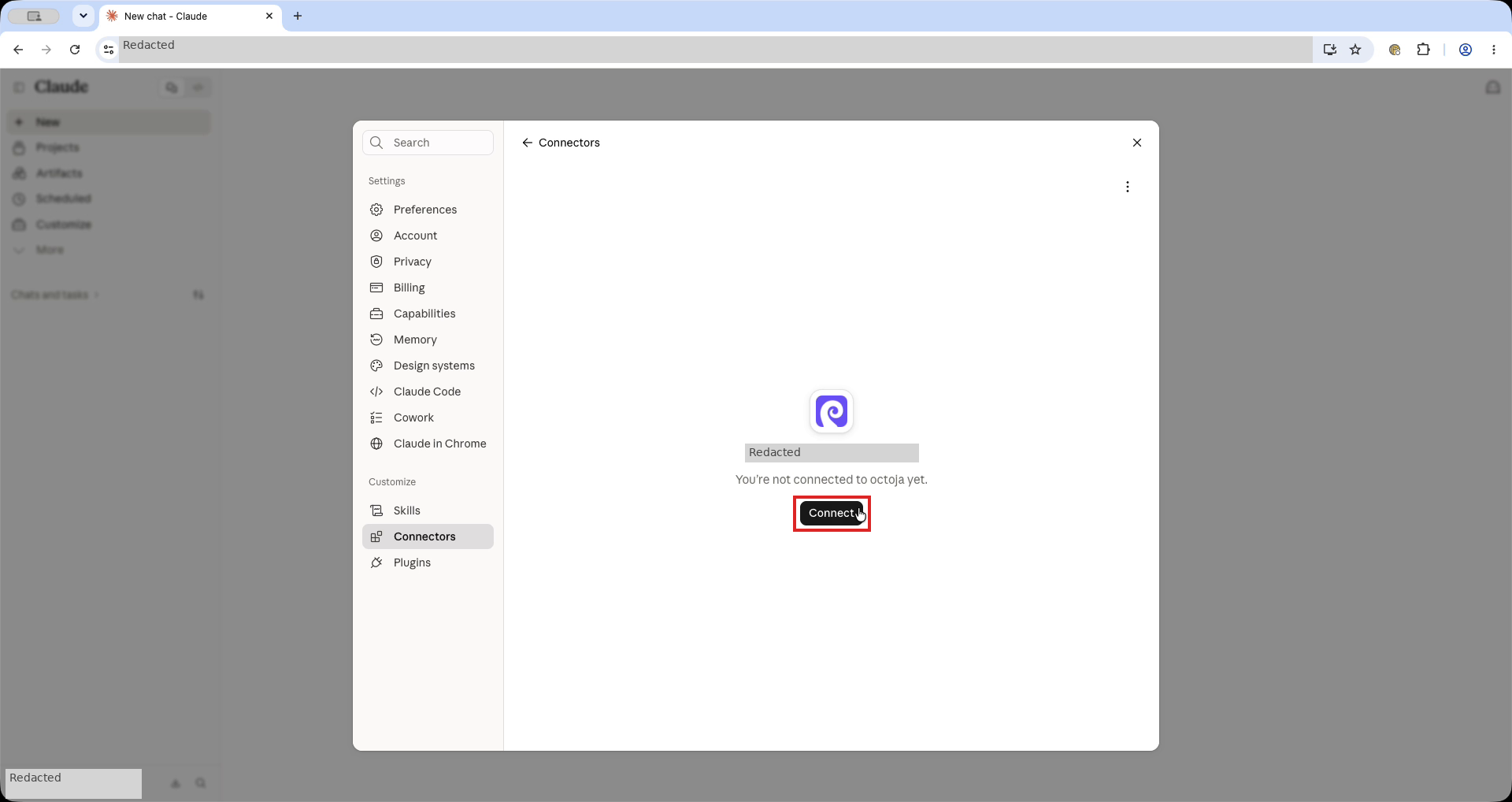
- When You're not connected to octoja yet. appears, click Connect. Claude opens octoja's authorization page.
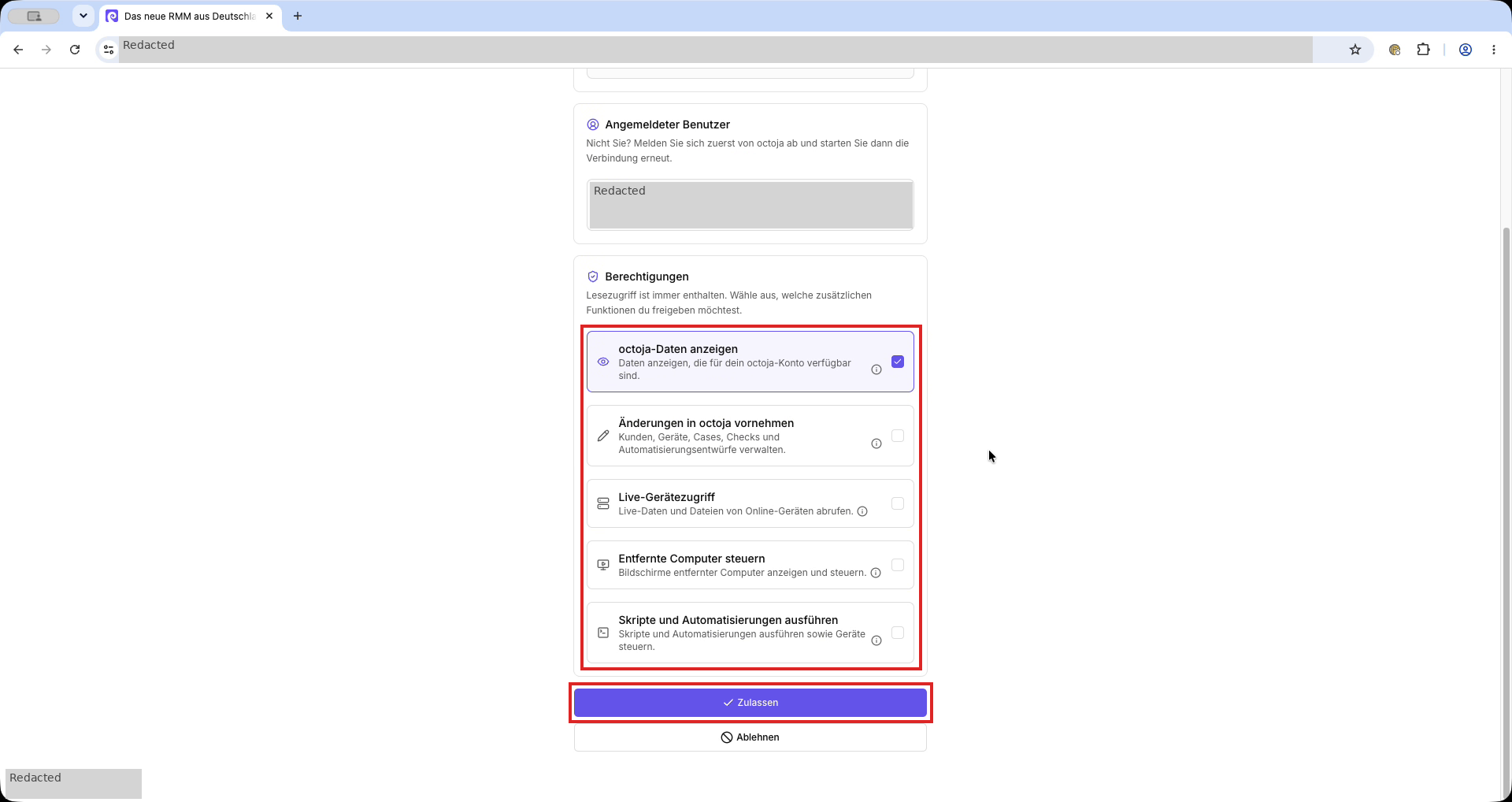
- Check that the authorization page belongs to your own octoja instance. Sign in if prompted and verify the requesting client Claude and the Signed-in user (Angemeldeter Benutzer in the screenshot).
- Review Permissions (Berechtigungen) and scroll down. Read access is always included. For the monitoring test below, leave the additional capabilities unselected.
- Click Allow (Zulassen in the screenshot).
- Return to Claude. The octoja connector now shows Disconnect and Tool permissions instead of the connection prompt.
2. Configure octoja connector permissions in Claude
Choose when Claude asks you before using a tool. These settings do not expand the access you granted in octoja during setup.
- In the connected octoja settings, find Tool permissions. To return here later, open Settings → Connectors and select octoja.
- Open the dropdown beside a tool group, such as Read-only tools. In the recording, this group initially shows Needs approval.
- Choose the behavior you want for that group, or use the controls beside individual tools for finer-grained permissions.
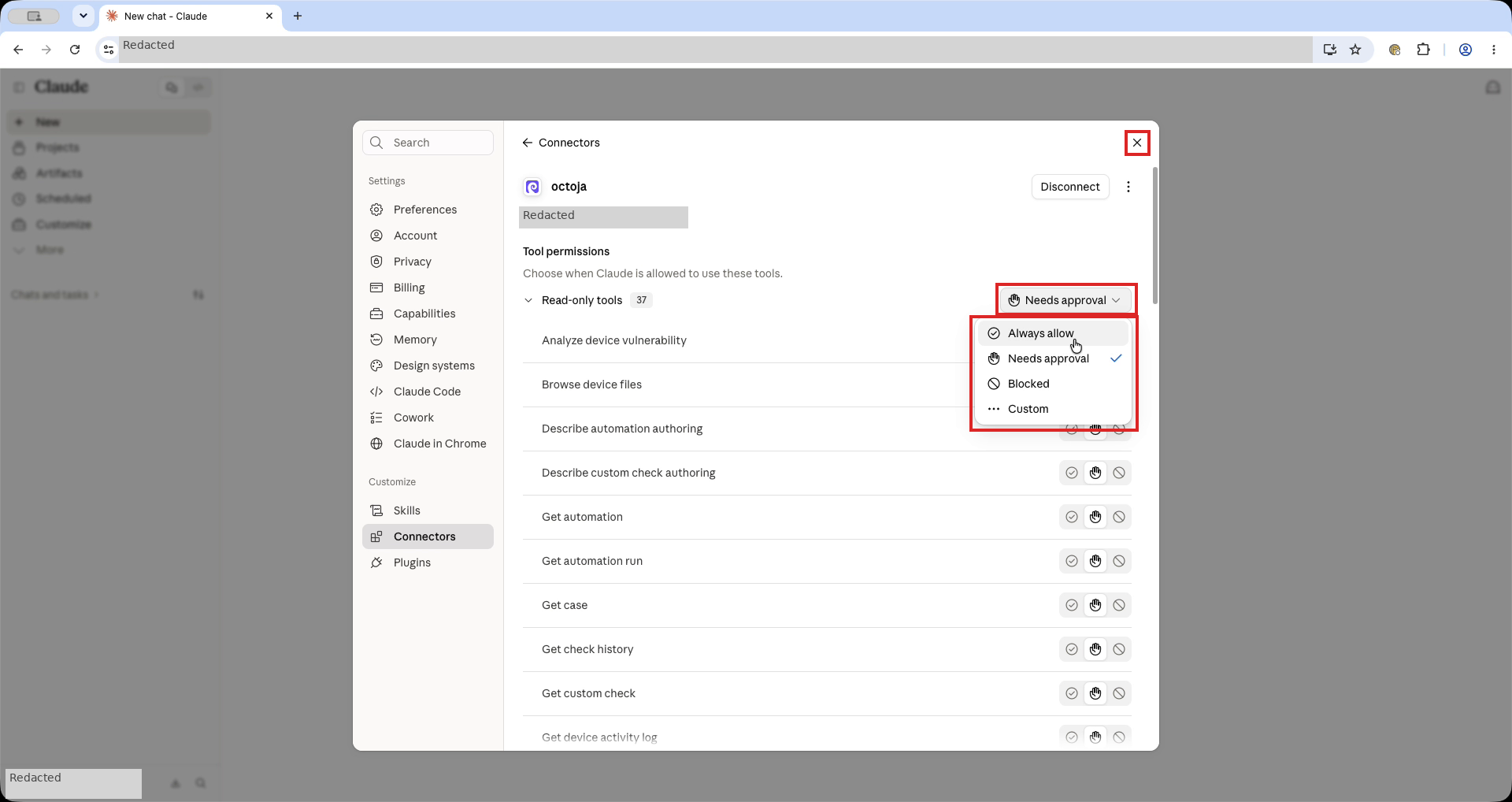
Always allow is optional, not a connection requirement. The group dropdown applies to that group, not automatically to every tool in the connector. For a cautious start, keep Needs approval for the tools you want to test.
3. Test the octoja connector
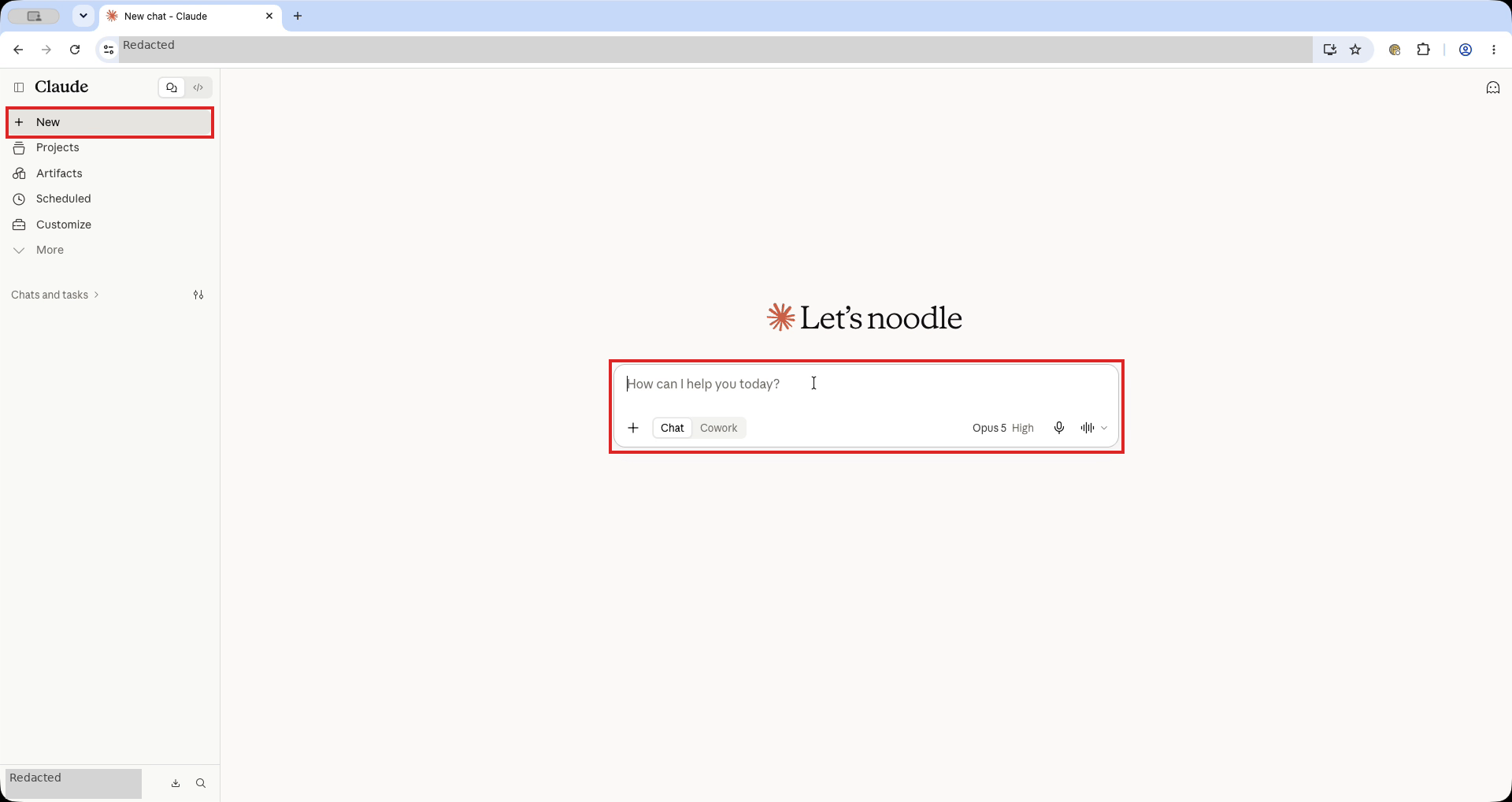
- Click New in Claude's sidebar to start a conversation.
- Enter a prompt. Replace the placeholder with the device name:
Use the octoja MCP and get the check-status of [device name].
- Send the message and approve the tool call if Claude asks.
- Wait for Claude's reply. The recorded test uses List devices and Get device checks, then produces a monitoring summary.
- Expand the activity summary above the answer, shown as Loaded tools, used octoja integration, to inspect the tool calls and results. Successful calls returning the intended device's monitoring data confirm the connection; a connection claim in the answer alone does not.
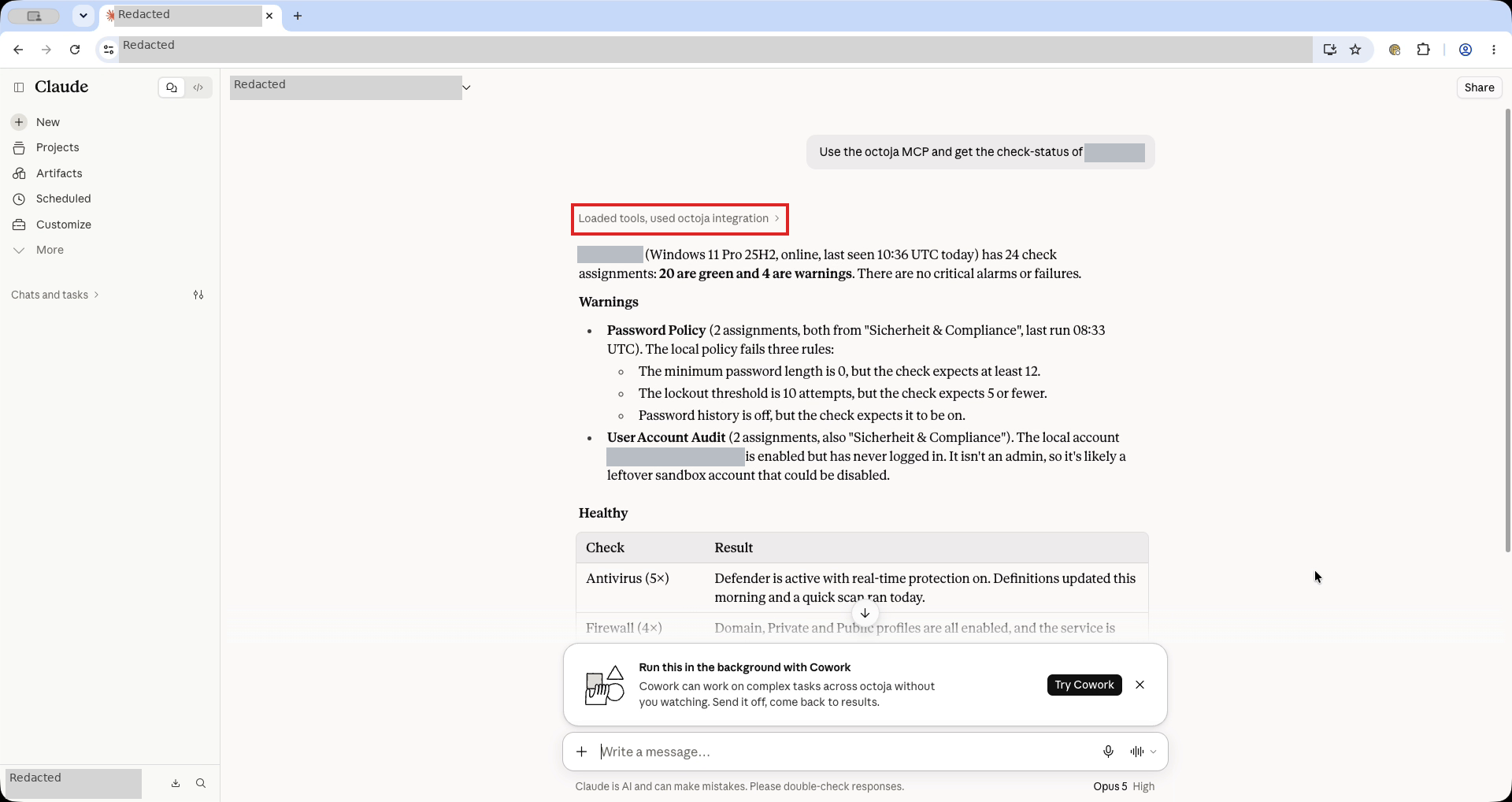
Your result depends on the device and its checks. If Claude does not use octoja, check that the connector is connected and the relevant tools are not Blocked. For access errors, check the octoja grant and your user's device permissions. If the server cannot be reached, check the /mcp address and access from Anthropic's cloud.
Video walkthrough
Continue with Examples and workflows. To change octoja grants or disconnect the connector, follow Overview and access.
Was this helpful?
Still need help? Ask the team