Remote Operations
octoja lets you interact with connected devices directly from the browser. You do not need to install any remote-access tools on your own machine — ever...
Written By Erdinc Akay
Last updated 17 days ago
Remote Operations
octoja lets you interact with connected devices directly from the browser. You do not need to install any remote-access tools on your own machine — everything runs through the octoja web interface using the agent already installed on the device.
This article explains each remote capability and how they relate to each other. For step-by-step instructions, see the linked How-To articles.
Each remote capability is one of a group's Allowed actions, configured per group under Administration → Groups on the Device Access tab. A group grants access along two axes: Customer Access decides which customers the group can see, and Device Access decides which of those customers' devices the group can reach — and, through Allowed actions, what may be done on them. The remote operations in this article — Terminal, Remote Desktop, Registry, File Browser, Event Log, Service Control, and Process Control — each appear as their own entry in that list, alongside further actions such as Software Management, Run Script, Run Maintenance, Edit Device, Delete Device, and Send Notification. A user only sees the toolbar buttons for the actions their group allows — so you can, for example, enable Terminal for a group without enabling Remote Desktop. When a group's allowed actions are empty, its members can still reach and view the devices in scope but cannot perform any operations. For the full model, see Users, Groups & Permissions.
What you can do remotely
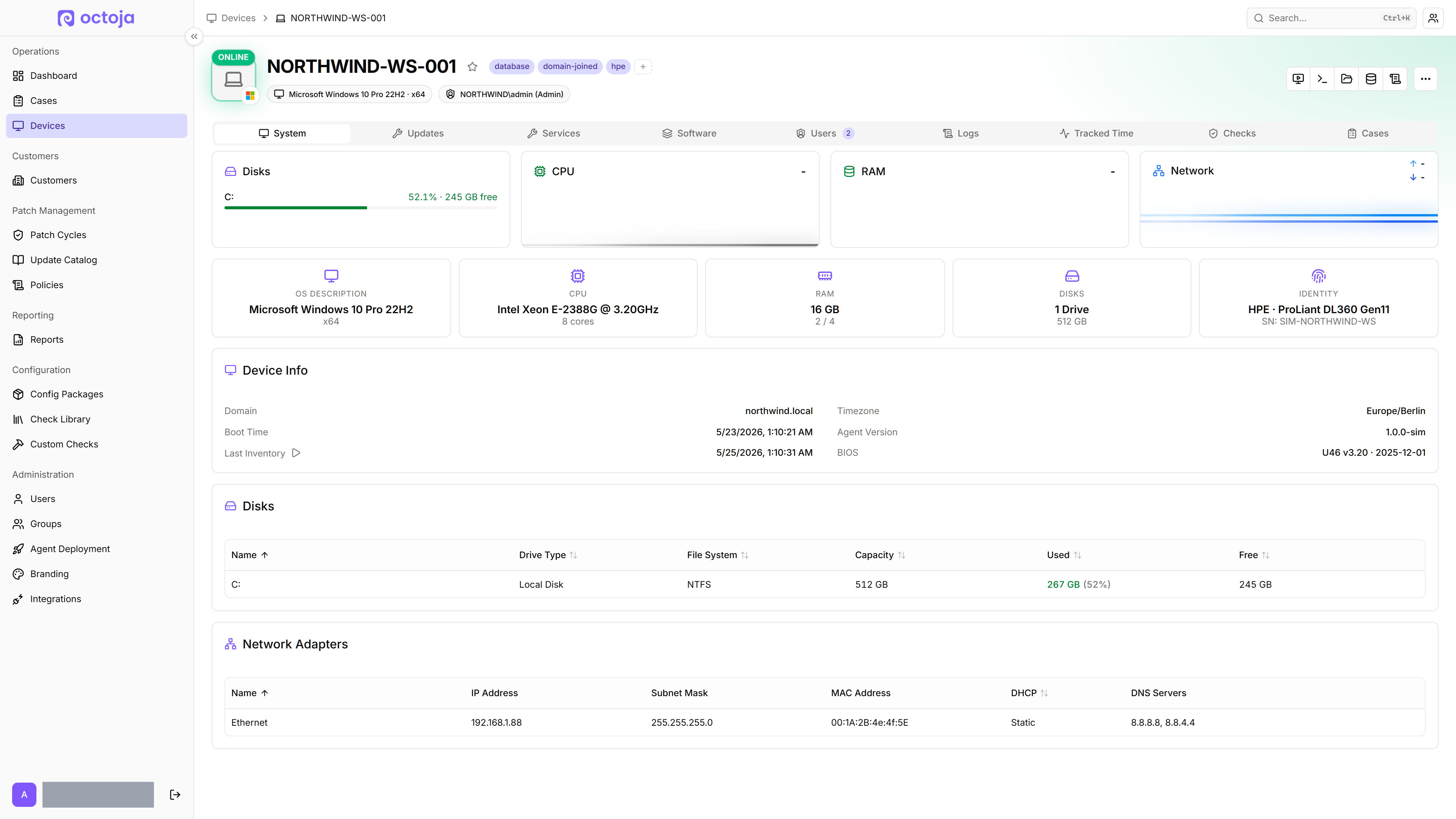
Here is what the device detail page looks like with the remote operations toolbar and live performance charts:
Remote terminal
You can open a browser-based terminal session on any connected device. The terminal offers the shells that are actually installed on the device — depending on the operating system, typical options are:
The terminal includes a Quick Commands menu with shortcuts for common administrative tasks, so you do not have to type frequently used commands from memory.
Terminal sessions require an active connection between the agent and the platform. If the device goes offline during a session, the session ends.
Related article: Open a Terminal on a Device
Live performance telemetry
The device detail page shows real-time performance data, updated every 2 seconds:
- CPU usage — current processor utilisation with a live chart
- Memory usage — current RAM utilisation with a live chart
- Disk usage — space consumed on each volume
This is live data streamed from the agent while you are viewing the page. It is not stored historically — when you navigate away, the live feed stops.
Related article: Monitor Device Performance Live
Service and process management
From the device detail page, you can:
- Services — view all system services with their current state (running, stopped, etc.). Start, stop, or restart any service directly.
- Processes — view running processes with resource usage. End a process by PID.
These actions take effect immediately on the device.
Related article: Monitor Device Performance Live
File browser
The Files tab in the device toolbox lets you navigate the file system on a connected device. You can:
- Browse directories
- Upload files to the device
- Download files from the device
Registry editor (Windows)
The Registry tab in the device toolbox opens a browser-based editor for the Windows registry. You can navigate the hive tree, inspect keys and values, and add, rename, or delete entries directly.
The editor talks to the agent over the same realtime tunnel as the terminal and file browser — changes take effect immediately on the device. Available only on devices running the Windows agent.
Event log viewer (Windows)
The Event log tab lets you read the Windows event log directly from the browser. The viewer shows the channel tree (Application, System, Security, and custom channels), a date-range picker for filtering, and a search box for full-text and event-ID lookups.
Like the registry editor, it streams live from the agent and is available only on devices running the Windows agent.
Remote desktop
Remote desktop lets you view and control a device's screen directly from the browser — no RDP client, no VPN. The session runs over the same realtime tunnel as the terminal and file browser. Remote desktop is available for devices running the Windows agent.
Drag-and-drop file upload. During an active remote-desktop session, drag a file from your local machine onto the remote screen to upload it. octoja drops the file into the Downloads folder of the user currently logged into the remote device — useful for handing over an installer or a log-collection script without switching to the Files tab.
Related article: Use Remote Desktop
What requires an active connection
All remote operations require the device to be online and connected to the octoja platform. If a device is offline, terminal sessions, live performance data, service/process management, and the file browser are all unavailable.
In the device toolbox, the Remote desktop, Terminal, Files, Registry, and Event log buttons are always shown but greyed out while the device is offline. The Registry and Event log buttons appear only on Windows devices. All buttons become usable again as soon as the device reconnects.
The agent automatically reconnects when the device comes back online, but interactive sessions from the previous connection are not resumed.