Step 5 – Get an Overview at a Glance
Open the home dashboard and filter by severity, status, customer, and device kind.
Written By Erdinc Akay
Last updated 26 days ago
You've enrolled at least one device and activated your first check. Now you can see the bigger picture — the home dashboard at the top of the sidebar shows all your customers, devices, and check results on one screen.
Open the home dashboard
Click Dashboard at the top of the left sidebar. The home dashboard opens.
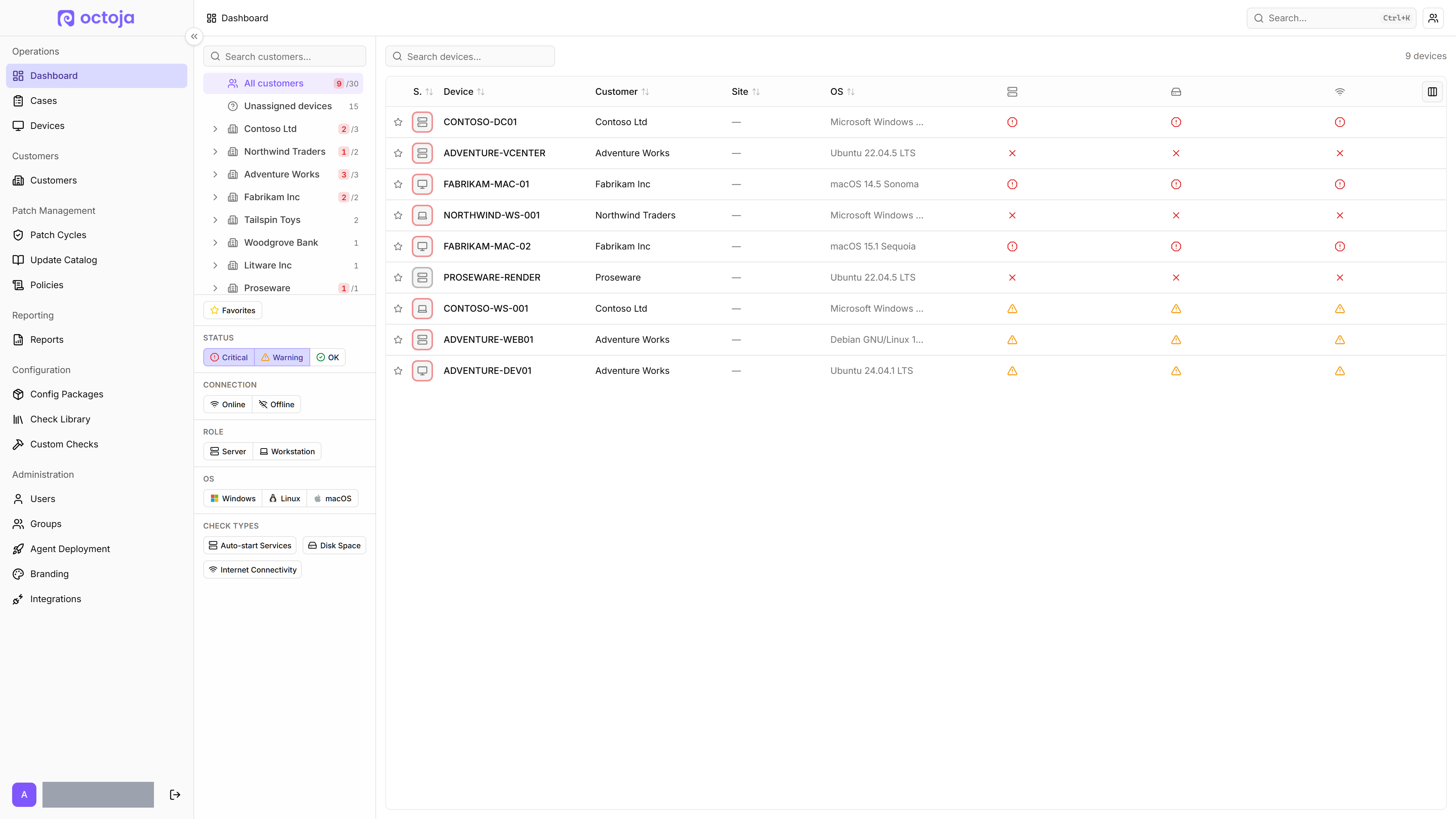
You land on a populated overview like this:
Filter by what matters right now
The dashboard groups everything by customer, with severity badges so you can see at a glance which devices need attention.
- Critical, Warning, Healthy — filter the view to just devices in that severity. Click Critical first when you open octoja in the morning to see anything that needs immediate attention.
- Online / Offline — filter to devices the agent has checked in from recently, or to devices that have gone silent.
- Pending / Current / Unknown — filter by update status: devices with pending updates, devices that are up to date, or devices whose update status is not known yet.
- Server / Workstation — filter by device kind.
- Windows / Linux / macOS — filter by operating system.
Drill into a customer
Click any customer name in the sidebar to filter the view to just that customer's devices. Click All customers to clear the filter.
Search
The Search devices box filters the list to devices whose name, alias, model, kind, or last-logged-in user matches what you type. Use it to narrow a long list when you know roughly what you're looking for.
What you've achieved
Congratulations — you've completed the octoja Getting Started series. You now have a customer with at least one device sending live telemetry and at least one check evaluating the device's health. The home dashboard is where you'll usually start your day.
Where to go next
- Monitor Device Performance Live — open a single device and see CPU, memory, and disk activity update in real time.
- Open a terminal on a device — run remote commands without leaving the browser.
- Deploy Software to Devices — push installers and updates centrally.
- Keep devices patched — octoja's patch management rolls operating-system updates out in staged rings, reviewed and approved before they install.