Set up lywand software
Connect lywand software to octoja to see a security rank and vulnerability list on every device.
Written By Erdinc Akay
Last updated 25 days ago
Set up lywand software
lywand software is a third-party vulnerability scanning platform. When you connect lywand software to octoja, every device that lywand has scanned shows a security rank (A–F) and a list of open vulnerabilities directly on the device detail page. You can prioritise remediation work without leaving octoja, then click through to the lywand portal for the full vulnerability detail.
Prerequisites
- You need the Integration Management permission in octoja. Administrators assign permissions to groups under Administration → Groups.
- You need an active lywand software account with an API key. Generate it in your lywand portal — see lywand's own documentation for the exact location.
- Your lywand partner mapping has to overlap with the customers you have in octoja. Each octoja customer is matched to one lywand partner during setup.
Connect lywand software
- Go to Administration → Integrations. The page is split into an Alerting section (Email, Microsoft Teams, Mobile push, Webhooks), a Ticketing systems section, and an Other platforms section. A search box at the top of the page filters the cards by name.
- Under Other platforms, find the lywand software card and click Set up. You can also type "lywand" into the search box to jump straight to it.
- Paste your lywand software API key into the setup dialog. octoja stores the key in your instance configuration and never returns it through the API — once saved you can no longer view it; rotate the key in lywand if you lose track of it.
- Optionally, click the small test icon next to the input to pre-validate the key. A green "API key verified." line appears for a working key; a red line shows lywand's reason if the key is rejected. You can skip this step — Save validates the key server-side too.
- Click Save. The card switches to its connected layout: a customer-matched progress bar replaces the description, and the Match customers button plus the Disconnect icon (a small unplug symbol) appear in the card footer.
Match customers to lywand partners
octoja customers and lywand partners are independent entities — the customer named "Acme GmbH" in octoja is not automatically the same record as "Acme" in lywand. After connecting you must tell octoja which is which.
- On the lywand software card, click Match customers.
- The dialog lists each octoja customer in a row. Pick the matching lywand software partner from the picker on each row. Leave a row empty if the customer is not in lywand (its devices will show no score).
- Click Save. octoja preserves these matches across disconnect and reconnect — you do not have to redo the mapping when rotating the API key.
The progress bar on the integration card turns green when all octoja customers are matched and amber while the mapping is partial.
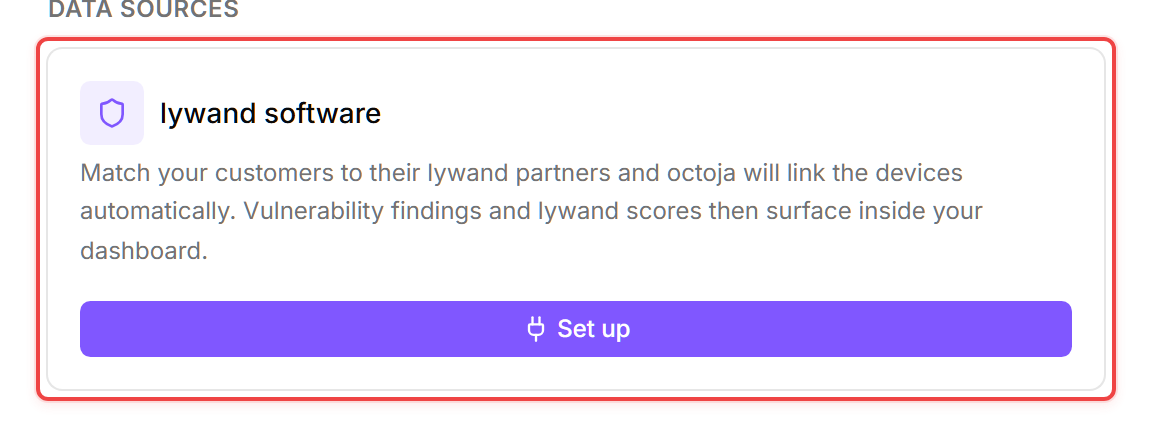
Once everything is set up, the lywand software card in the Other platforms section looks like this:
Changing the mapping later
You can change the mapping at any time — expect a short gap in the display afterwards. When you remove a customer's match, octoja clears the scores of that customer's devices right away. When you assign a customer to a (different) lywand partner, the data for the new pairing arrives with the next background sync, which runs once an hour — so an empty lywand display right after saving is normal, and scores should be back within about an hour. If they are still missing a couple of hours after the change, check that the card shows no API-key alert and re-open Match customers to confirm the pairing — if both look right, contact support.
Where the data appears
Once lywand software is connected and customers are matched, vulnerability data surfaces in three places:
- Devices list (
/devices) — devices with a lywand score show their rank letter inline on the device row. - Device detail page (
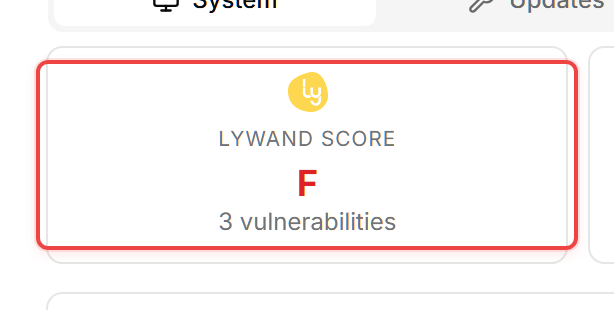
/devices/<device>) — a compact Lywand Score tile in the metrics row shows the rank letter and the open-vulnerability count. A dedicated tab on the device renders the full vulnerability table with CVEs, severity, CVSS vector, EPSS score, and remediation steps. An Open in Lywand link deep-links into the lywand portal for the first listed vulnerability. - Dashboard — when at least one device has a lywand score, the dashboard's device table adds a per-device Lywand column showing each device's rank letter.
- Customers overview — when at least one customer has a lywand score, the customer table adds a colour-coded, sortable Lywand column showing each customer's aggregate A–F rank, so you can spot your highest-risk customers at a glance.
When does the score appear?
A device shows a score when all of the following are true:
- The device's customer is matched to the right lywand partner (see above).
- lywand scans the device itself — through the lywand agent installed on that device. Devices that lywand only scans remotely over the network are not paired with octoja devices and show no score.
- The device is managed by octoja for the same customer. octoja pairs its device record with lywand's automatically, using the machine identifier the lywand agent stores on the device — there is no manual per-device mapping. The pairing works for Windows devices.
A paired device with zero open findings shows rank A — a blank cell never means "clean", it means the device is not paired or not scanned. As for timing: octoja fetches new data from lywand once an hour, so fresh scan results — and the first scores after connecting or matching — appear at the latest about an hour later. A newly installed lywand agent takes one step more: octoja first has to pick up the new identifier during its regular device-inventory refresh, so allow a few hours before treating a blank score as a problem.
Understanding the score
Each vulnerability carries a risk value between 0 and 10. octoja aggregates every open vulnerability on a device into a single device-level score that scales 0 (best) to 10 (worst) — a higher score means a worse security posture. The aggregation follows lywand's published scoring methodology; see lywand's own documentation for the formula. octoja maps the score to a six-letter rank:
Severity labels on individual vulnerabilities (Critical, High, Medium, Low) come straight from lywand and are independent of the device's aggregate score. A device can hold an A rank overall while a single vulnerability is labelled Critical if its risk value is low enough to barely contribute to the aggregate.
What octoja shows per vulnerability
The vulnerability table on the device detail page exposes:
- Name and a short Description from lywand
- Severity badge (Critical / High / Medium / Low)
- Risk score (0 – 10) with colour coding (yellow → orange → red, no green — see note below)
- CVE identifiers when lywand has mapped the finding to one or more CVEs
- CVSS base vector when available
- EPSS score (Exploit Prediction Scoring System) when lywand provides it — useful for prioritising findings the wider security community is actively exploiting
- CISA KEV flag — when set, the CVE is on the US Cybersecurity and Infrastructure Security Agency's Known Exploited Vulnerabilities catalogue
- Technical Solution — lywand's recommended remediation step
- Detected timestamp
The risk score has no "green" tier in the UI: no vulnerability is "good". The lowest-risk visible colour is amber, not green, to keep low-risk findings from looking dismissable. The aggregate rank (A–F) does use green for A and B — there the green is meaningful because zero or near-zero vulnerabilities is a real outcome.
Rotate the key or disconnect
- Rotate proactively while the key is still valid: a connected card shows only Match customers and Disconnect — there is no Update key button until the stored key stops working. To swap in a new key, click Disconnect, confirm, then Set up again with the new key. Your customer matches are preserved across the disconnect, so you do not have to redo them.
- Lywand has rejected your key: the card shows an inline alert ("The API key is no longer valid. Update it to keep receiving data from lywand software.") inside the card body, and an Update key button appears. Click it, paste the new key, and Save — no disconnect needed in this case.
- Disconnect for good: click Disconnect and confirm. The next sync stops, and the rank cells disappear from devices on the next page refresh.
Tips
- The background sync runs once an hour and is not user-triggered. Newly discovered vulnerabilities show up at the next sync.
- If a device has no lywand score (cell blank), it usually means lywand has not scanned that device yet. Verify the customer mapping is correct and that lywand actually has the device in its inventory. See When does the score appear? above for the exact conditions.
- The Open in Lywand link on the device detail page deep-links to the first listed vulnerability's detail view in the lywand portal — handy for jumping into the vendor's UI with the raw scan output already loaded.
- Troubleshooting: if scores stay blank after a connect, check that the API key was accepted (the card shows no "API key is no longer valid" inline alert); confirm the customer is mapped in Match customers; check Product Status & Known Limitations for any current lywand sync issues.