Software Deployment
Install and update software on managed devices automatically
Written By Erdinc Akay
Last updated 8 days ago
octoja can install and update third-party software on managed devices automatically. Instead of logging into each computer individually, you define which software should be installed, set a schedule, and octoja handles the rest.
Feature status
How it works
- You create a config package — a reusable bundle of settings that can include software deployments, checks, and other configuration.
- Inside the config package, you add the software you want deployed and choose a schedule (for example, every night at 2 AM or at every reboot).
- You assign the config package to devices or groups of devices.
- The octoja agent on each device installs or updates the listed software using the appropriate package manager for that operating system.
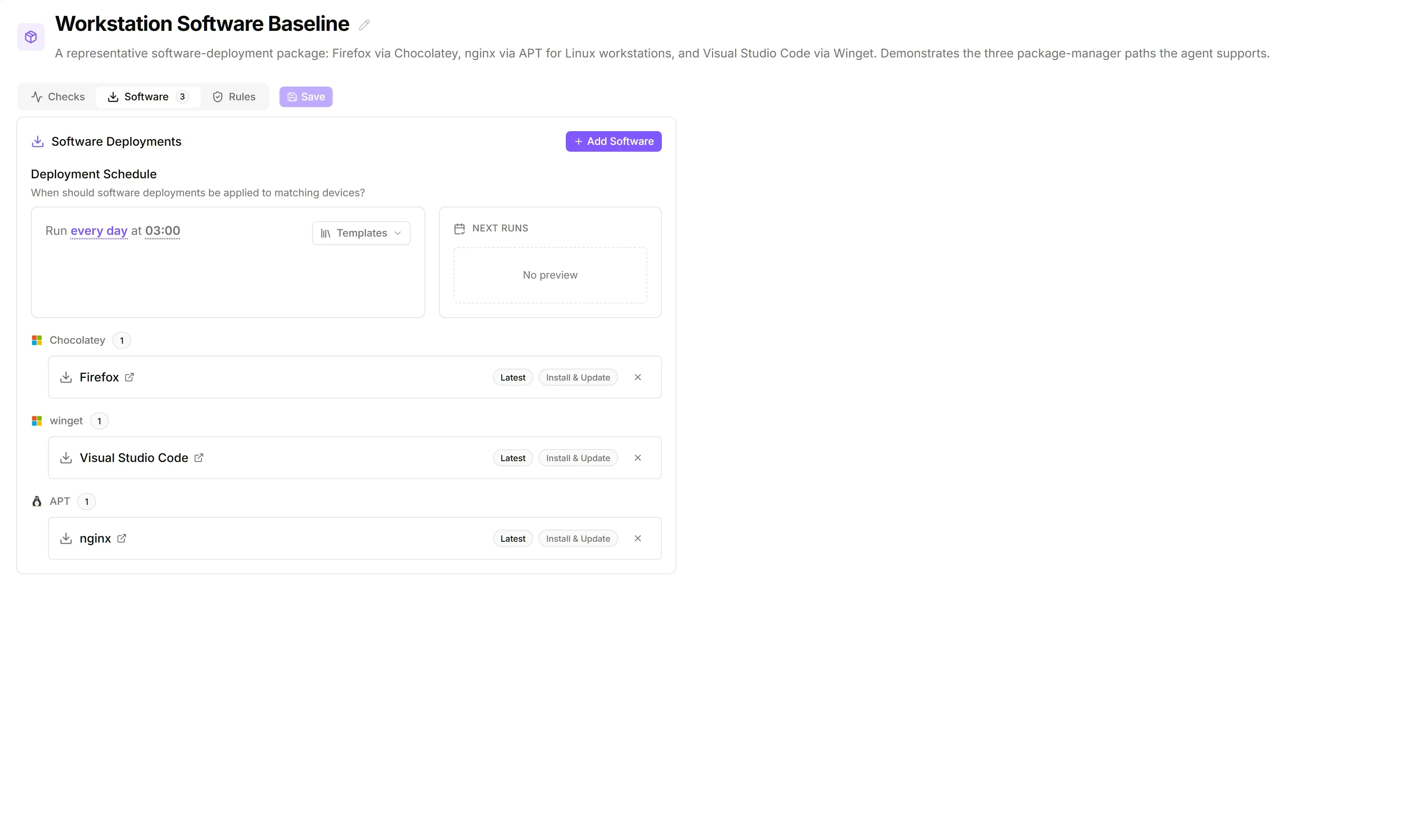
Here is what a config package looks like with software deployments configured:
What is a package manager?
A package manager is a tool that automates installing, updating, and removing software. octoja supports five:
You do not need to know how these tools work. octoja uses them behind the scenes.
Unlike monitoring checks, software has no external repository to connect: octoja installs from the fixed package-manager catalogues above, or from custom packages you upload and octoja hosts for you. To deploy software that isn't in a public catalogue, package it yourself — see Build and Deploy a Custom Package.
On macOS, Homebrew covers both command-line tools (formulae) and graphical apps such as Google Chrome, Slack, and Visual Studio Code (casks). Casks appear in the package catalogue with a Cask badge. When you deploy a Homebrew package to an Apple-Silicon Mac that does not have Homebrew yet, octoja installs Homebrew automatically first. On Intel Macs, Homebrew must already be installed.
Schedules
Install behaviour
Deployment mode
Each software deployment runs in one of two modes. The default — Specific package — installs or updates the named package using the version and behaviour you configured. The alternative — Update all outdated — ignores the package fields and asks the package manager to upgrade every package it reports as outdated. Use it alongside specific-package entries to keep an entire device's installed software current without enumerating each package.
Install for
Windows package managers can install software for one of two scopes. macOS (Homebrew) and Linux (APT) ignore this setting — each platform pins the scope its package manager requires.
Permissions
To manage software deployments, your user account must belong to a group with the Software Deployment Management permission (under Administration → Groups).