Deploy the Agent on macOS
Step-by-step guide: installing and deploying the octoja Agent on macOS.
Written By Erdinc Akay
Last updated About 1 month ago
This guide walks you through installing and registering the octoja Agent on a macOS system.
Prerequisites
- macOS 12 (Monterey) or newer
- The Agent Management permission in octoja — without it, the Agent Deployment page is not available. Permissions come from your group memberships under Administration → Groups.
- Admin account on the Mac
- Internet access (outbound HTTPS on port 443)
About enrollment settings
The Agent Deployment page opens with Step 1 – Settings, where you decide how new agents authenticate. Two cards are offered: Open Deployment ("Any device with the server URL can enroll.") and Token-based Deployment. octoja never creates tokens on its own — choosing Token-based Deployment opens the Configure Deployment dialog, where you optionally assign a customer, site, and expiration date and then explicitly create the installation token. The install command shown later in Step 4 – Install embeds that token automatically, so you only need to copy the command verbatim.
The "…" menu in the page header holds two related controls: the Allow open deployment checkbox (untick it to require an enrollment token for every new agent) and Manage tokens, which opens a page listing all enrollment tokens where you can create and delete them.
Steps
- In octoja, go to Administration → Agent Deployment. The page is laid out as five numbered cards: Settings, Choose Platform, Choose Installation Method, Install, and Verification.
- In Step 1 – Settings, choose Open Deployment (no token required) or Token-based Deployment — and create the installation token when the dialog prompts you.
- In Step 2 – Choose Platform, click macOS.
- In Step 3 – Choose Installation Method, choose Quick Install or Manual Install.
- In Step 4 – Install, copy the command or download the ZIP archive shown in the card.
- Step 5 – Verification shows the in-product confirmation hint once the agent reports in.
Quick Install
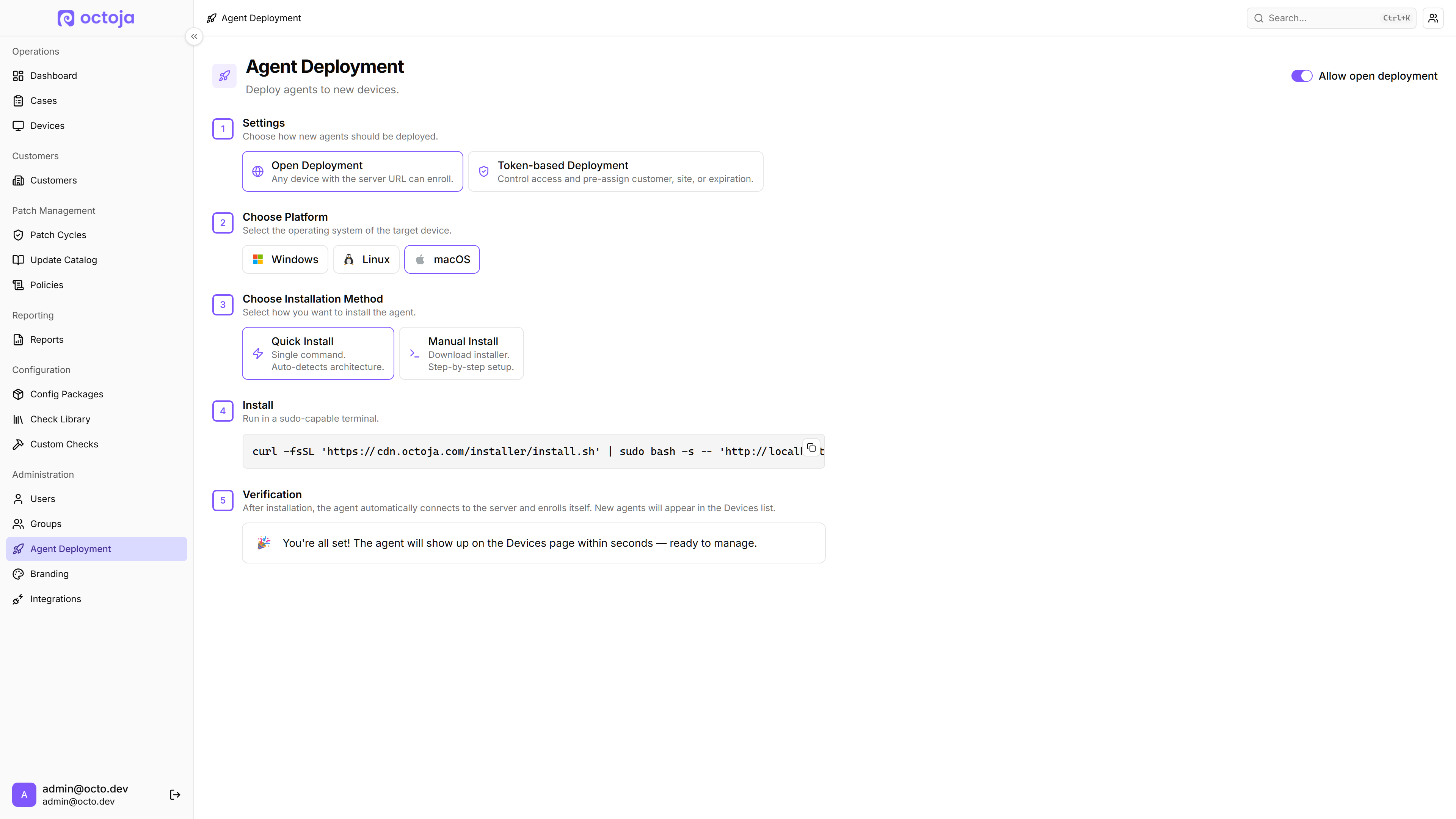
Copy the command verbatim from the Install card and paste it into Terminal on the Mac. The install.sh script is hosted on the octoja CDN, not on your octoja instance — copy the full command rather than retyping the URL:
curl -fsSL '<install.sh URL from the Install card>' | sudo bash -s -- 'https://YOUR-OCTOJA-URL'With Token-based Deployment, octoja appends the token as a second positional argument — again, copy the command verbatim:
curl -fsSL '<install.sh URL from the Install card>' | sudo bash -s -- 'https://YOUR-OCTOJA-URL' 'YOUR-TOKEN'You will be prompted for the Mac admin password.
Manual Install (.pkg)
- In Step 4 – Install, download the
octoja_osx-<arch>.ziparchive from the Manual Install panel (pick the ARM64 or X64 tab to match your Mac) and extract it. The archive contains the package (octoja_<version>_<arch>.pkg) and the installer scriptinstall.shside by side. - Open Terminal (Applications → Utilities → Terminal), change into the extracted folder, and run
install.sh— the script is the installer for the manual path:
sudo bash install.sh https://YOUR-OCTOJA-URLWith Token-based Deployment, pass the token as the second argument:
sudo bash install.sh https://YOUR-OCTOJA-URL YOUR-TOKENThe script first checks that your octoja server is reachable, then writes the connection settings to /opt/octoja/etc/installer.settings.json, and finally installs the .pkg through the native macOS installer. The agent services start automatically — no installer window appears.
Do not install by double-clicking the .pkg file. On its own, the package does not know your octoja server URL — the installation fails and the agent services are not started. Always install through install.sh, or through the sidecar file described below.
The Agent Deployment page's Step 5 – Verification card confirms the rest: "You're all set! The agent will show up on the Devices page within seconds — ready to manage." Open Devices to see your new Mac.
Alternative: sidecar JSON file
For unattended installs — for example through MDM — you can create the connection settings yourself instead of running install.sh: drop the server URL (and token, if required) into /opt/octoja/etc/installer.settings.json, then run the package through the native macOS installer (installer -pkg):
sudo mkdir -p /opt/octoja/etccat <<'EOF' | sudo tee /opt/octoja/etc/installer.settings.json{"octojaUrl":"https://YOUR-OCTOJA-URL","token":"YOUR-TOKEN"}EOFWith Open Deployment, omit the "token" entry.
Then install the package:
sudo installer -pkg octoja_<version>_<arch>.pkg -target /Verify the agent is running
The octoja Agent runs as a launchd service — the macOS equivalent of a Windows service. Open Terminal (Applications → Utilities → Terminal) and run the following command:
sudo launchctl list | grep octojaIf a line containing octoja appears, the agent is running.
Manage the agent service
Mass deployment (MDM)
On macOS, deploy the agent at scale via your existing MDM tooling. (The built-in Automatic Rollout tab in octoja covers Intune and Group Policy and applies to Windows.)
If you manage Macs with an MDM (Mobile Device Management) tool such as Jamf, Mosyle, or Kandji, you can deploy the .pkg file silently to all managed Macs — without manual interaction. Use the sidecar JSON file method above to supply the server URL and token.
MDM (Mobile Device Management) lets IT administrators deploy software to managed devices remotely; consult your MDM vendor's documentation or Apple's MDM overview for the steps specific to your tool.
Need an enrollment token? See Configure Agent Enrollment Tokens.