Create a Group

Group users or devices together for easier management

Written By Erdinc Akay

Last updated 17 days ago

Groups in octoja control what users can do. A group grants a set of permissions and scopes which customers and devices its members can reach. When you add a user to a group, they inherit everything that group grants, and a user's access is the combination of all their groups.

Before you start

You need the Group Management permission (groups.manage, granted via groups under Administration β†’ Groups).

Steps

  1. Go to Administration β†’ Groups in the left sidebar.
  2. Click the Add Group button.
  3. Enter a name for the group β€” for example, "Technicians" or "Help Desk" β€” and click Add. You land on the new group's edit page.
  4. On the edit page, select the permissions this group should grant:
PermissionWhat it allows
User Management users.manageCreate, edit, and delete user accounts
Group Management groups.manageCreate, edit, and delete groups
Customer Management customers.manageCreate, edit, and delete customers
Alert Management alerts.manageManage the alert rules that notify you when a monitoring check keeps failing
Monitoring Check Management monitoring-checks.manageCreate and configure monitoring checks
Custom Check Management custom-checks.manageManage the custom check catalog
Check Repository Management check-repositories.manageManage check repositories (instance-wide check sources)
Manage automations automations.manageCreate, edit, run and delete automation workflows
Branding Management branding.manageCustomize the instance branding
Case Management tickets.manageCreate, edit, and delete cases
View Cases tickets.viewView cases without being able to create, edit, or close them
Software Deployment Management software-deployments.manageManage software deployment config packages
Agent Management agents.manageManage agent enrollment and deployment settings
Integration Management integrations.manageManage outbound integrations and integration setup
Reports reports.manageCreate, edit, and run report templates
View Reports reports.viewView and generate reports without editing or deleting report templates
Custom Package Management custom-packages.manageCreate and manage custom software packages
View Patch Management patch-management.readView patch management status and history
Patch Policy Management patch-management.writeConfigure patch management policies and schedules
Approve Patch Cycles patch-cycles.approveApprove patch cycles for deployment
Emergency Patch Cycles patch-cycles.emergencyTrigger emergency patch cycles outside the normal schedule
Tag Rules tags.manageManage tag rules that automatically apply tags to devices
Create Custom Tags tags.create-customCreate new tags β€” without this, members can only apply existing tags

The screenshot below shows the existing Administrators group's edit page as an example β€” a freshly created group has the same layout, but with no permissions selected and an empty Members panel until you choose permissions and add users.
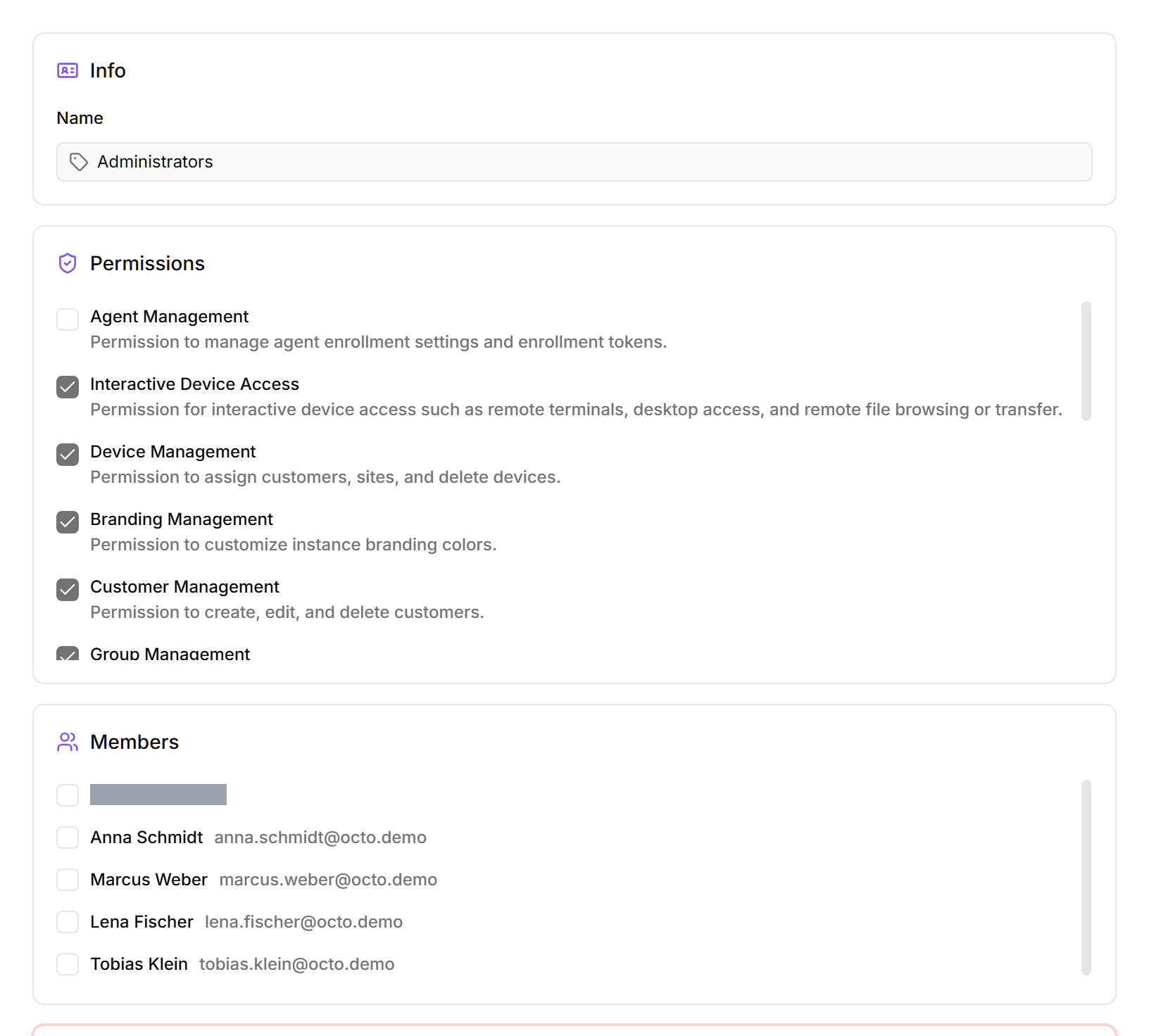
octoja Edit Group page for the existing Administrators group, on the General tab (alongside Customer Access and Device Access tabs), showing the Info card with the Name field and an Administrator group toggle (off), a scrollable Permissions checklist of unticked permission checkboxes, a Members card listing users such as Anna Schmidt and Marcus Weber, and a red Danger Zone with a Delete button.

Scope customer and device access

On the same group page, set how far the group reaches. Both default to everything, so narrow them when a group should only touch part of your fleet.

  • Customer Access β€” choose Access all customers, a list of Specific customers, or Customer tag rules that match customers by tag (you can combine a list with tag rules).
  • Device Access β€” choose Reach all devices or limit reach with device rules, then tick the Allowed actions members may perform (Remote Desktop, Terminal, Software Management, and so on). Leave the actions empty for read-only device access.

Device access always stays within customer access β€” a group that reaches no customers reaches no devices. This is how you give, say, a help-desk team read-only access to one customer's workstations without touching anyone else.

Common group setups

Group namePermissionsUse case
AdministratorsAll permissions, with access to all customers and devicesFull access β€” for IT managers and senior engineers. Enable the Administrator group toggle on the group's edit page so new permissions introduced in future updates are granted automatically.
TechniciansCustomer Management, Monitoring Check Management, Alert Management, Case Management β€” plus Device Access with hands-on actions such as Remote Desktop, Terminal, and Software ManagementDay-to-day IT work β€” manage devices, run checks, and handle cases
Help DeskCustomer Management, Case ManagementSupport staff β€” can view customers and manage cases, but cannot access devices directly
Read OnlyView Cases, View Patch ManagementView-only access to cases and patch status β€” for auditors or stakeholders who must not change anything

How permissions work

  • octoja uses fully custom groups β€” you define each group with exactly the permissions plus the customer and device access it needs.
  • Users inherit permissions from all groups they belong to. If a user is in both "Help Desk" and "Technicians", they get the combined permissions.
  • A user with no group membership has no permissions and can only view their own profile.

The group appears in the group list.

Next steps