Use the Command Bar
The command bar is a quick-access search and action menu on every page of octoja. Press Ctrl+K (⌘K on Mac) to open it and type to find what you need.
Written By Erdinc Akay
Last updated 26 days ago
The command bar
The command bar is a quick-access search and action menu built into every page of octoja. Press Ctrl+K (or ⌘K on Mac) to open it, then type to find what you need.
Open the command bar
Press Ctrl+K anywhere in octoja to open the command bar as a centered dialog. Press Escape to close it at any time — inside a sub-menu (like the theme options), Escape first goes back one level before closing.
The following walkthrough shows opening the command bar, searching, and switching between search scopes:

Search for anything
Type any term into the command bar to search across all record types instantly. Start typing to search across devices, cases, customers, and more. Results appear instantly as you type. By default the command bar searches everything — navigation pages, actions, and records. To narrow your search to a specific category, press Tab to cycle through scopes:
All — Everything (default)
Commands — Navigation links and actions only
Devices — Devices by name
Cases — Cases by ID or title
Customers — Customers by name
Press Shift+Tab to cycle backwards. The active scope is shown as a label inside the search field.
Navigate to any page
Type the name of a page to jump there directly — for example Dashboard, Devices, Cases, Customers, Reports, or admin pages like Users and Integrations, and every other section of octoja you have permission to access. The command bar lists only the pages your group permissions allow.
The command bar also includes a Help group with links to the feedback and documentation portals. Community is always available; the other four entries are visible when the Featurebase integration is enabled:
Feature Request — open the feedback widget to submit a feature request or bug report
Tickets — open the support ticket portal
Feedback portal — open the feedback portal to browse ideas, vote, and view the roadmap
Help & docs — open the help center documentation
Community — open the community space
Select a result and press Enter to navigate.
Use page actions
When you are on a detail page, the command bar shows Page Actions specific to that page. Open the command bar and look for the "Page Actions" group — these let you perform common tasks without reaching for a button.
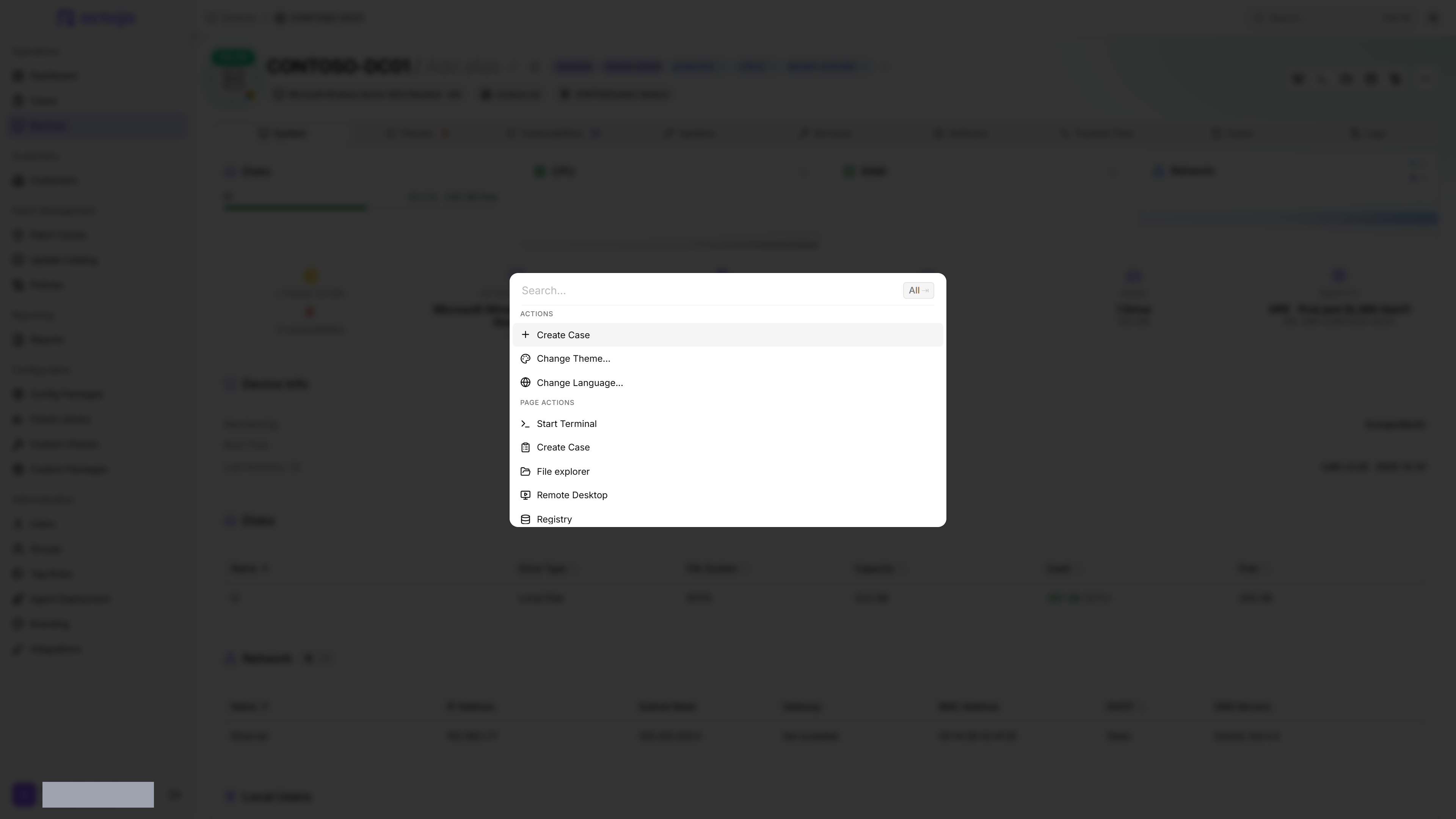
Device detail — Start Terminal, Create Case, File explorer, Remote Desktop, Registry, Open Event Log, Assign Customer, Trigger Inventory, Install Software, Download Logs, Delete Device
Case detail — Delete Case
Profile — Save, Change Password
User detail — Save, Change Password, Delete User
Group detail — Save, Delete Group
Customer detail — Save, Delete Customer
Config Package detail — Delete Config Package
Users list — Add User
Groups list — Add Group
Customers list — Add Customer
Config Packages list — Create Config Package
Branding — Save
Tag Rules — Create Tag Rule
Check Repositories — Add community repo
Webhooks list — Add Webhook
Webhook detail — Save, Send Test Webhook, Rotate Webhook Secret, Delete Webhook
This list is not exhaustive — most detail and list pages register their own page actions. Open the command bar on any page to see what is available there.
Access recent items
The command bar remembers the last 10 items you visited — devices, cases, customers, users, and groups. These appear under the Recent heading when you open the command bar with an empty search field. To see quick actions for a recent item, highlight it and press Ctrl+Enter (or ⌘Enter on Mac). For devices, quick actions include Open, Start Terminal, and Create Case.
Switch theme or language
Type "theme" or "language" in the command bar to change your display preferences:
Change Theme... → choose Light, Dark, or System
Change Language... → choose from all supported languages
Tips
You do not need to type full names. The command bar uses fuzzy matching — a few characters are usually enough.
Use Backspace when inside a sub-menu (like theme options) to go back one level instead of closing the bar.
The command bar only shows actions you have permission to use. If an action is missing, check your group permissions.