Gather logs for a support case
Send agent logs from the affected device to octoja support and share the support reference – step by step with screenshots.
For most support cases, we need the agent logs from the affected device. If the device is online, you can upload them directly from octoja.
Collect the agent log files from the device
Prerequisites: The device has an octoja agent, is online, and you have the File Browser permission for it. If it is offline, follow the manual collection instructions below.
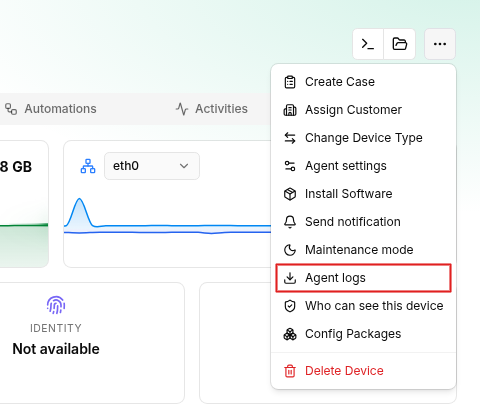
Step 1 – Open agent logs
Open Devices and select the affected device. On its detail page, open the … menu in the top-right corner and click Agent logs.
Step 2 – Send logs to support
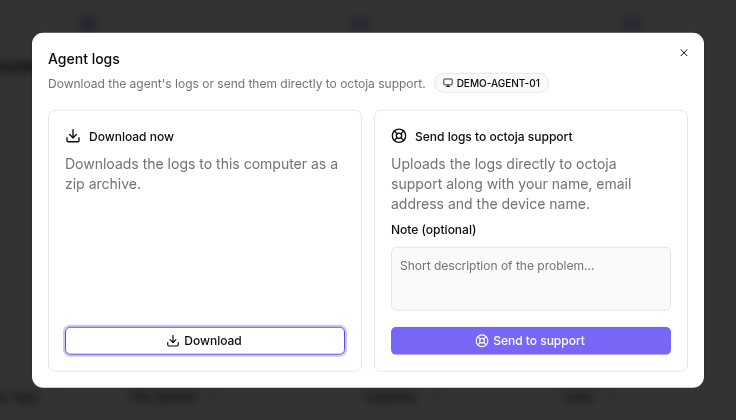
Use the Send logs to octoja support section in the dialog. If useful, briefly describe the problem under Note (optional). Click Send to support and wait for the upload to finish.
octoja automatically collects the device's log files into a ZIP archive. Your name, email address, and the device name are sent with it.
Step 3 – Share the support reference
After the upload, Logs sent to octoja support. appears. Copy the Support reference using the button beside it and paste it into your support chat or support ticket. Briefly describe the problem and identify the affected device.
Uploading alone does not open a support case. We need your message to match the logs to your request. If you have not contacted support yet, see Help Center for contact options.
Offline device: collect logs manually
- Access the affected device locally or through an already authorized alternative access method.
- Open the log folder. Depending on its access permissions, you may need administrator rights or
sudo.
- Put the entire
logsfolder, including all subfolders, into a ZIP archive. - Upload the ZIP archive via the octoja file upload and share the reference number with octoja support.
Save the logs before reinstalling or cleaning up files so the evidence of the cause is preserved.
Windows: the log folder is missing
If the agent's log folder is gone, please don't reinstall the agent or clean up files just yet — first save what Windows still knows. An MSI uninstall also deletes the log folder, but a missing folder on its own doesn't prove that the agent was uninstalled.
Let support know that the folder or the agent logs are missing, and save the following from around the time the device was last online or you noticed the problem:
- Events from the Windows Application log, especially from the
MsiInstallersource. - For a Group Policy rollout, also the events from
Microsoft-Windows-GroupPolicy/Operational. - Any installer logs that still exist. A Group Policy software installation doesn't create the
install.msi.logthat Quick Install writes.
Additional information only when needed
The agent logs and your problem description are usually enough to start with. If we need anything else, we will coordinate with you:
Logs and HAR files can contain confidential data. Review files before sharing and send them only through the agreed support channel, not the public feedback portal.
FAQ
Is a screenshot of the device's activity log enough?
Is a screenshot of the device's activity log enough?
The device's activity log shows activity in octoja. For troubleshooting, we usually need the detailed agent logs from the device. A screenshot of the activity log does not replace these files.
Which additional startup logs are available on Linux and macOS?
Which additional startup logs are available on Linux and macOS?
On Linux, save the system journal for the affected period:
sudo journalctl -u octoja-agent --since "2 hours ago" > octoja-agent.journal.log
sudo journalctl -u octoja-launcher --since "2 hours ago" > octoja-launcher.journal.log
Adjust --since to cover the time of the issue.
On macOS, additional output is stored in these files:
/opt/octoja/logs/launcher.stdout.log/opt/octoja/logs/launcher.stderr.log/opt/octoja/logs/agent.stdout.log/opt/octoja/logs/agent.stderr.log
Include this information when support asks for it or when a startup failure prevents normal log files from being written.
How do I upload other files for support?
How do I upload other files for support?
If you have already collected a file yourself or support asks for additional diagnostic data, use the octoja file upload. The affected device does not need to be online.
- Enter your name and email address. You can briefly describe the file's contents in the optional note field.
- Select the file (up to 500 MB) and upload it. Review the file for confidential data first.
- Share the displayed reference number in your support chat or support ticket and describe the problem.
Uploading alone does not open a support case. Uploaded files are automatically deleted after 14 days.
Was this helpful?
Still need help? Ask the team