Configure a TCP Connection Check
Monitor active TCP connections and detect connection exhaustion
Written By Erdinc Akay
Last updated About 2 months ago
Configure a TCP Connection Check
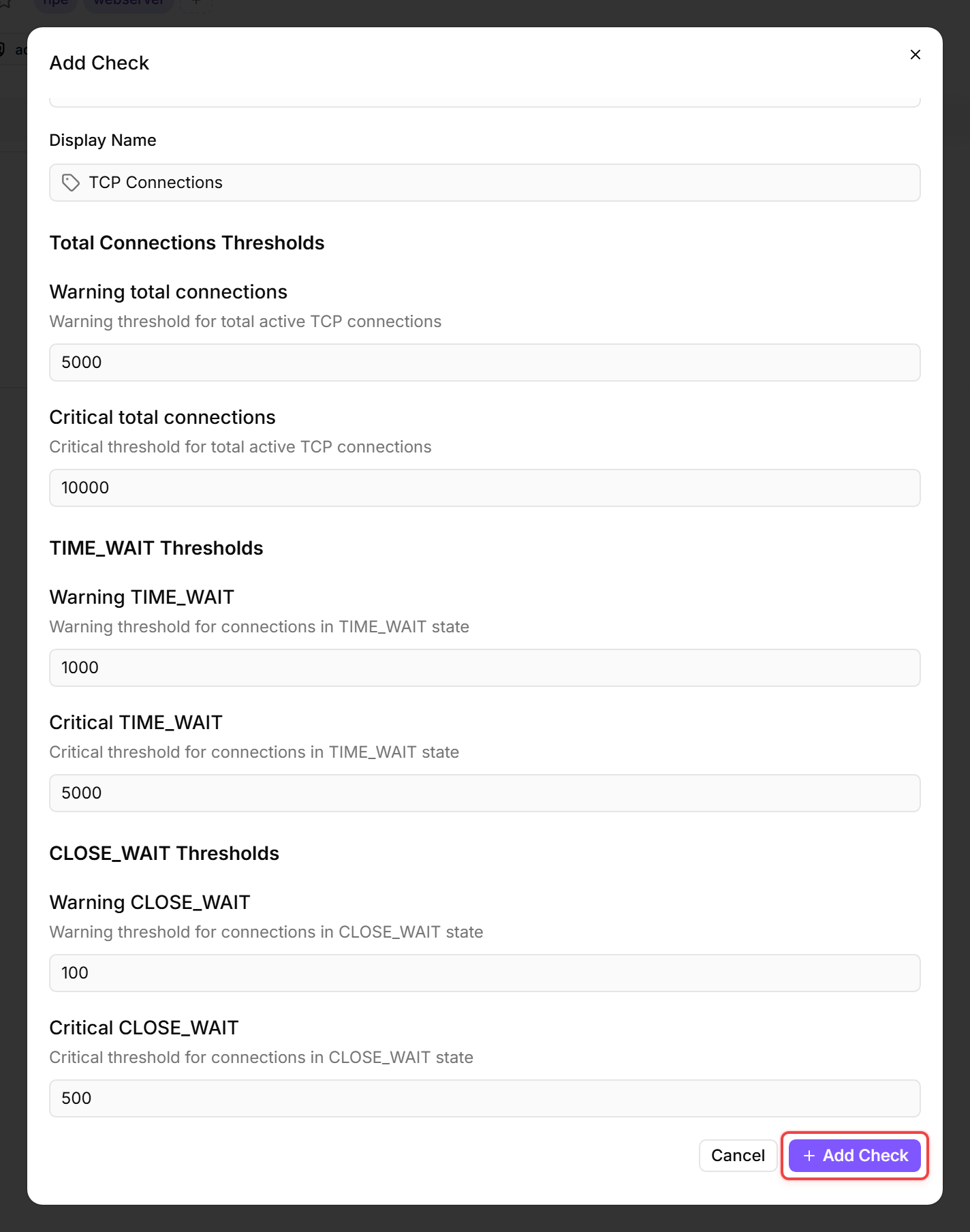
A TCP Connection Check monitors the number of active TCP connections on a device, broken down by status. Too many connections — especially in TIME_WAIT or CLOSE_WAIT — indicate resource exhaustion, connection leaks, or application problems.
Prerequisites
- You need the Monitoring Check Management permission. Your administrator assigns permissions under Administration → Groups.
- The target device must have a connected agent.
Steps
- Go to Devices and open the device.
- Click the Checks tab → Add Check → TCP Connections.
- Configure the thresholds:
- Click Add Check.
Tips
- CLOSE_WAIT connections indicate that the application has not closed its side of the connection — this is almost always a bug. A low threshold (100) is appropriate.
- TIME_WAIT connections are normal after closing short-lived connections — they prevent port reuse collisions. High numbers are only a concern on heavily loaded servers.
- This check is especially useful on web servers, API servers, and database servers where connection exhaustion causes outages.
After the first check interval, the result appears in the device's Checks tab.
See also: TCP Connection Check Reference