Create a report template
Build and scope PDF reports with metrics, network devices and custom fields.
Use Reports to create PDFs for customer reviews or internal reporting. Start with a built-in template, clone one to customize it, or create your own — for example, for patch compliance, device health, or hardware inventory.

Prerequisites
- View Reports opens the Reports area: the sidebar entry, the template list, the template editor and downloading a PDF all run on this permission.
- Manage Report Templates and Schedules adds the ability to create, edit, clone and delete custom templates, and to set up schedules. With View Reports alone you work with the built-in templates and download their PDFs.
- Both permissions are granted via groups in Administration → Groups — ask whoever administers your tenant to add them to your role if they are not already there.
Step 1 — Open the Reports area
In the left sidebar, go to Reports. The page shows every template in your tenant, grouped into Built-in Templates (provided by octoja) and Custom Templates (any your team has created).
Templates open as cards. Switch to Table view for a sortable list with a last-updated column, type in the Search reports... box to filter by name, and pick Export CSV from the table's More actions menu to save the list as a file.
The Create Template button sits in the top-right corner. If it is missing, your role has View Reports but not Manage Report Templates and Schedules — work with the built-in templates for now and ask your tenant administrator for the manage permission.
Step 2 — Create a new template
Click Create Template in the top-right corner. The Create Report Template dialog opens.
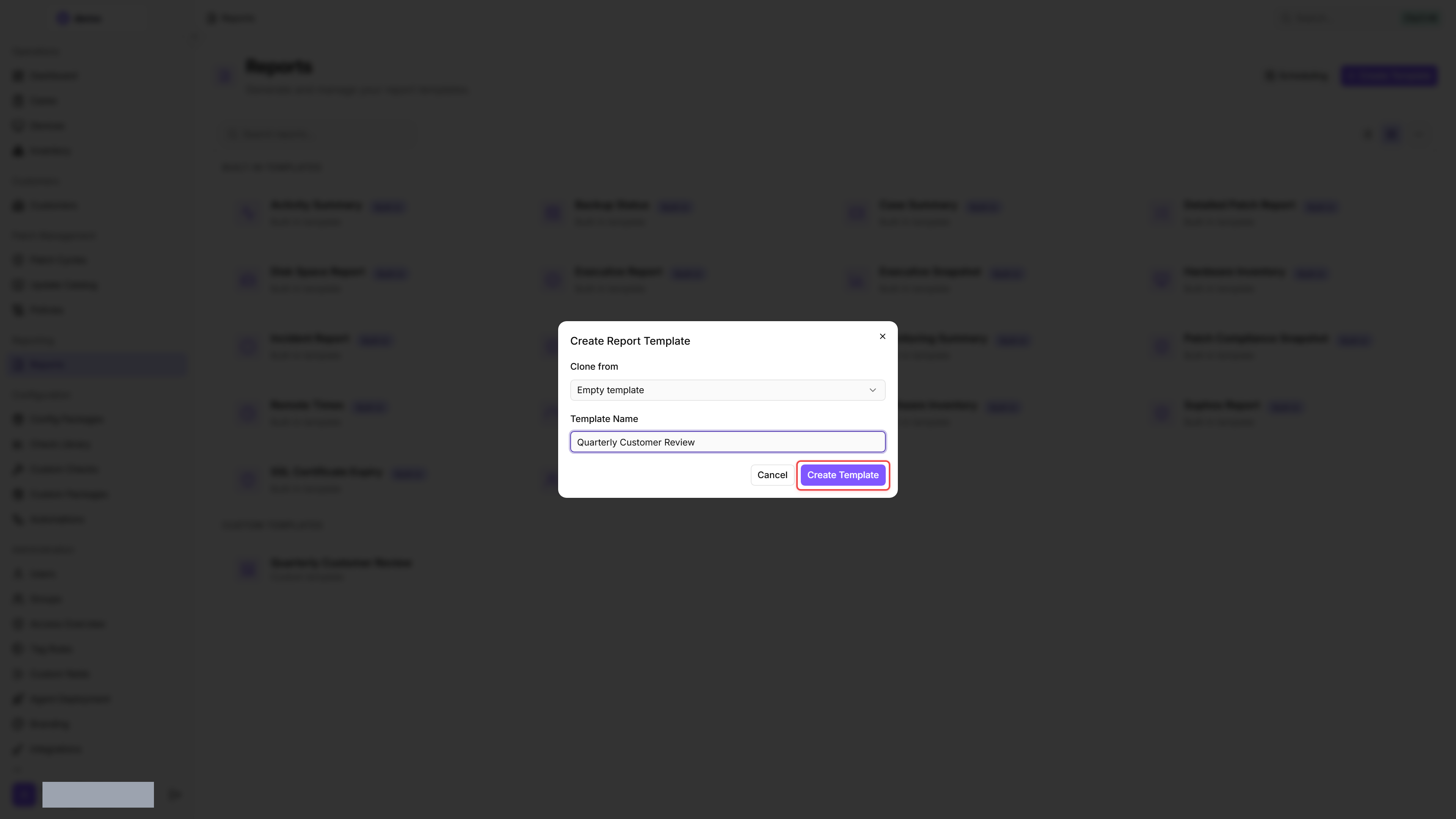
Fill in:
Click Create Template. octoja saves the template and opens the template editor.
In preview mode, some widgets may show "This widget could not be rendered" until you set a customer scope (Step 4) or save and re-open the template. This is normal — widgets that depend on customer-specific data render once the scope provides that data.
Step 3 — Add and arrange widgets
The template editor opens in preview mode by default — you see what the rendered PDF will look like. In the top-right corner is a two-button toggle: an eye icon for Preview and a pencil icon for Edit Template. Click the pencil icon to switch to edit mode, where you can add and arrange widgets.
A template is built from rows, and each row holds one or more widgets side by side. Widgets are the things that render data — KPI cards, charts, tables, headings, callouts, and so on. There is also a Checks category of monitoring-check widgets — for example Check Detail (a check's current status) and Check History (per device), which shows a check's status over time and can be narrowed to specific devices or statuses.
In Check Detail, you can select several checks; the limit applies per check. Changing the check selection clears the device selection — select the intended devices again afterwards. Results include each device's last user and last seen time. Antivirus coverage includes Windows Server and Windows Workstation by default; add Linux or macOS through the widget's device-kind selection if needed.
To add a widget:
- In edit mode, drag a widget from the widget palette on the left onto the canvas.
- Drop it into an existing row (placing it beside the widgets already there) or onto the empty space between rows (creating a new row).
- Click the widget to open its properties panel on the right. Set the title, change the width (how many columns it spans in the row), choose a background color, and configure any widget-specific options.
To rearrange widgets, drag them within or between rows. To remove a widget, click it and choose Delete from the action menu.
The Management scorecard rates patches, security, backup and monitoring:
- The overall rating is the rounded average of available scores. With no devices, it is unknown.
- Security, backup and monitoring without evaluable data appear as —, not zero. Missing inventory for a supported server or workstation does count against the patch score.
- Network devices count towards neither patch compliance nor endpoint protection. Online status is not a scoring factor.
The built-in Executive Report has no online-device tile; you can add one to custom templates.
One widget worth calling out is the Hardware Inventory table — it renders one row per device and lets you choose exactly which hardware fields appear as columns. Select the widget, and in its properties panel pick the fields you want. They are grouped into six categories so you can find them quickly:
Use the All and None buttons to select or clear every field at once. If you pick none, the widget falls back to a sensible default set of columns. Because each column adds width, a wide selection reads best in landscape orientation (see below) — octoja shows a hint as you approach the number of columns that comfortably fit an A4 page.
The Software Changes table lists software that was Installed, Updated, or Uninstalled, newest first. Updates show the previous and new versions. It honours the customer, site, device filter, and reporting period; without a period, it uses all recorded history. A device's initial inventory is treated as the baseline, so it does not appear as a batch of new installations. Use Limit to show between 1 and 1,000 of the newest rows; the widget defaults to 500 when no value is configured. The built-in Software Change Report already uses this table in landscape orientation with a limit of 500.
The report also has a page orientation. In the page header, next to the preview/edit toggle, two buttons switch between Portrait and Landscape (wider — fits more table columns). Landscape gives wide tables like the Hardware Inventory more room. Orientation is part of the template, so it is saved together with the layout — switch it and then click Save. A template started from Empty template begins in Portrait; a cloned template keeps the orientation of the template you cloned.
Click Save in the top-right corner to persist your changes. The Save button appears only when there are unsaved changes — it is hidden when the template is clean.
Tip: Built-in templates make a good starting point even if you do not plan to keep them. Open a built-in template to see how octoja arranges KPI cards, charts and tables. You can then either work in a copy (use Clone in the action menu) or start fresh with the layout you have in mind.
Include network devices
Add Network Devices (Table) to list device, customer, type, IP address, manufacturer/model and last seen. It sorts by device name and respects customer, site, device filter and your device access. It shows monitored network devices, not unadopted scan discoveries or devices of unknown type. Set Limit to 1–1,000 rows; the default is 100. Compare the displayed row count with the total before sharing it as a complete inventory.
Report on custom fields
- Add Custom Fields (Table).
- Under Values for, choose Devices or Customers.
- Select the Fields you need. The first three are selected initially; columns follow field-definition order. Clearing every checkbox leaves the selection empty rather than restoring default columns.
- Under Rows, choose a filter from the table below and set Limit to 1–1,000 rows (default 100).
- Inspect the preview. Device values respect customer, site, device filter and device access. Customer values instead follow the customer filter and your customer access; site and device rules do not narrow those customer rows.
Missing stored values use the current field default. Filters apply before the row limit and total count. Show current defaults in the column headers only changes the labels, not this evaluation. A previously applied default cannot be distinguished from a manually entered value, so the difference filter is not evidence of a manual change.
Markdown fields render with formatting. For longer device notes, you can instead select one device field under Markdown custom field in All Devices (Table). Its contents appear with the corresponding device row. Clear the selection to omit those notes. See Custom fields for creating and editing fields.
Step 4 — Scope the report
Below the page header, a filter bar controls what goes into the report and which language it is written in:
The preview updates as you change the scope and includes unsaved layout and device-filter changes. Download uses the saved template instead. Customer, site, language and period are chosen fresh every time you generate — they are not stored on the template. The Device filter is the exception: it belongs to the template, so changing it makes the Save button appear and it applies to every future run, including scheduled ones.
Step 5 — Generate the PDF
Before downloading, use Save for all changes to widgets, layout, page orientation, and device filter, and wait for saving to finish. Customer, site, language, and period from the filter bar apply to this download. Then click Download (the download icon) at the end of the filter bar. octoja:
- Renders the template with the data for your chosen scope and period.
- Produces a PDF in the language selected in the Language picker.
- Downloads it to your browser as <slug>-<yyyy-mm-dd>.pdf. For a built-in template, <slug> is its display name in the selected report language, slugified — the Hardware Inventory arrives as hardware-inventory-… in English and hardware-inventar-… in German. Custom templates use the slugified template name.
Save or share the PDF the same way you would any other file your browser downloads.
Send reports automatically
With View Reports and Manage Report Templates and Schedules, you can set up recurring emails:
- Open Scheduling at the top right of the Reports page and create a schedule.
- Name it, select templates and recurrence, and adjust the Email subject if needed. The schedule uses the instance time zone (
Europe/Berlinby default). - For each receiver, set email addresses, report language, customer and sites. Use Add receiver for further recipients.
- Check the addresses and data scope, then click Save and wait until saving finishes. After any later schedule edit, save again before sending.
- After the first save, Send now becomes available. It queues a run using the last saved settings, including on a paused schedule. Open History to check the result.
To pause automatic sending, switch Enabled to Paused, click Save, and wait until saving finishes. Re-enabling also needs Save. Pausing stops future recurring runs; Send now remains available for a deliberate manual send.
By default, each email attaches these PDFs separately. Turn on Combine reports into one PDF file under Templates if each receiver should get a single file instead: octoja merges the reports of all selected templates and sites into one attachment per receiver, named <schedule-name>-<yyyy-mm-dd>.pdf. If merging fails, that receiver gets no email for this run; the error is shown on the History tab.
Each run uses the current permissions and customer/device scope of the person who last saved the schedule. If they lose View Reports or the required customer access, the run fails instead of sending out-of-scope data.
Manage existing templates
From the template editor, the action menu (the ⋯ button in the page header) offers:
Built-in templates are read-only: octoja keeps their widgets, name and layout as shipped. To customize one, use Clone in the action menu and edit the copy — the clone is a normal custom template. To rename a custom template, switch to edit mode first, then click its title at the top of the template editor — in edit mode the title is an inline edit field.
Troubleshooting
The Create Template button does not appear. Your role is missing Manage Report Templates and Schedules. Built-in templates stay visible and downloadable — creating, editing and deleting templates is what this permission covers. If the whole Reports entry is missing from the sidebar instead, the role is missing View Reports.
The Download button produces a PDF in the wrong language. The PDF follows the Language picker in the filter bar, which starts on your own interface language rather than the recipient's. Set it to the language you want — English, Deutsch, Español, Français, Italiano or Nederlands — and click Download again. For recurring sends, the language is set per receiver on the schedule.
Some widget data looks empty. A widget renders empty when the scope you selected has no matching data — for example, the Recent Cases widget shows nothing if the chosen customer has no open cases in the period. Try widening the scope (clear the Site filter, or clear the Customer filter for a tenant-wide view) and regenerate.
A built-in template's name looks like a translation key (e.g. pages.reports.builtIns.executiveSnapshot.name). This indicates a missing translation in your octoja locale file — refresh the page or report it to support. The template still works; only the display label is affected.
FAQ
How is patch compliance calculated?
How is patch compliance calculated?
Patch Compliance is the percentage of selected servers and workstations whose stored inventory reports no pending updates. Network devices are excluded. The value is rounded to a whole percentage: three out of five devices with no pending updates gives 60%. It is not the success rate of individual installations.
Devices without inventory are included in the total, but not counted as fully patched. Inventory age is not checked, so an offline device can contribute an older snapshot. Also check when devices were last inventoried. The metric shows the last reported state, not a historical monthly value — even when you select a Period.
On Windows, these updates come from Windows Update. Besides operating-system patches, they can include drivers and updates for other Microsoft products. The metric does not check every installed application's version or include software updates offered through WinGet or Chocolatey. A value of 100% therefore does not prove that every application is up to date.
Why does a monthly emailed patch report include older entries?
Why does a monthly emailed patch report include older entries?
A schedule determines when to send, but does not store a reporting period. Sending Patch Performance Evidence monthly therefore does not restrict it to that month: without a period, it includes the entire recorded patch history. The PDF's creation date is not a period filter.
For a monthly report, open the template under Reports, select Current month under Period, or Last month after the month ends, and click Download. You generate and send this PDF yourself; the selected period is not carried over to the schedule.
The Period Selection for Scheduled Reports feature request describes this requested option. You can follow and vote for it there.
Related articles
- How Users, Groups & Permissions Work — overview of the octoja permission model, including View Reports and Manage Report Templates and Schedules.
- Reports Reference — full data model, REST endpoints, widget catalogue, and layout grid for the Reports area.
Was this helpful?
Still need help? Ask the team