Deploy the Agent with Microsoft Intune
Learn how to roll out the octoja agent to many Windows devices at once with Microsoft Intune — including the right command-line arguments.
With Microsoft Intune you can roll out the octoja agent to a whole fleet of Windows devices in one step. octoja ships the agent as a standard MSI package that Intune deploys as a line-of-business app — the only octoja-specific part is passing your server URL (and optionally an enrollment token) as MSI properties.
Prerequisites
- An octoja account with the Agent Management permission — without it, Administration → Agent Deployment does not appear in your navigation.
- Access to the Microsoft Intune admin center with permission to add and assign apps.
- The target devices are enrolled in Intune and meet the agent requirements from Deploy the Agent on Windows.
Step 1 — Get the MSI and your command-line arguments
Open the deployment wizard in octoja and let it generate everything for you:
- Go to Administration → Agent Deployment and select Windows.
- Choose Manual Install and download the ZIP archive for your architecture (x64 for a typical fleet). Extract it — it contains the MSI (
octoja.Launcher.<version>.<arch>.msi). - Switch to the Automatic Rollout card and select Microsoft Intune. Copy the command-line arguments shown there.
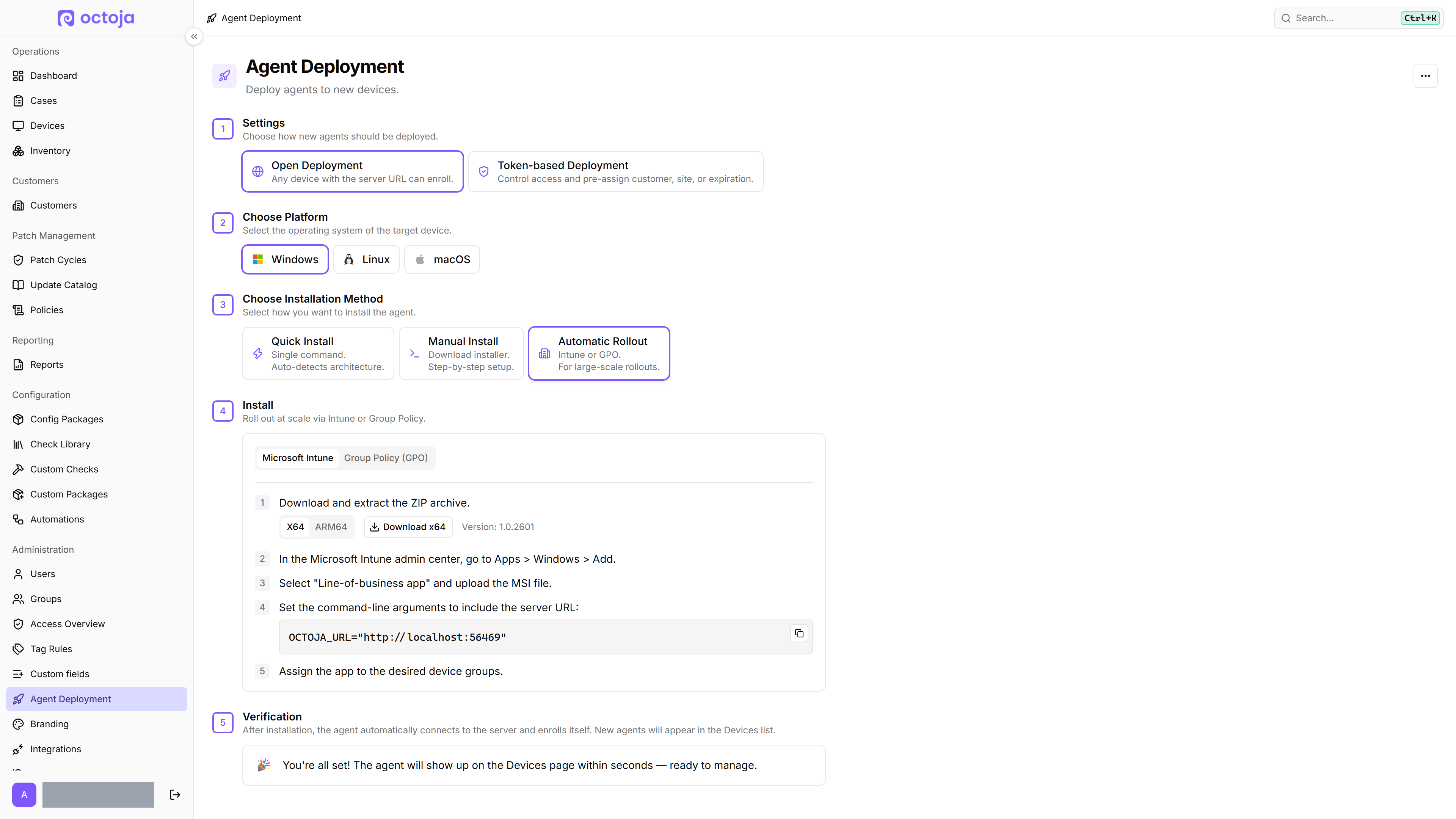
Step 2 — Add the app in Intune
- In the Intune admin center, go to Apps → Windows → Add.
- Select the app type Line-of-business app and upload the MSI.
- In the Command-line arguments field, enter the MSI properties as one single line, separated by spaces:
OCTOJA_URL="https://YOUR-OCTOJA-URL" TOKEN="YOUR-TOKEN"
Leave out TOKEN if your deployment mode is open (no enrollment token). The install behaves silently either way — Intune adds the quiet switches itself.
- Complete the app information, then assign the app to your target device groups as Required.
Step 3 — Verify
- After the next Intune sync, the agent installs in the device context — no user interaction is required.
- In octoja, open Devices: each device appears within 1–2 minutes of its installation.
Troubleshooting
See also: Configure Agent Enrollment Tokens
Was this helpful?
Still need help? Ask the team