Create an emergency patch cycle
Roll an urgent update out right away in octoja — an emergency patch cycle bypasses the staged ring schedule and the usual review step.
When an update can't wait for the normal staged rollout, an emergency patch cycle pushes the updates you choose to the rings you choose, at the time you choose. It bypasses ring ordering and skips the usual draft-and-approve step.
Before you start
- You need the Emergency Patch Cycles permission. Permissions are granted per group under Administration → Groups (see How Users, Groups & Permissions Work).
- A patch policy whose catalog already holds the update you need to roll out (see Set up patch policies and cycles).
Create the cycle
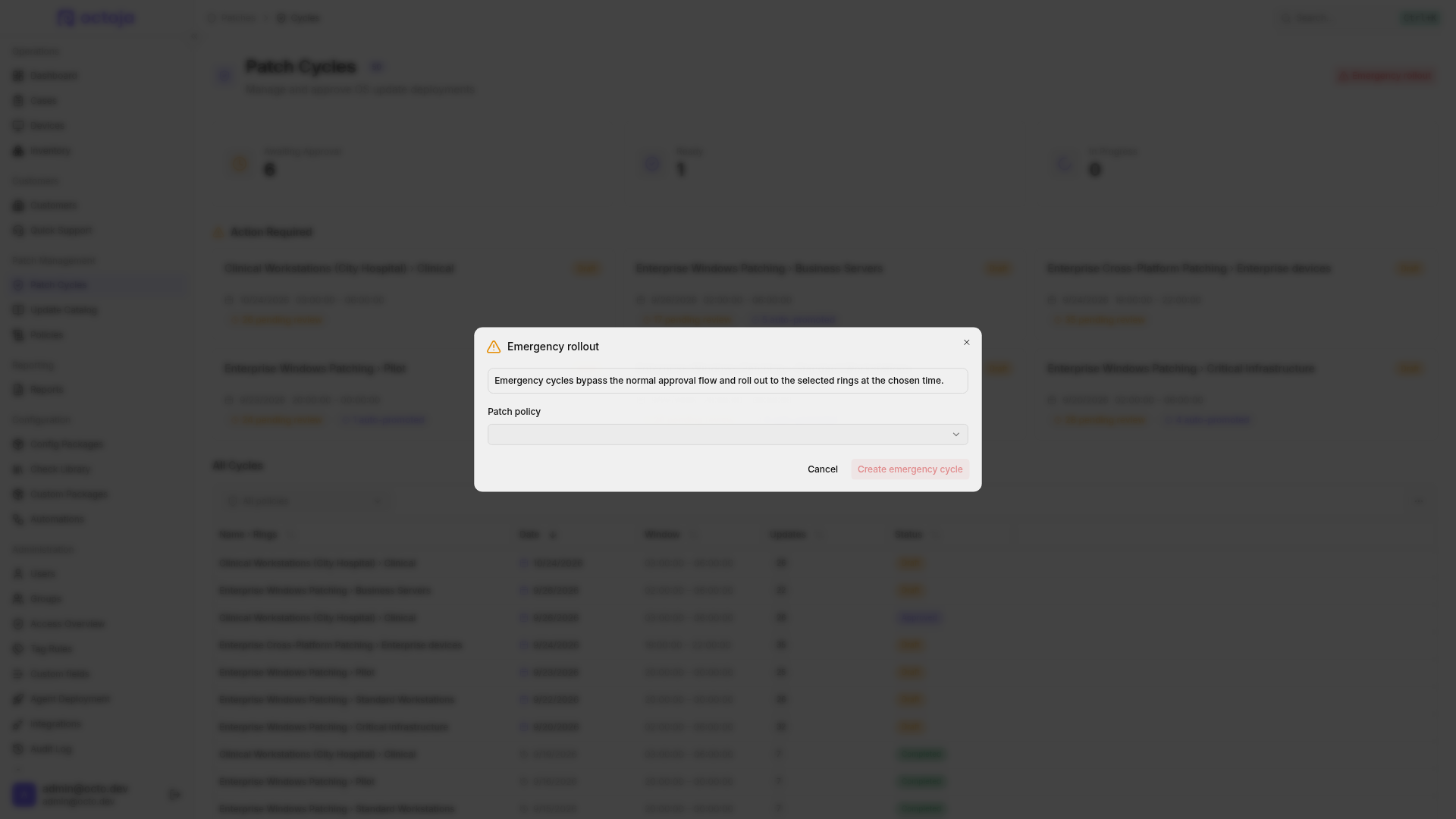
- Go to Patch Management → Patch Cycles and click Emergency rollout.
- Choose the Patch policy.
- Under Updates to roll out, search for and select the updates to include.
- Under Target rings, choose which rings to roll out to. All rings are selected by default, and ring ordering does not apply — every ring you pick gets the updates at the same time.
- Set the Schedule: pick Roll out now, or Schedule for a specific time and choose a date and time in the future.
- Set the Window duration (hours) — how long the maintenance window stays open (1 to 168 hours, default 4).
- Add Notes (optional) explaining why you're rolling out early.
- Click Create emergency cycle.
octoja creates one cycle per target ring — pick four rings and you get four cycles, all on the same schedule — and opens the first of them. Each cycle is created already Approved, so it skips the draft review, and carries an Emergency badge. They install during their window like any other cycle; follow the progress from each cycle's results.
An emergency cycle retains its selected updates and its own window: regular reconciliation adds no further updates, and changes to the normal ring schedule do not reschedule it. Changing the policy's time zone also preserves its actual start and end instants. You cannot remove a ring with an open or running emergency cycle. Emergency cycles do not replace regular cycles and do not trigger automatic promotion to the next ring when they finish.
If the policy uses Automatic approval, you cannot reopen the emergency cycle as a draft. To change the selected updates, cancel it and create a new emergency rollout. Restarts, postponements and post-reboot verification follow the same execution workflow as regular cycles.
Shortcut: open an update from Patch Management → Update Catalog and click Emergency rollout there. The same dialog opens with that update and its covering policy already selected.
Note: A global block still wins. A globally blocked update is never installed on any device, even when you add it to an emergency cycle.
See also: How patch management works for the full picture, Set up patch policies and cycles for the normal staged rollout, and How Users, Groups & Permissions Work for the Emergency Patch Cycles permission.
Was this helpful?
Still need help? Ask the team