Set up Webhooks
Receive signed events, inspect deliveries and export filtered history.
A webhook is an HTTP POST that octoja sends to a URL you control. Every delivery is a signed JSON request, so your receiver can verify that it really came from octoja. Use webhooks to feed octoja events — check alerts, asset-inventory pushes, automation steps, and test deliveries you trigger yourself — into your own services and automations.
Prerequisites
- You need the Integration Management permission. It lets you create, edit, and delete webhooks for the tenant. Permissions are assigned under Administration → Groups.
- You need a publicly reachable URL that accepts HTTPS POST requests with a JSON body — for example an HTTPS handler in your own service or an automation platform endpoint.
The request comes from the octoja platform, not the managed device. If a firewall or IP allowlist protects your receiver, see IP addresses and firewall rules.
Steps
- Go to Administration → Integrations and click Manage webhooks on the Webhooks card.
- Click Add Webhook.
- Fill in the dialog:
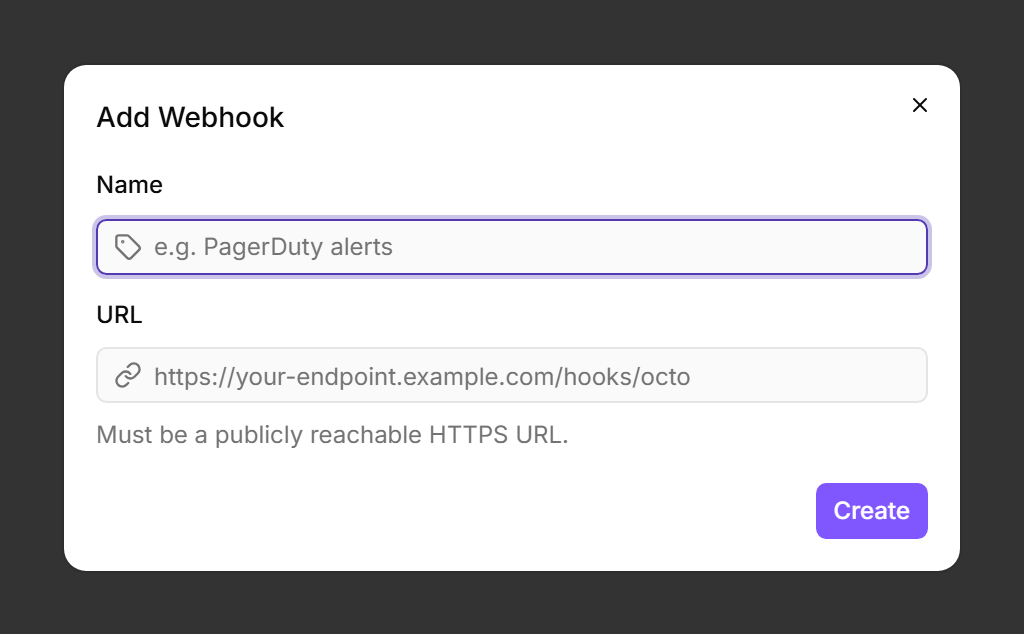
- Click Create. octoja generates a signing secret and shows it once in the Save your webhook secret dialog. Copy it now — you cannot view it again later. Store it in your receiver's configuration as the HMAC verification key, then click I've saved it. octoja takes you straight to the new webhook's detail page.
- Enable the webhook. New webhooks are created in the Disabled state and deliver nothing until you switch them on. Flip the toggle at the top of the detail page so the status next to it reads Active.
- Click Send test in the page header to deliver a synthetic test event to your endpoint, then open the History tab to confirm the delivery succeeded (status, response code, and duration are shown per attempt).
That's it — the webhook is active and verified. The sections below cover the wire format your receiver must handle and the day-2 operations (replay, secret rotation, retries).
Which events octoja sends
Each delivery names its event type in the X-Octoja-Event header:
The Events column on the Webhooks list page shows which events each webhook is subscribed to for inventory delivery. Newly created webhooks start without an inventory subscription — tick Inventory update in the Data selection card on the webhook's Configuration tab and click Save to subscribe. Test deliveries and replays work regardless. The check-monitoring events (CheckFailed, CheckWarning, CheckRecovered) and the automation event do not depend on that subscription: they arrive whenever the webhook is picked as an alert channel on a monitoring check or as the target of an automation step. Build your receiver to dispatch on the X-Octoja-Event header and ignore event types it does not recognize.
Request format
Each delivery is a single HTTPS POST with a JSON body. The request carries these headers:
The body is a versioned envelope. The event-specific payload sits under data; the surrounding fields are identical for every event:
Field names inside the body use snake_case. The automation event is the exception: it sends a flat body carrying event, automation, automationId, runId, assetId, and message instead of the envelope.
For a full example body per event type, open Webhook help — the ? button in the webhook detail page header. It also restates the signature rule.
Verifying the signature
Always validate X-Octoja-Signature before trusting the payload. The signature is the HMAC-SHA256 of the literal string <timestamp>.<body> (with a dot separator) computed using your webhook's secret.
Node.js example:
const crypto = require('crypto');

const secret = process.env.OCTOJA_WEBHOOK_SECRET;
const timestamp = req.header('X-Octoja-Timestamp');
const signature = req.header('X-Octoja-Signature'); // "sha256=..."
const rawBody = req.rawBody.toString('utf8');

const expected = 'sha256=' + crypto
  .createHmac('sha256', secret)
  .update(`${timestamp}.${rawBody}`)
  .digest('hex');

if (signature !== expected) return res.status(401).end();
Always compare the signature using a constant-time comparison (crypto.timingSafeEqual in Node.js, hmac.compare_digest in Python) to avoid timing-side-channel leaks.
Retry and auto-disable
If the receiver responds with a non-2xx status or the request times out, octoja retries automatically:
- A response in the 4xx range (Unauthorized, Bad Request, Not Found, etc.) is treated as a permanent receiver problem and is not retried — the delivery is dead-lettered immediately.
- A response in the 5xx range, a network error, or a per-attempt timeout triggers the retry schedule. Inventory snapshots and inventory updates have a two-minute timeout per attempt; other event types have ten seconds.
- After 20 consecutive failed deliveries, the webhook is automatically disabled. You see this on the list page (the status indicator next to the name) and on the detail page (the toggle shows Disabled). Fix the receiver, then switch the toggle back on to resume delivery.
Testing the receiver
On a webhook's detail page, click Send test to deliver a synthetic WebhookTest event right now. Use this to verify your endpoint is reachable, the URL is correct, and the signature verification works.
Test events bypass the enabled toggle (so you can test a disabled webhook) and do not count toward the auto-disable threshold (so testing against a broken URL cannot disable your own webhook).
Replaying a past delivery
The History tab on the detail page lists stored delivery attempts with their event, status, attempt number, and duration, and lets you filter by event type, status, and time range. Click Replay on a delivery to re-send the original request body to your endpoint. Useful when your receiver was temporarily down and you want to push the missed events through manually.
Search, filters and sorting cover all stored history. Use pagination to reach older attempts; Export CSV exports all matching rows. The delivery chart instead shows the last 24 hours, independently of the visible page. See Inspect and export integration history.
Rotating the secret
If a secret leaks, open the webhook's detail page and click Rotate secret on the Configuration tab. Confirm the Rotate signing secret? dialog — octoja generates a new secret and shows it once in a reveal dialog, the same way it did on creation. Copy it before closing the dialog, because it cannot be displayed again.
The dialog mentions a 24-hour transition window for the old secret. Plan the rotation as a cutover anyway: switch your receiver to the new secret immediately after confirming, because every delivery octoja signs from that point on uses the new key.
Tips
- Custom headers — the Custom headers card on the Configuration tab holds fixed headers that octoja sends with every delivery (for example a static API token). They are sent verbatim alongside the
X-Octoja-*headers and are not part of the signature computation. - Idempotency — for inventory and check events, use
X-Octoja-Deliveryto recognize retries. Forautomation, all webhook steps in a run share this ID, even when they send different messages. Do not deduplicate those steps by delivery ID alone: also include your own distinct action identifier in the message if multiple send steps from one run need to be processed. See Send webhook. - Replay protection — discard requests whose
X-Octoja-Timestampis more than 5 minutes old to limit replay risk. - Troubleshooting: if deliveries never arrive, first check that the webhook is Active — new webhooks start disabled. Then click Send test to surface the exact response octoja receives, verify your receiver returns 2xx (any 4xx fails permanently), and check Product Status & Known Limitations.
See also: Send Alerts to a Microsoft Teams Channel — post octoja notifications into a Teams channel via Power Automate.
Was this helpful?
Still need help? Ask the team