Discover and monitor network devices
Scan sites with existing agents and add discovered network devices to monitoring.
Network discovery finds unmanaged devices on a customer's network and lets you add suitable network devices to monitoring. Scans use existing agents; no additional appliance is needed.
Prerequisites
This feature must first be enabled for your instance. An administrator enables Network discovery under Settings → Beta features.
- You need access to the customer, View Customers to open Network scan, and Customer Management to configure scans and adopt devices. You need Edit Device on the selected scanning and monitoring devices.
- Starting a scan manually also requires the Run Maintenance device action on every scanner in the selected scope.
- Choose agents belonging to the same customer that can reach the intended network and preferably stay online. Plan one scanner per LAN or VLAN.
Configure a scan
- Open Network scan in the left sidebar and select the customer from the list.
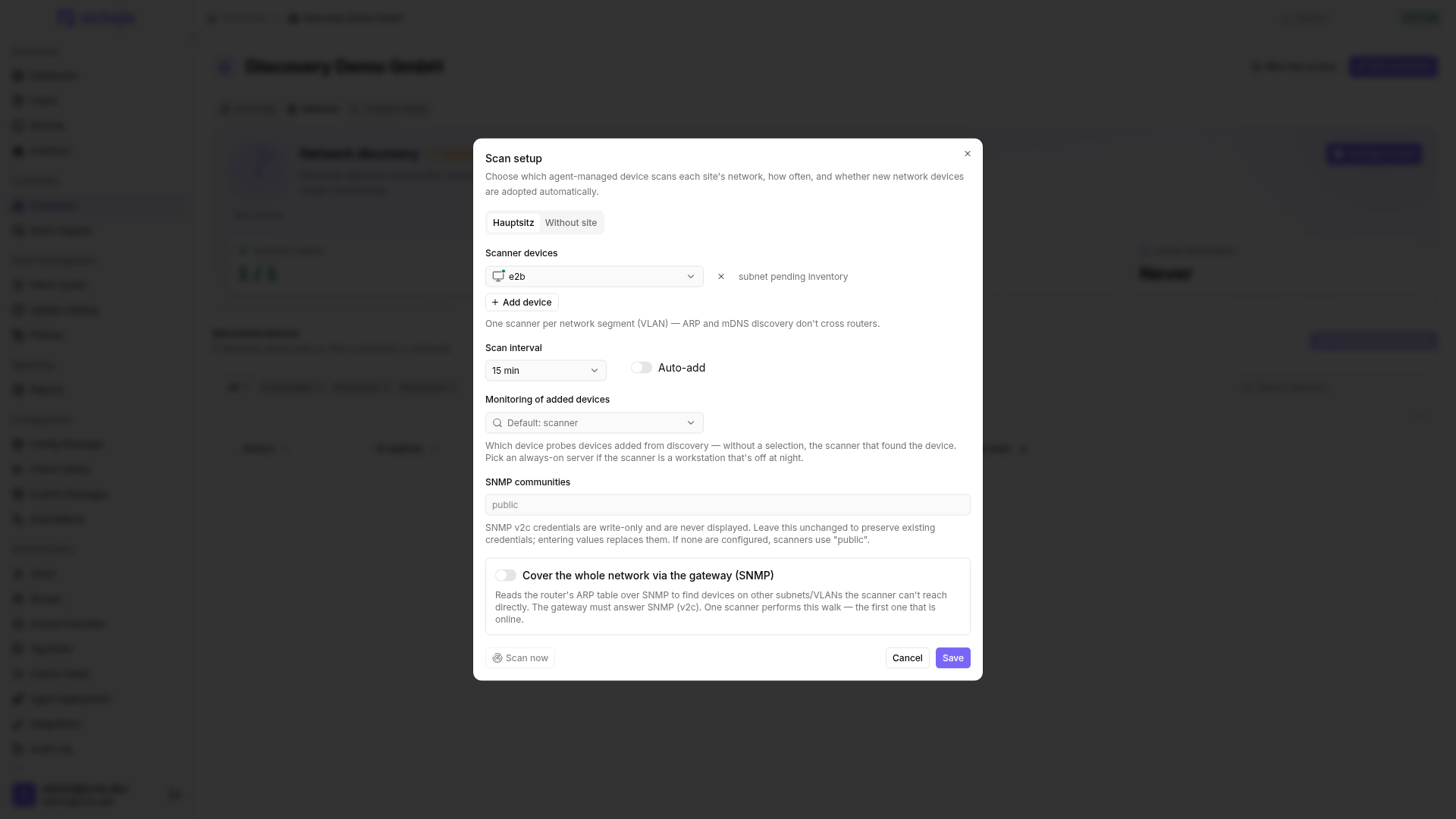
- Open Configure scan. For existing scans, open the dialog using Scan settings or, with multiple scan scopes, Choose scan scope. Select the intended site or Without site in the dialog.
- Select the scanning devices. A scanner cannot belong to several scan scopes at once.
- Choose the interval; the suggested value is 15 minutes. Leave automatic adoption off initially so you can review discoveries first.
- If needed, enter your devices' SNMP communities. Without custom credentials,
publicis used. Stored communities are not returned; editing preserves them unless you replace them. - Optionally configure a gateway for reading its ARP table over SNMP v2c. This can reveal devices on other VLANs, but does not replace the network reachability needed for monitoring them later.
- Save the configuration and start a scan. Review the discovered devices and scan status afterwards.
Automatic adoption creates managed, agentless network devices from eligible discoveries — not just entries in the discovery list. Leave it off if you want to choose which devices enter monitoring yourself.
The local scan detects devices through ICMP ping and ARP. SNMP enriches discovered devices with additional information but is not required for discovery; TR-064 does not need to be enabled either. Even a device that blocks ping can appear through ARP.
The local scan searches IPv4 networks on active network interfaces, not IPv6 networks or tunnels. Subnets with more than 1,024 possible hosts are skipped; at most 1,024 unique local targets are checked in total. An empty discovery list therefore does not prove the entire customer network is empty. Check scanner placement, subnet size and reachability.
Check warnings about a different network or home subnet before adopting devices. A roaming laptop can scan an employee's private network. These warnings do not automatically block scanning.
Monitor discovered devices
- Open Manage found devices and select the discoveries you want.
- Choose the online-state check: Ping by default, or a TCP port.
- Optionally choose a different monitoring device from the same customer. Otherwise octoja uses the scan scope's default monitoring device, or the scanner that reported the discovery.
- Confirm adoption. The devices appear as agentless devices in your fleet. Already managed devices are not created again.
Adoption is intended for network devices, not workstations, Windows/Linux servers or mobile devices. If your selection includes excluded device types, the dialog shows a notice. Remove those entries from the selection and install the agent on them if needed.
Network discovery does not install an agent on discovered Windows devices, even with automatic adoption enabled. Use Windows agent deployment instead, for example through Group Policy.
During adoption, octoja can directly assign a matching monitoring check:
The check must be available in the official check repository. This does not apply to every switch or vendor. For SNMP, octoja inherits the stored credentials associated with the discovery; checks use the network device's connection settings. After adoption, open the device's Checks tab, inspect its assigned check and adjust thresholds. Add a suitable check manually if none was assigned. Scanning again does not retroactively assign these checks to existing devices.
The dashboard's Network device filter also includes devices of unknown type. An unknown type does not establish that a matching monitoring profile exists. See Add a network device without an agent for connection settings and manual setup.
Clean up discoveries
Dismiss unwanted discoveries and restore them when needed. Removing all discoveries resets the list, including dismissed entries, but does not delete devices already being monitored. Discoveries not seen again are removed after 30 days.
FAQ
Does a network scan put load on devices or the network?
Does a network scan put load on devices or the network?
Scanning generates network traffic: the selected scanner sends requests including ICMP ping, ARP, SNMP and name lookups. Responding devices process those requests. The scan itself does not install an agent on them or change their settings. That does not mean it runs without additional load. Increase the scan interval if you need less frequent queries.
Was this helpful?
Still need help? Ask the team