How remote access works
octoja lets you interact with connected devices directly from the browser. You do not need to install any remote-access tools on your own machine — ever...
Remote Operations
octoja lets you interact with connected devices directly from the browser. You do not need to install any remote-access tools on your own machine — everything runs through the octoja web interface using the agent already installed on the device.
This article explains each remote capability and how they relate to each other. For step-by-step instructions, see the linked How-To articles.
Remote access requires both access to the device and the corresponding Allowed action under Administration → Groups → Device Access. For example, you can grant Terminal without granting Remote Desktop. Seeing a device alone does not permit remote operations. See How Users, Groups & Permissions Work for how customer, device and action access work together.
What you can do remotely
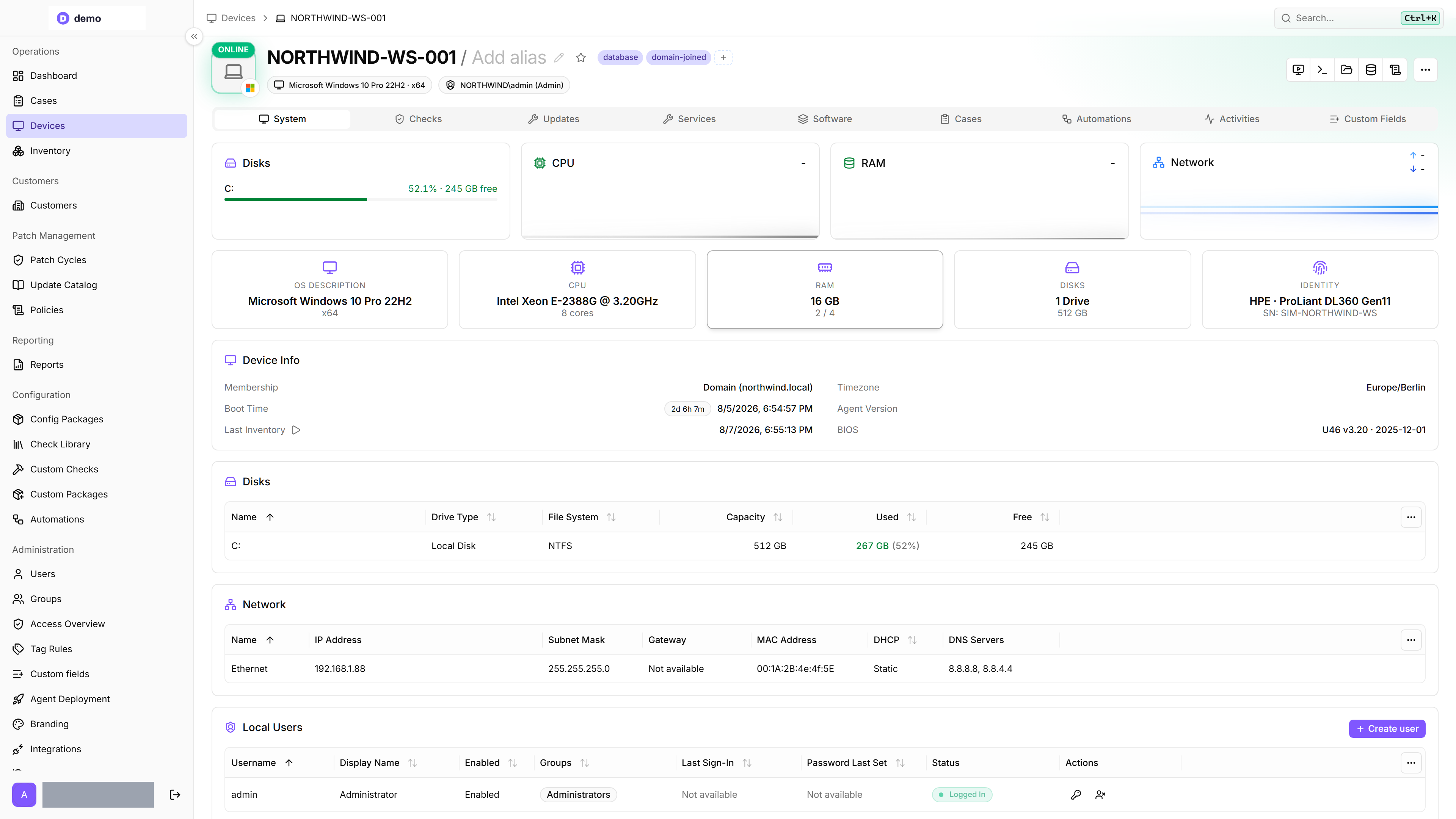
Here is what the device detail page looks like with the remote operations toolbar and live performance charts:
The device toolbox
Most of these capabilities do not run on the device detail page itself. The buttons in the toolbar open the toolbox — a separate browser window for that one device, in which each tool sits in its own tab. Terminal, File Explorer, Registry Editor, Event Log, Storage Analyzer, and Remote Desktop are all toolbox tabs, and you can have up to ten open at once.
The toolbox opens once per device. Clicking another toolbar button while it is open adds a tab to the existing window rather than opening a second one, so a terminal session stays alive while you look something up in the registry next to it.
Remote terminal
You can open a browser-based terminal session on any connected device. The terminal offers the shells that are actually installed on the device — depending on the operating system, typical options are:
The terminal includes a Quick commands menu with shortcuts for common administrative tasks, so you do not have to type frequently used commands from memory.
Terminal sessions require an active connection between the agent and the platform. If the device goes offline during a session, the session ends.
Related article: Open a Terminal on a Device
Live performance telemetry
The device detail page shows real-time performance data, updated every 2 seconds:
- Disks — space consumed on each volume
- CPU — current processor utilisation with a live chart
- RAM — current memory utilisation with a live chart
- Network — throughput per network adapter
- GPU — utilisation and video memory per card. This card appears only on devices that report a GPU.
This is live data streamed from the agent while you are viewing the page. It is not stored historically — when you navigate away, the live feed stops. Historical performance data is collected by checks instead.
Related article: Monitor Device Performance Live
Service and process management
From the device detail page, you can:
- Services — view all system services with their current state (running, stopped, etc.). Start, stop, or restart any service directly. On devices running the Windows agent, you can also set a service's startup type to Automatic, Manual, or Disabled in the Start Type column.
- Processes — view running processes with resource usage. End a process by PID.
These actions take effect immediately on the device.
Related article: Monitor Device Performance Live
Local user accounts
The Local Users section of the device detail page lists the local accounts on the device. You can create an account, enable or disable one, and change its password — on Windows, Linux, and macOS alike. When you create an account, Grant administrator rights adds it to the operating system's administrators group straight away.
This is governed by its own allowed action, Local user management, so you can hand out device access without handing out account creation.
File browser
The File Explorer tab lets you navigate the file system on a connected device. It opens on a list of the device's drives, and on Windows a mapped network share appears there as a Network drive. From there you can:
- Browse directories, and show hidden files
- Upload files to the device and download files from it
- Create folders, and rename or delete entries
- Pack entries into a zip archive, or extract one
- Open the current folder in a terminal tab, or hand it to the storage analyzer
- Empty temporary files, package caches and the recycle bin with Disk cleanup
By default, you can use File Explorer without a remote desktop session. An administrator can restrict it to an active remote desktop session for the same technician and device with the Only allow during remote desktop Agent Setting. The setting does not grant access: you still need the File Browser allowed action and, to start the session, Remote Desktop as well. It can be set on a config package's Agent tab or overridden for one device under Agent settings.
Registry editor (Windows)
The Registry Editor tab opens a browser-based editor for the Windows registry. You can navigate the hive tree, inspect keys and values, and add, rename, or delete entries directly.
Press Ctrl+F to search the device's registry. You pick what to match — Key names, Value names, Value data — and whether to search All hives or only This key. The search keeps running after you close the search box, so you can carry on browsing and come back to the results.
The editor talks to the agent over the same realtime tunnel as the terminal and file browser — changes take effect immediately on the device. Available only on devices running the Windows agent.
Event log viewer (Windows)
The Event Log tab lets you read the Windows event log directly from the browser. A channel tree lists the Windows logs — Application, Security, Setup, System, and Forwarded Events — followed by the application and service channels the device reports.
Each filter is its own control: a full-text Search events box, an Event IDs box, a Level menu, a Source box, and From and To dates. Export writes the result to a file — an XML archive (.zip) that carries every filter you set, search text included, or a Native log (.evtx) that applies only the level, event ID, and date filters. With no date range set, octoja warns you before exporting the whole log.
Like the registry editor, it streams live from the agent and is available only on devices running the Windows agent.
Remote desktop
Remote desktop lets you view and control a device's screen directly from the browser — no RDP client, no VPN. It supports Windows and macOS 14 or later. On macOS, a user must be signed into a graphical session and grant screen-recording and accessibility permissions. See the guide for prerequisites and platform differences.
Drag-and-drop file upload. This also requires the File Browser device action; see Transfer and extract files. During an active remote-desktop session, drag a file from your local machine onto the remote screen to upload it. octoja drops the file into the Downloads folder of the user currently logged into the remote device — useful for handing over an installer or a log-collection script without switching to the File Explorer tab.
Related article: Use Remote Desktop
What requires an active connection
All remote operations require the device to be online and connected to the octoja platform. If a device is offline, terminal sessions, live performance data, service/process management, and the file browser are all unavailable.
On the device detail page, the Remote Desktop, Terminal, File explorer, Registry, and Event Log buttons are hidden while the device is offline. The Registry and Event Log buttons appear only on Windows devices. All buttons reappear as soon as the device reconnects.
The agent automatically reconnects when the device comes back online, but interactive sessions from the previous connection are not resumed. You can wake a powered-off device with Wake-on-LAN.
Related articles
Was this helpful?
Still need help? Ask the team