Build and Deploy a Custom Package
Upload your own installers (MSI or EXE) as custom packages and deploy them to Windows devices through the standard config package flow.
Build and Deploy a Custom Package
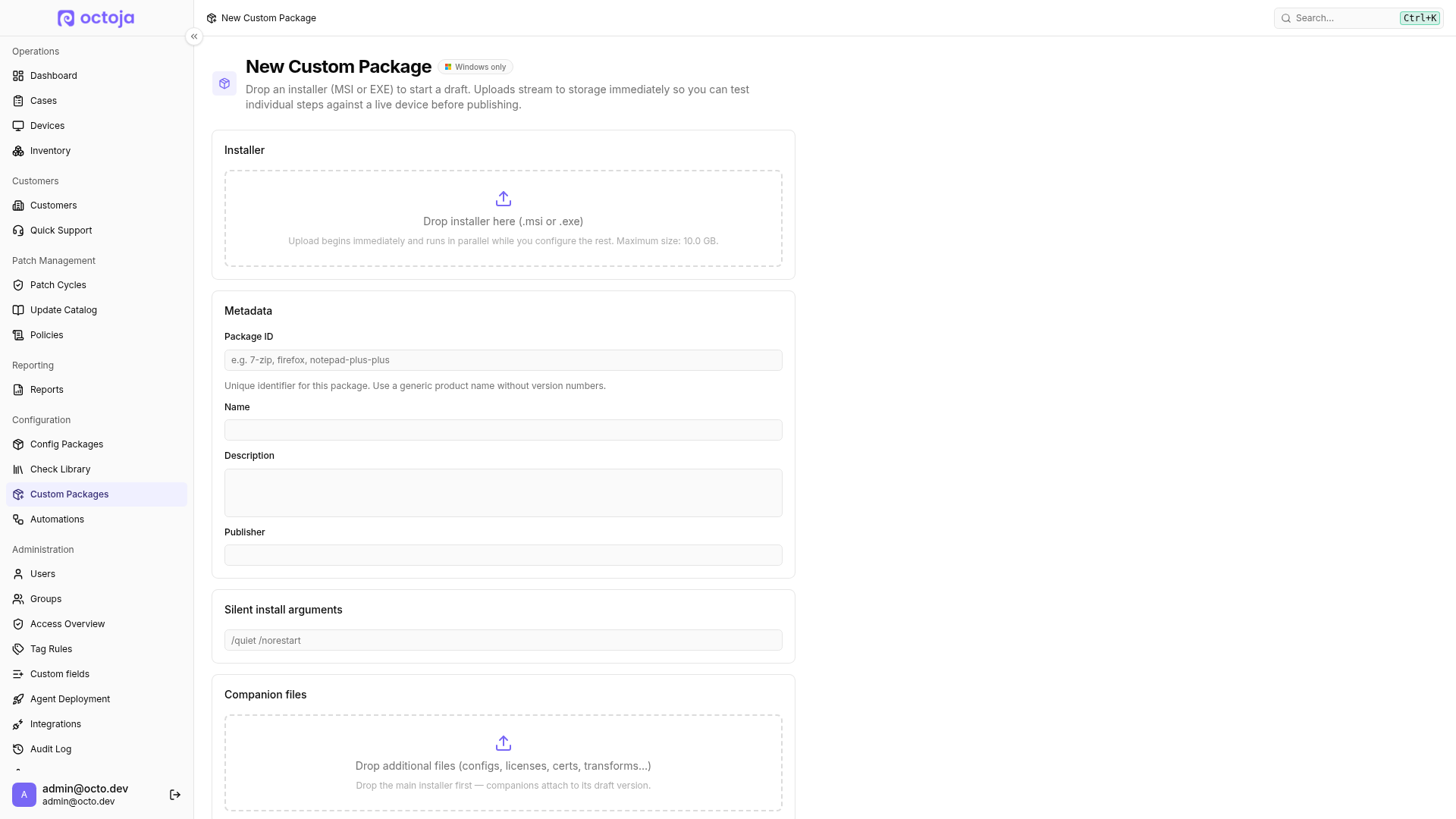
Custom Packages let you upload your own installers (MSI or EXE) and deploy them to managed Windows devices the same way you deploy software from Chocolatey, Winget, Homebrew, or APT. They are useful for line-of-business installers, vendor packages that aren't in a public catalog, and internal builds you maintain yourself.
Windows only. Custom Packages deploy MSI or EXE artifacts and apply to Windows agents only. For cross-platform deployment of public software, use the Chocolatey, Winget, Homebrew, and APT catalogues on a config package.
Prerequisites
- The Custom Package Management permission (granted via groups under Administration → Groups) — required to create, edit, publish, and delete custom packages
- One or more MSI or EXE installer files
- At least one online Windows device (agent installed) if you want to test steps against a real machine before publishing
How it works
You open the New Custom Package page under Configuration → Custom Packages — a wizard that walks you through the whole flow. You drop an installer and configure how it should install. An MSI is analyzed in the browser — product code, name, version, manufacturer, and public install properties are extracted automatically and pre-fill the form. An EXE carries no reliable metadata, so you supply the Package ID and version string yourself. Dropping an MSI creates the package and a draft version right away and streams the installer to storage in the background while you keep editing. An EXE waits for you: fill in the Package ID and version, then click Create draft & upload to start the same background upload.
Inside the wizard you assemble an install pipeline from three block types: Run installer, Copy file, and PowerShell snippet. Each block can be tested individually against an online Windows device picked from the Live test bar at the top of the wizard before publishing. These tests make real changes on the device. When the pipeline looks right, you click Publish. The package and its draft version already exist at that point, so Publish writes everything you configured onto the version and marks it published.
Step 1 — Open the wizard
- Go to Configuration → Custom Packages.
- Click New Custom Package in the top-right of the list page. The wizard opens.
Step 2 — Drop the installer
Check the maximum file size displayed in your instance's upload area. It applies separately to the installer and each companion file. Oversized files are rejected before upload; choose a smaller file rather than retrying the same upload.
- Drag your installer file onto the Drop installer here (.msi or .exe) area in the Installer card, or click the area to pick the file.
- For an MSI, octoja analyzes it client-side. You'll see the extracted
ProductCode,ProductName,Version,Manufacturer, andSHA-256appear under the file row. An EXE has no such metadata, so nothing is extracted — you fill in the Package ID and version string yourself in the next steps. - For an MSI the upload begins immediately — a progress bar shows it streaming to storage while you keep filling in the rest. For an EXE, complete the Package ID and Version fields first, then click Create draft & upload to start it. Closing the tab while an upload is in flight is blocked with a confirmation.
Step 3 — Review and adjust the metadata
For an MSI the wizard pre-fills the Metadata card from the installer; for an EXE you type these in yourself, and a separate Version field appears so you can set the version string to publish under. Adjust as needed:
Step 4 — Set the silent install arguments
The Silent install arguments card controls how the installer runs unattended. For an MSI, octoja pre-fills /quiet /norestart, which works for almost every well-behaved MSI; override only if your installer needs custom MSI properties (e.g. LICENSE_KEY=…) or different verbosity flags. For an EXE the field hints at /S, but the correct silent flag depends on the installer: /S (NSIS), /VERYSILENT /SUPPRESSMSGBOXES (Inno Setup), or /s (InstallShield). Supply the flags your installer expects, or leave the field blank only if the EXE is already silent.
If your installer needs values that change per device or per assignment, model them as Parameters instead of hard-coding them here — see step 6.
Step 5 — Choose how the package uninstalls
The Uninstall card defines how octoja removes the package when you explicitly start an uninstall. Removing its assignment or changing matching rules stops future deployment but does not remove the installed app. For permanent removal, first inspect all applicable config packages and remove or narrow their software assignments; otherwise the app can be installed again. Then uninstall it on the device through Install Software → Custom — see Install or uninstall software on a single device. For an MSI, the uninstall method is configured automatically: octoja uses the detected MSI ProductCode, which the card shows read-only. For an EXE there is no product code, so pick a Method:
Step 6 — Add parameters (optional)
Public properties detected on an MSI appear as suggested parameters under the Parameters card with a small + badge. Click a suggestion to promote it to a real parameter. An EXE has no properties to suggest, so add every parameter by hand. Either way, click Add parameter to define a new key yourself (e.g. OCTOJA_URL, LICENSE_KEY).
Parameters you add in the wizard are plain text fields. The live value you type into one is forwarded to per-step tests, so {PLACEHOLDER} substitutions resolve against what you're testing right now. At deploy time, the same parameter is filled in from the config-package assignment.
Step 7 — Attach companion files (optional)
If the install needs additional artifacts — config files, license blobs, certificates, MSI transforms — drop them on the Companion files drop zone. The zone stays disabled until the draft version exists, because companions attach to it — so drop the main installer first. Each companion then uploads to storage in parallel with the main installer and shows its own progress bar. You can then reference any companion from a Copy file step in the install pipeline.
Step 8 — Build the install pipeline
The Install pipeline card is the heart of the wizard. By default it contains a single Run installer step — enough for an installer that only needs to run with the configured silent arguments. Click Add step to extend it. The three block types are:
Drag the grip handle on the left of each step to reorder. Steps execute top to bottom on the agent.
Step 9 — Test individual steps on a live device
Warning: Tests make real changes on the selected device. Use a test device; installed programs and script changes are not automatically rolled back afterwards.
The Live test bar at the top of the wizard offers a device picker that lists Windows devices currently reachable through the agent connection. Pick one — the picker lists Windows devices only — and every step card in the pipeline shows a Test on device action. Each test runs that single step ad-hoc against the chosen device. There's a Run as choice for System (LocalSystem) vs the logged-in user session, and the command output comes back inline so you can see exit codes and stdout/stderr before committing the version.
Per-step testing works as soon as the main installer upload completes. You don't need to publish first.
Step 10 — Publish
When the pipeline looks right, click the Publish button in the bottom-right of the wizard. The wizard:
- Saves the package metadata.
- Persists the silent arguments, parameters, install steps, and uninstall settings onto the version.
- Marks the version as Published.
- Navigates to the custom package's detail page.
If you change your mind before publishing, click Discard draft on the left of the action bar. octoja deletes the in-progress package and the partial upload. Changes made by tests on the device remain.
Step 11 — Test-deploy the published version (optional)
Per-step testing in the wizard proves each block in isolation. To prove the whole pipeline end to end before you assign the package to anyone, use the Test deploy card on the package detail page. It appears once the version is published:
- Open the version on the custom package's detail page.
- Pick a Target device from the online-device picker.
- Fill in any Parameters the version defines — required ones are marked with an asterisk.
- Click Run test deploy. The full install pipeline runs ad-hoc on that one device, and View output shows what came back.
No software assignment is created. The installation and its changes do remain on the test device. On a draft version the card is greyed out with a note that a published version is required — per-step testing in the wizard is the option that works before publishing.
Adding more versions later
From the custom package detail page, click Upload New Version to open the wizard in new-version mode. The metadata stays locked (Package ID is part of the storage key); you only drop a new installer, tweak silent arguments, parameters, companions, and the pipeline, then Publish. octoja keeps every version you've ever uploaded — you can publish a different one later (rollback) or delete versions you no longer need from the detail page.
To change a version that already exists rather than add a new one, click Edit next to it on the detail page. The wizard reopens on that version so you can adjust the silent arguments, parameters, companion files, install pipeline, and uninstall method. The installer binary and the version string stay as they are — for a new binary, upload a new version instead. On an already-published version the action button reads Re-publish.
Deploying the package to devices
octoja also installs custom Windows packages through Chocolatey. If Chocolatey is missing, the agent first tries to install it with WinGet: With the default source, the device must reach https://cdn.winget.microsoft.com/cache and the installer at https://github.com/chocolatey/choco/releases/download/. If that fails or WinGet is unavailable, the agent downloads https://community.chocolatey.org/install.ps1; the script queries https://community.chocolatey.org/api/v2/Packages() and downloads the Chocolatey package from https://community.chocolatey.org/api/v2/package/chocolatey/<version>.
Allow outbound HTTPS (TCP 443) from the managed device to these destinations, including redirects. For a different WinGet source, check its address with winget source list. Your uploaded installer has additional download destinations.
Once a version is published, add the custom package to a config package:
- Open the config package and go to its Software tab.
- Click Add Software.
- In the dialog, switch the source selector to Custom — it sits next to Chocolatey, Homebrew, winget, and APT.
- Pick your package, set the two custom-package fields below, and click Add to Package.
Custom packages use the same assignment rules and Deployment schedule as everything else on the Software tab, and the next agent sync installs the version on the matching Windows devices. See Deploy Software to Devices for the full flow and How software deployment works for field semantics.
Tips
- Latest means the most recently published version — octoja does not compare version strings, so
2025.9.9published after2025.10.1counts as newer. The version string (detected from an MSI, or typed in for an EXE) is a label for humans. Keep this in mind when publishing hotfixes from older branches — and it is why re-publishing an older version rolls back every assignment that tracks Latest - Keep the Package ID stable — config-package assignments reference custom packages by ID, and renaming would orphan every assignment. The wizard locks it after draft creation for exactly this reason
- Parameter values are stored as you enter them and stay readable to anyone holding the Custom Package Management permission or editing the config package that supplies them. Treat a parameter as configuration rather than a vault, and keep long-lived credentials in a purpose-built secrets store
- The PowerShell block is an escape hatch. If you find yourself reaching for it on every package, the Run installer + Copy file combination is probably the better fit for what you're doing
Troubleshooting
The upload stays at "Uploading" forever. The upload streams in the background; if it never completes, the browser tab probably lost network. Refresh the page and drop the file again. Failed uploads do not consume storage.
The Drop installer here area refuses the file. Only MSI and EXE installers are accepted. ZIP and other archive formats are not supported — wrap them in an MSI or EXE first, or model the install logic with a PowerShell snippet step.
The Publish button stays disabled. Publish unlocks only when the main installer upload has completed, every companion upload has completed, the Name field is non-empty, and no other mutation is in flight. Watch the badges next to each file row — anything still showing the upload spinner is blocking the submit.
The Live test picker is empty. The picker shows only Windows devices that are online via the agent connection and that your groups let you manage software on. Confirm the device's agent is running, that it has connected since you opened the page, and that you hold the Software Management device action for it. The Target device picker on the Test deploy card is filtered the same way.
A published version isn't picked up by agents. The agent applies config-package changes on its next sync cycle. Wait for the next cycle, or tighten the Deployment schedule on the config package if you need the change applied sooner.
FAQ
Are changes automatically removed after a test?
Are changes automatically removed after a test?
No. Both Test on device in the wizard and Run test deploy execute real installation steps. Installed programs, copied files, shortcuts and script changes remain. Discard draft does not undo these changes on the device either.
Uninstall the test installation using its intended uninstall method, then clean up additional changes made by your own steps. Install or uninstall software on a single device describes the available methods.
Are package parameters available in the uninstall script too?
Are package parameters available in the uninstall script too?
No. Assignment parameters are supplied only for installation. Do not rely on $env:OCTOJA_PARAM_<NAME>, {PLACEHOLDER} substitutions or the install helper Resolve-Params during uninstall.
Prefer the MSI product code or the vendor's documented uninstall command where possible. A custom uninstall script must reliably obtain any values it needs itself. Explicitly validate target paths before deleting anything, and test both installation and uninstall on a test device before deploying the package.
Is %USERPROFILE% automatically expanded inside a package parameter?
Is %USERPROFILE% automatically expanded inside a package parameter?
No. Package parameters are text values; substituting {PARAMETER} does not additionally expand Windows environment variables inside that value. Whether the passed text is expanded later depends on the installer or script receiving it.
Resolve required paths explicitly in your script and check the execution context. $env:USERPROFILE belongs to the account running the script: with All users, that is the system account, not the signed-in user. Changing context alone does not turn a text parameter into an expanded path.
Why does direct installation on a device not ask for my package parameters?
Why does direct installation on a device not ask for my package parameters?
The device's software dialog does not collect custom-package parameter values or use the values from a config-package assignment. For customer-specific values, add the custom package on the config package's Software tab and fill in Parameters there.
Restrict that config package to the intended customer's devices and test on one device before wider deployment. Do not put a customer's token into a shared package default to work around the missing prompt.
Can I check a prerequisite before downloading the installer?
Can I check a prerequisite before downloading the installer?
Yes. Put a PowerShell snippet before Run installer. The installer file is downloaded when its step is reached, not before the first snippet. Let the snippet finish normally to continue; use throw to stop when the prerequisite is not met, and leave continuing on error disabled for that step. Do not use exit 0 to mean “continue to the next step”: the snippets share one script.
This stops the installation as a failure, not a successful skip. Test both outcomes on a test device before deployment. Earlier steps and the package's execution script may already have been downloaded or run.
Was this helpful?
Still need help? Ask the team