Monitor Device Performance Live
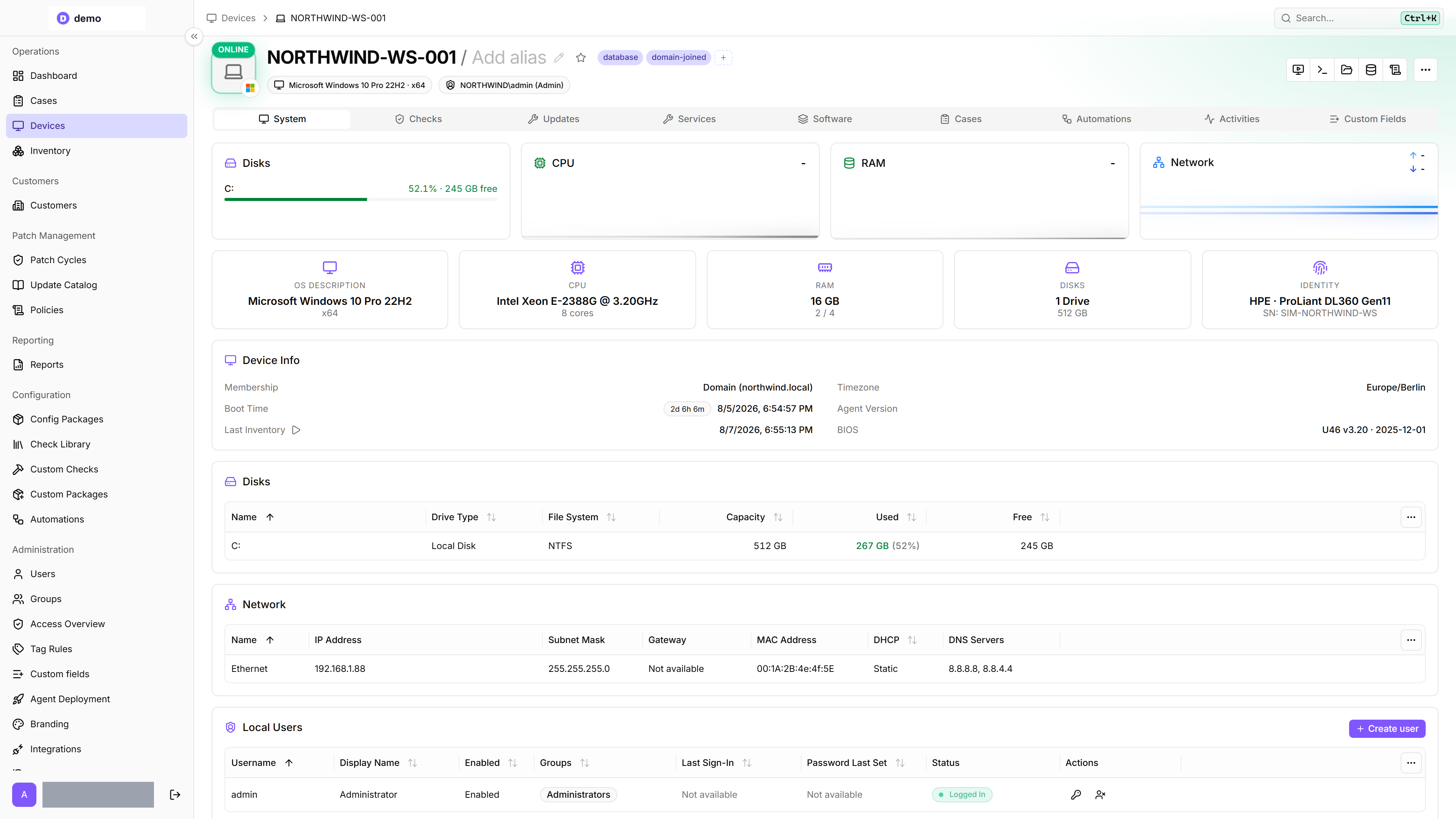
The octoja device detail page shows live telemetry for any connected device, updated every two seconds without a page refresh.
The octoja device detail page shows live telemetry for any connected device, updated every two seconds without a page refresh.
Prerequisites
- The device must run an octoja agent and be online. Agentless devices — switches, firewalls, NAS boxes and ESXi hosts — report no live telemetry.
- Viewing live telemetry needs no permission beyond being able to see the device. Acting on it does: the service actions need Service Control, and ending a process needs Process Control.
Open the device detail page
From the Devices list, click the device you want to inspect. An agent-managed device opens on the System tab, which carries the live telemetry; an agentless device opens on Device Info instead.
Tabs on the device detail page
The page is organized into tabs across the top, listed below in the order they appear. Not every tab shows on every device — several depend on what the device reports or on your permissions. While the device is online, the live tabs update automatically without a refresh.
For the optional Virtual Machines and Proxmox tabs, the corresponding feature must first be enabled for your octoja instance. An administrator enables Hyper-V management or Proxmox VE host management under Settings → Beta features.
The live telemetry updates in real time as the device reports its current state:
Find and export inventory changes
Open Activities → Inventory History to trace when the device's inventory changed.
- Choose the time range and, optionally, a change type such as software, services, local users or hardware.
- Enter a search term, such as an application name or version, and press Enter. Search is case-insensitive. With a change type selected, it searches only that category; it matches recorded values, not translated display labels.
- Open matching entries to compare the previous and new values. Export CSV downloads entries for the selected time range and filters across all result pages. The file contains timestamp, type, change, and the previous and new values.
Manage services and processes
While viewing a device, you can take action directly from the live tabs:
Start, stop, and restart are icon-only buttons — hover one to see its label as a tooltip; the start type is a dropdown in the service's own row, and the process action sits in the actions menu at the end of the process row. Stopping or restarting a service and killing a process ask for confirmation first; starting a service and changing a start type apply straight away. All of these need the device to be online, and they are logged in the device activity log (Activities → Logs) under the source Remote Action.
Tips
- If the live tabs show no data, the device may have just gone offline. Check the Online / Offline badge on the device icon at the top of the page.
- Data is polled from the agent in real time. If multiple users are viewing the same device simultaneously, each view makes its own requests to the agent.
- Live telemetry reflects the current moment only. To track performance trends over time, set up Checks — each check run records its result, giving you a growing history automatically.
FAQ
Where can I add a note to a device?
Where can I add a note to a device?
Use a device custom field of type Multi-line text on the Custom Fields tab. See Custom fields for setup instructions.
Was this helpful?
Still need help? Ask the team