Search the fleet inventory
Use the Inventory page to search, filter and export software, hardware, services and tags across every device at once.
The Inventory page lets you search, filter and export software, hardware, services and tags across every device at once. Unlike a single device's own System, Software and Services tabs — which show only that one machine — this page is fleet-wide, so you can answer questions like "which devices have this application installed?" or "how many machines run this service?" in one place.
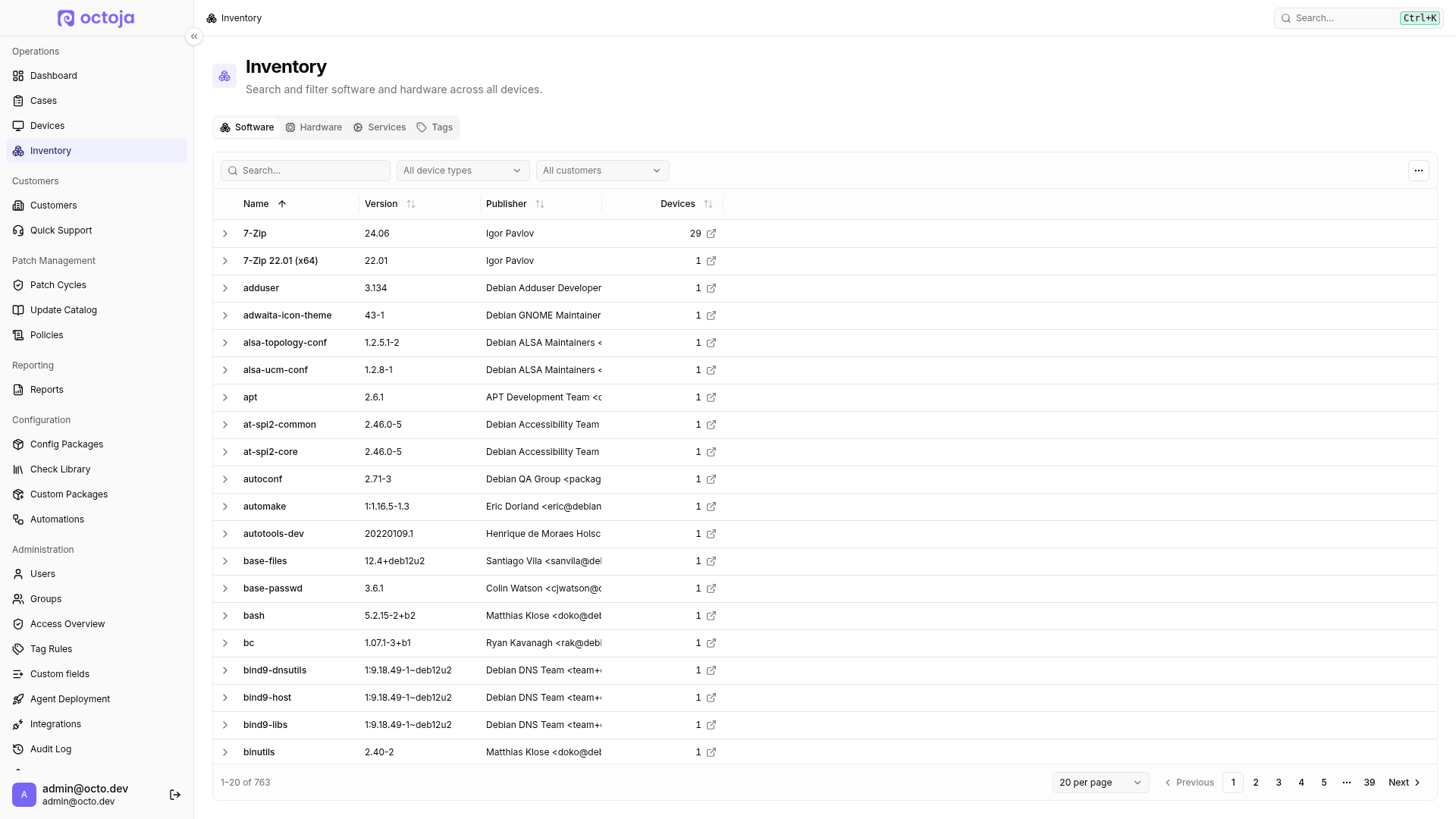
Open the Inventory page
Select Inventory in the navigation. The page opens with four tabs across the top, each covering one kind of data:
Filter what you see
Every tab carries its own filter bar directly above the table. The filters apply to whichever tab is open and update the table as you type or select.
The Tags tab adds one more control next to the customer picker: an All Tags box where you can pick one or more tags and narrow the list to those alone.
Clear a filter to return to the full fleet-wide view. The filters and search term are kept in the page address, so you can reload or share a link and land on the same filtered view.
Drill down to the devices
On the Software, Services and Tags tabs, each row is a catalog entry — one application, one service or one tag — rather than a single machine. The Devices column tells you how many machines match. Click a row to expand it and see exactly which devices are behind that number. Every expanded list opens with Device and Customer, then adds what is specific to the tab:
Click anywhere in an expanded row to open that device's detail page. The Hardware tab has no expanded list — its rows are already single devices, so clicking one opens the device directly.
The link icon beside the device count in Software, Services and Tags opens a filtered device list instead. Customer and device-type filters are retained. From there you can select matching devices for further actions. For software, the filter matches the exact name across all versions, not just the version in the catalog row. If a software or service name contains quotation marks, this link is unavailable; use the expanded list instead.
Inspect a Windows device's service accounts
On an individual Windows device's Services tab, Service Account shows the account a service runs under. You can also search by account name there. The value comes from the latest inventory even when service status is live. Trigger a new inventory after changing an account; credentials cannot be edited here.
Inspect a device's CPU and motherboard
On System, Enrolled shows when the device was registered in octoja. This is neither the operating-system installation date nor the latest inventory time.
Open an agent-managed device from the Hardware list and switch to System. The CPU tile shows total cores and threads across installed processors. Click it to see collected details per CPU socket where the device reports them. A multi-socket badge identifies multiple reported processors; when individual data is unavailable, the dialog shows only aggregate values.
The Motherboard tile opens manufacturer, product, version, serial number, asset tag and CPU socket count where collected. Socket count can include empty sockets, so it need not match the number of installed CPUs. Missing details do not automatically mean a hardware fault. Trigger an inventory scan when you need fresh values after a hardware change.
View a BitLocker recovery key
- Open the Windows device and its System tab.
- Under Disks, hover over the BitLocker status of the required volume.
- If the inventory contains a Recovery Key, reveal it with the eye icon or copy it with the copy icon.
If the key is missing, octoja has no key for that volume in its inventory. The device needs another inventory scan after enabling BitLocker or changing its key. Treat the key like a password and do not share it in public screenshots or tickets.
Inspect battery and power profile
Under System, Windows and macOS devices also show reported battery details such as charge, health, AC connection and charging state, plus the active power profile. Not every device reports every value; Linux does not supply equivalent details here. These are the last transmitted inventory values, not live measurements. An unchanged charge reading alone therefore does not prove a charging fault.
Export to CSV
Each tab offers Export CSV in the table's More actions menu — the … button at the right end of the filter bar. The export respects the filters and search term that are currently applied, and it expands catalog rows to the device level, so a software, service or tag export lists one row per device-and-entry. Each tab writes its own file:
The Hardware export contains the columns you have made visible on the tab; the other three tabs export a fixed set of columns. A very large fleet may be capped, and octoja says so: Showing the first … devices. Narrow the filters to export the full set. On the Hardware tab that notice sits above the table; on the other tabs it appears once the export has run. Add a device-type or customer filter, or a search term, and export again to capture everything that matches.
Tips
- To choose which hardware details appear, open the More actions menu on the Hardware tab and hover Columns. Your selection is remembered for next time; Reset columns in the same submenu puts it back.
- On the Tags tab, the icon next to a device count opens the device list already filtered to that tag — useful when you want to act on those devices rather than just count them.
- To inspect one machine on its own, open that device and use its System, Software and Services tabs instead — the Inventory page is for looking across the whole fleet.
- Pair a customer filter with a CSV export to hand a single customer a tidy list of their installed software or hardware.
FAQ
Where can I see when a device last started?
Where can I see when a device last started?
Open an agent-managed device and switch to System. Boot Time shows the operating system's last startup time reported in inventory. You can also enable the Uptime column in the device list; it is calculated from that startup time.
Last contact and last inventory are not boot times. Trigger an inventory scan to refresh the reported boot time after a restart.
Why can BitLocker show protection disabled and FullyEncrypted at the same time?
Why can BitLocker show protection disabled and FullyEncrypted at the same time?
These are different Windows values: VolumeStatus describes encryption of the volume, while ProtectionStatus describes protection of its encryption key. The octoja badge uses the protection status; the details also show the volume status. A fully encrypted drive can have protection suspended, so do not dismiss this combination as a display error.
Compare with manage-bde -status on the device, then refresh its inventory to update octoja's stored values. Refreshing inventory does not enable BitLocker protection. If Windows still reports protection off, investigate it on the device before treating the drive as protected.
Why is a disk shown in yellow on the System tab when its check is healthy?
Why is a disk shown in yellow on the System tab when its check is healthy?
The disk-usage display uses fixed percentages of used space: yellow from 75%, red from 90%. These colors do not use your check thresholds or predict how quickly the disk will fill up, and you cannot configure them there.
Set the thresholds that should trigger monitoring alerts in the disk check. A yellow usage bar and a healthy check can therefore both be correct.
Was this helpful?
Still need help? Ask the team