Send alarms by SMS, call, and app push
Create notification groups in octoja so alarms reach your team by SMS, phone call, or app push, and route an alert rule to the group.
Send alarms by SMS, call, and app push
Mobile notifications reach the people on duty on their phone. You group the users who should be notified, choose how they are reached — SMS, Call, or App push — and then point an alert rule at that group. When the rule fires, everyone in the group who is allowed to see the affected device gets the message.
A notification group on its own sends nothing. It goes live the moment an alert configuration adds a channel of type Mobile notification that points at it, so plan on doing both parts below.
Prerequisites
- You need the Integration Management permission in octoja to open the notification-groups page and to create, change, or delete a group. Permissions are assigned under Administration → Groups.
- Every user you want to reach by SMS or Call needs a Mobile Number saved on their octoja user profile. Users without one are not offered in the group's user picker.
- For App push, the recipient has the octoja mobile app installed and has enabled push notifications in it, which registers their device with octoja.
- An alert configuration to attach the group to — see Set up alerts for a check.
Step 1 — Give each recipient a mobile number
SMS and call groups can only contain users who already have a phone number in octoja, and that number lives on the user, not on the notification group.
- Each user can set their own number under Profile, in the Mobile Number field. An administrator can set it for someone else under Administration → Users, on that user's detail page.
- The field suggests the international format with country code, for example
+491701234567. octoja saves whatever you type, so a number with a typo is accepted and only shows up later as a failed delivery.
Step 2 — Create a notification group
- Go to Administration → Integrations and click Manage notification groups on the Mobile notifications card.
- On the Groups tab, click New group.
- Fill in the dialog:
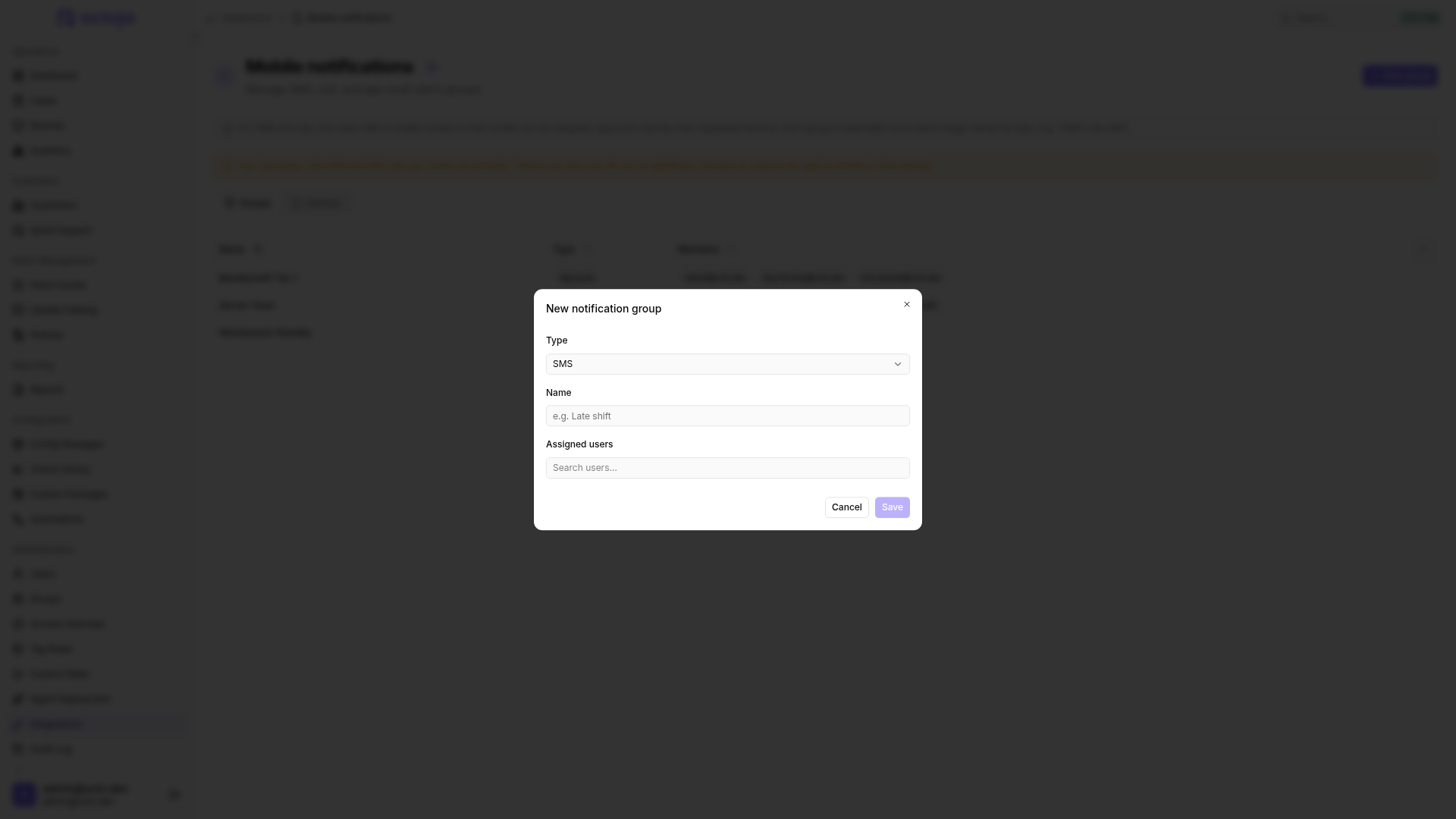
- Click Save. The group appears in the list and is immediately selectable as an alarm target.
In alert configurations the group is listed as its type and name joined by a hyphen: an SMS group named "Late shift" appears as SMS-Late shift. Keep that in mind when you go looking for it in the next step.
Step 3 — Route an alert to the group
This is the step that puts the group to work. Until an alert configuration names it, the group stays idle.
- Open the config package that contains the check you want to alert on and go to its Checks tab.
- Open the check and switch to its Alert tab.
- Pick an existing alert configuration or create one inline, then edit its Channels.
- Click Add Channel and choose the channel type Mobile notification.
- In the target picker, select your group by its display name — SMS-Late shift in the example above. A mobile-notification channel needs a group selected before it can be saved.
- Set the rule that decides when the alarm fires, optionally limit the channel under Schedule, and click Save.
The full alert model — thresholds, severities, schedules, and the ready-made configurations octoja ships — is covered in Set up alerts for a check.
What each delivery type does
The check's failure text is shortened to 200 characters, so a long check output is cut off with an ellipsis. The message language follows each recipient's own profile language. For someone who never picked one, SMS and calls fall back to English, and app push falls back to the language of the receiving device.
SMS and call groups deliver the alarm itself. If you also want the resolution to land on a phone, add an App push group as a second channel on the same alert configuration.
Who actually receives a message
octoja narrows the group down to the members who are allowed to see the device that alarmed. A member without access to that device is skipped for that alarm and does not appear in the delivery history. If no member of the group has access, the alarm produces no mobile notification at all.
Because of this, a group can look perfectly configured and still stay quiet for one customer's devices. When that happens, check what the group's members are allowed to see before you change anything else.
Check the delivery history
Open a group and switch to the History tab. It lists one row per recipient per alarm, with Time, User, Type, Customer, Check, and Outcome. The view is a record of what happened and is the first place to look when someone says they were not notified.
Rename, change, or delete a group
- Rename: click the group name in the page header and type a new one. The name saves on its own; the Save changes button stays disabled if the name is the only thing you touched.
- Change type or members: edit the Type & members card on the Configuration tab and click Save changes.
- Delete: use Delete in the Danger zone. Alert configurations that pointed at the group stop notifying it. Open those configurations afterwards and either point the channel at another group or remove the channel, so each rule still says what you mean.
Enrolled push devices
The Devices tab sits next to Groups on the notification-groups list page, not inside an individual group. It lists every device that App-push groups can reach, with User, Device, Platform, and Registered. A device appears here once its owner enables push notifications in the octoja mobile app.
Nothing arrived — what to check
- Open the group's History tab first. It tells you whether octoja tried at all.
- Rows marked Not configured: on an SMS or Call group, confirm the user has a Mobile Number on their profile; on an App push group, look for a device registered to that user on the Devices tab. If that side looks right and the outcome stays the same, contact support.
- Rows marked Failed: octoja handed the message over and it came back refused. On an SMS or Call group, check the number on the user's profile first and correct it in international format, for example
+491701234567. If the number is already right, contact support. - No rows at all: the alarm never reached the group. Confirm that the alert configuration really has a Mobile notification channel pointing at this group, that the rule's threshold was met, that the channel's Schedule covered the time of the failure, and that at least one group member has access to the device that alarmed.
Fair-use policy
The notification-groups page carries this note:
Fair-use policy: 500 SMS and 500 calls per month are included. There is no hard cut-off, but on significant overuse we reserve the right to throttle or limit delivery.
Was this helpful?
Still need help? Ask the team