Set up alerts for a check
Manage alert configurations centrally, review where they are used, and assign them to monitoring checks.
An alert rule tells octoja to notify you when a monitoring check reaches a set share of bad results — through channels such as email, a mobile notification, a webhook, Microsoft Teams, woasi, a case in octoja, or a ticket in your PSA. Depending on the rule, even the first bad result can trigger it. Alerts are configured on a check inside a config package.
Prerequisites
- Any signed-in user can open the alert configuration overview. You need Manage Alert Configurations to create, edit, or delete configurations and to view active-alarm counts and usage. You need Monitoring Check Management to assign a configuration to a check. Permissions are assigned under Administration → Groups.
- A config package that includes the check you want to alert on.
- If you alert through a channel, set that channel up first under Administration → Integrations — email recipients, mobile notification groups, webhooks, Microsoft Teams, woasi, and the PSA connections (Autotask, HaloPSA, TANSS, Jira, TOPdesk, DocBee, Codemeta OS, Odoo, Inserve, c-entron Service-Board, Freshservice, Zammad). A ticketing or PSA system that is not connected does not appear in the channel picker at all, so connect it first. See Set up Webhooks, Send Alerts to a Microsoft Teams Channel, or Set Up the woasi Integration for the connected examples.
Alert configurations
An alert configuration is a named, reusable profile that bundles the channels an alarm goes to with the rule that decides when it fires. You build a configuration once and then apply it to as many checks as you like — change the profile and every check using it updates together. octoja ships four ready-made configurations you can use straight away:
- Immediate – Critical — the first critical result pages on-call and opens a case at once.
- Standard — a debounced default: email on sustained warnings, a case once it turns critical.
- Sustained Issue — only fires when a problem persists, for noisy CPU or memory metrics.
- Critical – Multi-stage — a confirmed critical pages on-call, pings the team channel, and opens a case.
Manage alert configurations centrally
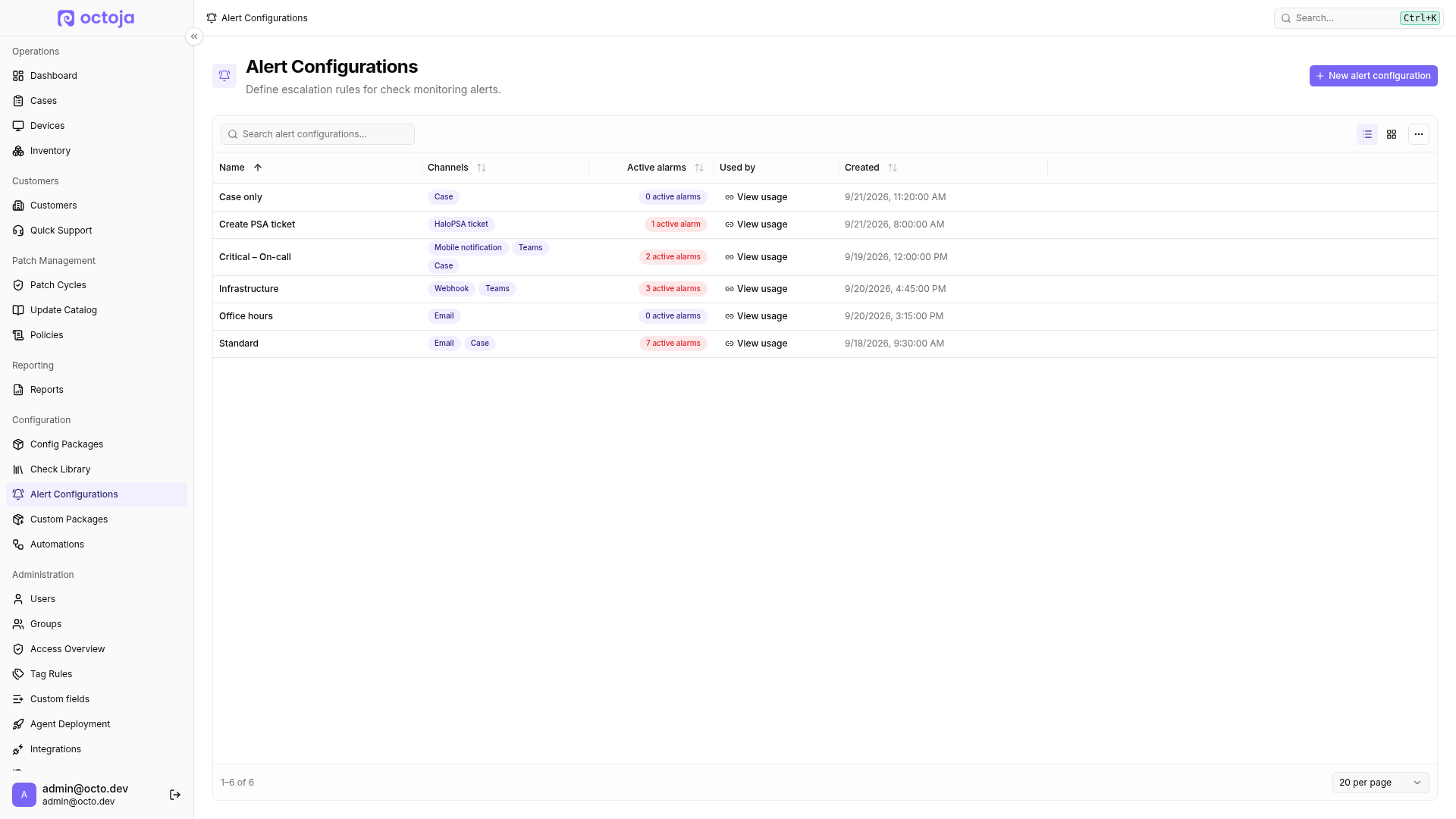
Go to Configuration → Alert Configurations to see every configuration in one place. You can search by name, export the list as CSV, and switch between Table view and Card view. The overview shows each configuration's name, channels, and creation date. With Manage Alert Configurations, it also shows active-alarm counts and the actions for creating or editing configurations.
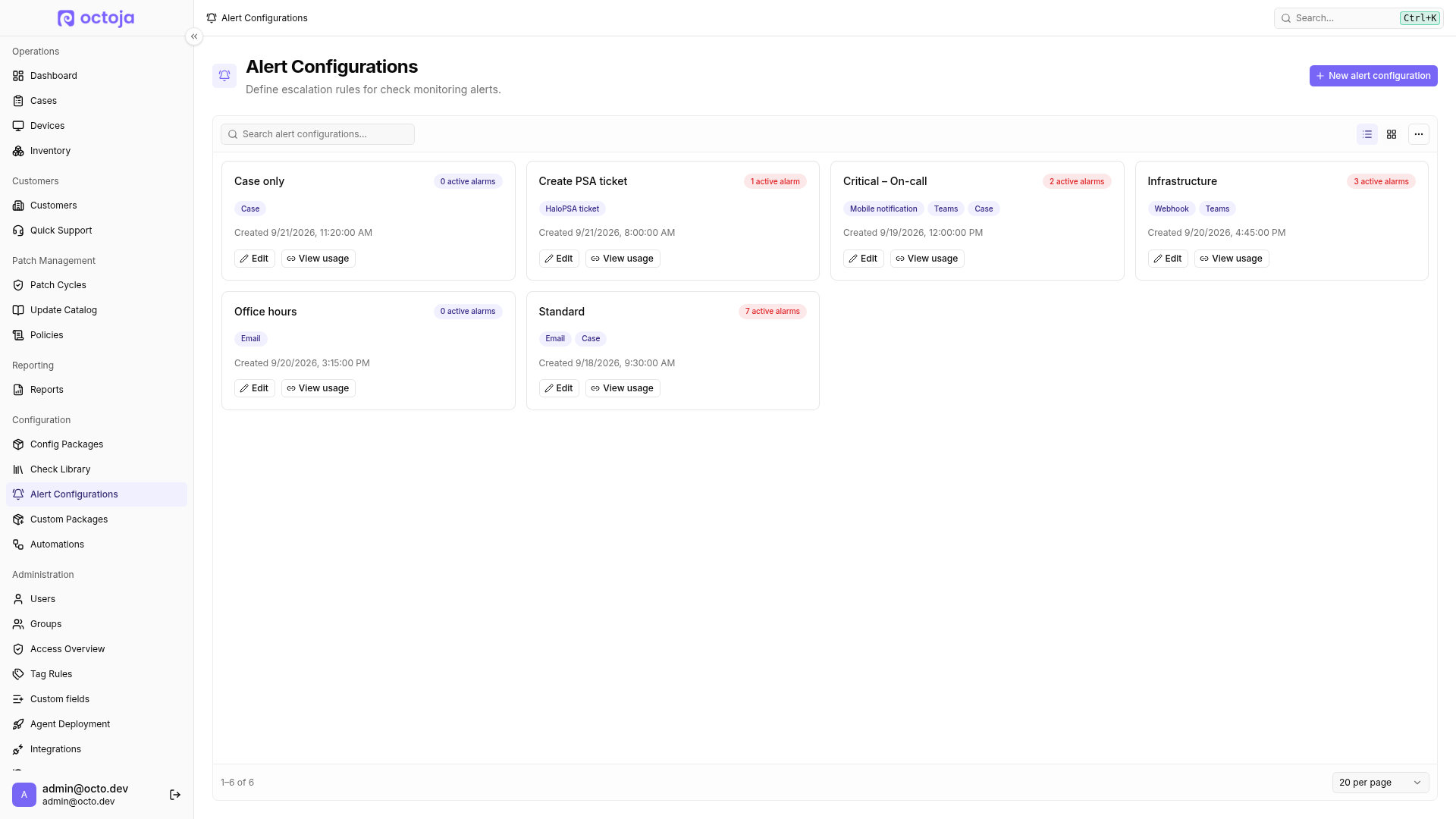
Use Card view to see the same information and actions in individual cards.
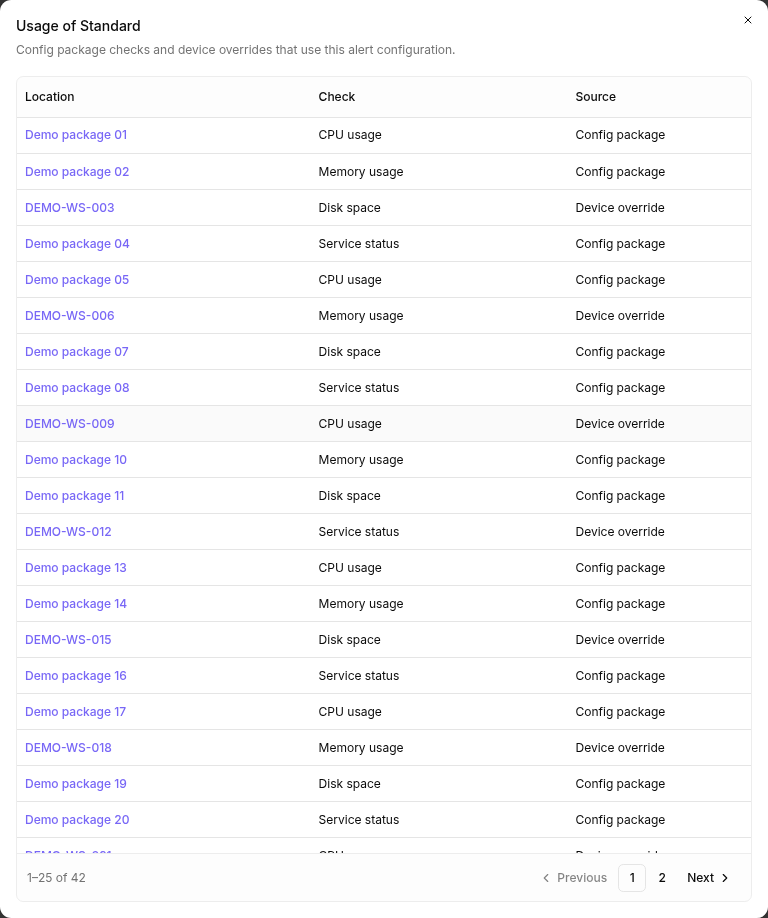
Select View usage to see which config packages and device overrides use a configuration. The dialog names the check and source and links directly to the package or device. Long lists scroll inside the dialog and use multiple pages.
Add an alert to a check
- Open the config package and go to its Checks tab.
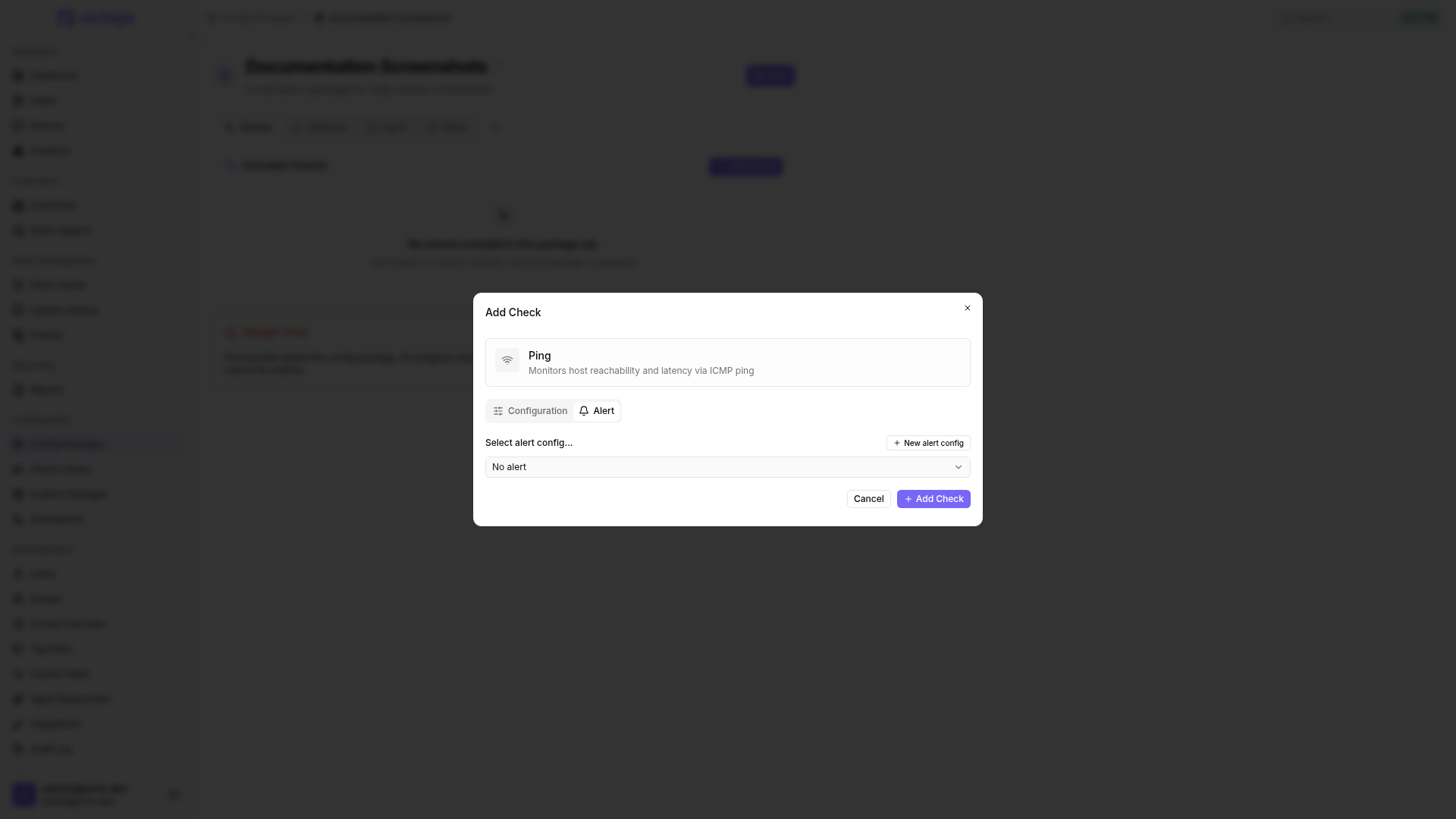
- Open the check you want to alert on and switch to its Alert tab.
- Pick an alert configuration for the check. You can choose an existing configuration (one of the four above or one you built), or select New alert config to create one inline.
What goes in a configuration
Inside an alert configuration you add one or more channels — where each alarm goes — and set the rule that decides when it fires. octoja can notify through any of these channels:
Each channel must be connected under Administration → Integrations before you can pick it here. A system that is not connected is not offered in the picker at all.
Set the rule once per channel. octoja alerts when at least a chosen percentage of the check's most recent results are at or above a minimum severity. A common starting point is 50% of the last 10 results at minimum severity Warning — raise the percentage or the window to make the rule less sensitive. Choose results to evaluate the last N results, or minutes or hours to evaluate everything from that period — pick minutes when you want to react to a short burst of failures.
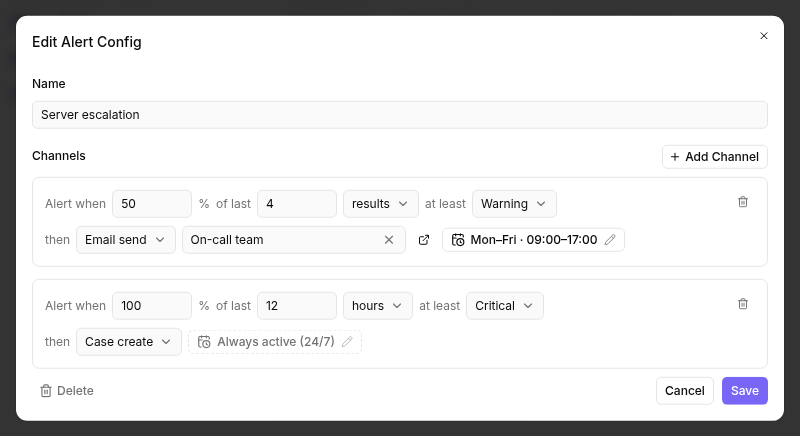
The two kinds of window count differently. With results, octoja always divides by N, so 100% of the last 3 results needs three bad results. With minutes or hours, it divides by the results actually in the window, however few there are. Neither is a waiting period: how many results fall into a window depends on how often the check runs. In this example, a check runs once a day at about 08:00, and both rules use the minimum severity Warning:
The 12-hour rule alerts on the first bad result because 12 hours never contain more than one run of this check. The Critical result counts toward Warning because the minimum severity includes everything worse.
When you are done, save the check. The alert configuration now applies to every device the config package targets, and any other check that uses the same configuration stays in step with it.
Quiet hours for a channel
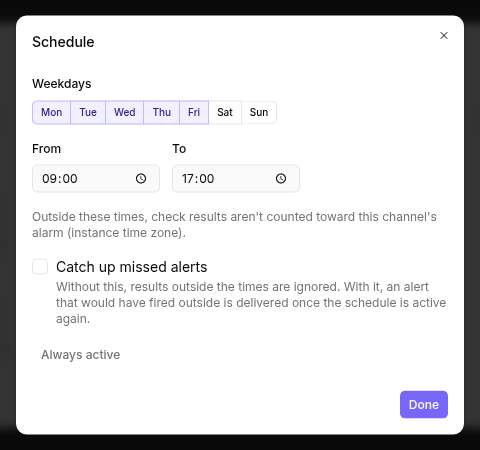
Each channel can be limited to a weekly schedule instead of alerting around the clock. Switch the channel from Always active (24/7) to Limit to schedule, then pick the weekdays and a From/To time window (evaluated in the instance time zone). Outside those times, results are not counted toward that channel's alarm. Set a To time that is earlier than the From time and the window runs into the next day for each weekday you picked — the schedule summary marks it (next day), for example Mon 16:45–07:45 (next day).
Turn on Catch up missed alerts if you still want to hear about something that went wrong overnight: an alarm that would have fired outside the window is held and delivered with the first check result after the schedule is active again, provided the rule is still met then.
Email recipients
Set up email recipients under Administration → Integrations before you alert by email. A few things commonly trip people up:
- Also select the recipient in the email channel of the alert configuration you use. Creating a recipient or sending a successful test does not automatically assign it to every check. Edit the shared configuration once and select it on the relevant checks, rather than recreating recipients for each check.
- A new recipient is created disabled and receives nothing until you enable it. Use Send test first to confirm the address works — the test is sent even while the recipient is disabled — then enable it.
- Each recipient has its own language. Alert emails are sent in that recipient's language (for example German or English), regardless of who or what triggered the alert.
- If delivery keeps failing, octoja disables the recipient automatically so a bad address does not keep bouncing. Fix the address and enable it again.
Mobile notification
The Mobile notification channel notifies an alarm group — a list of users. Each group has a Type that decides how the alarm reaches them: SMS, Call (a voice call), or App push. SMS and Call groups take users who have a mobile number in their profile. App push requires the octoja mobile app, which is currently still in beta; the group reaches devices where the user has the app installed and signed in. Only users who have access to the affected device are notified. SMS and Call notify you of the alarm only, not the recovery. For recovery notifications, you can add an Email channel; App push also supports them. See Send alarms by SMS, call, and app push for mobile delivery setup.
Edit or delete an existing alert configuration
Go to Configuration → Alert Configurations and select a row in table view or Edit on a card. You can also open a check, switch to Alert, and select the pencil icon next to its configuration. Change the settings and select Save. The changes affect every check using that configuration, so review View usage first.
To delete the profile, click Delete at the bottom left of its editor and confirm. Checks using it will no longer send alerts through that profile. If it still has active alarms, deletion discards them without recovery notifications; tickets already opened for them remain open and will no longer close automatically. Assign a replacement configuration first if alerting must continue. To remove the configuration from just one check instead, use the X in that check's configuration summary and save the check.
When are you notified?
octoja re-evaluates a check's alert rule every time a new result for that check arrives — but a channel does not send a message on every failing run. Each channel keeps one open alarm per check and device: the notification goes out once, when the channel's rule first crosses its threshold. Once the condition clears, the alarm closes; whether this sends a recovery notification depends on the channel. (See Checks for how a result gets its OK, Warning, or Critical status.)
There is no separate debounce setting on top of this — the rule itself is the debounce. How many bad runs it takes until the first notification, and how many good runs until the recovery, follows directly from the percentage, the window, and the minimum severity you set per channel.
When a check recovers
You do not have to clear alerts by hand. When a check returns to OK, octoja sends a recovery automatically:
- Webhook, Teams, and Email receive a follow-up "recovered" notification. For Mobile notification, this applies only to App push with the current beta app; SMS and Call groups receive no recovery notification.
- A case that octoja opened for the alert is closed automatically. The case stays linked to the check that raised it, so you can always trace it back.
- A PSA ticket always gets a recovery note, and octoja closes it where the connected system allows it. Most connectors close the ticket only while no one has been assigned to it — once a technician picks it up, octoja leaves it open so their work is not lost. TANSS closes the ticket when Close ticket on recovery is on and the ticket still carries the status it was created with; Zammad moves it to the Recovery state you configured.
If an alarm stays open because the check no longer delivers results — for example after it was removed from the device — an administrator can resolve it manually, see Review and manually resolve active alarms.
Override or mute alarms on one device
A single device can depart from the package's alarm configuration without affecting the others. On the device's Monitoring Checks panel:
- Follow package — the default; the device uses the package's alarm configuration.
- Give the device its own alarm configuration to alert differently for that device only.
- Alarms off — the check keeps running and recording results, but no alarms fire for this device.
You can also Disable on this device to pause the check entirely on one device, or Override for this device to change its settings there only — then Revert to package config to return to the shared configuration.
For a planned window rather than a permanent change, use Maintenance mode on the device instead and tick Alerts under Pause during this window. While the window runs, no new alarms open for that device, whichever alert configuration its checks use. For alarms that are already open, the channel's recovery behavior still applies once the check clears. Set the window to run until you clear it manually, to a fixed end time, or on a repeating schedule.
Tips
- Choose the window and percentage so that brief interruptions do not reach the threshold. Lower the percentage if you want to be told sooner.
- The alert editor flags a channel as Inactive when its integration is disabled, so alarms are not dropped silently. Re-enable the integration to resume delivery.
- Warning and Critical results always appear on the device's Checks tab as well, whether or not a rule fires.
See also: config packages, and the Webhooks, Microsoft Teams, and woasi channel guides.
FAQ
Does “100% of the last 24 hours” always wait 24 hours before the first alert?
Does “100% of the last 24 hours” always wait 24 hours before the first alert?
No. The time window looks back: octoja evaluates the results actually available from the last 24 hours. It does not wait for 24 hours of history. If there is only one result in that window and it meets the minimum severity, the percentage is already 100%. A window with no results does not trigger the rule. The example table under What goes in a configuration shows this for a check that runs once a day.
To require a specific number of bad results, use 100% of the last N results instead of a time window. This is a count, not a guaranteed waiting period in hours.
Does the time window count only hours within my channel's schedule?
Does the time window count only hours within my channel's schedule?
No. The last 40 hours still means 40 hours back from the evaluation time, even with a channel schedule of Monday to Friday, 09:00–17:00. It does not mean five working days of eight hours each.
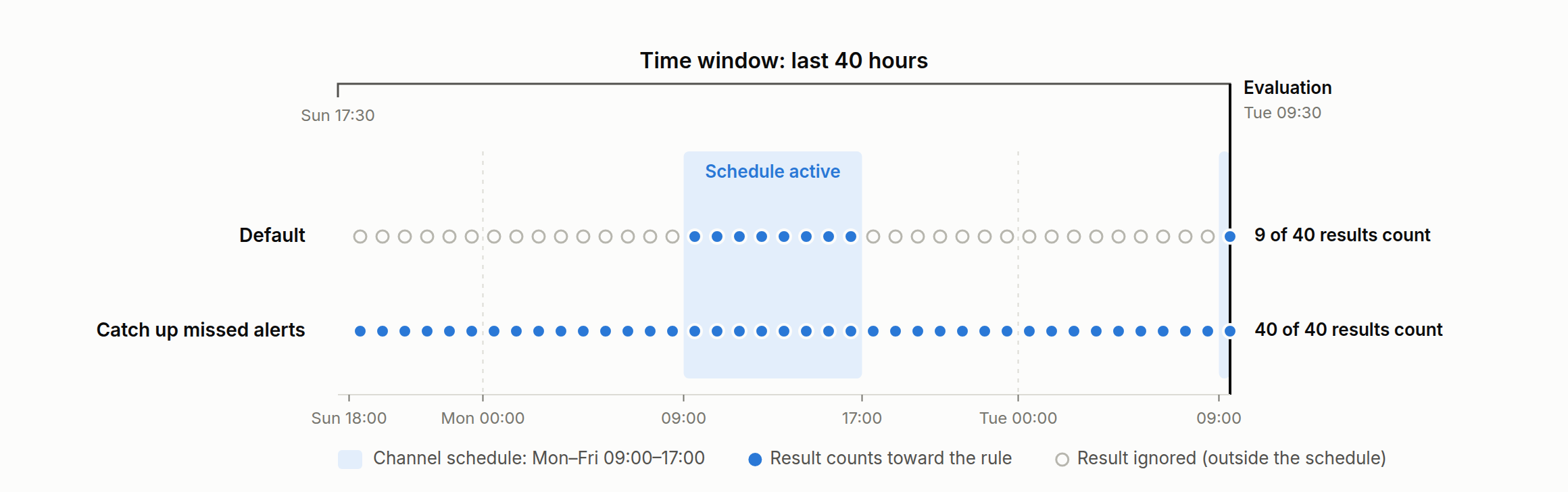
In this example, a check runs every hour and the rule is evaluated when the result from Tuesday 09:30 arrives, so the window reaches back to Sunday 17:30. By default, results outside the channel's schedule are excluded: only the 9 results from Monday 09:00–17:00 and Tuesday from 09:00 count. With Catch up missed alerts, all 40 results count; a new alert is still only delivered during active hours. Neither option pauses the lookback window or extends it by the excluded hours.
Why can Warning and Critical open two tickets for the same check?
Why can Warning and Critical open two tickets for the same check?
Each channel is evaluated independently and keeps its own alarm. At least Warning counts every result at Warning or worse, including Critical — not just warnings. In this example, one configuration has two ticket channels with 50% of the last 4 results, one at minimum severity Warning and one at Critical. After a series of OK results, the check reports:
Both tickets can be created in the same ticketing system. Use only one ticket channel if you do not want this additional escalation. For unexpected tickets, compare the channel rules and check the delivery attempts as described in Inspect and export integration history; matching device names and check text alone do not establish duplicate delivery.
Can I create and edit alert configurations directly on a check?
Can I create and edit alert configurations directly on a check?
Under Configuration → Config Packages, open a package and edit one of its checks on the Checks tab. Switch to Alert. Select New alert config to create a configuration. To edit an existing one, select it and click the pencil icon beside Summary.
Changing an alert configuration affects every check using it, not just the check you opened.
Why does a Zammad ticket have the wrong organization despite successful delivery?
Why does a Zammad ticket have the wrong organization despite successful delivery?
Check the customer mapping and expand the ticket-creation entry in History. organization not applied means the ticket exists, but its organization could not be assigned — even if that step reports 403.
Use a dedicated Zammad customer account for Requester email. The integration token must be able to update that user's organization memberships; organization-management permission alone is not enough. Have your Zammad administrator check these rights.
After correcting the setup, verify the organization on a new test ticket and review existing misassigned tickets separately.
Was this helpful?
Still need help? Ask the team