Windows Backup
Use the Windows Backup check to monitor the age of the last Windows Server Backup and catch missed backups in time.
The Windows Backup check reads the most recent available Windows Server Backup version through wbadmin and alerts if it is too old. This catches backup failures before they become a disaster recovery problem. The check does not evaluate the failure itself: a failed backup shows up as the age of the last backup keeps growing. The check runs on Windows only (x64 and ARM64), every 60 minutes on the agent; the interval is not configurable.
Prerequisites
- You need the Monitoring Check Management permission. Your administrator assigns permissions under Administration → Groups.
- The target device must be a Windows Server with the Windows Server Backup feature installed and a connected agent. octoja publishes the check for both client and server editions, but it reads its data through the Windows Server Backup feature.
- The check uses the
wbadmincommand-line utility to query status. It does not work with third-party backup solutions — for Veeam Backup & Replication, use the Veeam check instead.
Steps
- Go to Devices and open the device.
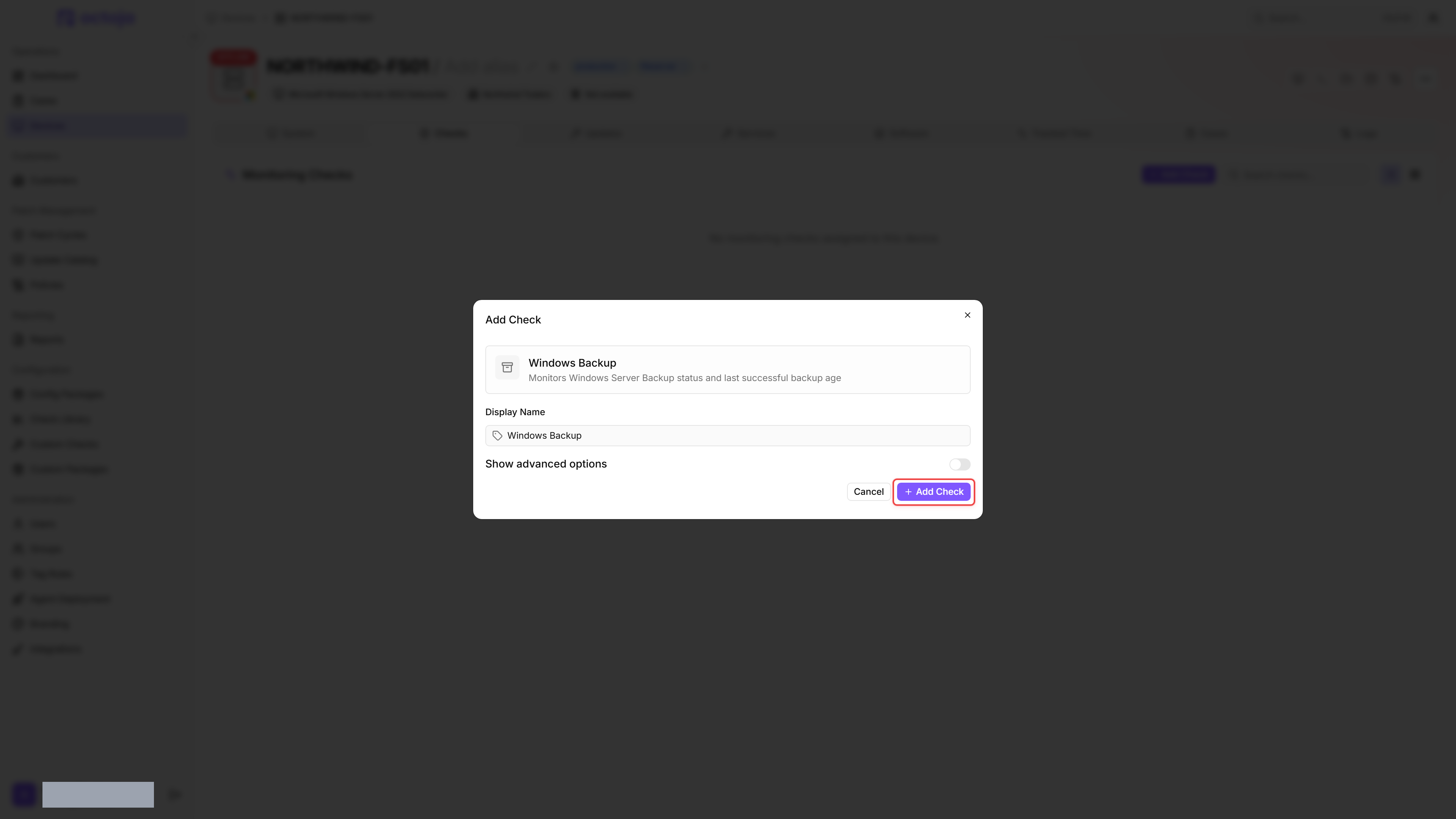
- Click the Checks tab → Add Check → Windows Backup.
- Expand Show advanced options to reveal the threshold fields, and adjust Warning after (hours) and Critical after (hours) if needed. The defaults of 24 and 48 hours suit daily backups.
- Click Add Check.
After the first check interval, the result appears in the device's Checks tab.
Settings
If Warning after (hours) is set higher than Critical after (hours), the check swaps the two values so the thresholds still evaluate in the expected order.
Results
The OK / Warning / Critical status is derived from the backup age against the configured thresholds.
Metrics collected
- Last backup (
lastBackupTime) — timestamp of the most recent backup reported bywbadmin - Age (
ageHours) — hours elapsed since the last backup, rounded to one decimal place - Location (
backupLocation) — target location reported bywbadmin(drive or network path) - Recoverable (
canRecover) — the recoverability valuewbadminreports for the last backup
The status is reported as the check result, not as a separate metric.
Tips
- Set the warning threshold to match the backup schedule. For daily backups, 24 hours is a good value — the warning fires as soon as a nightly backup is missed and the age reaches 24 hours.
Was this helpful?
Still need help? Ask the team