Bandwidth
Monitor the throughput of your network interfaces and detect bottlenecks with percentage or Mbps thresholds.
The Bandwidth check measures network throughput on one or more interfaces and alerts when utilisation reaches the configured thresholds. This lets you detect network bottlenecks before they affect users. It runs on Windows, Linux, and macOS every 5 minutes on the agent; the interval is not user-configurable.
Prerequisites
- You need the Monitoring Check Management permission.
- The target device must have a connected agent.
Steps
- Go to Devices and open the device.
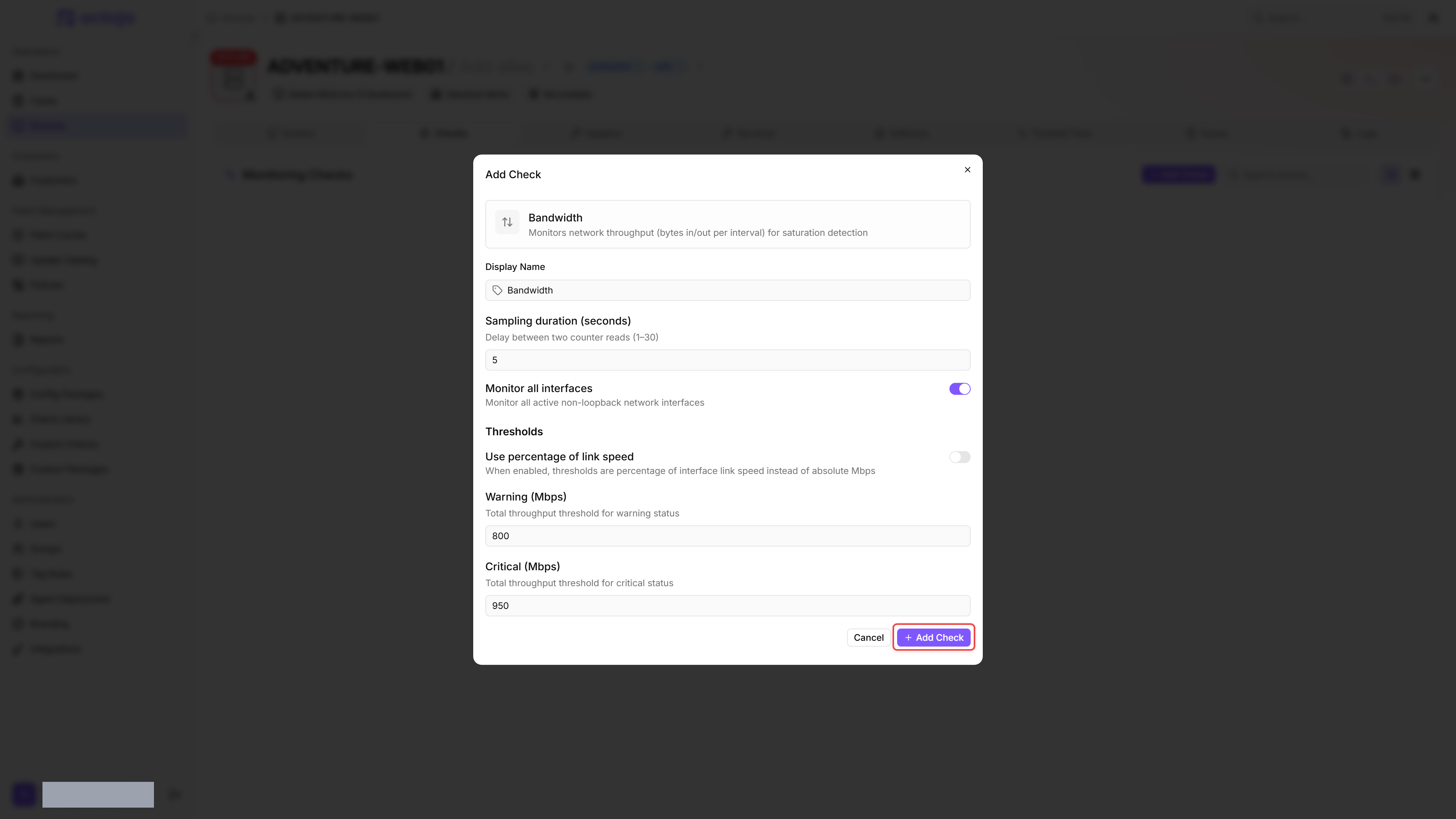
- Click the Checks tab → Add Check → Bandwidth.
- By default, Monitor all interfaces is enabled. If you turn it off, you can enter specific interface names under Interfaces; if the list stays empty, all interfaces are still monitored.
- Choose how thresholds are expressed. The Use percentage of link speed toggle (off by default) switches between the two modes:
- On — thresholds are entered as a percentage of the interface link speed (Warning (%), Critical (%)).
- Off — thresholds are entered as absolute throughput in megabits per second (Warning (Mbps), Critical (Mbps)).
- Adjust the thresholds if needed.
- Click Add Check.
After the first check interval, the result appears in the device's Checks tab.
Settings
Sampling duration (seconds) sets how long each run measures for, not how often the check runs.
Results
The check captures network activity over the Sampling duration (seconds) and reports for each monitored interface:
- Receive throughput (RX) in Mbps
- Transmit throughput (TX) in Mbps
- Total throughput (Total) in Mbps
- Link speed and the resulting utilisation as a percentage, if the interface reports a link speed
- Result status (OK, Warning, Critical)
Each interface is graded on its combined receive + transmit throughput. Reaching a threshold is enough to trigger it: throughput at or above the critical value is Critical, at or above the warning value is Warning, otherwise OK. The check's overall result is the worst result across all monitored interfaces.
- Threshold auto-swap. If the warning threshold is greater than the critical threshold, the runtime swaps the two values before evaluation, so the lower value is always Warning. Only the pair actually in use is checked — the Mbps pair or the percentage pair, depending on Use percentage of link speed.
- Percentage thresholds are clamped to 0–100. Values outside the range are coerced before the swap check.
- No link speed. If an interface does not report a link speed, percentage thresholds cannot be applied and the check falls back to Warning (Mbps) and Critical (Mbps) for that interface (800 and 950 by default), even though those fields are hidden in percent mode. Link speed reporting is most reliable on Windows.
- No monitored interfaces. If filtering leaves zero interfaces (for example, every name in Interfaces is misspelled, or the host has no non-loopback interfaces in the Up state), the check returns a Warning result with an empty interface list rather than failing.
- Counter-reset protection. If a per-interface byte counter goes backwards between the two samples (some drivers reset on link flap), the throughput for that direction is reported as 0 Mbps for that run instead of a negative value.
- Interfaces that report no statistics. If the agent cannot read an interface's byte counters, that interface is left out of the results for that run instead of failing the check.
Monitored interfaces
Loopback interfaces and interfaces that are not in the Up operational state are always excluded, whether you monitor all interfaces or name them individually. An interface you listed under Interfaces is therefore skipped while it is down. If an interface you expect to see is missing from the results, check that it is enabled and connected.
Other virtual interfaces (VPN adapters, virtual switches) are included; exclude them by selecting specific interfaces if they cause false positives.
Tips
- Percent mode works best in most cases — it automatically adapts to the interface speed (1 Gbps, 10 Gbps, etc.).
- Mbps mode is useful when you want a fixed threshold regardless of interface speed, for example when monitoring a WAN link with a known bandwidth cap.
- The sampling duration affects accuracy. A longer sample duration provides more representative results but briefly increases the check execution time. The default 5-second sample is a good trade-off between accuracy and performance impact.
Was this helpful?
Still need help? Ask the team