Custom Script
Run your own PowerShell or bash script as a check and evaluate its exit code or typed outputs.
The Custom Script check runs a single script — PowerShell on Windows, bash on Linux and macOS — and converts its exit code into a status. It runs every 15 minutes on Windows, Linux, and macOS (each as an x64 and Arm64 build), and you assign it to a device through a configuration package. Its plugin identifier is custom-script.
If you need typed inputs, typed outputs, or the bundled SNMP worker, build a custom check under Configuration → Check Library instead. octoja wraps its script at distribution time; the check runs at a fixed interval, reports a result back to octoja, and afterwards appears alongside the built-in checks when you assign checks to an agent-managed device. On a network device it needs one extra parameter — see Make the check available on network devices below.
The two paths share neither the status-mapping mechanism nor the output contract: Custom Script evaluates the exit code, a custom check evaluates the checkResult field of its output. Read the section that matches the check you are configuring.
Prerequisites
For custom checks:
- You need Monitoring Check Management to access the Check Library and additionally Custom Check Management to create or edit a custom check.
- Monitoring Check Management is also required for the editor's Live test bar (step 8) and assigning the check to a device (step 10).
- You need a target device with the agent installed and connected. For a network device — a switch, router, or firewall added without an agent — that is its monitoring asset, the agent that probes it on your behalf.
- On Linux, the agent's script wrapper needs
jqto read parameters and serialize output. The Linux agent installer installsjqfor you whereapt,dnf, oryumis available, so on a current install it is already there. Install it by hand only on agents installed before that, or where the installer found no supported package manager. On macOS, the wrapper uses the built-inosascript, so there is nothing to install. - Any other tool your script invokes (for example
awk,bc) must also be installed on the target device — the agent does not bundle script-side dependencies.
Steps
To build a custom check and assign it:
- Go to Configuration → Check Library in the sidebar. Turn on Custom checks only to find existing custom checks; opening one takes you to its editor. Repository connections and repository access settings live under Settings, not in the custom-check editor.
- Click New Custom Check.
- Enter a Name. octoja automatically derives a unique check ID from it. Optionally pick an existing custom check under Clone from to start from a copy. Click Create Check.
- On the General tab, leave Mode set to Advanced script (the alternative, Simple SNMP, swaps the script tabs for an SNMP probe editor; see the section below). Set the description, icon, category, tags, the check Interval in minutes — default 5, allowed range 5–1440 — and the Timeout in minutes, the longest a single run may take (default 5, allowed range 5 seconds to 60 minutes).
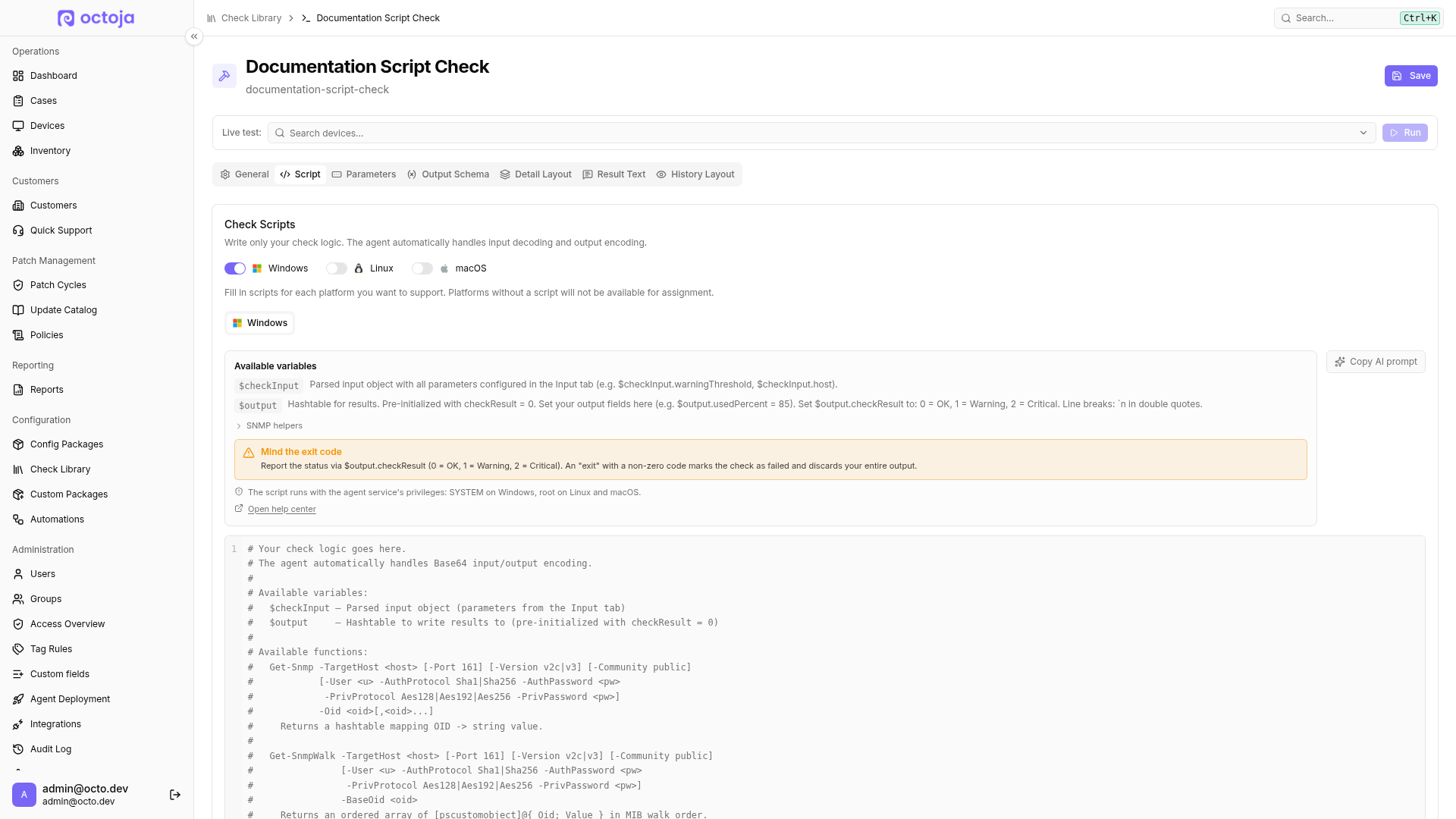
- Open the Script tab. For each platform you want to support (Windows / Linux / macOS), paste your script — examples below. Platforms without a script are not available for assignment. Write only your check logic: the agent automatically wraps the script with the input/output handling.
- Open the Parameters tab and define any input parameters your script needs (key, type, labels, required, default value). These appear as configurable fields when the check is assigned to a device. If the check should also be selectable on network devices, one of them has to be a host or target parameter — see Make the check available on network devices below.
- Open the Output Schema tab and declare the fields your script writes — key, type, unit, and label. The Detail Layout and History Layout tabs let you arrange how those fields render on the device's Checks tab. Optionally, use Result Text to write a short text and a detailed description; see Custom check result texts. Text preview does not run a script; use the live test in the next step for that.
- Use the Live test bar at the top of the editor: pick a connected device and click Run. If the check defines parameters, a Test Input dialog opens first — fill it in and click Run Test. A badge then shows the check status — OK, Warning, Critical, or Failure — and the runtime in milliseconds; click it to open the test-execution details (Test execution successful or Test execution failed) with the Check Result, the script's Raw Output, any Errors, and the Parsed Output fields — without waiting for a check interval.
- Click Save.
- Assign the check: go to Devices, open the target device, click the Checks tab → Add Check, pick your custom check (it appears alongside the built-in checks — on a network device only if it declares a host parameter), fill in the parameters you defined, and click Add Check.
Settings
Custom Script
The agent writes your script to a short-lived script file, runs it as a child process — powershell -NoProfile -NonInteractive -ExecutionPolicy Bypass -File <script>.ps1 on Windows, bash <script>.sh on Linux and macOS — and deletes the file afterwards. No helpers, no sentinel markers: the check works off the script's exit code and a small stdout/stderr capture.
On Windows the agent appends one line that re-derives the exit code from $LASTEXITCODE and $?. PowerShell's -File mode otherwise exits 0 even when the last statement raised a non-terminating error, which would report a broken script as Success. An explicit exit or throw in your script still wins; a trailing Write-Error or a failing final cmdlet yields exit code 1.
Custom checks
If you provide only a Linux script, the agent runs it on macOS too via osx-x64 / osx-arm64 fallback.
Community check repositories, added by name and URL, deliver ready-made checks from an external source; they are not how you author your own.
Results
Custom Script
The exit code drives the result:
SuccessExitCode is a single code, not a list — exactly one exit code can mean Success. The warning and critical lists take any number of codes, so a legacy tool that returns 3 for a soft problem is mapped by adding 3 to WarningExitCodes. The critical list is evaluated before the warning list, so an exit code that appears in both maps to Critical. There is no script-side helper for this plugin; the result is always whatever the process returns.
The check ships these fields to octoja on every run:
Custom checks
Your script reports its status by setting checkResult in the output — $output.checkResult in PowerShell, set_result in bash. It starts at 0 (OK), so a script that sets nothing reports OK. Wrapped checks do not use exit-code mapping; the agent decodes checkResult into a CheckResultStatus enum:
You can also set the status by name instead of by number: $output.checkResult = "Critical" (PowerShell) or set_result Critical (bash). Strings are case-insensitive when decoded.
Output up to 1 MB is kept in full as the check's latest result, so the current values always render. Only the historized copy is bounded: a result whose output is larger than 16 KB is stored in the check's history as status only.
Diagnostic output during development goes to stderr — Write-Error / >&2 echo — and is captured by the agent without breaking the wrapper contract.
How the agent runs custom checks
- The agent downloads your script from the web service with the input/output wrapper already added, stores it as a file, and runs it with
powershell -ExecutionPolicy Bypass -Fileon Windows orbashon Linux and macOS. - The script runs with the agent service's privileges:
SYSTEMon Windows androoton Linux and macOS. - The parameters configured at assignment are passed to the script on standard input; the wrapper decodes and exposes them (
$checkInput/INPUT_JSON), and you read them through$checkInput(PowerShell) orget_input(bash). - The wrapper pre-creates the output container with
checkResult = 0($output/_OCTO_OUTPUT). After your script runs, it serializes the output to base64 and prints it between the result markers. The agent extracts only the bytes between<<<OCTO_RESULT_BEGIN>>>and<<<OCTO_RESULT_END>>>; anything else written to stdout —Write-Output,Write-Host,echo, orConvertTo-Json— is ignored and does not break the wrapper. - The status comes from the
checkResultvalue in your output — not from text your script prints and not from the exit code. - The wrapper runs your script inside a
try/finally(PowerShell) or behind anEXITtrap (bash), so the result payload is written even when your script callsexitorreturn. A non-zero exit code, however, makes the check report Failure and discards the entire structured output, regardless of which status or fields the script set first.exit 0andreturnare safe;exit 1throws away everything you set. - Each run is stopped once it exceeds the check's Timeout (General tab) — default 5 minutes, adjustable up to 60 minutes — and the check reports Failure.
- Above 1 MB the result keeps its status, but the field values are dropped and it is marked as truncated.
Write scripts for custom checks
PowerShell (Windows)
The wrapper exposes $checkInput (the parsed input parameters) and $output (a hashtable pre-filled with checkResult = 0). Write your results into $output. Note: the variable is $checkInput, not $input — $input is a reserved PowerShell automatic variable.
Anything you put on $output is serialised and shipped to octoja. Map your output keys to the Output fields you declared on the check definition; otherwise the dashboard renderer cannot bind them to UI blocks.
# Read an input parameter (defined on the Parameters tab)
$threshold = $checkInput.threshold

# Do your work
$cpuLoad = (Get-Counter '\Processor(_Total)\% Processor Time').CounterSamples.CookedValue

# Write outputs into $output
$output["cpuLoad"] = [math]::Round($cpuLoad, 1)
if ($cpuLoad -ge $threshold) {
    $output["checkResult"] = 2  # Critical
    $output["message"] = "CPU load $cpuLoad% exceeds threshold $threshold%"
} elseif ($cpuLoad -ge ($threshold * 0.8)) {
    $output["checkResult"] = 1  # Warning
} else {
    $output["checkResult"] = 0  # OK
}
The wrapper also injects two SNMP helpers that shell out to the agent's bundled SNMP worker. Both take named parameters:
Note the parameter name: -TargetHost, not -Host. $Host is a PowerShell automatic variable, so the wrapper avoids it. Both helpers are only available when the agent exposes its SNMP worker via the OCTOJA_WORKER_BIN environment variable; if the variable is unset the helpers throw and your script should fall back gracefully.
Bash (Linux)
The wrapper provides these helpers:
The SNMP helpers are flag-based (--host, --community, …), not positional. The output array is _OCTO_OUTPUT (associative). Use the helpers; touching the array directly is not part of the contract.
THRESHOLD=$(get_input "threshold")
LOAD=$(uptime | awk -F'load average:' '{print $2}' | awk -F',' '{print $1}' | xargs)
set_output "loadAverage" "$LOAD"
if (( $(echo "$LOAD > $THRESHOLD" | bc -l) )); then
    set_result 2   # Critical
    set_output "message" "Load average $LOAD exceeds threshold $THRESHOLD"
else
    set_result 0   # OK
fi
Bash (macOS)
On macOS the agent uses a separate wrapper with the same interface — get_input, set_output, set_result, and the same flag-based snmp_get / snmp_walk when OCTOJA_WORKER_BIN is set. It builds on macOS's built-in osascript instead of jq, and avoids bash features that are unavailable in the macOS-bundled bash 3.2. Nothing extra has to be installed on the Mac, and a clean result envelope is still produced even if your script exits or crashes mid-run. Your script code looks the same as the Linux example above.
If you do not provide a macOS-specific script, the agent runs your Linux script on macOS. That works for portable bash but fails the moment you depend on a Linux-only tool.
Input schema
Inputs are declared on the check (kind, label, default, required) and reach the script as a JSON object. Supported field kinds match the platform's InputFieldDefinition model — string, number, boolean, list, and so on. Read them via $checkInput.Key (PowerShell) or get_input "key" (bash / macOS).
Some keys are reserved on network devices: host and target keys as well as SNMP credentials are filled in by octoja there. Do not use these key names for anything else — see Make the check available on network devices.
Output schema
Outputs are declared on the check as a list of OutputFieldDefinition. Each entry has:
checkResult is implicit; declare additional fields you actually use in the dashboard.
Alternative: collect SNMP values without alert rules
If you only need to query SNMP OIDs, choose Simple SNMP on the General tab instead of a script. In the SNMP editor, add OIDs with an output field and value type. Warning and critical thresholds for numbers, and text patterns for strings, are optional: leave them empty to display a value or write it to a custom field without evaluating alert rules. Missing OIDs, query errors and a non-numeric value for a numeric OID remain errors. Inspect the output with Live test, save the check and assign it to the target device.
Alert when a numeric SNMP value falls
For battery charge, choose the numeric OID type and set Trigger when to value ≤ threshold. Set Warning at to 50 and Critical at to 20. Enter numbers, not Nagios expressions such as 50:.
The comparison includes the threshold itself. For strictly “below 50” and “below 20”, use an advanced script, or 49 and 19 only if the device always reports whole percentages. Another OID can still make the overall check worse.
The Detail Layout progress bar is separate from this status evaluation: its color thresholds currently treat higher values as worse and cannot be inverted. Use a plain numeric display for remaining charge rather than interpreting a full battery's bar color as the check result.
Make the check available on network devices
A network device — a switch, router, or firewall you added without installing an agent — has no agent of its own. Its checks run on the monitoring asset you chose when you added the device: that agent probes the device over the network, and the result and its history stay with the network device. The same filter applies to the built-in checks, which is why a network device's catalogue is much shorter than an agent-managed device's. A custom check can monitor a network device too, but only if you build it for that.
Declare a host or target parameter
octoja offers a custom check for a network device only when the check declares a Text parameter whose key is one of host, ip, ipaddress, target, url, endpoint, or address, or a Tag List parameter whose key is hosts, targets, or endpoints. Keys match regardless of capitalisation, so Host and ipAddress count as well.
The match is exact, not partial — targetHost, firewallIp, and other names that merely contain one of the keys do not count.
No other type qualifies — not Number, Password, Dropdown, or Toggle. A Tag List qualifies only with one of the keys hosts, targets, or endpoints — a host parameter of type Tag List does not count. For a matching Tag List, octoja fills in the device's IP address as its only entry.
That parameter is the signal that the check probes a remote target. A check without one never appears in a network device's Add Check dialog — it is missing outright, with no message and no greyed-out entry. The Parameters tab gives no hint that the key matters, so the parameter is the first thing to look at when a check you just built cannot be selected on a firewall.
You do not fill in the parameter yourself. On a network device octoja hides the field and fills it with the device's IP address when it hands the check to the agent — instead, the dialog shows the note The device's IP address and configured connection settings are used automatically. Your script reads it like any other parameter, with $checkInput.host or get_input "host". Change the device's IP later and the check picks up the new one on the agent's next assignment refresh, within about half an hour.
Assigning through a config package works differently. The package catalogue is not filtered at all, so a check with no host parameter can be added to a package that matches only firewalls — it is assigned and it runs, and because nothing points it at the device it quietly reports the monitoring asset instead. There the host parameter stays visible and is marked optional: leave it blank and octoja fills in each matched network device's address when it hands the check to that device's agent. An agent-managed device the same package matches gets no such fill-in — a blank host stays blank there.
Add a parameter rather than renaming one
If your check already has a parameter for the target — firewallAddress, say — do not rename it to ip to satisfy the rule. octoja takes over any parameter that matches both the key list and the Text type: on a network device the field is hidden and its value is replaced with the device's IP address, so whatever you passed through it before is gone. The check still runs and still reports, which is what makes this easy to miss.
Add a separate host parameter next to your own instead. The check then works on both kinds of device — octoja fills host in for a network device, and you fill it in yourself for an agent-managed one.
Reach the device from your script
octoja hands your script the device's address, but it does not contact the device for you. Everything the check measures, your script has to fetch over the network from that address itself. The examples above read the machine the script runs on, so a network-device check that copies one reports the monitoring asset's own CPU or load under the firewall's name — it turns green and tells you nothing about the firewall. Use the host parameter in every command that collects data.
An example: reading a value over SNMP
Declare a Text parameter host and a Text parameter community — octoja fills both in for you on a network device — then reach the device with the wrapper's Get-Snmp helper, which returns the OIDs you asked for as a lookup:
# 1.3.6.1.2.1.1.3.0 is sysUpTime, in hundredths of a second
$oid  = '1.3.6.1.2.1.1.3.0'
$snmp = Get-Snmp -TargetHost $checkInput.host -Community $checkInput.community -Oid $oid
$uptimeHours = [math]::Round([double]$snmp[$oid] / 360000, 1)

$output["uptimeHours"] = $uptimeHours
if ($uptimeHours -lt 1) {
    $output["checkResult"] = 1  # Warning — the device restarted within the last hour
    $output["message"] = "Firewall restarted $uptimeHours h ago"
}
In bash the same call is snmp_get --host "$(get_input "host")" --community "$(get_input "community")" 1.3.6.1.2.1.1.3.0. Both helpers run through the agent's bundled SNMP worker; the full helper reference is under Write scripts for custom checks.
SNMP credentials come from the device
If your check declares a parameter named community, v3User, authPassword, or privPassword, octoja fills it from the SNMP settings stored on the network device — along with any version, snmpVersion, authProtocol, privProtocol, port, or snmpPort parameter the check declares — so you do not have to re-enter credentials for every device. At least one of those four credential keys has to be present: a check that declares only port or version is left alone.
Only values the device actually stores are substituted. A device reached over TR-064, or one with SNMP switched off, supplies nothing and your typed values are used as they are; on a v2c device that stores only a community string, a declared authPassword likewise keeps whatever you entered.
These parameters behave differently from the host parameter. The fields stay visible and editable in the Add Check dialog, and the device's Checks tab keeps showing what you typed, while the run uses whatever the device has stored. Do not reuse those key names for anything else.
Match the script platform to the monitoring asset
Because the script runs on the monitoring asset, the check needs a script for that agent's operating system — not for the network device, which never runs anything itself.
The catalogue for a network device does not filter by platform, since the device has no operating system to filter by. A Windows-only check is therefore offered for a firewall whose monitoring asset runs Linux, and once assigned it produces no result at all: the agent drops the assignment when it loads its check list, and nothing appears on the check to say so. Compare the platform badges shown next to each check in the catalogue against the monitoring asset's operating system before you assign it, and add a script for that platform on the Script tab.
Test it on the network device
Pick the network device itself in the editor's Live test bar. octoja routes the script to the device's monitoring asset, chooses the script variant from that agent's operating system, and fills the host parameter with the device's IP address — so a green live test on the network device confirms the parameter, the platform, and the script in one step. You need permission to run scripts on both the network device and its monitoring asset. The picker lists online devices only, so a network device that is currently failing its online-state check does not appear there.
Encoding
Both check variants transfer and execute scripts as UTF-8 end to end. You do not need to convert anything or add a byte-order mark yourself — paste the script into the dashboard and octoja handles the encoding.
- What octoja guarantees: the script is transferred character-for-character as UTF-8. On Windows it is executed from a script file that carries a UTF-8 byte-order mark, so both Windows PowerShell 5.1 and PowerShell 7 read it as UTF-8 — umlauts,
°, and other non-ASCII characters arrive in the script exactly as you wrote them and are never reinterpreted in a legacy code page such as Windows-1252. On Linux and macOS the script is delivered as UTF-8 without a BOM, with Windows line endings normalised so the shebang stays valid. - Output: for the Custom Script check the agent forces PowerShell's output encoding to UTF-8 before your script runs and captures stdout/stderr as UTF-8, so non-ASCII output such as
°Cor umlauts reaches the dashboard intact. For custom checks the result payload is serialised as UTF-8 JSON and travels Base64-encoded between the result markers, which makes it immune to output-encoding issues by construction. - What you still have to watch: octoja never substitutes characters — what you paste is exactly what PowerShell or bash parses. Editors, chat tools, and word processors like to replace straight quotes with typographic ones (
“”) and-or--with en/em dashes (–—). These look right but are different characters; depending on where they sit in the script they cause syntax errors or silently different behaviour. Replace typographic quotes and dashes with their plain ASCII counterparts before saving the check.
Scripts you bring in through the Check Importer can carry the same typographic characters from wherever they were copied — the same advice applies to imported scripts.
What not to do
Troubleshooting
The check shows Failure with an error message. The script exited with a non-zero exit code, threw an error, or jq is missing on a Linux device — the check then reports that jq is not installed. The Linux agent installer installs jq automatically; on an agent installed before that, add it with apt install jq or dnf install jq. Run the script from the editor's Live test bar: the error output appears under Errors in the test-execution details.
The check shows OK when you expected Warning or Critical. You probably forgot to set $output["checkResult"] (PowerShell) or call set_result (bash) — the default is 0 / OK. Also double-check the values: 1 is Warning and 2 is Critical.
The check reports Failure after running for a long time. The script exceeded the check's Timeout (General tab, default 5 minutes). Raise the timeout — up to 60 minutes — make the script faster, or split it into multiple smaller checks.
The dashboard shows the status but no values. The field keys your script writes must match the keys declared on the Output Schema tab, and very large outputs (above 1 MB) are truncated to the status only. In the check's history, results larger than 16 KB are stored as status only, so a past run can show a status with no values.
The check cannot be selected on a network device. The check declares no host or target parameter, so it is filtered out of the Add Check dialog for network devices. Add one on the Parameters tab: a Text parameter named host — an exact key, not a near miss like targetHost. If the key is already right, check the type — host qualifies only as Text; a Tag List qualifies only with the key hosts, targets, or endpoints.
The check is assigned to a network device but never produces a result. The check has no script for the operating system that the device's monitoring asset runs — a PowerShell-only check run through a Linux monitoring asset, for example. As described above, the agent drops the assignment silently. To confirm it, run the check on demand with the play button beside its row in the device's Checks tab; running it needs the Run Maintenance device action. On an unsupported platform it reports This check is not supported on the target device's operating system. Add a script for that platform on the Script tab.
The check on a network device reports the wrong machine's numbers. The script runs on the monitoring asset, so any command that reads the local system measures that agent rather than the network device. Fetch every value over the network instead, using the address in the host parameter.
A custom check produces no results on the device. The fastest way to verify it is the editor's Live test bar: pick a connected device and click Run to see the status, runtime, output, and parsed fields immediately. After assignment, octoja runs the check at the configured interval; the result appears on the device's Checks tab, rendered with the layout you defined. If the check produces no result there, check the agent log for script errors — for a network device that log lives on its monitoring asset, since the network device itself runs nothing.
Related articles
- Add a Network Device Without an Agent — how network devices and monitoring assets work.
FAQ
Does Copy AI prompt generate a script inside octoja?
Does Copy AI prompt generate a script inside octoja?
No. In the custom-check editor's Script tab, Copy AI prompt copies instructions for an external AI assistant. Paste them into a tool such as ChatGPT or Claude and add what your check should do. Review the prompt for confidential data before sharing it, then review the generated script, paste it into the editor and verify its output with Live test on a test device before assigning it.
How do I import the fields from structured script output?
How do I import the fields from structured script output?
Run your custom check with Live test. Then open Output Schema and click Fill from test result under Last test result. octoja infers the fields and their types from the test output, replacing the existing field list.
For a list of objects, columns are inferred from the first item. Use test data with at least one complete item. Then review field types, labels and units. Bind the fields to the desired display, such as a table, in Detail Layout, and click Save. Importing the schema does not automatically create a table layout.
Was this helpful?
Still need help? Ask the team