Configure Tag Rules
Define rules that automatically apply tags to devices based on their properties — re-evaluated on every inventory update.
Configure Tag Rules
Tag rules attach tags to devices automatically based on what each device looks like — its operating system, hostname pattern, customer, hardware, installed software, or any other property octoja inventories. Once you set a rule, octoja re-evaluates it on every inventory update so the tag follows the device as its state changes.
What are tags useful for?
Tags are short, lowercase labels (e.g. database, kiosk, vip) that you attach to devices. A device list can be filtered by tag, and that filter travels in the page address and into saved views. Every rule builder in octoja accepts tag conditions too — groups, config-package assignment rules, patch policies, report templates and automations — and each offers matches text and does not match text alongside the exact match, so one condition can catch every tag containing a word. Manual tagging is fast for a handful of devices; tag rules are how you tag at fleet scale without keeping a spreadsheet.
Example uses:
- Workload tagging. Tag every device with the
MSSQLSERVERservice in its inventory asdatabase, then assign the SQL Server check bundle to tag = database. - Site-specific config. Tag every device whose hostname starts with
BERLIN-assite-berlin, then deploy a German keyboard layout policy to it. - Compliance scope. Tag every Windows Server with a tag like
pci-scopefor fast filtering in audit reports.
Prerequisites
- The Tag Rules permission, granted via groups under Administration → Groups — see How Users, Groups & Permissions Work. Tag rules are configured in the admin area — if you do not see Administration → Tag Rules, ask an administrator to grant this permission.
Steps — Create a tag rule
- Go to Administration → Tag Rules.
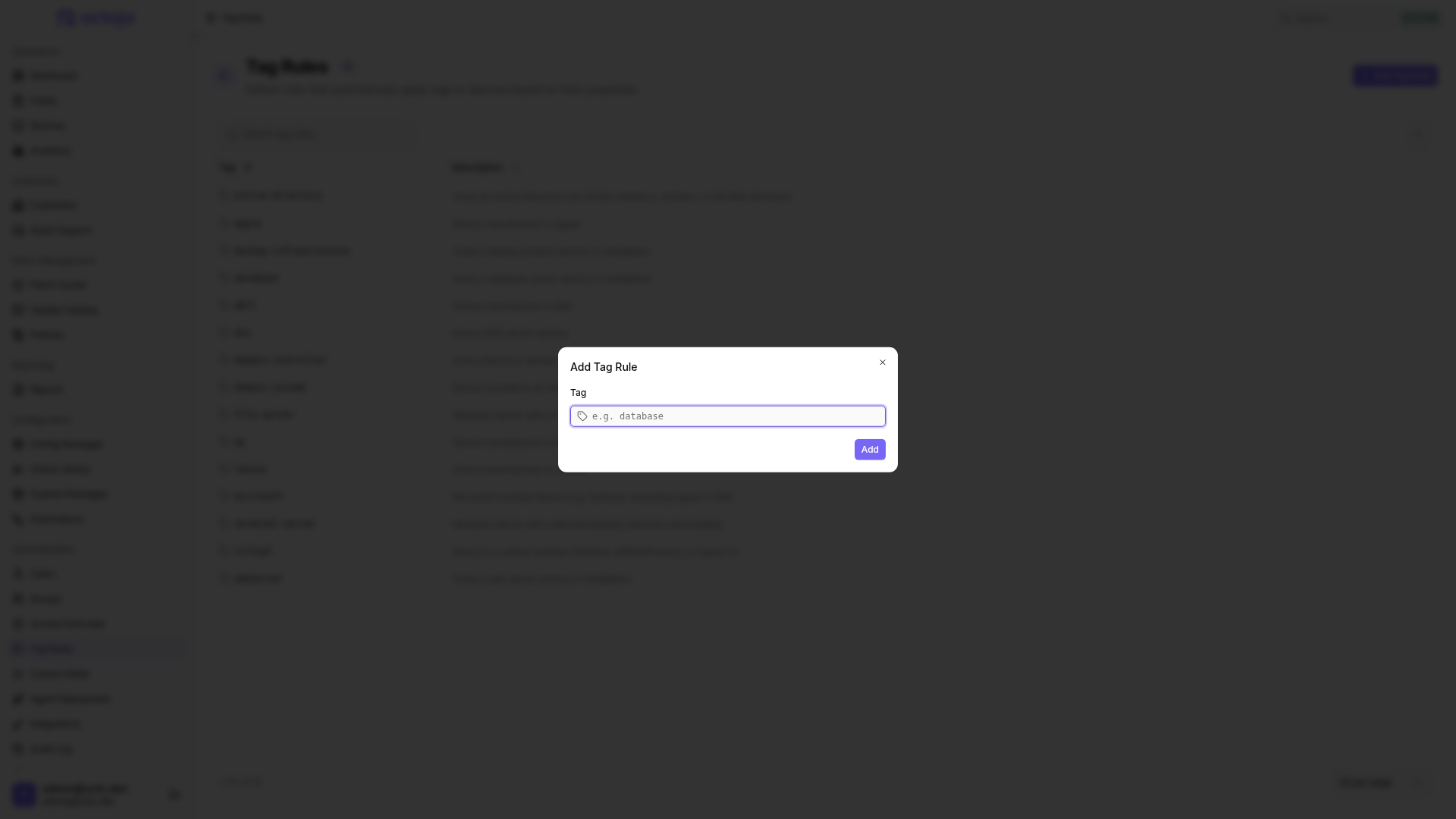
- Click Add Tag Rule.
- Enter the Tag this rule applies. Lowercase letters, digits, and hyphens only (e.g.
database,site-berlin,pci-scope). - Click Add. octoja creates the tag rule with no conditions yet — it starts matching devices once you add the first condition.
- You land on the rule's detail page. Under Rules, define the conditions a device must satisfy for the tag to be applied. Optionally, click the description subtitle to add a short note explaining what the rule does, so the next admin understands why a device was tagged.
Defining conditions
Conditions are built from device properties octoja already inventories — operating system, customer, hostname, installed software, hardware. Within a single group, conditions are joined with and (every condition must be true). Add a second group to express OR (at least one group matches). Nest groups for more complex shapes:
- One group, joined with and: OS family = Windows AND service “MSSQLSERVER” is present
- Two groups, joined with OR: hostname starts with BERLIN- OR site = Berlin office
For Windows Server, use Server role or feature. Open the value picker and search by the display name of an inventoried role, role service, or feature, such as DNS Server. octoja lists only entries from servers you may access, includes their device counts, and stores the internal Windows name such as DNS when selected. The rule matches that internal name; a device without matching server-feature inventory does not qualify. In the advanced editor, the same condition is ServerFeature EQUALS "DNS".
Use Add value to enter several values within one condition, except for Yes/No fields. Positive operators match any listed value: device kind is Windows Server or Windows Workstation. Negative operators exclude all listed values: device name contains neither TEST nor LAB. This does not change the and/or relationship between separate conditions. These multi-value conditions are also available in configuration-package assignment rules.
For very complex shapes, switch to Advanced editor to write the rule in octoja Query Language (OQL) directly. Nested groups are edited in advanced mode.
OQL uses the same rule fields as the visual editor.
When does the tag appear?
Saving a rule applies it straight away: octoja tags every device that already matches, without waiting for the next inventory run. From there the rule is re-evaluated on every inventory update:
- Devices that start matching later (e.g. a service installed, a machine renamed) get the tag when they next push inventory.
- Devices that stop matching (e.g. service removed, hostname renamed) lose the tag on their next inventory update.
- The rule's own detail page lists the devices that currently match, right next to the conditions. The list refreshes as you edit, so you can see what a change catches before you save it.
Editing and deleting rules
Open a rule from the list to edit its conditions or description. Tag and tag-rule conditions take effect as soon as you save — octoja reconciles the tag across the fleet straight away.
To remove a rule, scroll to the Danger Zone on the rule's detail page and click Delete Rule. octoja confirms how many devices currently carry the tag — deleting the rule removes the tag from every one of them, so review the count before confirming.
Tips
- Tag names are lowercase, dashes, and digits only — pick descriptive names (
workstation-financebeatswsfat the cost of a few extra characters). - Tags from rules and tags from manual edits live in the same namespace. Manually adding a tag to a device that also matches a rule keeps the tag stable; removing a rule still keeps any manually-added tag.
- Use the matched-device list on the rule's detail page as a sanity check after a rule change — an unexpected drop suggests a condition is now too strict. For a fleet-wide view, Inventory → Tags lists every tag with its device count and its Source — Own for a manually set tag, From rule for one a tag rule applied. Click a count to open the matching device list.
- The keyboard shortcut
Ctrl+Ncreates a new rule from the Tag Rules page.
FAQ
Can I rename a tag later?
Can I rename a tag later?
For a tag assigned by a rule, open the rule under Administration → Tag Rules, change the tag name in the title, and save. The rule then assigns the new name to matching devices. This does not rename manually assigned tags or tag conditions in configuration packages and other rules. Review and update those references yourself before you stop using the old name.
Can a tag rule match a particular application version?
Can a tag rule match a particular application version?
No direct application-version condition is available. Application EQUALS "Mozilla Firefox" matches the inventoried application name, not its version; OQL does not add arbitrary inventory fields. Compare reported versions in the software inventory.
How do I exclude a service, and does its running state matter?
How do I exclude a service, and does its running state matter?
In the Advanced editor, use Service NOT EQUALS "ServiceName" or Service != "ServiceName". Join multiple exclusions with AND and review the matching devices before saving. Use the service's name from inventory, not its display name.
Service tests whether that name is present in inventory. A stopped service still counts as present; the rule does not test its current running state.
Was this helpful?
Still need help? Ask the team