Users and Groups

How Users, Groups & Permissions Work

How users, groups, permissions, and customer and device access work together — with every permission, device action, and user field for lookup.

In octoja, groups control all access. A group decides three things: which features its members can use (permissions), which customers they can reach (customer access), and which of those customers' devices they can reach and what they may do there (device access). There are no fixed roles — you build your access model from groups that match how your team works.

Users

A user is a person who signs in to octoja — with a password, optionally with two-factor authentication, or through SSO (see How sign-in works). Users hold no permissions of their own; they get everything through their groups. A user with no group membership can sign in and view their own profile, but reaches nothing else in octoja.

You manage users under Administration → Users with the User Management permission. A user account consists of these fields:

FieldTypeRequiredDefaultDescription
EmailEmailYes—Unique email address, also used as the login name.
First NameTextNo—User first name.
Last NameTextYes—User last name.
Mobile NumberTextNo—Number used for SMS and calls. App push targets registered app devices and does not require a mobile number; see Mobile notifications. Preferably in international format with country code. Users can set their own under My Profile.
Remote Support Display NameTextNoTechnician name template, otherwise the user's nameShown on the customer's device during remote support in place of the user's name. Set by an administrator on the user detail page.
PasswordTextNoNot setOptional password, at least 8 characters. Without a password, the user can only sign in via linked logins; an administrator can set one later.
GroupsMulti-selectNoNoneGroup memberships that grant permissions. Set in the Invite User dialog, or on the group under Administration → Groups.
Two-Factor AuthenticationSetup dialogNoDisabledTime-based one-time password (TOTP) second factor. Set up by scanning a QR code — from the user's own profile, or by an administrator on the user detail page.
Linked LoginsListNoNoneExternal identity-provider links (e.g. Microsoft Entra ID, Google) bound to this user.

The user detail page holds Mobile Number, Remote Support Display Name, Password, Two-Factor Authentication, and Linked Logins. Group membership is not edited there but on the group. For API access, see Users API.

Groups

A group bundles permissions with a customer access and a device access scope. A user can belong to several groups; their effective access is the union of all their groups. If Group A grants Case Management and Group B grants Monitoring Check Management, for example, the user gets both. No group can take away access that another group grants.

You manage groups under Administration → Groups with the Group Management permission. The group editor has four tabs:

TabContents
GeneralName, the Administrator group toggle, and the group's Members.
PermissionsThe access level for each feature.
Customer AccessWhich customers members reach.
Device AccessWhich devices members reach and which actions they may perform there.

A newly created group grants nothing: no permissions, no customers, no devices. Membership is edited on the group; the user list under Administration → Users shows each user's groups.

Administrator groups

A group can be marked as an Administrator group. Its on-screen description reads: "New permissions introduced in future updates are granted to administrator groups automatically." Enable it on your full-access group so it never falls behind when an octoja update adds a new permission.

The flag also unlocks instance-wide areas that no permission covers. Only members of an administrator group can reach — regardless of their other permissions:

  • Administration → Audit Log (see The audit log)
  • under Administration → Settings, the pages Agent enrollment policy, Authentication, Active alarms, Beta features, Custom Domain, Email sender, and Remote support

Manually resolving alarms on Active alarms requires membership in an administrator group plus Manage Alert Configurations.

Group Management protection

octoja ensures that at least one user always keeps the Group Management permission (groups.manage). You may remove it from yourself as long as someone else still has it; a change that would leave no user with it — by editing or deleting a group, emptying its members, or deleting a user — is blocked. Other permissions, including User Management, are not protected. Be careful when removing them from your own groups.

Permissions

Permissions decide which features a group's members can use. The Permissions tab arranges them in six areas, and every row carries a selector rather than a checkbox:

  • Six rows are graduated — Customers, Cases, Patch Management, Reports, TV View, and Automations. They offer No access, Read, or Read & write. Read & write always grants the read permission as well.
  • Every other row offers No access or Enabled.
  • Indented rows (marked ↳ in the tables) extend the row above and can only be set once that row has at least Read or Enabled.
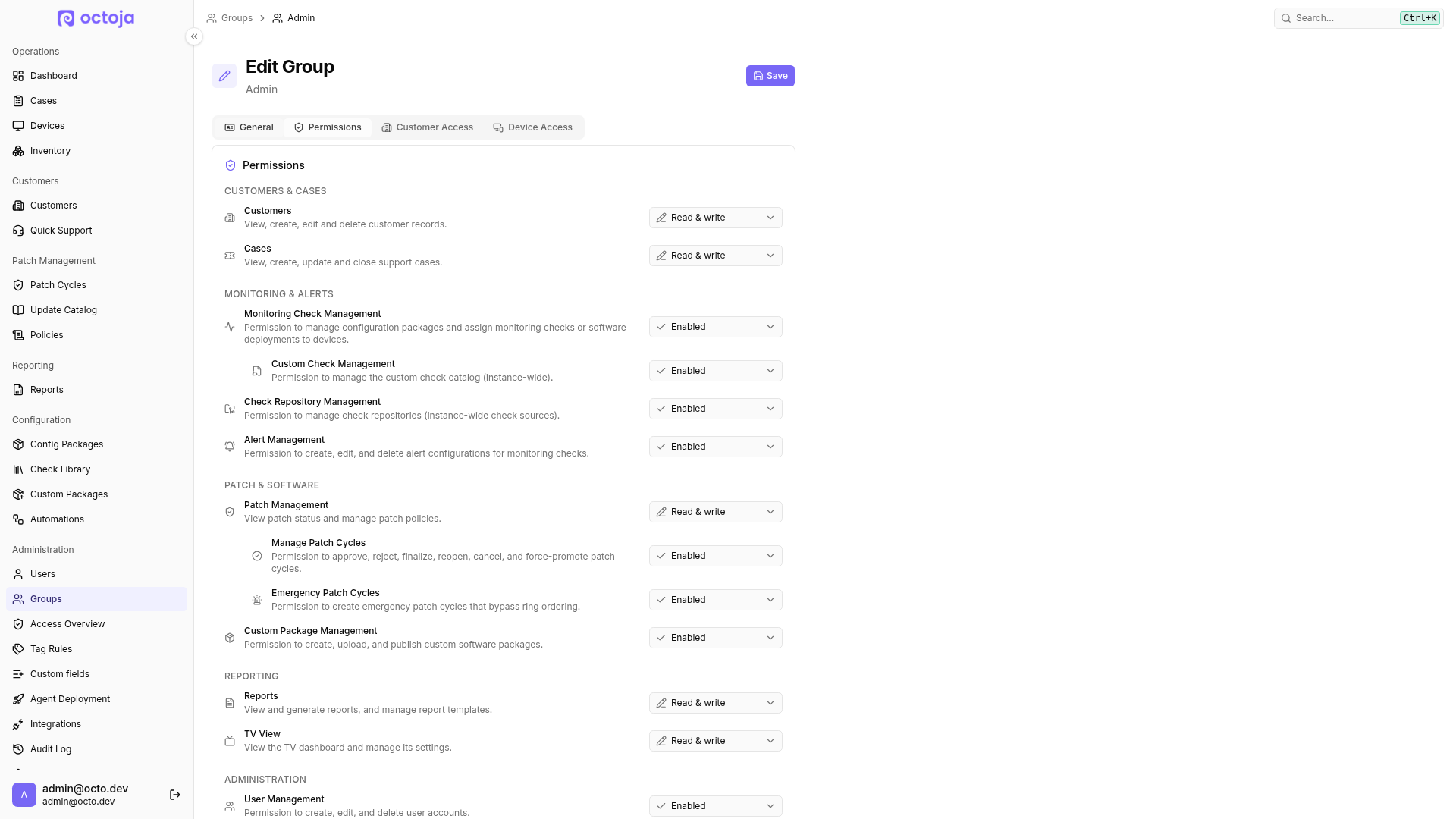
The Admin group's Permissions tab with access-level selectors grouped by feature area and the Save button.

The tables list the permission each level grants. The identifier appears in technical contexts such as the API.

Customers & Cases

Row and levelPermissionWhat it allows
Customers — ReadView Customers customers.viewView customers.
Customers — Read & writeCustomer Management customers.manageCreate, edit, and delete customers and their sites.
Cases — ReadView Cases tickets.viewView cases.
Cases — Read & writeCase Management tickets.manageCreate, edit, comment on, close, and delete cases.

Monitoring & Alerts

RowPermissionWhat it allows
Monitoring Check Managementmonitoring-checks.manageManage config packages and assign monitoring checks or software deployments to devices. Without it, Configuration → Config Packages is not accessible.
↳ Custom Check Managementcustom-checks.manageManage the instance-wide custom check catalog.
Check Repository Managementcheck-repositories.manageManage check repositories, the instance-wide sources of checks.
Manage Alert Configurationsalert-configs.manageCreate, edit, and delete alert configurations for monitoring checks.

Patch & Software

Row and levelPermissionWhat it allows
Patch Management — ReadView Patch Policies and Cycles patch-management.readView patch policies, cycles, and results.
Patch Management — Read & writePatch Policy Management patch-management.writeCreate, edit, and delete patch policies and manage blocked updates.
↳ Manage Patch Cyclespatch-cycles.approveApprove, reject, or defer updates and clear user decisions in upcoming patch cycles, and refresh or cancel those cycles.
↳ Emergency Patch Cyclespatch-cycles.emergencyCreate emergency patch cycles that bypass ring ordering.
Custom Package Managementcustom-packages.manageCreate, upload, and publish custom software packages.

Reporting

Row and levelPermissionWhat it allows
Reports — ReadView Reports reports.viewView and generate reports.
Reports — Read & writeManage Report Templates and Schedules reports.manageManage report templates and schedules.
TV View — ReadTV View tv-view.viewView the TV dashboard.
TV View — Read & writeManage TV View tv-view.manageManage TV view settings, including alert sounds.

Administration

Warning: User Management and Group Management apply to the entire octoja instance; customer and device access do not restrict them. With Group Management, members can grant any permissions and access, mark groups as administrator groups, and change memberships — including expanding their own access. User Management allows changes to other users' accounts, including passwords, two-factor authentication, and linked logins. Grant both permissions only to trusted instance administrators.

Row and levelPermissionWhat it allows
User Managementusers.manageCreate, edit, and delete user accounts.
Group Managementgroups.manageCreate, edit, and delete groups, set their members, and open Access Overview.
Custom Field Managementcustom-fields.manageDefine and manage custom fields for customers and devices.
Agent Managementagents.manageManage agent enrollment settings and enrollment tokens.
Integration Managementintegrations.manageConfigure and manage third-party integrations such as Lywand, webhooks, and Teams.
MCP Usagemcp.useConnect and use MCP clients (see MCP: overview and access).
Branding Managementbranding.manageCustomize the instance's white-labeling.
Automations — ReadView Automations automations.viewView saved workflows and runs, run them, and cancel them. Manual runs also require the Run Script device action on the target device.
Automations — Read & writeManage Automations automations.manageCreate, edit, and delete workflows and test unsaved steps.

Tags

RowPermissionWhat it allows
Tag Rulestags.manageManage tag rules that automatically apply tags to devices.
Create Custom Tagstags.create-customCreate new custom tags. Users without this permission can only apply existing tags.

Customer access

Customer access decides which customers a group's members can see and work with. What they may do there is set by the permissions.

OptionMeaning
Access to all customersEvery customer in the organization, including customers added later.
Access to selected customersAn explicitly selected list of customers, regardless of the rules.
Access by rulesAdditionally every customer that matches the rules — by its customer tags (including partial matches with matches text and does not match text) or by a customer custom field. New matching customers are included automatically.

Selected customers and rules can be combined in the same group. Rules only grant access; a rule that excludes customers does not stop another group from granting them.

Device access

Device access refines what members reach within their accessible customers. A group with no customer access reaches no devices, whatever its device access says.

OptionMeaning
Access to all devicesEvery device of the accessible customers. If the group has Access to all customers, this also includes devices without an assigned customer.
Access by rulesOnly devices that match the rules. Without conditions, the group grants no device access.

Allowed actions decide what members may do on the devices they reach. A group that reaches devices but has no allowed actions gives read-only device access: members can see the devices but cannot act on them.

ActionWhat it allows
Service ControlStart, stop, and restart Windows services.
Process ControlView and terminate running processes.
Remote DesktopStart an interactive remote desktop session.
TerminalOpen a remote terminal or shell.
RegistryBrowse and edit the Windows registry.
File BrowserBrowse, download, and upload files on the device.
Software ManagementInstall, update, and remove software.
Event LogView and export the device event logs.
Run ScriptExecute scripts on the device.
Run MaintenanceTrigger maintenance tasks on the device.
Edit DeviceEdit device name, alias, and tags.
Delete DeviceRemove the device from the organization.
Send NotificationShow a message on the signed-in user's screen.
Bypass Remote-Desktop ConsentConnect even when the user declines consent on a consent-required device.
Active DirectoryView, disable, and delete Active Directory users on domain controllers.
VMware managementPower virtual machines on and off on ESXi and vCenter hosts.
Wake DeviceSend Wake-on-LAN packets through an online peer agent at the same customer location.
Local user managementCreate local user accounts and enable, disable or change the password of an existing one.
Maintenance modePut a device into maintenance mode to pause its checks, automations, and alerts.
Hyper-V managementManage Hyper-V VM power states and checkpoints. Reading VM details also requires Run Maintenance. The feature must be enabled for the instance separately from this action; the linked guide explains enablement.
Proxmox VE managementStart, stop and snapshot virtual machines and containers on Proxmox VE hosts.

How restricted customer access affects configuration packages, automations and patch policies that span several customers is described under Shared configurations.

Access Overview

The Administration → Access Overview page shows the combined result of every group — who can reach which customers and devices, and why. It requires the Group Management permission and offers three views: By user, By customer, and By device. For each entry you see the customers and devices in reach, the Allowed actions column (with an All badge when every action is allowed), and the reason: which group grants the access and whether it applies to all customers, to all devices, through an explicit assignment, or through a rule.

Example groups

These examples are for orientation only — you can combine permissions and access in any way.

GroupPermissionsCustomer and device access
AdministratorsAll, with the Administrator group toggle onAccess to all customers, Access to all devices, all actions
TechniciansCustomer Management, Case Management, Monitoring Check Management, Manage Alert Configurations, Patch Policy Management, Manage Patch CyclesAll customers and devices with operational actions such as Remote Desktop, Terminal, File Browser, and Software Management
Help Desk (one customer)View Customers, Case ManagementOne selected customer, its devices read-only (no allowed actions)
Read OnlyView Cases, View Patch Policies and CyclesAs needed, no allowed actions