Restrict a Group's Customer and Device Access
Scope a group to specific customers and devices and limit what its members may do, using the Customer Access and Device Access tabs.
A new group reaches no customers and no devices until you set its access. Decide deliberately which customers its members see, which of those customers' devices they reach, and what they may do there — for example, a help desk that may only start a remote-desktop session on one customer's workstations. How customer and device access work together and what each action allows is explained in How Users, Groups & Permissions Work.
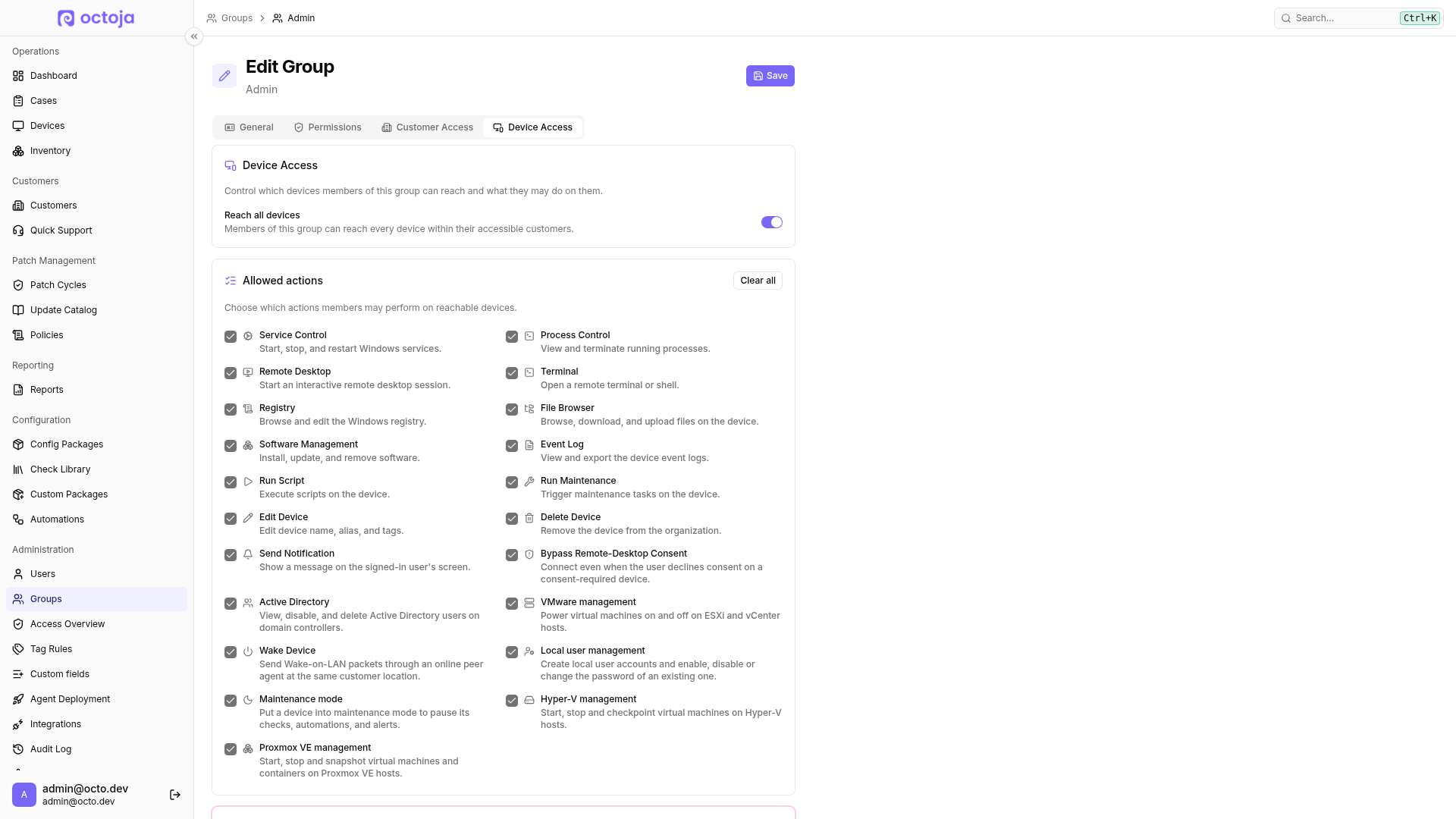
The image shows an administrator group with broad device access. The help-desk example below uses different settings.
Prerequisites
- You need the Group Management permission.
- Have a group ready. To create one, see Create a Group and Assign Permissions.
Restrict customer access
Go to Administration → Groups and open the group.
Open the Customer Access tab.
Make sure Access to all customers is off — on a new group it already is — then grant access deliberately:
- Access to selected customers — pick an explicit list of customers.
- Access by rules — add conditions that match customers by their customer tags or by a customer custom field. New matching customers are included automatically.
You can combine both in the same group.
Restrict device access and actions
Device access only applies within customer access: a group that reaches no customers reaches no devices either.
- Open the Device Access tab.
- Choose which devices members reach: turn Access to all devices on to cover every device of the accessible customers, or leave it off and add conditions under Access by rules. Until you do one of the two, the group reaches no devices.
- Under Allowed actions, select only the actions members should perform — use Select all or Clear all to set them in bulk. Leaving the list empty gives read-only device access.
- Click Save.
Example: a help desk for Windows workstations with remote desktop
Say a help-desk team should reach one customer's Windows workstations, read cases, and start remote-desktop sessions to help users. Configure the group like this:
This group grants access to the selected customer and its Windows workstations. To include Linux desktops or Macs, add Device Class → is → Linux Desktop or Device Class → is → macOS conditions as needed, joined to the Windows condition with OR.
Warning: Remote Desktop is interactive. Members can change the device within the rights of the connected operating-system session. For read-only device access, leave Allowed actions empty. Cases: Read & write would also allow creating, editing, and deleting cases in reach; it is not a permission solely for logging work.
Check the result
Open Administration → Access Overview, choose By user, and select a member of the group. The overview shows the customers and devices in reach, the Allowed actions, and which group grants the access — so you can check the effective access from all group memberships. Other groups can grant additional customers, devices, actions, and permissions; this group cannot revoke them.
Shared configurations
Rule-based configuration packages, automations and patch policies can span several customers. With the required read permission, you can see them when they cover at least one customer you can access or apply to all customers. This lets you understand the shared settings affecting your devices.
If your customer access does not cover the entire scope, a lock and Read-only appear. Changes require both the relevant management permission and access to every affected customer. An all-customer configuration requires Access to all customers; an explicit list of today's visible customers does not replace it. Customers outside your scope are not exposed. Patch results, update lists and device counts remain restricted to devices you can access.
Ask someone with the appropriate scope to change a read-only shared configuration rather than simply granting more action permissions. When creating a configuration without access to all customers, you must select customers. You cannot use a read-only configuration package as a cloning source.
FAQ
How do I grant access to all customers except specific internal customers?
How do I grant access to all customers except specific internal customers?
First give the customers to exclude a customer tag, such as internal. In the group's Customer Access tab, turn off Access to all customers. Under Access by rules, add the condition Customer Tags → does not contain → internal. The group then reaches customers without that tag — including newly created customers until they receive the tag.
This is not a global deny rule: Access to selected customers, other matching rules, or other groups can still grant access. Check Access Overview for the affected employees before relying on the exclusion.
Related articles
Was this helpful?
Still need help? Ask the team