Show or Hide the octoja Agent Tray Icon on Managed Devices
Control whether the octoja agent icon shows in the system tray on managed devices — set it for a group via a config package, or override it per device.
On managed Windows and macOS devices, the octoja agent can show an icon when a user is signed in to the graphical desktop — in the Windows system tray or the macOS menu bar. The person using the device can reach its self-service features through that icon. Linux has no such entry point; the agent runs in the background. You control whether that icon appears. Show it where users need the software kiosk or want a visible sign that the device is managed; hide it where you want the agent to run quietly in the background. This guide walks an administrator through switching the tray icon on or off — for a whole group of devices through a config package, or for one device on its own.
Before you start
- To change agent settings across a group of devices, you need the Monitoring Check Management permission to open and edit config packages. It is granted per group under Administration → Groups.
- To change the setting on a single device, you need permission to manage that device. Device permissions are also granted per group under Administration → Groups.
- The octoja agent must be installed on the target devices, and — for the config-package method — a config package that matches the devices you want.
Show or hide the icon for a group of devices
Use a config package to set the tray icon for every device the package matches.
- Go to Configuration → Config Packages and open the package that matches the devices you want.
- Open the Agent tab and find the Agent settings card.
- Turn Show agent in system tray on to show the icon, or off to hide it. Its hint reads: "Show the octoja agent icon in the system tray on matched devices."
- Save the config package.
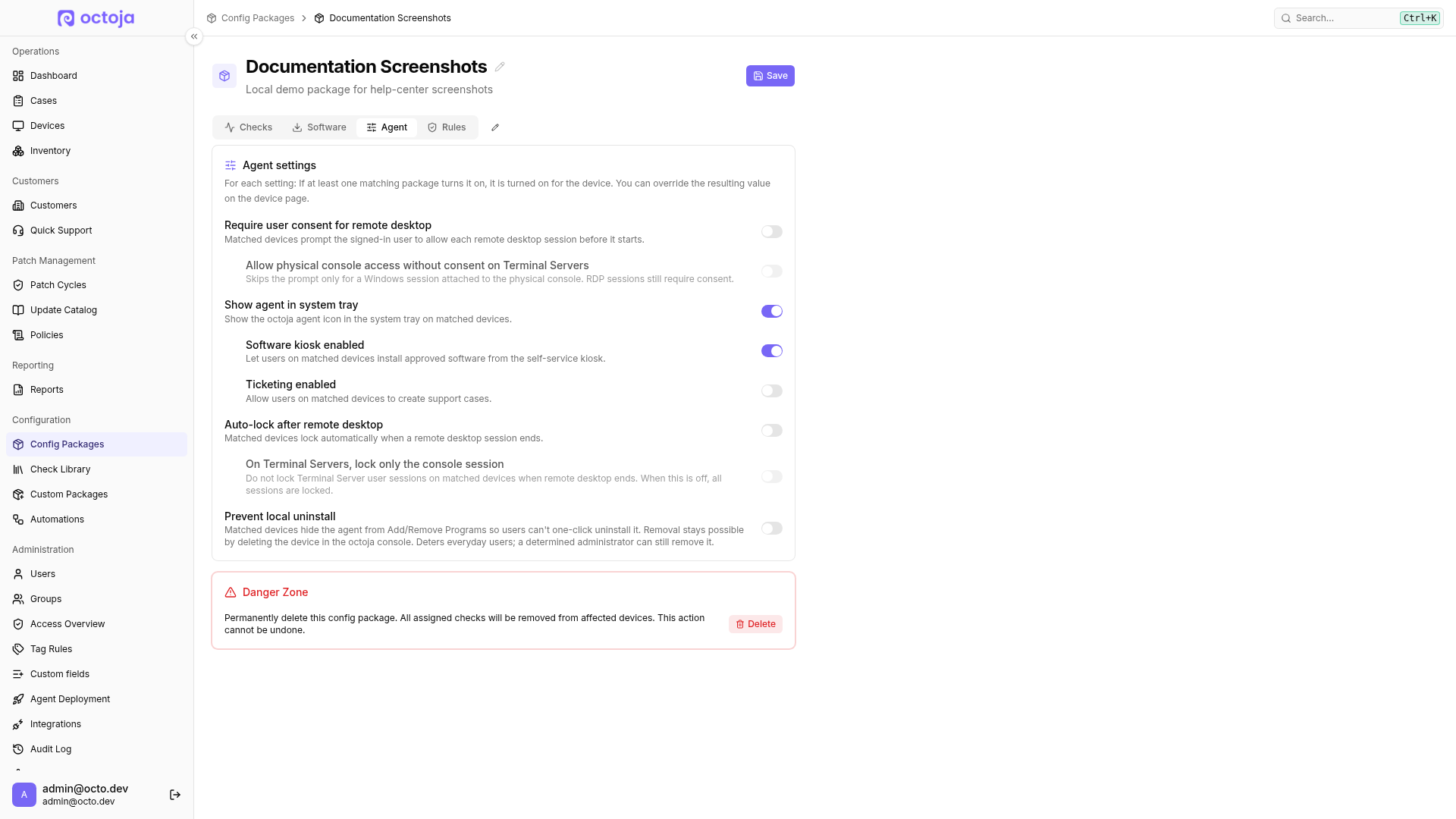
Every device the package matches picks up the setting. A device ends up with the icon shown if any of its config packages turns it on, so set the rule once and it follows your fleet.
Override the icon on a single device
You can set the tray icon for one device without changing its config packages — useful for a one-off exception.
- Open the device from Devices.
- From the device's action menu, choose Agent settings.
- Set Show agent in system tray to the value you want. Each agent setting offers three choices:
- Click Save.
What the tray icon gives users
When the icon is shown, the person using the device can open the octoja agent from the system tray to reach its self-service features — most notably the Software Kiosk, where they can install approved software themselves. Because those features reach people through the icon, a device needs Show agent in system tray on for users to use them. Each feature then has its own setting alongside the tray one — turn on Software kiosk enabled to put the software kiosk in the agent, and Ticketing enabled to let users raise support cases from the device. Both sit directly below Show agent in system tray in the same Agent settings card and in the per-device dialog, and both become editable once the tray setting is on. Hiding the icon keeps the agent running and reporting exactly as before — it only removes the visible entry point on the device.
Tips
- Prefer the config-package setting to manage the tray icon across a group at once, and reserve the per-device override for individual exceptions.
- Hiding the icon does not remove or stop the agent. Monitoring, remote access, and inventory keep working — see Remove the Agent from a Device if you actually want to uninstall it.
- Wherever you plan to offer the software kiosk, turn the icon on and switch Software kiosk enabled on as well — the icon opens the agent, and that setting puts the kiosk inside it.
FAQ
Why are several agent interfaces running on a terminal server?
Why are several agent interfaces running on a terminal server?
The agent service runs once per device. On Windows, octoja also starts the agent interface (Octo.Tentacle.Ui.exe) for each signed-in interactive user session. This includes disconnected RDP sessions until the user signs out. Multiple UI processes therefore do not mean the agent was installed more than once.
Show agent in system tray controls only the icon's visibility. Turning it off does not terminate the UI processes and is not a setting for reducing their resource usage. The interface also handles consent dialogs and the indicator for active remote-desktop sessions, independently of the tray icon.
Which language does the agent interface use on the device?
Which language does the agent interface use on the device?
The agent interface on Windows and macOS uses the operating system display language of the signed-in user, not your octoja user's language in the browser. This applies to built-in menus and dialogs, including restart notifications. German, English, French, Spanish, Italian and Dutch are available; other languages fall back to English.
Was this helpful?
Still need help? Ask the team