Enable Two-Factor Authentication for a User
Set up 2FA or use the User Management permission to reset a lost authenticator, even when 2FA is mandatory.
Two-factor authentication (2FA) adds a second layer of security to an octoja account — after entering a password, the user also needs a code from an authenticator app on their phone. octoja supports two paths: every user can set up 2FA on their own account, and administrators can enable 2FA for someone else, or remove an existing 2FA setup so the user can enroll again with a new device.
What you need
- An authenticator app on your phone (Google Authenticator, Microsoft Authenticator, or Authy)
What is an authenticator app? A free phone app that generates a new 6-digit code every 30 seconds. Install any TOTP authenticator from your device's app store if you don't already have one.
Set up 2FA on your own account
This is the self-service path. Any user can secure their own account from their profile page.
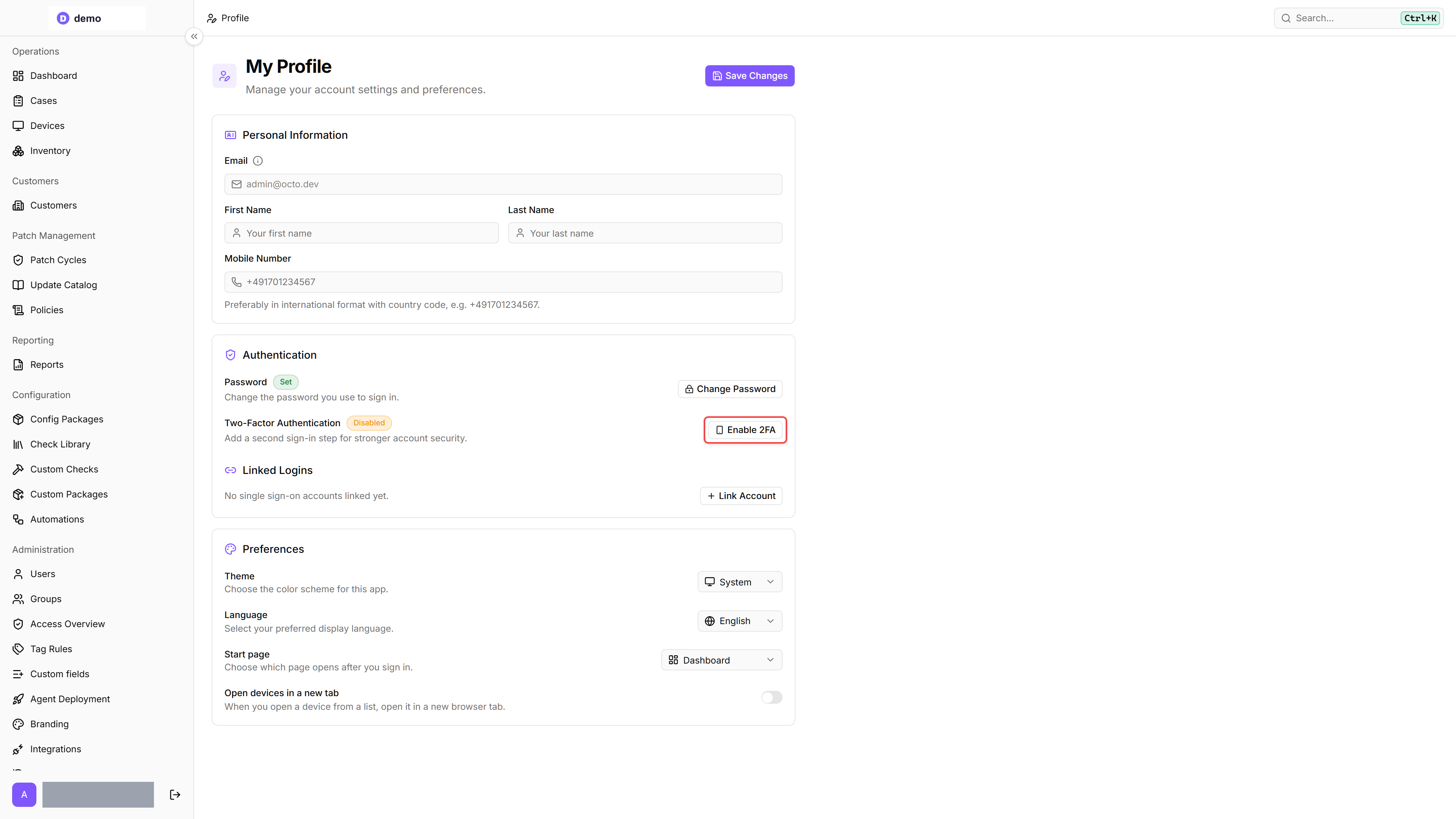
- Click your name at the bottom of the left sidebar to open your profile.
- Scroll to the Authentication section.
- Click Enable 2FA.
- Scan the QR code (or enter the Manual entry key) with any TOTP authenticator app — Google Authenticator, Microsoft Authenticator, 1Password, Authy, and so on.
- Enter the 6-digit code from your app.
- Click Verify & Enable. 2FA is now active on your account.
Can't scan the QR code? The setup dialog also shows a Manual entry key — enter this key manually in your authenticator app instead of scanning.
From the next sign-in onward, you will be asked for a code from your authenticator app in addition to your password.
Require 2FA for every user
Members of an administrator group can enable Require two-factor authentication under Settings → Authentication and apply it with Save. Users without an authenticator must then complete setup during their next sign-in, including SSO sign-ins.
If there is no instance-wide 2FA requirement, you can remove an existing setup using Disable 2FA in Authentication and Remove 2FA in the confirmation dialog. You can then follow the setup steps above to enroll a new device.
When 2FA is mandatory, you cannot remove your authenticator through your profile. Ask someone with the User Management permission to reset it through user management.
Admin: enable or remove 2FA for another user
With the User Management permission, you can set up 2FA for another user or reset their authenticator. Reset is also available when 2FA is mandatory. The instance-wide requirement stays enabled. Before resetting, verify that the request really comes from the affected user.
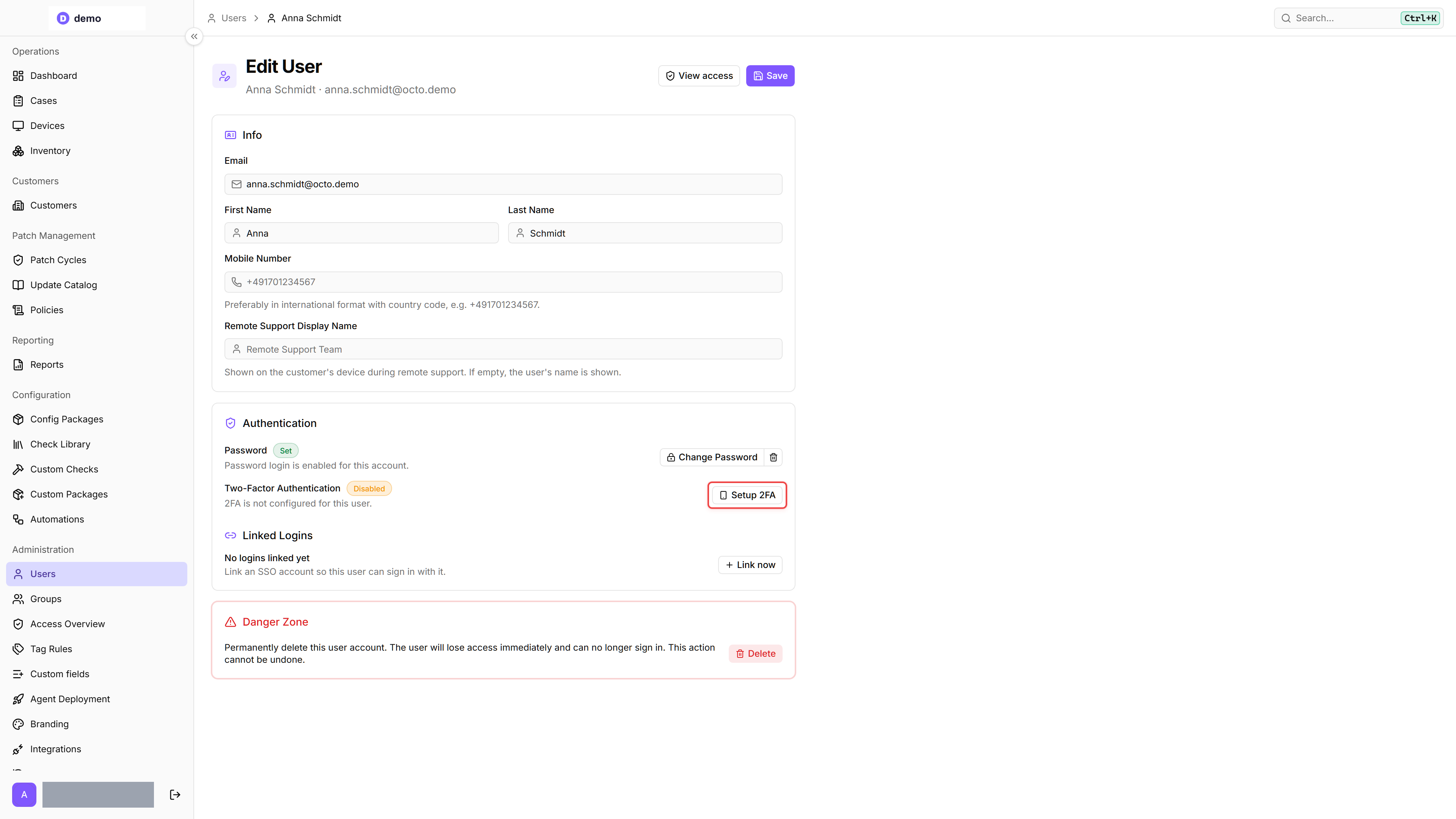
- Go to Administration → Users in the left sidebar.
- Click the user whose 2FA you want to enable or remove.
- To reset the authenticator, click Remove 2FA, then confirm the dialog by clicking Remove 2FA again.
- When 2FA is mandatory, the user then signs in with their password or SSO. Before sign-in completes, they must set up a new authenticator and enter a valid code from it. Without mandatory 2FA, they can sign in without an authenticator and set up 2FA again through their profile.
For assisted initial setup, you can still choose Setup 2FA and have the user scan the QR code and enter the verification code.
The reset is recorded in the audit log as Authenticator reset. Existing sessions remain active, and SSO sign-ins already in progress can complete the new setup. Resetting does not sign out all sessions.
Previously issued access tokens remain valid until they expire. When 2FA is mandatory, however, token refresh is blocked after the reset (HTTP 403) until the user verifies the new authenticator with a valid code. Token refresh becomes available again afterward.
Lost your phone?
If you lose access to your authenticator app, ask someone with the User Management permission to reset your authenticator using the admin path above. You can then set it up again with a new device without disabling mandatory 2FA for everyone.
Tip: Some authenticator apps (like Authy or Microsoft Authenticator) support cloud backup, which lets you restore your codes on a new phone. If your app offers this, enable it during setup to protect yourself in case your phone is lost or replaced.
Was this helpful?
Still need help? Ask the team