Reset Your Password
Change your own password from your profile, or have an administrator reset it if you are locked out
If you are signed in to octoja, you can change your own password from your profile page. If you are locked out and cannot sign in, your administrator can reset your password for you.
Change your own password
- Click your name/avatar at the bottom of the left sidebar to open your profile.
- Scroll to the Authentication section.
- Click Change Password.
- Enter your Current Password.
- Enter a New Password. The minimum length is 8 characters.
- Re-enter the new password under Confirm New Password.
- Click Change Password.
Your new password takes effect immediately.
Note: The Change Password button only appears if your account already has a password set. If you sign in exclusively via Microsoft SSO, you may not have an octoja password.
Note: If your account has both a password and at least one linked Microsoft sign-in, a remove icon appears next to Change Password. Click it and confirm with Remove Password to sign in through SSO alone from then on. An administrator can set a new password for you later.
Note: Your email address is shown on the profile page but cannot be edited there. Only an administrator can change your email address.
If you are locked out
Contact your octoja administrator and ask them to set a new password for your account. They can do this at any time, using the administrator steps below.
If your organisation uses Microsoft sign-in (SSO), try clicking Continue with Microsoft on the login page instead. SSO does not require an octoja password.
For administrators: changing a user's password
- Go to Administration > Users.
- Click the user whose password needs to be changed.
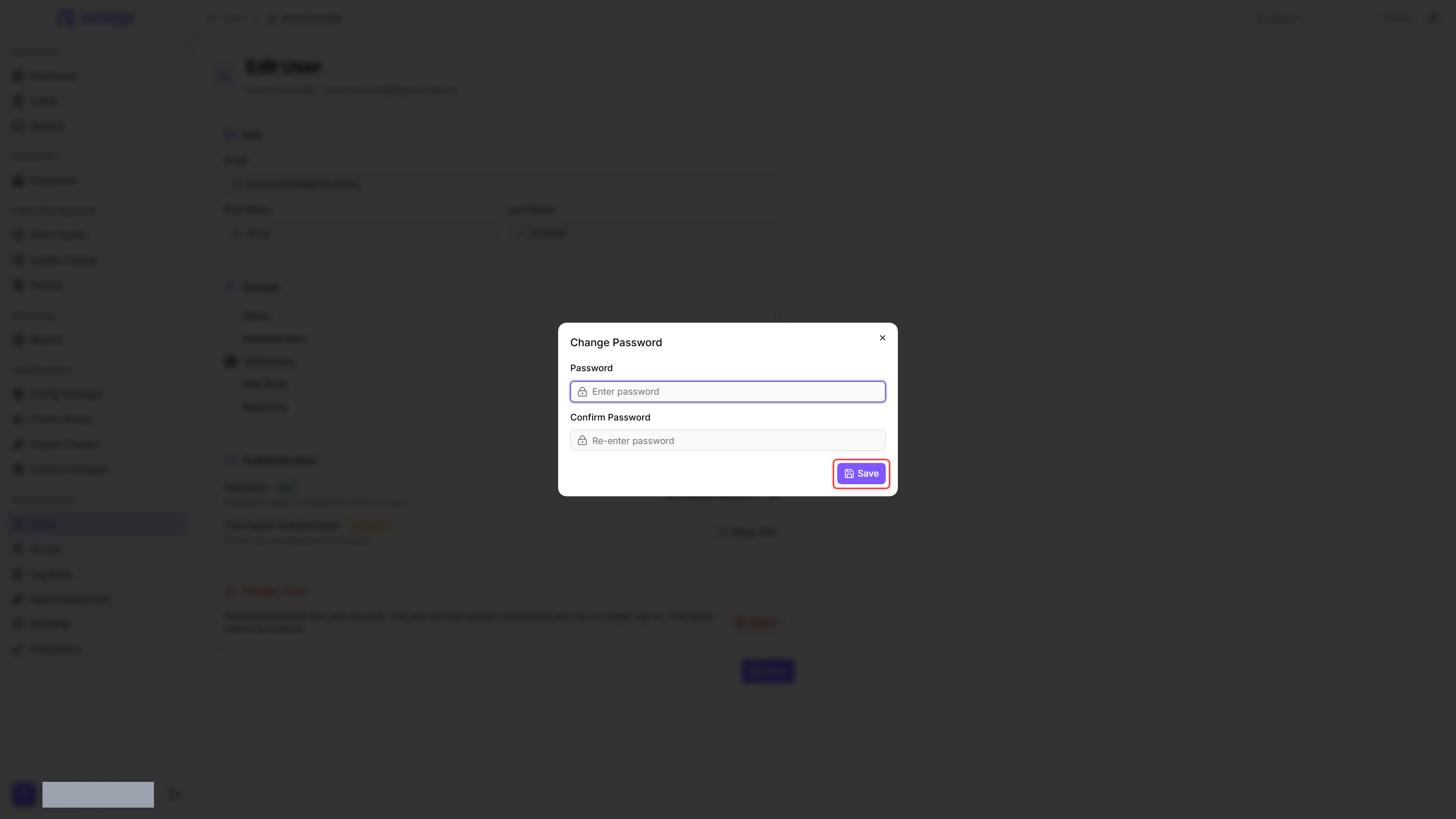
- Click Change Password (or Set Password if the user has no password yet).
- Enter the new password under Password. Minimum length is 8 characters.
- Re-enter the same password under Confirm Password.
- Click Save.
The user can now sign in with the new password immediately.
Tip: If the user signs in exclusively via Microsoft SSO, they may not need an octoja password at all. You can remove a user's password from the same page — they will then sign in only through their linked SSO provider. Users who have a linked SSO login can also remove their own password from their profile page.
Related articles
- How sign-in works — how passwords, TOTP, and SSO work together in octoja
- Create a User — setting up a new user account, including password and group assignment
- Configure Microsoft SSO (OIDC) — connecting octoja to Microsoft Entra ID for single sign-on
Was this helpful?
Still need help? Ask the team