Start Quick Support
Create a download link and start Windows remote support with consent from the person at the device.
Use Quick Support to help someone on a Windows device with Remote Desktop, Terminal, Registry and Event Log without installing the full agent. The person at the device approves these tools together for the current connection.
Quick Support clients are not billed. A Quick Support connection does not turn the device into a regularly installed agent.
Prerequisites
This feature must first be enabled for your octoja instance. An administrator enables QuickSupport under Settings → Beta features.
- The target device needs Windows on x64 and an internet connection to your octoja instance.
- Creating a download link requires Agent Management. Each tool requires its corresponding device action and access to the assigned customer or device; consent does not replace these permissions.
- Someone must start the application and approve the connection at the target device.
Create a download link
- Open Quick Support and select Get download link.
- Optionally assign a customer and choose an expiry date. The suggested expiry is 30 days. Enable Link never expires for a permanently valid link.
- Select Create link and send the download link to the person you want to help.
- Ask them to run the downloaded EXE file. They do not need to install the full agent.
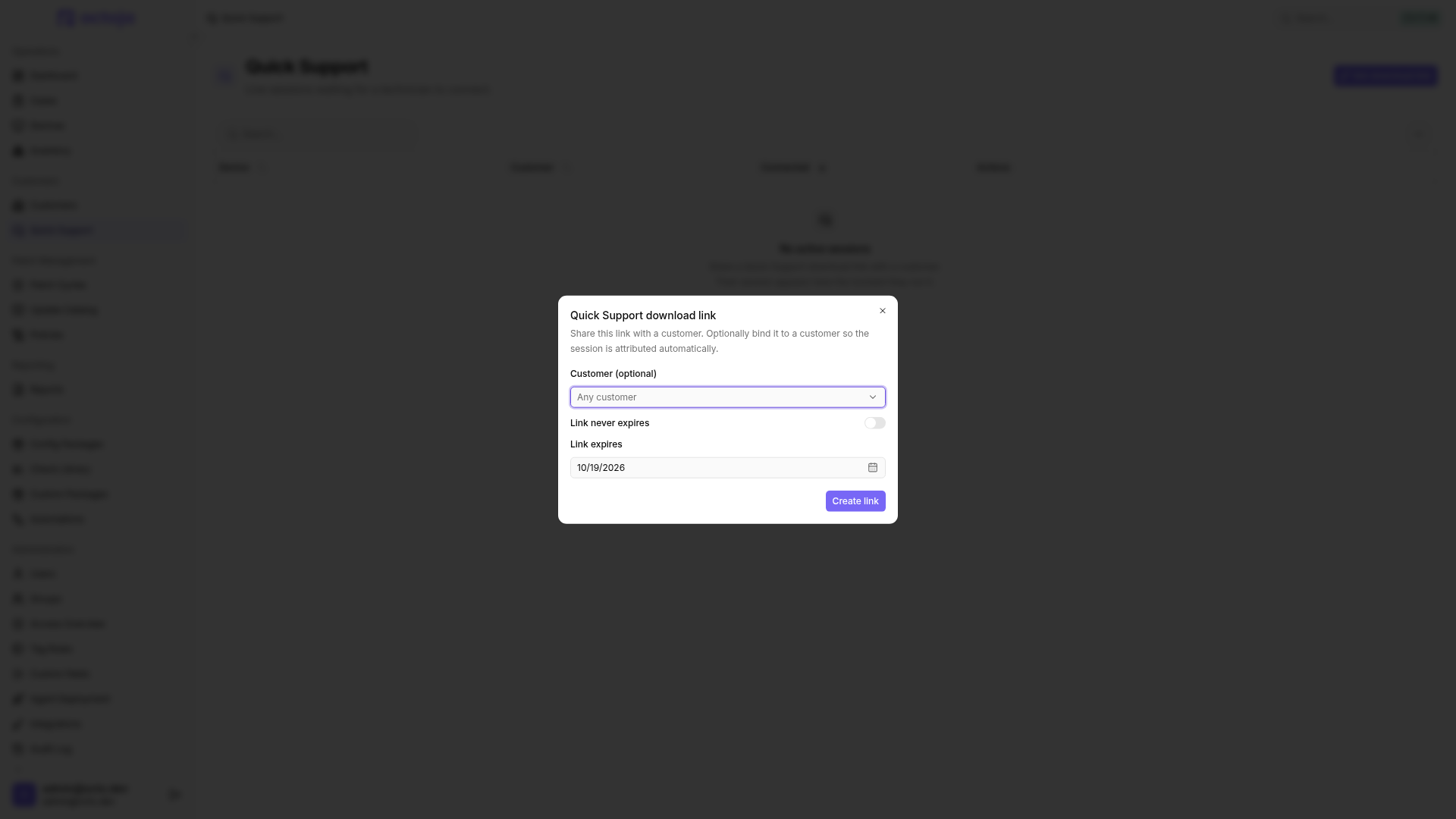
The link downloads the latest Quick Support version compatible with your octoja instance. Its connection information also accounts for a configured custom domain. Customize the application's name and logo under White-labeling.
Treat the download link and EXE file as sensitive. The filename contains the connection information: do not rename it. If the original filename has been lost, download it again using the original link. Create a new link if it has expired.
If you no longer want the link to be used, revoke the link's enrollment token. This prevents new downloads through the link and new enrollments using the EXE file. Revocation does not end an active support session; the person at the device selects End session to do that.
You can reuse the link and EXE file; ending a session does not consume them. The expiry date also applies to new sessions started with an EXE file you downloaded earlier. If the associated token has expired or been revoked, you need a new link and download.
Connect and end the session
- Wait until the application shows You're ready for support. The device appears in the online list under Quick Support, not in the normal device fleet.
- Open the device's toolbox and select the tool you need.
- The person at the device chooses Allow or Decline. The request includes your display name when available. Permission to bypass the normal consent prompt does not bypass Quick Support consent.
- The first tool request obtains approval for Remote Desktop, Terminal, Registry and Event Log together. Other tools need no additional prompt during the same connection. They all use the Quick Support application's current Windows permissions; the terminal does not offer user-context switching. File Explorer is unavailable.
- The person at the device can choose End session. To end Quick Support completely, they close the application; the device is not retained as a permanently managed device.
Approval expires when the connection ends. A new connection requires fresh approval.
During a Remote Desktop connection, the session indicator shows available names of connected technicians.
If no device appears, first check that the application is still running, your octoja instance is reachable and the download link is still valid.
FAQ
What happens if the consent prompt is declined or expires?
What happens if the consent prompt is declined or expires?
Once the consent prompt appears, the person at the target device has 30 seconds to choose Allow. Choosing Decline or letting the time expire without approval closes the Quick Support application. The connection is not approved.
To try again, the person runs the EXE file again. Then request the tool again and ask them to approve the new prompt before it expires.
Was this helpful?
Still need help? Ask the team